
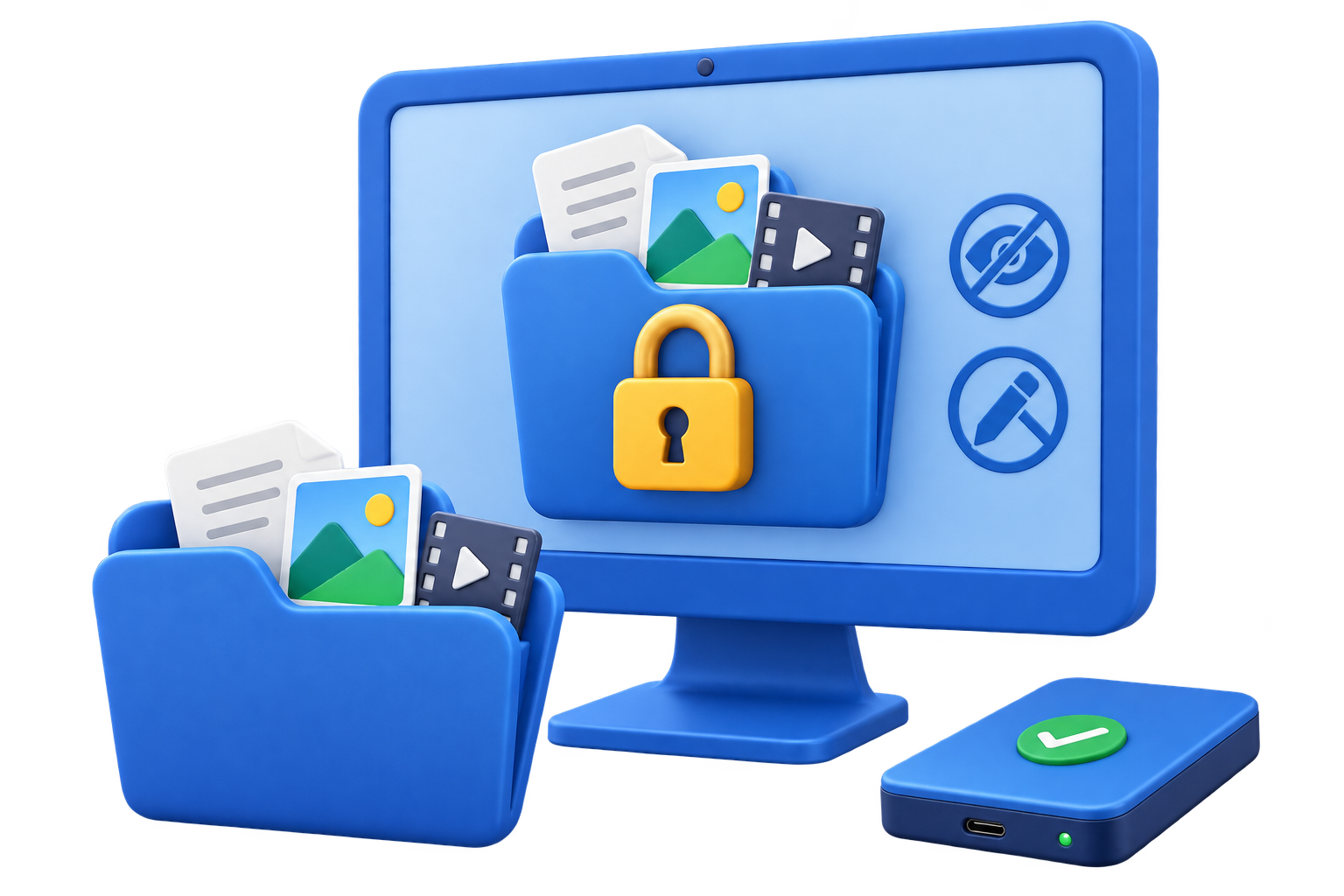
What to compare in file and folder lock software
Start with the data, devices, and people involved. A clear boundary makes the security setting easier to test and maintain.
Step-by-step workflow
Define the data risk
Decide whether users must be blocked from opening, seeing, editing, deleting, moving, or copying the content.
Check the storage locations
Confirm that the product supports local folders, external drives, shared folders, and the workflow you actually use.
Review password and recovery
Set a strong master password and document recovery before applying protection to production data.
Test access on a copy
Try opening, renaming, editing, moving, and deleting a test folder from Windows Explorer.
Choose a combined Windows tool
GiliSoft File Lock Pro brings locking, hiding, protecting, and encrypted output into one workflow.
Make the policy easier to manage
Keep recovery separate
Store passwords, recovery keys, and backup information away from the protected device or image.
Test before rollout
Use a non-critical device and verify both the permitted path and the blocked path before applying the rule broadly.
Review exceptions
Give temporary approvals an owner and review date so old exceptions do not become permanent access.
Common problems to check
- Confirm the Windows edition and administrator permissions required by the selected control.
- Test the exact USB device, file system, or target PC instead of relying on a similar model.
- Keep an independent backup before encrypting, blocking, formatting, or creating an image.
- Do not store passwords or recovery keys beside the protected media.
Frequently Asked Questions
Is hiding the same as encryption?
No. Hiding reduces ordinary visibility; encryption protects content when storage is accessed elsewhere.
Can file lock software protect USB folders?
Some products can. Confirm external-drive coverage and test the exact USB file system.
What is useful on a shared PC?
Password access, hidden content, and protection against changes are usually more useful than hiding alone.
Should I keep a backup?
Yes. Keep an independent backup and verify recovery before applying rules to important files.