GiliSoft File Lock Pro

Keep BitLocker for the drive. Add control for the folders you use.

BitLocker protects encrypted volumes against offline access. File Lock Pro adds a separate layer for selected files and folders after Windows has started.

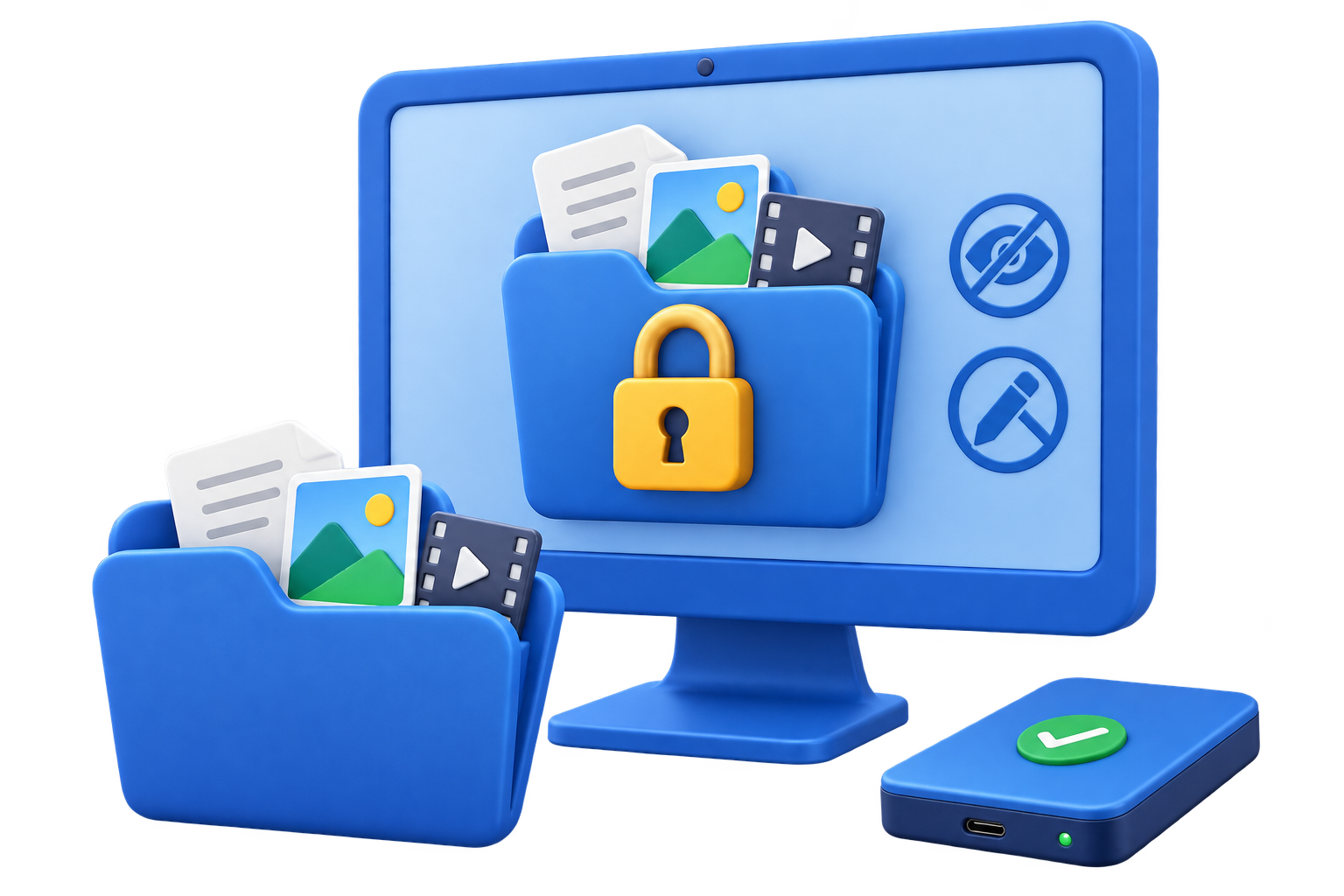
  • Hide or lock selected folders without changing the whole drive
  • Restrict reading, writing, renaming, or deletion for chosen content
  • Use both layers without disabling BitLocker

BitLocker vs File Lock Software: Is BitLocker Enough After Windows Sign-In?

BitLocker is an important Windows security layer, but its job is often misunderstood. It encrypts a supported volume so stored data is protected when the PC is off or the drive is examined offline. It does not create a separate password wall around every private folder after the computer has started.

Practical answer: if your only concern is a stolen laptop or removed drive, start with BitLocker. If people who can already use the Windows PC should not open, see, rename, or delete selected folders, add file lock software. These are complementary controls, not mutually exclusive replacements.

The Layer BitLocker Protects Well

Microsoft describes BitLocker as full-volume encryption for data at rest. Its strongest use case is preventing someone from bypassing Windows by removing the disk, booting another operating system, or examining a lost device while the protected volume is locked.

Turn on BitLocker for a Windows drive
BitLocker is configured for a drive or volume.
BitLocker recovery key backup choices
Recovery-key handling is part of the volume-encryption plan.
  • Protect a Windows volume on a lost or stolen laptop.
  • Protect a fixed or removable drive from offline examination.
  • Encrypt stored sectors transparently while authorized Windows use continues.
  • Support organization-wide volume encryption and key-recovery procedures.

What Changes After Windows Signs In?

When the PC boots normally and the BitLocker volume unlocks, applications can read and write data through Windows. The operating system then relies on normal account permissions and any additional folder controls. BitLocker does not stop and request a different password whenever someone opens a particular folder.

Threat or taskPrimary control
Read a removed disk without its keyBitLocker
Open one private folder on an already unlocked PCFolder-level access control
Keep selected photos out of normal Explorer viewsFolder hiding
Prevent a chosen work folder from being renamed or deletedSelected-item protection rules
Control different Windows accountsNTFS permissions and account administration
BitLocker is still working after sign-in: it continues encrypting data written to the volume. The distinction is that the unlocked operating system can access that data, so folder-level decisions happen at another layer.

What File Lock Software Adds

GiliSoft File Lock Pro focuses on selected content instead of encrypting every sector on the volume. This makes it useful when a Windows PC is shared, when only a few folders are sensitive, or when a visible folder must remain protected from common file operations.

1

Lock a selected folder

Keep the folder visible while requiring the File Lock Pro password before protected access is allowed.

Locking File applies a separate access rule to selected content.
2

Hide private content

Remove chosen files, folders, or local drives from ordinary File Explorer browsing until they are restored through File Lock Pro.

Hiding File reduces visibility on family, dormitory, reception, and other shared PCs.
3

Restrict unwanted operations

Protect selected content against reading, writing, renaming, or deletion without changing the protection state of unrelated folders on the same drive.

Protecting File addresses daily file operations after Windows is running.

A Better Design: Use BitLocker and File Lock Pro Together

Layering the two products is usually more sensible than choosing one and removing the other. Each protection becomes active at a different moment:

1. Device is offBitLocker protects the encrypted volume against offline access.
2. Windows startsThe configured BitLocker protector unlocks the volume.
3. User signs inWindows account permissions govern normal access.
4. Private folder is openedFile Lock Pro applies the selected folder rule.

Use both when

  • A BitLocker laptop is shared with family members, students, contractors, or support staff.
  • Client records or personal media need a separate control after Windows sign-in.
  • Selected folders must be hidden while the rest of the drive remains normally usable.
  • A visible folder must resist casual renaming, editing, or deletion.

When File Lock Software Is Not a BitLocker Replacement

Do not treat selected-folder locking as whole-volume encryption. If an attacker can remove an unencrypted disk and inspect it outside Windows, full-volume encryption remains the relevant control. File Lock Pro has a separate selected-file encryption tool, but its lock, hide, and protect modes should not be described as complete-drive BitLocker equivalents.

Similarly, BitLocker is not a replacement for Windows account hygiene. Use separate accounts, strong sign-in credentials, appropriate NTFS permissions, and organization policy alongside storage encryption.

Decision Checklist for Existing BitLocker Users

Only worried about a stolen or removed drive?Keep BitLocker enabled and maintain a verified recovery-key process.
Need one folder to ask for separate access?Add File Lock Pro locking to that selected folder.
Need private files to disappear from normal browsing?Use File Lock Pro hiding for selected items.
Need to prevent renaming or deletion?Use selected-item protection rather than expecting volume encryption to control individual operations.
Need the complete feature-by-feature comparison?Read the Folder Lock Software vs BitLocker full comparison.

Recovery Planning for Both Layers

  • Back up the BitLocker recovery key separately from the encrypted device.
  • Configure File Lock Pro recovery email details before protecting irreplaceable data.
  • Keep a verified backup that does not depend on either access-control product.
  • Test lock, unlock, recovery, and restore procedures with disposable files first.

BitLocker vs File Lock Software FAQ

Is BitLocker enough to protect private folders?

It protects the volume at rest. After Windows unlocks the drive, folder access depends on account permissions and any selected-folder controls.

Does BitLocker ask for a password when opening one folder?

No. BitLocker unlocks a drive or volume rather than assigning a separate password to one ordinary folder.

Should File Lock Pro replace BitLocker?

No. Keep BitLocker for full-volume encryption and use File Lock Pro as an additional layer when selected folders need their own rules.

Can File Lock Pro work while BitLocker remains enabled?

Yes. The products operate at different layers and can be used on the same Windows PC.

What protects files from another Windows account?

Start with separate accounts and correct NTFS permissions. Add folder lock software when the selected content also needs a separate password, hiding, or operation controls.

Add selected-folder control without removing BitLocker

Keep volume encryption for offline threats, then protect the folders that remain sensitive after Windows starts.

Download Trial Buy File Lock Pro

Sources: Microsoft: How Windows uses the TPM | Microsoft BitLocker operations guide | Microsoft BitLocker FAQ | NIST SP 800-111