

Cannot Uninstall a Program Completely on Windows?
A failed uninstall can leave an entry, background process, scheduled task, or data folder. That does not mean every remaining file is safe to delete: some folders and runtimes are shared with other software.
Quick answer
Close the program, try Windows Settings or Control Panel, restart, and use the publisher's uninstaller or Microsoft troubleshooting when removal fails. GiliSoft Total Repair's Software Uninstall task can help review software entries and leftovers, but inspect every proposed change.
Before You Change Anything
- Back up projects, settings, license keys, and data the application stores locally.
- Check whether the program is running, installed for another user, or managed by your organization.
- Create a restore point before removing stubborn remnants or registry-linked entries.
Match the Symptom to the Next Check
| Symptom | First route | Check |
|---|---|---|
| App still appears in Installed apps | Run its normal uninstaller | Entry and main program files are removed |
| Uninstaller errors or loops | Use publisher support or Microsoft's uninstall troubleshooter | The exact uninstall error is addressed |
| Only a data folder remains | Identify ownership and backup needs before removal | No shared or user data is lost |
| Managed or security software | Ask the administrator or vendor | Removal follows policy and protection rules |
Step-by-Step Troubleshooting
- Use the supported route first
Open Settings > Apps > Installed apps, or Control Panel > Programs and Features for a classic desktop program.
- Close and retry
Exit the app and related processes, restart Windows, and run its official uninstaller again.
- Diagnose the error
Record the uninstall message; use Microsoft's Program Install and Uninstall troubleshooter when appropriate.
- Review Total Repair findings
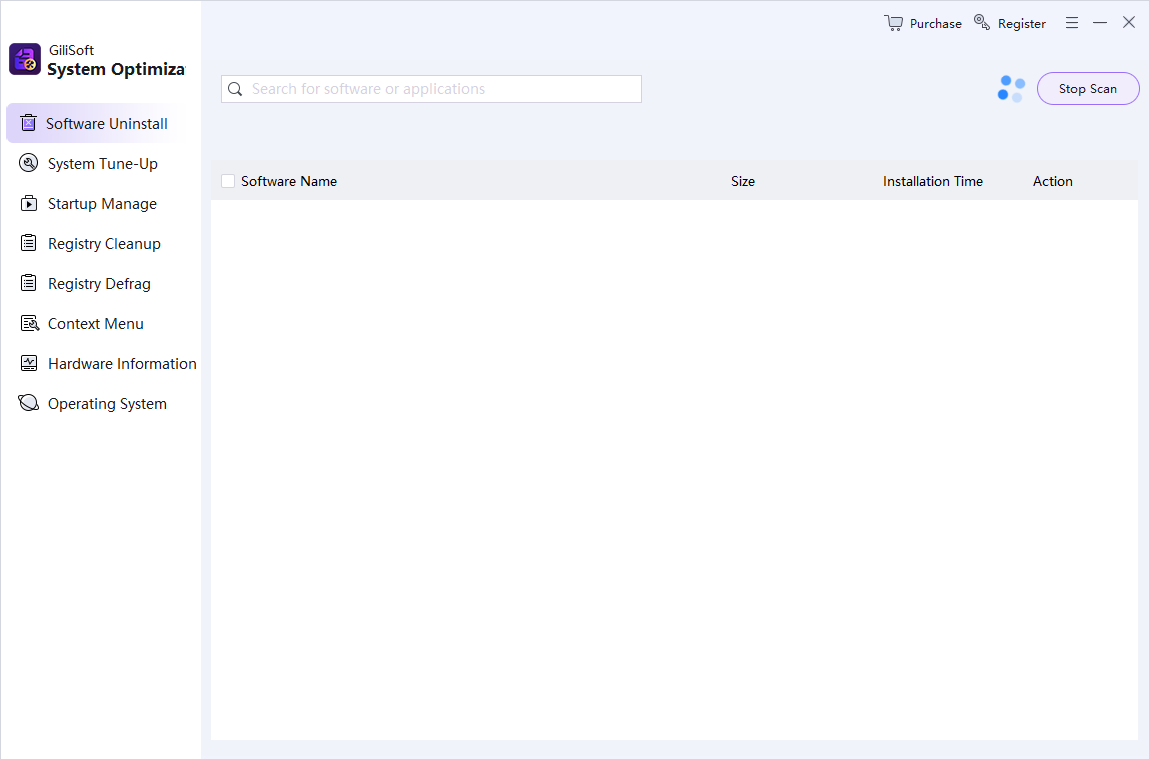
Open Software Uninstall, locate the exact application, and inspect any remaining entries before choosing a cleanup action.
- Verify without over-deleting
Check the Installed apps list and known app folder, then confirm other programs still launch. Preserve personal data until you are sure it is not needed.
Verify the Result
- Is the application absent from Windows' installed-program list?
- Did its service or startup entry disappear only if it belonged to that app?
- Are shared runtimes, user data, and unrelated software unaffected?
When to Stop General Repair
Do not remove folders just because their names resemble the program, and do not use registry cleaning as a blanket substitute for a working uninstaller. Antivirus, VPN, drivers, and managed applications may require vendor-specific removal procedures.
Frequently Asked Questions
Why is a folder left after uninstalling?
It may contain settings, logs, or user data. Verify ownership and backup needs before deleting it.
Can I delete the program folder manually?
That usually does not complete uninstall registration and can break repair or future installation. Use supported removal first.
What if an entry has no working uninstaller?
Try the publisher's support and Microsoft's troubleshooter, then review remaining entries cautiously.
Will Total Repair remove every trace?
No tool should promise that. Confirm each detected item belongs to the unwanted application.