
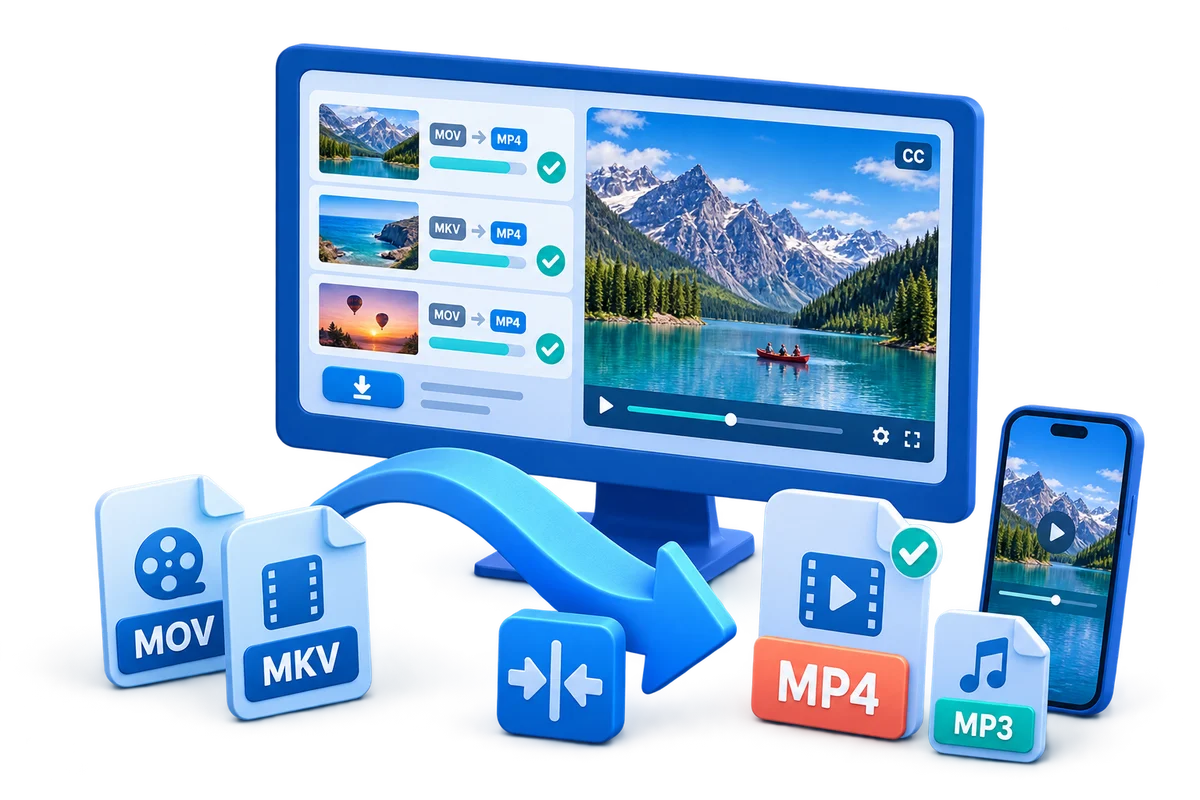
Convert Video for Devices on Windows
Use this workflow to match the real playback device rather than relying on a file extension alone. Preserve the best source, choose settings from the destination backward, and verify the complete output.
Quick answer
Identify the device, player app, operating-system version, maximum resolution, and supported video and audio codecs. Convert a short representative clip first, preserve the native frame rate when possible, and test seeking, sound, subtitles, orientation, and full-screen playback on the actual device.
Choose the Right Conversion Approach
| Situation | Recommended approach | What to verify |
|---|---|---|
| Known device and player | Match its supported container and codecs | Video, audio, seeking, subtitles, and rotation |
| Unknown recipients | Use a broadly supported delivery copy | Test on more than one representative device |
| Master for later editing | Do not replace it with the device copy | Original tracks and production quality remain available |
Step-by-Step Workflow
- Preserve and inspect the source
Keep the original unchanged. Check container, codecs, dimensions, frame rate, aspect ratio, audio, subtitles, duration, and rights.
- Define the exact destination
Identify the device, platform, recipient, archive policy, file-size limit, or publishing specification before choosing a preset.
- Run a representative test
Convert a short section containing motion, speech, text, captions, and difficult detail before starting a long file or batch.
- Choose only necessary changes
Preserve native frame rate and aspect ratio when practical, and adjust resolution, bitrate, codecs, tracks, or branding for a documented reason.
- Verify the complete output
Play outside the converter and check beginning, middle, ending, sync, seeking, captions, orientation, file size, and the real destination.
Use the GiliSoft Video Converter Workspace
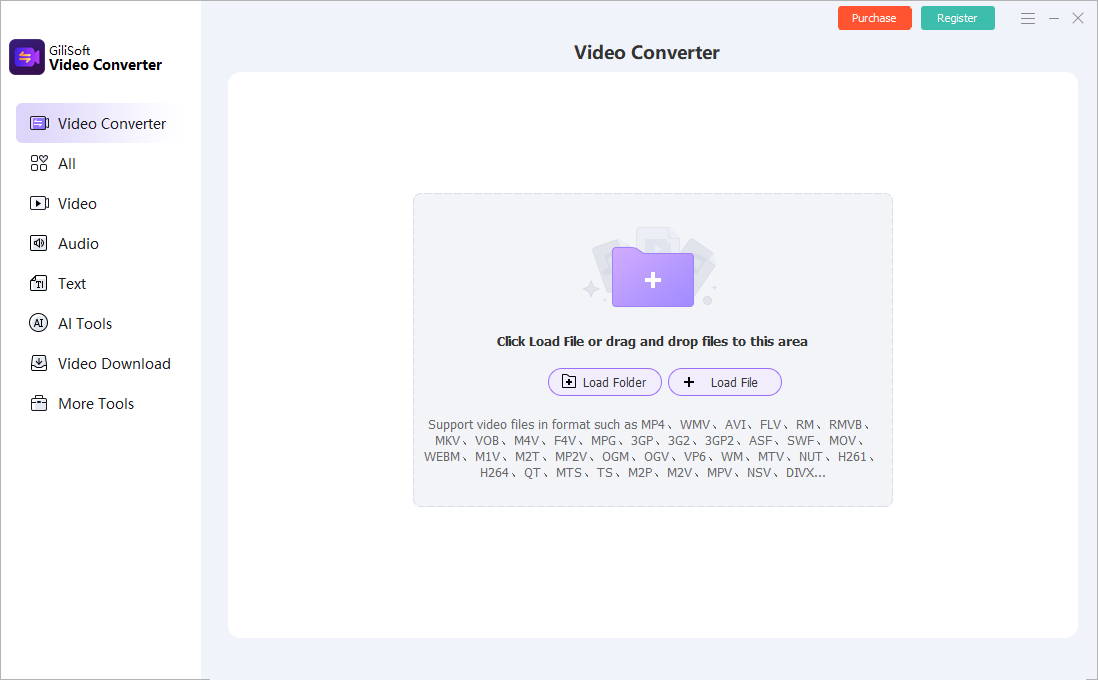
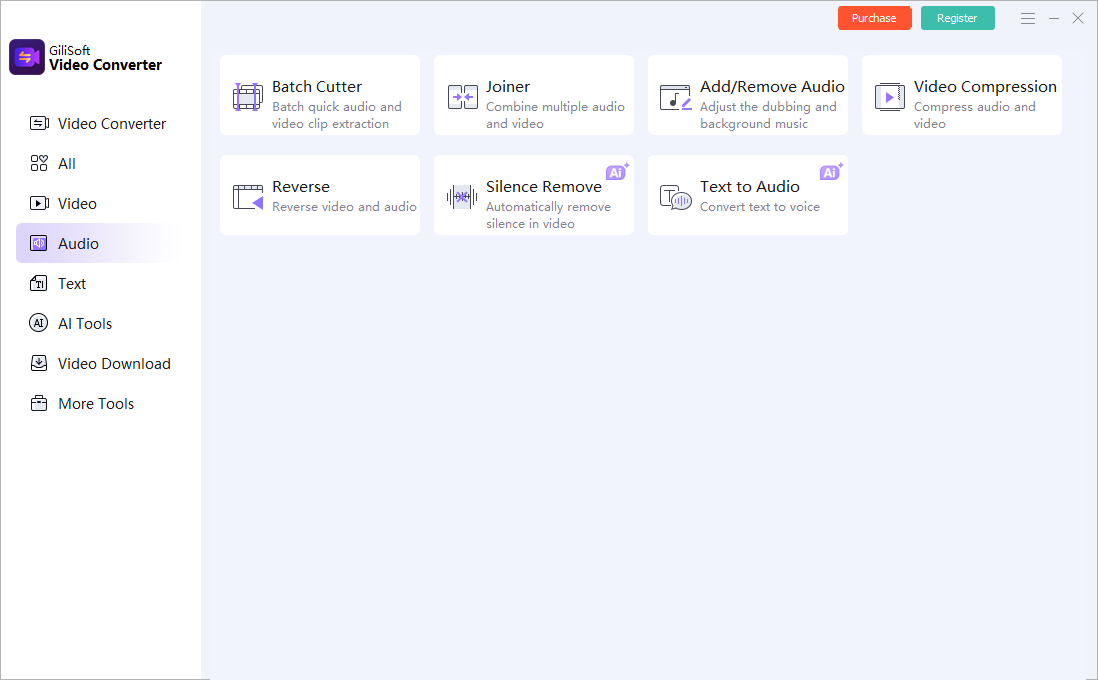
These screenshots show real product workspaces. Presets and controls can change, so inspect the source and test the actual destination instead of treating a preset name as proof of compatibility.
Verify the Output Before Delivery
| Device decoder compatibility | Test a representative section and the complete file on the actual destination. |
|---|---|
| Picture and sound | Check aspect ratio, motion, color, audio sync, channels, captions, and readable text. |
| File identity | Confirm the output path, name, size, duration, version, and relationship to the preserved source. |
Frequently Asked Questions
Which format works on every device?
No format is universal. A broadly supported MP4 combination is often practical, but the container, video codec, audio codec, profile, dimensions, and frame rate all matter.
Should I change frame rate during conversion?
Usually preserve the source frame rate unless the destination specifically requires another value. Resampling can add judder or duplicate frames.
Can conversion improve low-quality video?
It can improve compatibility or reduce size, but cannot restore detail that was never captured. Upscaling mainly creates more pixels.
Should I overwrite the source?
No. Keep the source or approved master and create a separate converted output.
Why test outside the converter?
The internal preview does not prove that codecs, tracks, captions, seeking, metadata, and destination playback are correct.