
Convert Home DVD to AC3 on Windows
This workflow targets multichannel or Dolby-style audio workflows where the receiving player supports AC3. Choose the output by its real destination, preserve the original source, and verify a short sample before converting the complete title.
Quick answer
Use AC3 when the goal is multichannel or Dolby-style audio workflows where the receiving player supports AC3. Select the intended title and audio language first, then choose channels, sample rate, bitrate, and chapter handling according to the destination. Confirm the intended title, audio track, subtitle track, aspect ratio, and output folder before starting.
Confirm the Source Is Appropriate to Convert
Keep the disc, ISO, or VIDEO_TS source unchanged. If the source cannot be opened normally or is protected by an access-control system, stop and confirm authorization and applicable requirements instead of trying to work around the restriction.
Choose AC3 Settings for the Destination
| Decision | What to check | Why it matters |
|---|---|---|
| Correct title and language track | Confirm the receiving player, editor, device, or library explicitly supports the choice. | An extension alone does not guarantee codec compatibility. |
| Stereo or multichannel output | Keep source aspect ratio unless the destination requires a tested alternative. | Incorrect dimensions can stretch, crop, or waste storage. |
| Sample rate and bitrate | Choose the intended language, channels, and subtitle behavior. | The default DVD track may not be the one you need. |
| Chapter or file splitting | Test a short sample and compare quality, size, and playback. | A complete conversion costs more time to repeat. |
Prepare the Home DVD Source
- Identify the source type.
Prepare the readable home DVD, ISO image, or complete VIDEO_TS folder.
- Choose the destination folder.
Use a local folder with enough free space and keep converted output separate from the source.
- Load and preview the titles.
Compare durations and preview likely titles instead of assuming the longest item is always correct.
- Select audio and subtitles.
Choose the required language and subtitle behavior before conversion.
- Plan a short test.
Use a representative section with motion, dialogue, music, and subtitles when available.
Convert to AC3 with GiliSoft Home DVD Converter
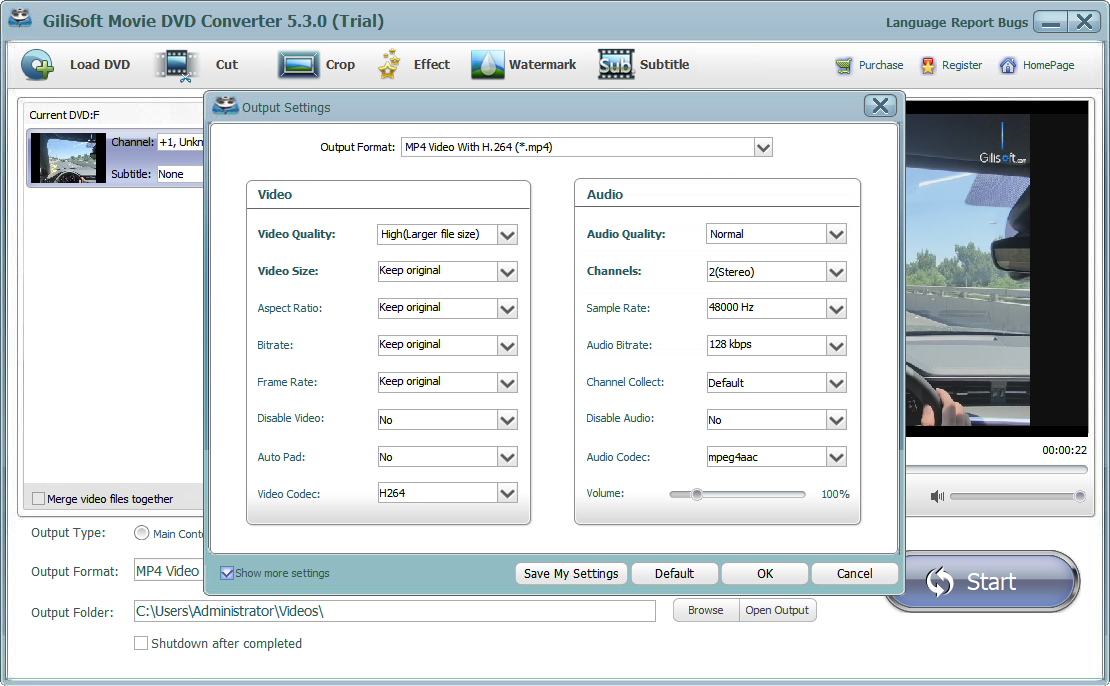
The screenshot below is the real Home DVD Converter interface used to select output or review the conversion queue.
- Load the source.
Click Load DVD and choose the disc, DVD folder, or DVD ISO option.
- Select the required title.
Preview it and confirm duration, audio language, and subtitle track.
- Choose the output profile.
Select ${page.label} or the compatible generic profile supported by the destination.
- Adjust only necessary settings.
Set resolution, aspect ratio, bitrate, frame rate, channels, or sample rate without exceeding the source needlessly.
- Convert a sample and then the title.
Approve sample playback before running the full conversion.
Verify the Converted AC3 File
- Open it in the destination player.
Do not rely only on the converter preview or completion message.
- Check beginning, middle, and end.
Look for missing sections, sync drift, corruption, or unexpected title changes.
- Test audio and subtitles.
Confirm language, channels, volume, subtitle timing, and character rendering.
- Check picture geometry.
Verify aspect ratio, crop, interlacing, motion, and display resolution.
- Record the approved settings.
Save the profile details with the project so later titles use the same tested output.
Know the Format and Quality Limits
A container such as MP4, MOV, AVI, MKV, ASF, or 3GP can hold different codecs. Matching the file extension is not enough; the receiving application must support the video and audio streams inside it. Windows Media Foundation, for example, treats MP4, MOV, M4A, 3GP, ASF, WMA, WMV, AVI, MP3, and WAV as distinct container or media families with different codec support.
DVD video is typically standard definition. Increasing resolution or bitrate cannot recreate detail that is absent from the source. Use deinterlacing, cropping, filters, or upscaling only after comparing a representative sample.
Convert Home DVD to AC3 on Windows FAQ
What is the best setting for AC3?
Start with a profile supported by the exact destination. Test a short section and check video, audio, subtitles, aspect ratio, and seeking before converting the complete title.
Can I convert a DVD ISO or VIDEO_TS folder?
Yes. Home DVD Converter can load a supported physical disc, ISO image, or VIDEO_TS folder. The same title, track, output, and verification decisions apply after loading.
How do I choose the main title?
Compare title durations and preview likely candidates. Home-recorded event discs may contain several similarly sized titles, so verify the content rather than selecting only the longest entry.
Why is the audio or subtitle language wrong?
Choose the intended audio and subtitle tracks for the selected title before conversion, then preview a representative section.
Does a higher bitrate always improve quality?
No. Output cannot restore detail missing from the DVD source, and unnecessary bitrate increases file size. Match quality to the source and destination.
Can I use this workflow with any DVD?
Use it only for home videos and content you own or are authorized to process. Do not use it to bypass access controls or violate copyright, license terms, or applicable law.