

External Hard Drive Not Accessible on Windows 11/10: What to Do Before Repair
An external hard drive can appear in Windows but refuse to open, show a format prompt, lose its drive letter, or disappear between connections. These symptoms have different causes. Start by identifying what Windows actually detects, especially if the files are important.
Quick answer
Do not format or initialize the drive just to open it. Check the exact error and look in Disk Management for the expected device capacity. If Windows consistently sees the drive and recovery software can read it, scan first, preview available files, and recover to another physical drive. If the device clicks, disconnects repeatedly, or reports zero capacity, stop software scans and consider professional hardware recovery.
Match the Error to the Next Step
Open Disk Management by right-clicking Start and choosing Disk Management. Observe the disk number, capacity, partition status, file system, and drive letter. Do not click Initialize, Format, or New Simple Volume while data is still needed.
| What Windows shows | What it may mean | Safer next step |
|---|---|---|
| "Access is denied" on a drive with an expected NTFS volume | Account permissions or an encrypted/locked volume may prevent access; this alone does not prove files were deleted. | Check the drive's lock state and original account. Use the BitLocker key if requested. Investigate permissions only after a backup; do not grant Everyone full access as a blanket fix. |
| "You need to format the disk" or the volume shows RAW | Windows cannot read the file system, which may be damaged or unsupported. | Cancel the format prompt. If the device is stable and readable, scan the RAW drive and save useful files elsewhere before repair. |
| Drive in Disk Management with a healthy volume, but missing in File Explorer | The volume may lack a drive letter. | Check the volume state first. Assign a letter only to an existing healthy volume; this is not a fix for RAW, unallocated, or failing media. |
| "The parameter is incorrect," CRC error, or very slow reads | Read errors or connection problems may be involved. | Stop repeated repair attempts. Check the connection once; prioritize imaging or professional advice if the data is valuable or errors persist. |
| Not in Disk Management, zero capacity, clicking, or repeated disconnects | Windows may not have stable access to the storage hardware. | Try a known-good cable, power supply, or direct port once. If the problem persists, stop; ordinary recovery software cannot repair physical failure. |
Important distinction: "Not visible in File Explorer" is not the same as "not detected in Disk Management." A missing letter may have a simple explanation; a missing or unstable physical disk needs a different response.
If Windows Says "Access Is Denied"
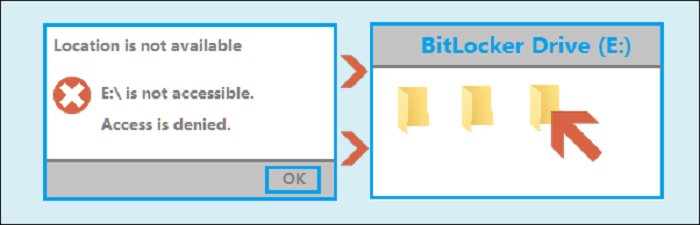
First check whether the volume still appears in Disk Management with its expected capacity and file system. The same message can result from different causes; it does not, by itself, tell you to format the drive or run a recovery scan.
- Check whether the drive is encrypted
If Windows requests a BitLocker password or recovery key, unlock it with the correct credential. File recovery software cannot bypass BitLocker.
- Check the intended Windows account
For an unencrypted NTFS drive, open Properties > Security and inspect the permissions for the account that should own the files. Do not grant Everyone full control or enable sharing merely to make a local drive open.
- Protect the data before changing permissions
If an intact volume is accessible through its original account or another trusted backup, copy important files first. Change ownership or access rules only when you understand the original permissions and have a way to reverse the change.
Run Non-Destructive Checks First
- Stop writing to the external drive
Do not install recovery software, create files, or copy data onto the affected device.
- Check the connection once
Connect directly to the PC, avoiding a hub. Try a compatible known-good cable and adequate power. If the device makes unusual sounds or disconnects again, stop testing it repeatedly.
- Record what Disk Management sees
Note the physical disk number, model if available, expected capacity, volume status, file system, and drive letter. This helps you choose the correct source for a scan.
- Check for encryption
A BitLocker-protected drive needs its password or recovery key. Recovery software cannot bypass missing encryption credentials.
- Prepare a separate destination
Use another physical disk with enough free space for recovered files. Keeping output off the source prevents accidental overwrite.
Recover Files from a Stable, Recognized External Drive
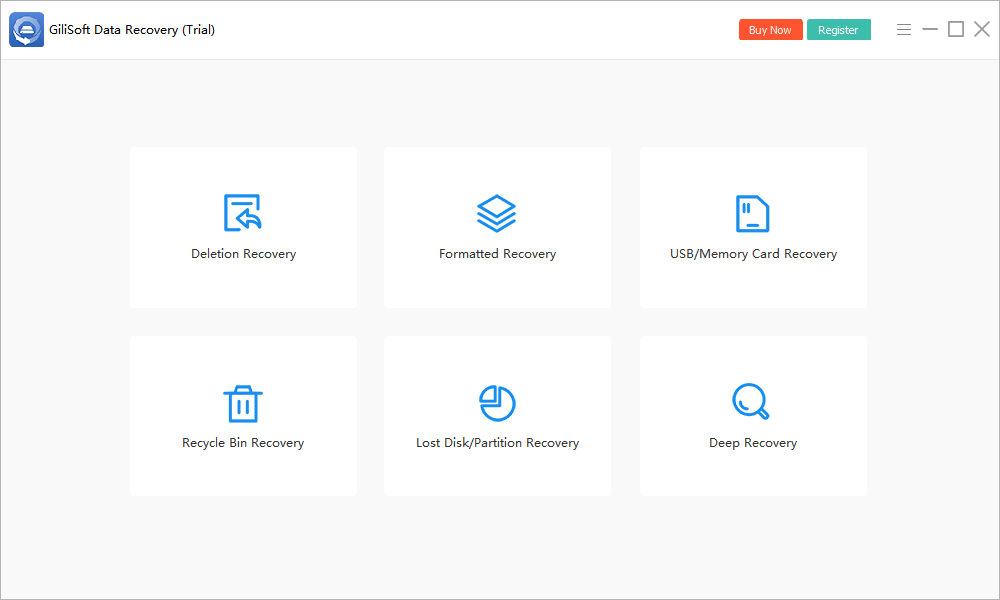
GiliSoft Data Recovery is for logical data-loss cases where Windows and the software can still access the device. It is not a hardware repair tool. If the disk remains stable with the expected size, evaluate its scan results before modifying the file system.
- Install on a different drive
Do not install the trial on the external disk that contains missing files.
- Select a mode that fits the loss
Use Deletion Recovery for deleted files, Formatted Recovery after formatting, Lost Disk/Partition Recovery for a missing partition, or Deep Recovery when an initial logical scan is incomplete. For a RAW or inaccessible volume, Deep Recovery may be worth evaluating if the source is readable.
- Select the correct source and scan
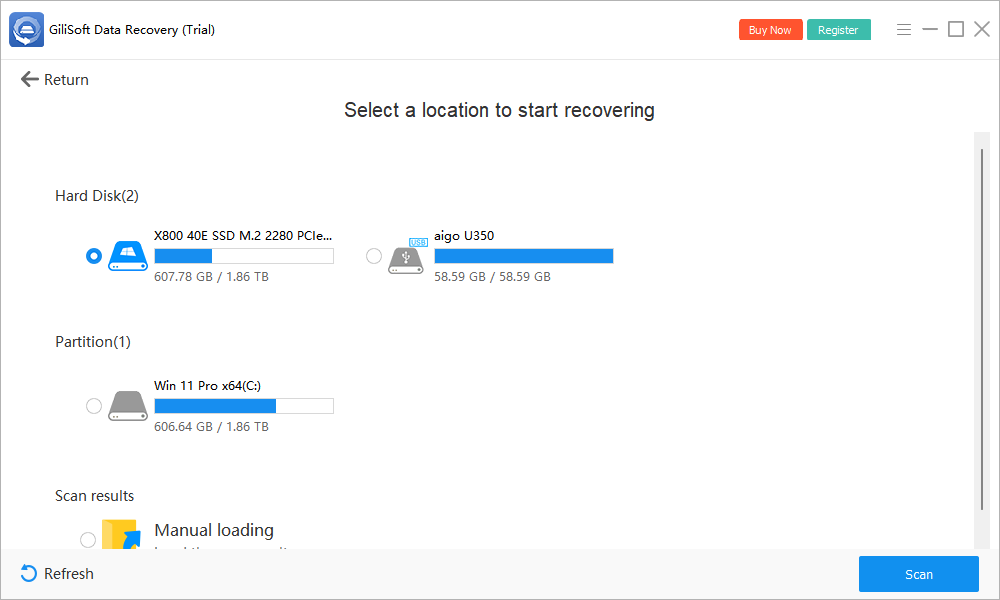
Confirm disk capacity and location before pressing Scan. Do not guess between similarly sized drives. If the expected device does not appear in the source list, stop rather than formatting it to force a scan.
- Review and preview results
Check file names and paths where available. Preview important files when supported; a name alone does not confirm that a file is intact.
- Save to another physical drive
Recover the most important files first, then open the exported copies in their normal applications to verify content.
Recovery is not guaranteed. Overwritten data, encryption without a key, severe file-system damage, and physical read errors can limit what a scan finds or what exported files contain.
Only Repair After Important Files Are Safe
After you have verified restored copies and made another backup, choose a repair path for the remaining drive problem. The remedy must match the condition; a missing letter, an unreadable file system, and a failing device are not interchangeable.
Healthy volume, no drive letter
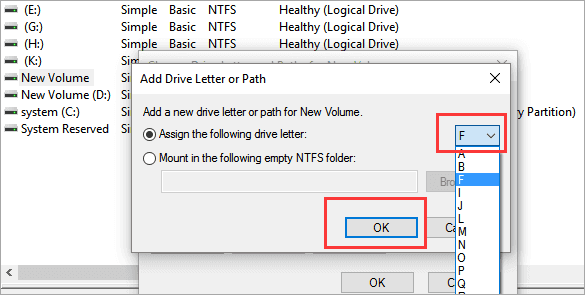
In Disk Management, confirm this is the correct existing, healthy external volume. Right-click it, choose Change Drive Letter and Paths, then Add and select an unused letter. Do not initialize or create a new volume. If the option is unavailable, the volume may not be ready for a letter; investigate its status instead.
RAW, file-system errors, or persistent access failure
If the volume is RAW, reformatting may make the drive usable again but will change its contents. Do that only after important data is safely copied and verified. For an understood NTFS permissions problem, change access rules only after checking the correct account and backup; do not open the drive to Everyone as a generic fix.
Do not start with CHKDSK on an irreplaceable source. The /f and /r options attempt file-system or sector repair and can alter the disk. Persistent CRC errors, clicking, or repeated disconnections call for hardware diagnosis, not another repair loop.
For reference, see Microsoft's guidance on changing a drive letter, CHKDSK, and BitLocker recovery keys.
External Hard Drive Not Accessible FAQ
Does "Access is denied" mean I need data recovery software?
Not necessarily. An intact NTFS volume may be blocked by account permissions or encryption. Confirm its status and backup options before scanning or changing permissions.
Should I format a drive when Windows asks me to?
No, not if you still need its files. Cancel the prompt, confirm the device is stable, and evaluate recovery before changing the file system.
What if the external hard drive is not in Disk Management?
Check one known-good cable, direct port, and power source. If the disk still does not appear with its expected size, or clicks or disconnects, stop scanning and consider professional hardware recovery.
Can GiliSoft Data Recovery unlock BitLocker without a key?
No. Use the password or recovery key for the encrypted drive. A file-recovery scan does not bypass encryption.
Can I run CHKDSK before recovery?
When the data is important and not backed up, recover or obtain a safe copy first. Repair commands can modify the source and are not the same as extracting files to another disk.