Find documents, photos, videos, and other files lost through deletion, formatting, or a missing partition. Scan your storage, review the results, and restore selected files on Windows.
Find deleted files and emptied Recycle Bin data
Scan formatted drives, missing partitions, USB drives, and cards
Preview supported files and recover to another drive
Choose a task to find deleted documents, photos, videos, and other lost files on Windows. Follow the complete recovery workflow or jump to the mode for an emptied Recycle Bin, formatted drive, missing partition, USB drive, or memory card.
Keep the source unchanged: stop new writes and recover files to another physical drive. For clicking, repeatedly disconnecting, or incorrectly detected hardware, stop repeated scans and seek a professional assessment. See source and destination preparation.
Separate incomplete recovery from a damaged-file repair task.
Recover Lost Files: Complete Workflow
Use this four-step route for the complete recovery task. The separate tutorials below explain the source-selection screens, each recovery mode, result review, and saving to another drive.
1Protect the source and prepare the destination
Stop writing to the affected storage. Keep software installation, downloads, and recovered output off that source, and prepare another physical drive with enough free space. If the device clicks, repeatedly disconnects, or reports an incorrect capacity, stop repeated scans and seek a professional assessment.
Open GiliSoft Data Recovery and choose the mode that matches deletion, an emptied Recycle Bin, formatting, a missing partition, or removable-media loss. Select the original location or device by its label and capacity, then click Scan. Use Deep Recovery for a broader search on readable storage when needed.
Look through the scan results and use the file details or filtering options available in that view. Preview supported files and select the most important candidates first. A listed filename or successful preview does not guarantee that every byte of a recovered file is intact.
Choose a destination on a different physical drive, recover the selected files, and open them in their normal applications. Check the complete contents and keep another verified copy before changing the affected source or its partition layout.
Stop copying, downloading, installing, editing, or saving files there. For a memory card, stop taking new photos and videos. If the affected source is the Windows system drive, minimize normal PC use; use another computer for the recovery where practical.
Do not change the storage layout first
Do not format a RAW volume, initialize a disk, create a replacement partition, or run a write-based file-system repair before recovering important data. First distinguish a logically inaccessible but readable source from failing or undetected hardware.
Prepare another physical drive
Keep the software installation and recovered output off the affected source. Connect a different physical drive with sufficient free space for the selected files. A different folder or partition on the same affected disk is not the intended destination.
If the device clicks, repeatedly disconnects, or reports an incorrect or zero physical capacity, stop repeated software attempts. A file scan does not repair physical hardware faults.
Choose the Recovery Mode
Match the entry to what happened
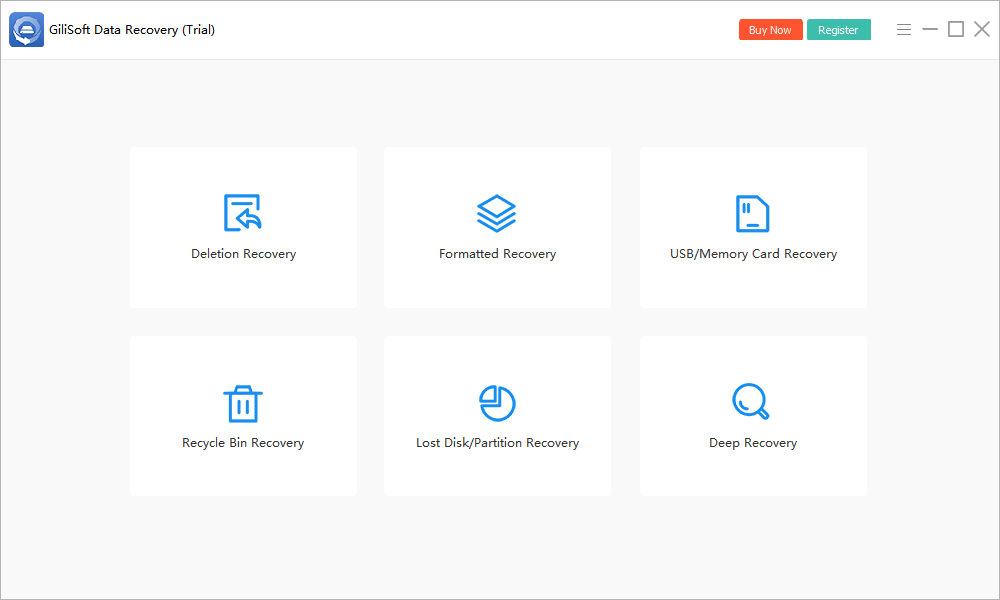
Use the mode names shown in the main window: Deletion Recovery, Formatted Recovery, USB/Memory Card Recovery, Recycle Bin Recovery, Lost Disk/Partition Recovery, or Deep Recovery.
Open the source-selection screen
Choose the appropriate entry and identify the original location, partition, or physical disk. The location type depends on the mode; the missing-partition workflow asks for the physical disk.
Confirm the source before Scan
Compare the device label and total capacity with the affected storage, then click Scan. Do not choose a preselected system drive simply because it is already highlighted.
Choose a recovery mode here, then select the original source and start the scan.
Select the Correct Disk, Partition, or Folder
Identify where the files originally existed
Choose a displayed shortcut, folder, partition, or physical disk according to the selected mode. In Deletion Recovery, the screen offers Desktop, Recycle Bin, and Select Folder, as well as detected partitions.
Compare label, capacity, and location type
Check the affected device's label and total capacity, not only its current drive letter. In Deep Recovery, Hard Disk and Partition are separate groups. In the missing-partition mode, select the disk that held the partition.
Refresh if needed, then start the correct scan
For a stable device that was just connected, use Refresh and review the list again. Select the intended source and click Scan; the recovery destination is chosen later.
Check the physical connection without changing the data
For a stable external drive or card reader, check its power and connection, then use Refresh in the source-selection screen.
Confirm whether Windows detects readable storage
Check the device label and capacity reported by Windows. A format or initialization prompt is not a reason to approve that operation. If the device is detected correctly but its files will not open, use the appropriate logical recovery task.
Stop when the problem is hardware detection or instability
If the source remains absent, reports an incorrect or zero physical capacity, clicks, or repeatedly disconnects, do not keep rescanning or cycling recovery modes. Seek a professional assessment for important data.
Deleted Files, Formatted Storage, and Missing Partitions
Recover Accidentally Deleted Files
Open Deletion Recovery
Choose Deletion Recovery for files removed from a location or with Shift+Delete. Keep new writes away from the storage that held them.
Select the original location and Scan
Choose Desktop, Select Folder, or the original partition as appropriate. Confirm the label and capacity, then click Scan.
Review and recover selected candidates
Inspect the results and preview supported files. Select important candidates and recover them to another physical drive, then open the saved copies to verify their contents.
Select the original location before Scan. The highlighted C: drive is an example, not a recommendation to scan C: for every deletion.
Recover Files After Emptying the Recycle Bin
Choose Recycle Bin Recovery
If Windows can no longer restore the files from the Recycle Bin, open Recycle Bin Recovery. Stop saving new files to their original storage.
Select the pre-deletion location
The screen asks for the pre-deletion location. Choose Desktop or the partition that held the files before they went to the Recycle Bin, then click Scan.
Restore useful results elsewhere
Use the available file details and supported previews to select candidates. Recover to another physical drive and verify the saved files; do not confuse the original location with the recovery destination.
Choose where the files existed before deletion. This screen does not ask where the recovered output should be saved.
Recover Files from a Formatted Drive
Open Formatted Recovery
Choose Formatted Recovery after accidental formatting. Do not format the volume again or copy new files onto it before checking for recoverable data.
Select the affected partition and Scan
Identify the formatted volume by its device label and total capacity in the source list, then click Scan.
Review results and save to another disk
Preview supported candidates and recover important files to a different physical drive. If useful results are incomplete and the source remains stable and readable, consider Deep Recovery.
Identify the affected partition by label and capacity, then click Scan. Keep new writes away from the source.
Scan a RAW or Inaccessible Volume
Keep the readable source unchanged
If Windows asks to format a volume or reports its file system as RAW, decline formatting. Confirm the device is consistently detected with the expected physical capacity; use the detection task if it is not.
Use Deep Recovery on the appropriate source
Open Deep Recovery and select the affected readable partition or physical disk from the displayed groups. Verify its identity, then click Scan without initializing or repairing the source first.
Recover important files before considering repairs
Review and preview supported results, save selected files to another physical drive, and verify their contents. A successful file recovery is separate from repairing the original file system.
There is no separate RAW Recovery tile in the pictured main menu. Use the actual Deep Recovery source controls for a broader search on storage the computer can still read.
Recover Files from a Missing Partition
Choose Lost Disk/Partition Recovery
Open Lost Disk/Partition Recovery when a partition disappeared or was deleted. Do not create a replacement partition in the same space.
Select the disk that contained the partition
The screen says Select the hard disk with missing partitions. Compare the physical disk label and total capacity, select the correct disk, and click Scan.
Review recognizable data and recover elsewhere
Review any partition or file results offered by the scan and look for the expected folders and contents. Recover selected files to another physical drive and verify them before changing the source layout; scanning for files is not a promise to rebuild the partition table.
Select the physical disk that contained the missing partition, not a newly created replacement volume.
Recover Files from a USB Drive or Memory Card
Connect the source without writing to it
Stop using the USB drive, SD card, microSD card, or camera card. Connect it through a stable port or card reader; do not take more photos or videos on the affected media.
Open USB/Memory Card Recovery and Scan
Choose USB/Memory Card Recovery, identify the detected source by label and total capacity, and click Scan. Use Refresh if a stable newly connected device is not yet listed.
Save recovered files off the removable source
Review the results and supported previews, then recover selected files to the computer's separate drive or another physical device. Open and check the restored files before using the source again.
The example lists a USB source. Identify your own drive or card by label and capacity, then choose a different device for recovered output.
Deep Scanning and Result Review
Use Deep Recovery
Use a broader search on a stable, readable source
If the matching recovery mode did not find enough useful files, open Deep Recovery. This is a broader search, not a repair for an unstable physical device.
Select the intended disk or partition and Scan
Compare the Hard Disk and Partition groups, choose the source that matches the task, and click Scan. Keep the source connected; avoid sleep or disconnects during the scan.
Review content as well as filenames
Use available file details and supported previews to narrow the results. A deeper search can take longer and may find content without its original name or folder. Recover important candidates to another physical drive and verify them.
Choose the intended Hard Disk or Partition. For an existing scan-result file, use Manual loading under Scan results.
Open an Existing Scan Result
Use this task only for an existing matching result
If you already have a scan-result file created by GiliSoft Data Recovery, open Deep Recovery and find Manual loading under Scan results.
Open the result through the displayed loading workflow
Select Manual loading and follow the application's file-selection or loading controls. Choose the matching scan result, not an ordinary document, recovered photo, or an unrelated disk-image file.
Review before recovering selected files
Confirm the loaded result corresponds to the intended source. Keep the source available if the workflow needs it, then select candidates, recover to another physical drive, and verify them. Loading a result is not itself file recovery or a verified backup.
Look for the expected documents, photos, videos, or archives in the scan results. Use recognizable folder paths and names where those records remain available.
Narrow the candidate set with the offered details
Use the type, name, path, date, or size controls available in the result view. Compare several candidates when the original folder or filename has not survived.
Check contents before a large recovery
Preview supported files and select the most important candidates first. If ordinary results remain incomplete on a stable source, review the Deep Recovery task rather than assuming an empty folder proves the data is gone.
Preview and Select Recovery Candidates
Review the supported preview
Open the preview offered for an important candidate and check recognizable image detail, text, or other content. Not every file type or damaged candidate can be previewed.
Select useful candidates, including alternatives when needed
Prioritize irreplaceable files and compare likely versions. A listed name, expected size, or readable preview is useful evidence, not a guarantee of a complete usable file.
Verify saved files outside the recovery program
Recover the selected candidates to another physical drive, then open them in their normal applications. Check more than a thumbnail or the first page before relying on the recovered copy.
After reviewing the candidates, continue with Recover to Another Physical Drive. Keep the affected source unchanged until the saved files have been checked.
Save, Verify, and Back Up the Recovered Files
Recover to Another Physical Drive
Select a different physical destination
Choose a writable location on another physical drive with enough free space for the selected files. A different drive letter on the same affected disk is not the intended separation.
Recover the selected files
Use the result view's recovery workflow and confirm the destination before writing. Start with the most important selected files and keep the affected source connected and unchanged while it is being read.
Check the actual saved output
Open files from the chosen destination, not just from the recovery program's list. Verify the expected contents before restoring a much larger set or changing the source storage.
For example, files lost from an external USB source can be saved to a separate healthy internal drive; files lost from the system disk need a different physical destination. Do not point the output back to the affected source.
Verify and Back Up Recovered Files
Open the recovered files in their normal applications
Read important document pages and spreadsheet sheets, play videos at several points, inspect photos at full size, and test that needed archive contents can be extracted. A filename alone is not verification.
Keep another verified copy
Copy critical recovered data to another safe backup location and check that copy as well. Retain the original scan context and affected source until the needed data has been reviewed.
Decide what to do with the source only afterward
Do not repair, repartition, format, or reuse the affected storage until important recovered files and their backup are confirmed. If recovered files are incomplete, use the unusable-file task before assuming the job is finished.
Check Files That Still Will Not Open
Check the recovered copy and its application
Confirm that you opened the saved file from the recovery destination with an application that supports its real format. Changing the extension does not rebuild missing file contents.
Compare other candidates without overwriting the source
Look for another version or a more complete candidate in the results. Save alternatives to a new destination folder and compare them. If appropriate, review Deep Recovery on stable readable storage.
Separate recovery from file repair
An incomplete, overwritten, fragmented, or damaged file may still fail after recovery. File repair is a different task and cannot be assumed to reconstruct missing data. Keep the source unchanged and seek specialist help when the only important copy remains unusable.
Quick Data Recovery Checks
What happened
Check next
The affected device is not listed
Check a stable connection and Refresh. Do not format or initialize the source to make it appear.
The missing partition has no drive letter
Use Lost Disk/Partition Recovery to select the physical disk that held it. Do not create a replacement partition first.
Windows asks to format the source
Decline the prompt. For correctly detected, readable storage, use the RAW or Deep Recovery task before changing the file system.
A scan is taking a long time
Capacity, connection speed, storage condition, and the scope of the search affect duration. Repeated disconnects or physical failure symptoms call for stopping, not repeated scans.
Names or folders are missing
Use available type and size details plus recognizable content. A deep search may find file contents without the original path.
A preview is unavailable
The format may not support preview or the candidate may be incomplete. Recover an important candidate elsewhere and test it in its normal application.
A recovered file still will not open
Compare other candidates. Data recovery and damaged-file repair are different tasks; no result list guarantees intact contents.
An SSD scan finds little useful data
Deleted contents may have been overwritten or discarded through TRIM and cleanup. Do not assume another scan can recreate data the source no longer returns.
Data Recovery FAQ
Why are some original file names missing?
When file-system records are damaged or overwritten, a deep scan may identify file content without recovering the original name or folder structure.
Why is a deep scan taking so long?
Scan duration depends on device capacity, connection speed, storage condition, and the amount of data being searched.
Why can some files not be previewed?
The file may be incomplete, overwritten, fragmented, unsupported for preview, or damaged. Recover important candidates to another drive and verify them there.
Should I format a RAW drive before scanning?
No. Scan for important data first. Formatting changes the source and can reduce the information available to recovery software.
Can SSD TRIM prevent deleted-file recovery?
Yes. If TRIM has cleared the deleted SSD blocks, software may no longer be able to recover those files.
When should I stop scanning and use a recovery service?
Stop when a drive clicks, repeatedly disconnects, is not detected, or shows other signs of physical failure. Continued software scanning can add stress to failing hardware.
Can I restore files to the same drive?
Do not use the affected source as the first destination. Writing there can overwrite other data that has not yet been recovered.
Is file repair the same as data recovery?
No. Data recovery locates lost files from storage. File repair attempts to make an existing damaged file usable.
Which drive should I select for Recycle Bin Recovery?
Select the location or volume that held the files before deletion. The pictured screen asks for the pre-deletion location and lists Desktop and detected partitions. The drive used to save recovered output is chosen later and should be on another physical device.
Is another drive letter on the same physical disk a safe recovery destination?
Use another physical drive, not merely a different letter or folder on the affected disk. Keep recovery writes away from the source and check that the destination has enough free space.
Does Manual loading make a scan result a backup of my files?
No. The Deep Recovery screen has a Manual loading entry under Scan results for opening an existing matching result. Loading a result is not the same as recovering the selected files or making a verified backup. Keep the source available if the recovery workflow needs it.
Is the free trial unlimited file recovery?
A trial is available to evaluate the recovery workflow. Check the installed trial and activation screens for scanning, preview, and recovery limits; do not assume unlimited free restoration. The purchase buttons in this guide link to the Windows lifetime license for 1 PC at $69.95.
Related Data Recovery Guides
Use a focused guide for the device, storage condition, or file type involved in your recovery.
Choose the matching mode, scan the affected source, review recoverable candidates, and save selected files to another physical drive with GiliSoft Data Recovery.