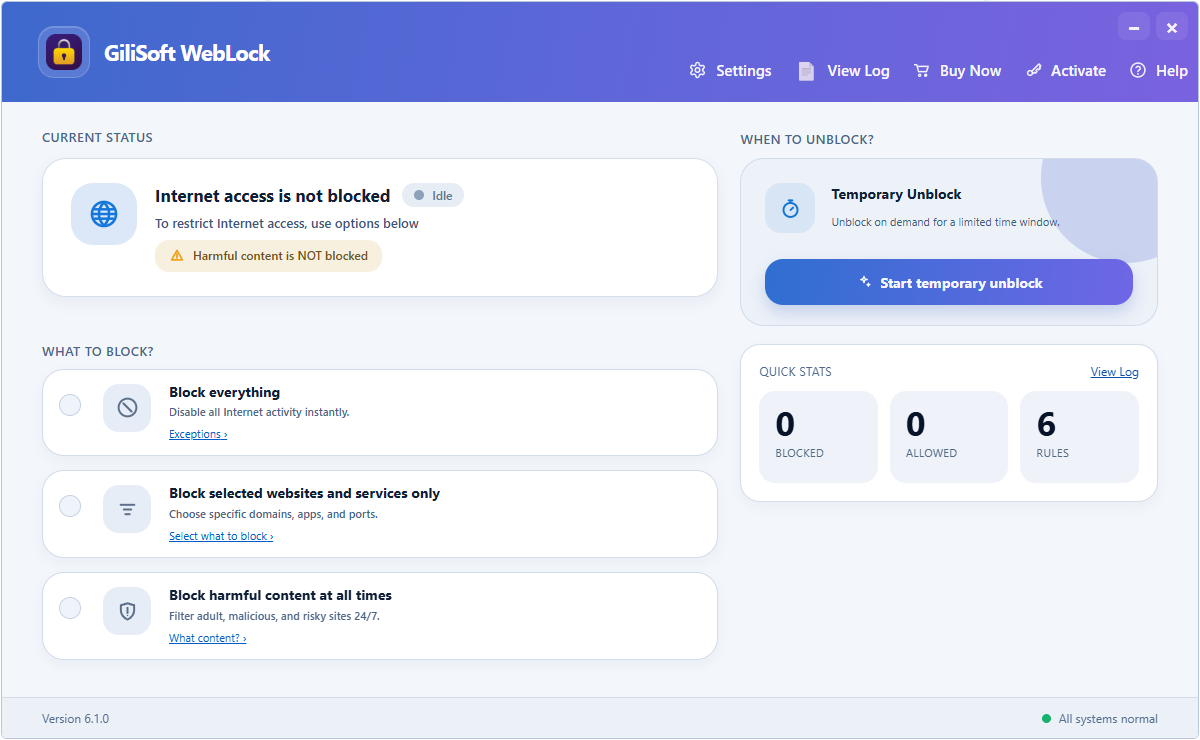
Set Up WebLock in Five Steps
Start with the computer's real work requirements. Add approved access before enforcing a broad block, then use the log to correct only the missing exceptions.
Choose a policy
Decide whether to block everything, selected destinations, or harmful content.
Add websites
Keep required company, school, support, or communication sites available.
Add applications
Allow trusted executables and the services they need to connect.
Protect settings
Set an administration password before handing the PC to another user.
Test and review
Try approved and blocked activity, then check the event log.
1. Choose What WebLock Should Block
The main policy defines the computer's default behavior. Exceptions then preserve access for specific work or study tasks.
Block everything
Disable general internet activity and allow only the websites and programs you approve.
Block selected access
Keep normal connectivity while restricting specified domains, applications, or services.
Block harmful content
Filter adult, malicious, and risky destinations while ordinary browsing remains available.
- Open WebLock and enter the administration password when prompted.
- Select the policy that matches the PC's assigned use.
- Apply the rule, then test both a permitted and a restricted destination.
- Keep WebLock active while you add and verify required exceptions.
2. Allow Only Approved Websites
Use Allowed Websites when a shared, work, study, kiosk, or front-desk PC should reach a defined set of domains without unrestricted browsing.
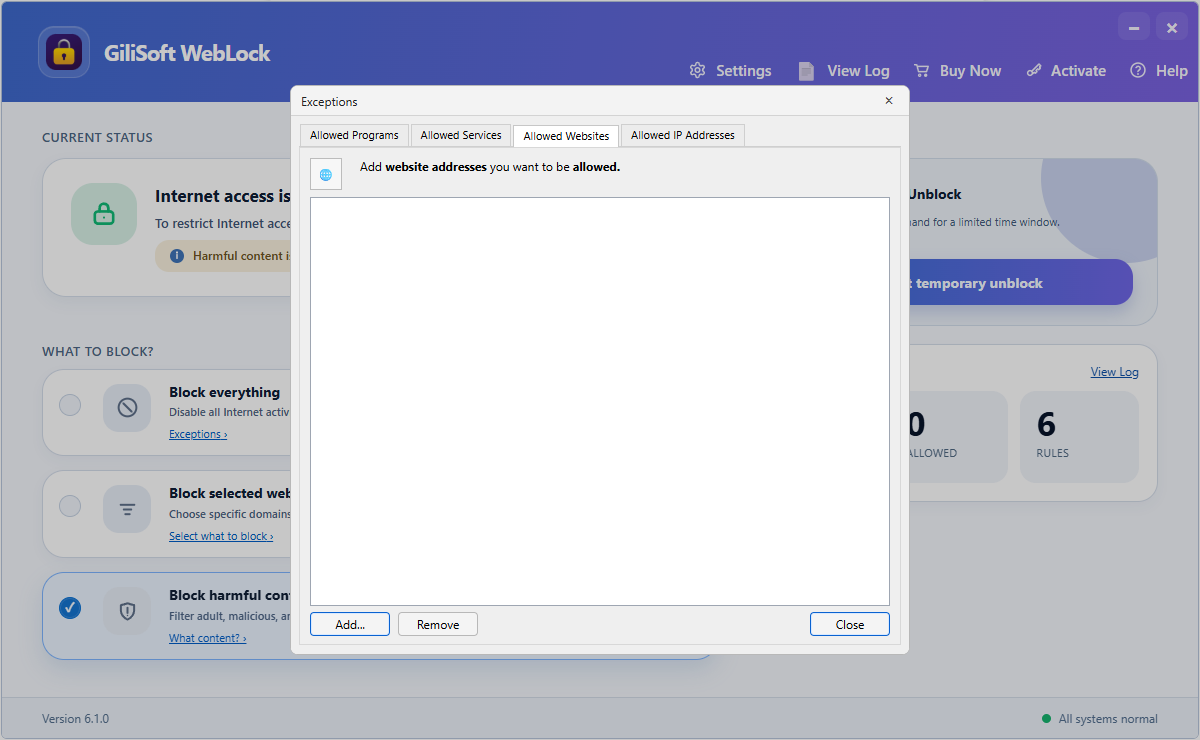 Add approved domains, then test an approved site and a non-approved site in the same browser.
- Open Allowed Websites.
- Add each required company, school, support, or communication domain.
- Save the list and keep the main blocking policy active.
- Confirm allowed destinations load while an unlisted site is restricted.
3. Keep Trusted Windows Programs Online
A website rule alone may not be enough for desktop software. Add the actual executable that opens the network connection.
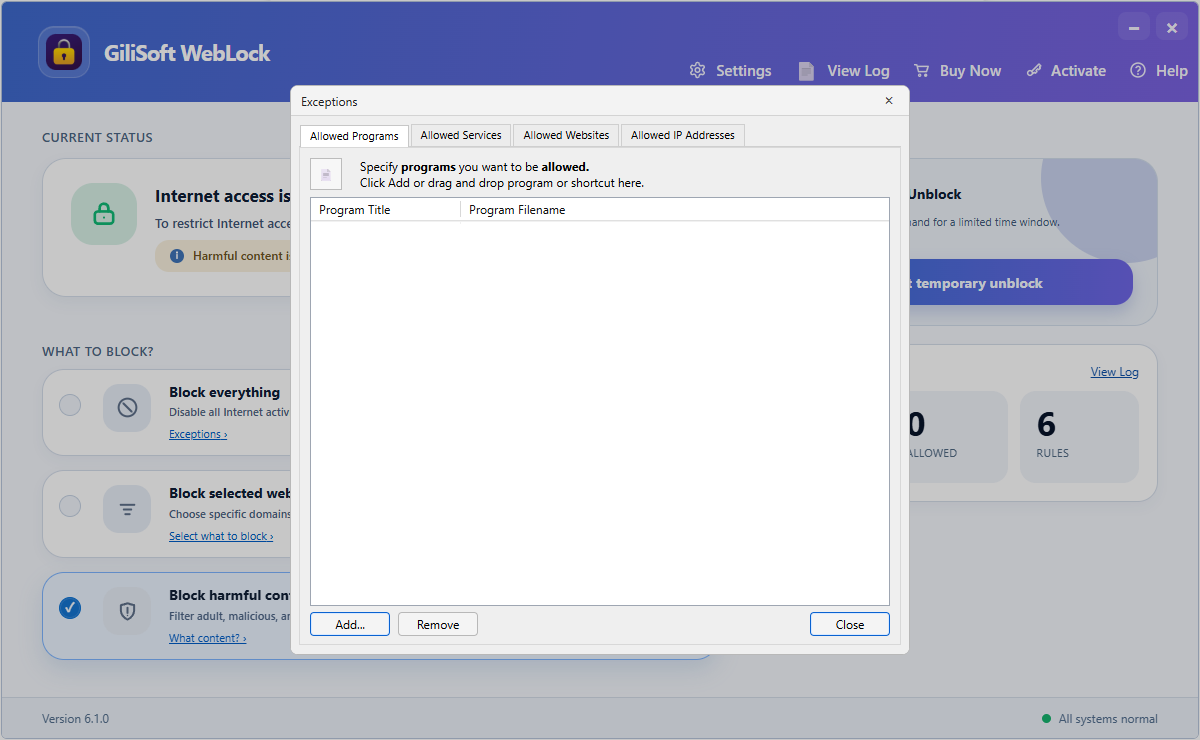 Permit trusted Windows applications without opening unrestricted access for every program.
- Open Allowed Programs.
- Select the executable for the trusted application.
- Launch the application and test the online feature it requires.
- If it still cannot connect, inspect the blocked log for a helper process or service.
4. Allow Required Services and IP Addresses
Service and IP exceptions are useful when a known network function must remain available under a restrictive policy. Keep this list narrow and verified.
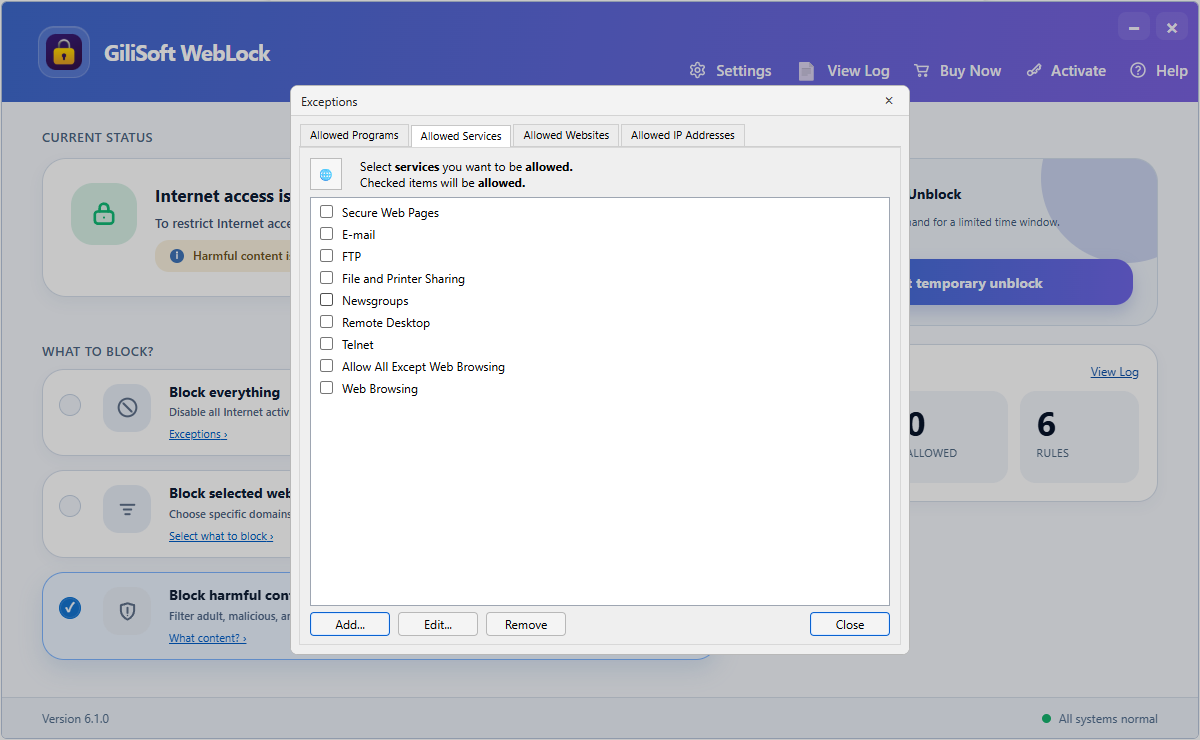 Allow a required service only when the computer actually uses it.
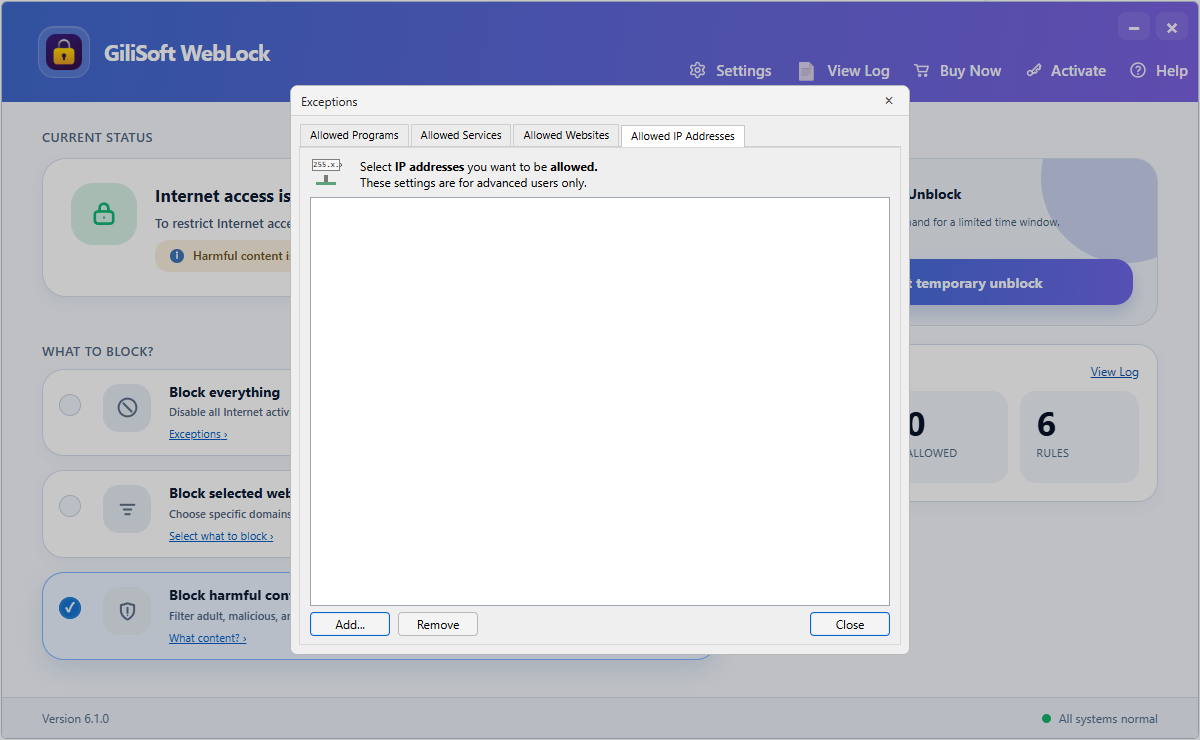 Permit a known destination without opening general internet access.
5. Password Protect WebLock Settings
Keep the administration password with the person responsible for changing policies, adding exceptions, and authorizing temporary access.
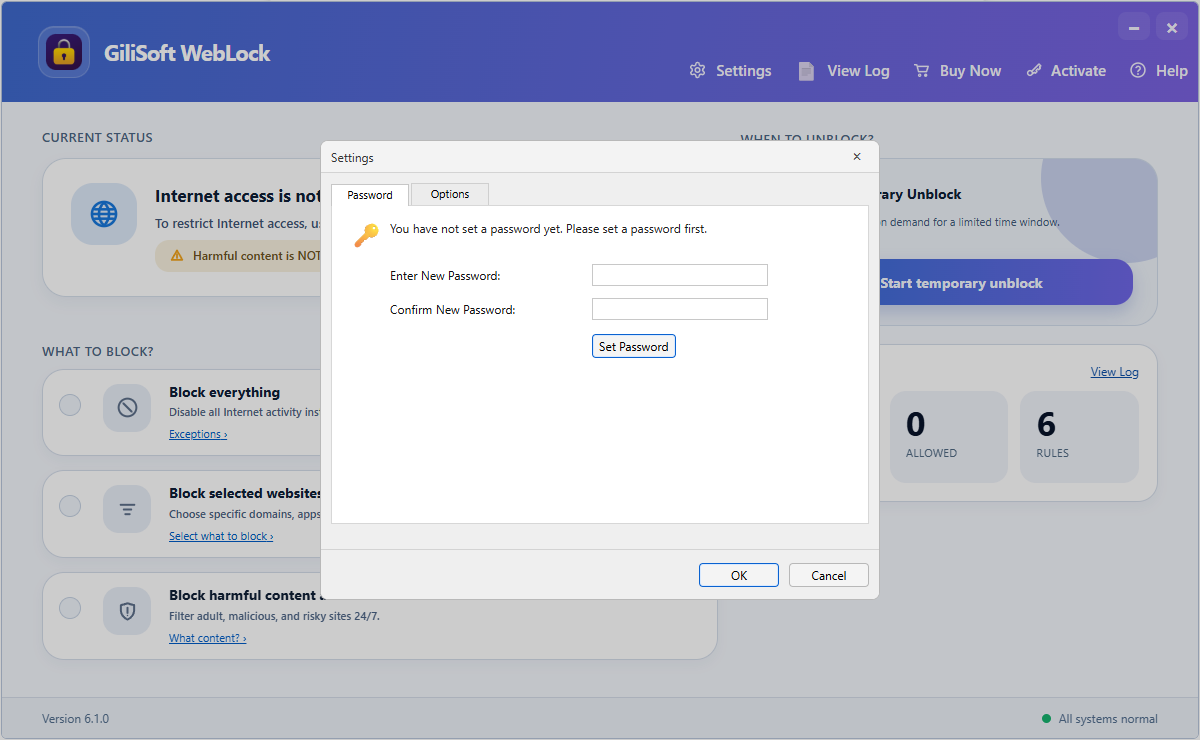 Require authorization before users can change internet access rules.
- Open the WebLock password settings.
- Create and confirm an administration password.
- Save the setting, close WebLock, and reopen it.
- Verify that policy changes now require the password.
6. Temporarily Restore Internet Access
Temporary Unlock suspends restrictions without deleting the saved policy. Use it for approved maintenance, troubleshooting, or a short supervised session.
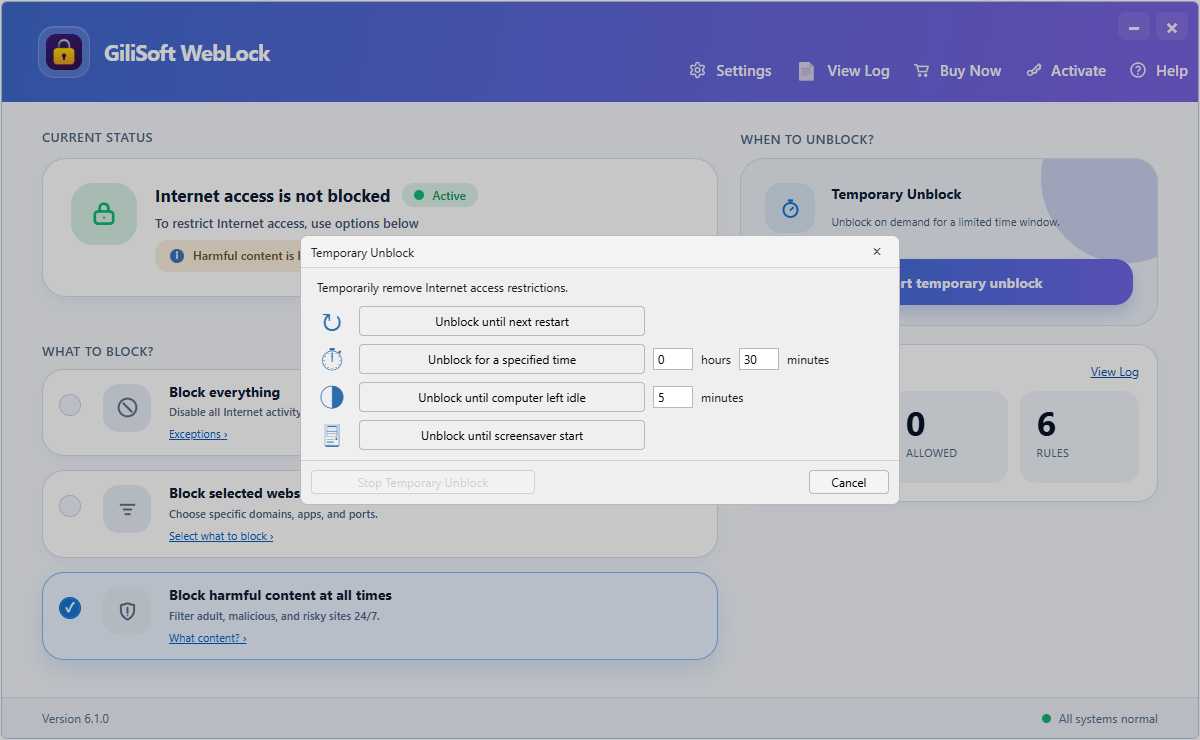 End temporary access after a restart, a selected period, idle time, or screen saver activation.
7. Review Blocked Access and Correct the Rules
The log shows what WebLock intercepted, so you can identify the exact process or destination instead of weakening the entire policy.
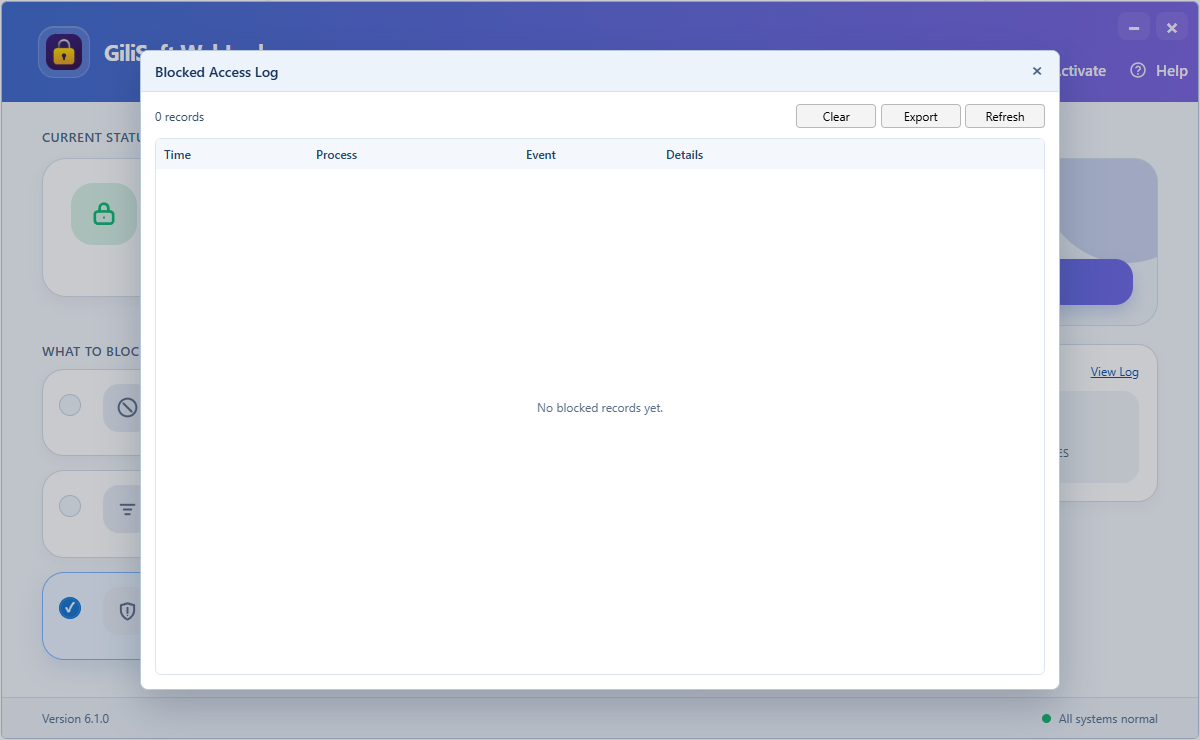 Review event time, process, action, and details before adding a narrow exception.
- Open the blocked-access log after testing the PC.
- Identify the process, event time, and available connection details.
- Confirm the activity belongs to an approved task.
- Add only the required website, program, service, or IP exception and test again.
WebLock Settings for Work, Study, and Shared PCs
Work-only browsing
Block general internet access, add approved business sites, and allow only the programs and services employees need.
Focused study computer
Keep learning platforms, research sites, and communication tools available while restricting distracting destinations.
Shared or public-use PC
Use a small allow list, protect settings with an administration password, and review blocked attempts regularly.
Maintenance without policy loss
Temporarily unlock access for an administrator, then let the original restrictions resume under the chosen condition.
Apply WebLock Without Interrupting Approved Apps
- Inventory required access: list essential websites, applications, services, and IP destinations.
- Protect administration: set the WebLock password before other users receive the PC.
- Add known exceptions: enter the approved items you already identified.
- Apply the main policy: test browsers, business apps, communication tools, and support software.
- Review blocked events: add a narrow exception only after confirming the activity is required.
WebLock Troubleshooting
Why is an approved website still unavailable?
Check the domain entry, then review whether the browser, a helper process, a service, or another destination is also being restricted.
Why can an allowed application still not connect?
The application may use another executable or background service. Review the blocked log and add only the verified dependency.
How do I allow only one program online?
Use a restrictive default policy, add that executable to Allowed Programs, then permit only the services or destinations it requires.
Does Temporary Unlock delete my rules?
No. It pauses restrictions until the chosen end condition and preserves the saved website, program, service, and IP lists.
More WebLock Guides
Continue with a guide that matches the internet-control task you need to complete.