

Hard Drive Encryption: How to Encrypt a Hard Drive on Windows 11/10
 GiliSoft Editorial Team | Updated July 22, 2026 | Windows Drive Encryption Guide
Hard drive encryption converts the data stored on a disk or partition into unreadable ciphertext. The correct password, key, or approved pre-boot authentication is required before the protected data can be used normally.
This is different from hiding a drive letter or applying an ordinary Windows permission. Encryption is designed to protect data at rest when a laptop, desktop, internal disk, or removable drive is lost, removed, or accessed outside the normal Windows account.
Before You Encrypt a Hard Drive
Drive encryption is a major storage operation. Prepare the recovery path before starting, especially when encrypting the Windows system drive.
- Back up irreplaceable files to a separate, verified location.
- Confirm whether the target is the Windows system drive, a data partition, or removable storage.
- Connect the computer to reliable power and avoid interrupting encryption.
- Save the recovery key somewhere other than the encrypted drive.
- Check the product requirements for the disk layout and boot configuration.
- Test recovery procedures before deploying encryption across multiple PCs.
Method 1: Encrypt a Drive with BitLocker
Microsoft documents BitLocker Drive Encryption for Windows Pro, Enterprise, and Education editions. Device Encryption is available on a wider range of compatible devices, including some Windows Home PCs.
The exact wording varies by Windows edition and drive type, but the manual BitLocker process follows these steps.
Open Manage BitLocker
Sign in with an administrator account, search for Manage BitLocker, or right-click the target drive and choose Turn on BitLocker.
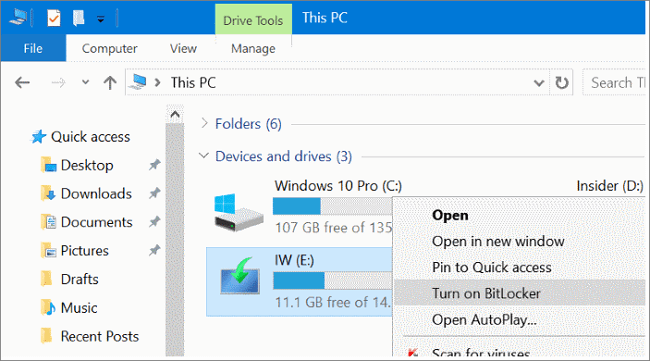 Select the intended drive carefully before enabling encryption. The Windows interface may vary.
Choose an unlock method
For a data or removable drive, select the available password or smart-card option and create a strong password. System-drive options depend on the device hardware and policy.
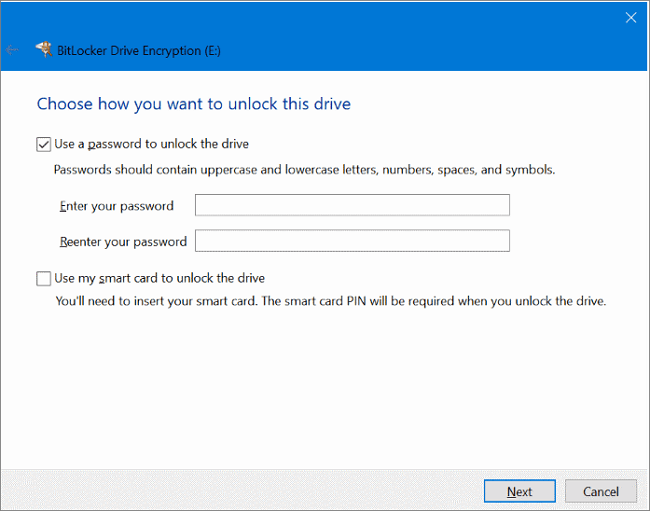 Use a unique password that is not stored on the encrypted drive.
Back up the recovery key
Save the recovery key to an approved account, file, printout, or organization-managed location. Microsoft cannot recreate a lost BitLocker recovery key.
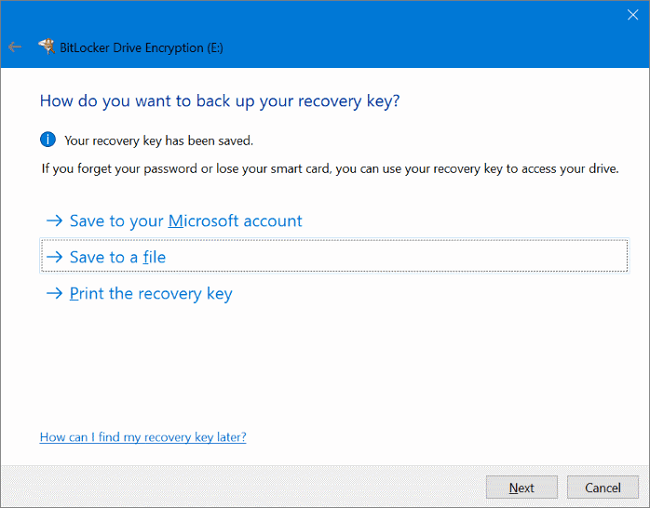 Keep the recovery key separate from the encrypted disk.
Choose how much of the drive to encrypt
Choose used-space-only encryption for a newer empty drive or entire-drive encryption when existing and previously deleted data should be covered.
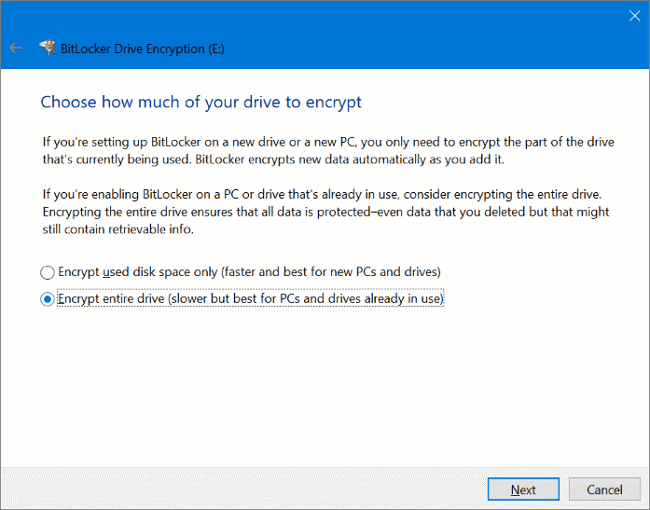 Entire-drive encryption takes longer but provides broader coverage on a drive that has already stored data.
Choose the encryption mode
Use the mode recommended by Windows for the target. Compatibility requirements matter when a removable drive must be opened on older Windows systems.
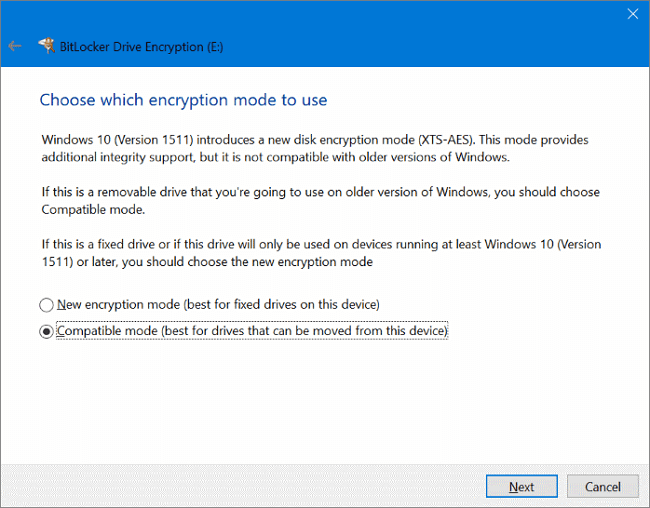 Read the compatibility note before choosing a mode for removable storage.
Start encryption and verify recovery
Start encryption, keep the PC powered, and wait for completion. Restart or reconnect the drive as appropriate, then confirm both normal unlock and recovery-key access.
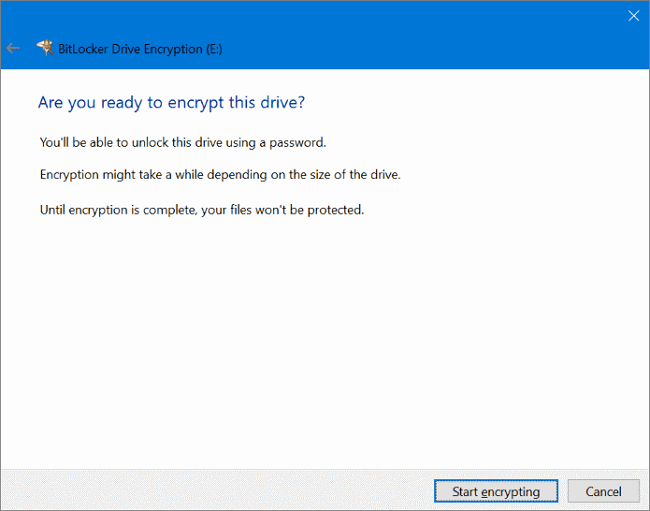 Do not remove the drive or interrupt power while encryption is being prepared.
Method 2: Use GiliSoft Full Disk Encryption
Use GiliSoft Full Disk Encryption when you want a dedicated Windows application for encrypting hard drives, partitions, USB drives, and SD cards, including pre-boot protection for supported system-drive configurations.
GiliSoft Full Disk Encryption
Review disks and partitions, configure authentication, and protect data at rest from one drive-encryption interface. Confirm the supported disk layout and boot mode before encrypting a Windows system partition.

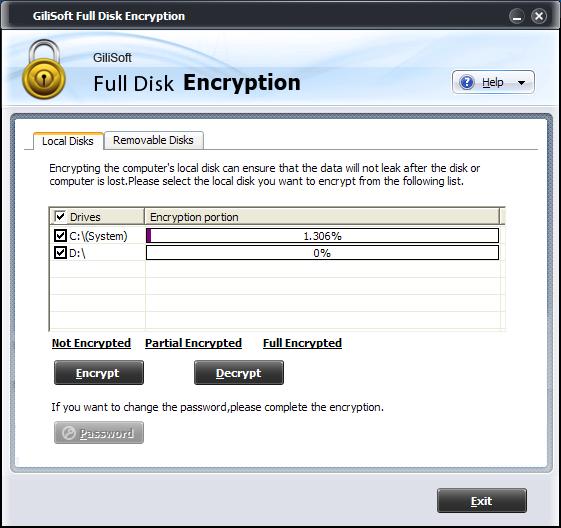 Use the product interface to review supported disks and configure encryption for the intended Windows PC.
Back up files and inspect the disk layout
Confirm which physical disk and partition contain the data, verify available recovery media, and check the system-drive requirements.
Install and open Full Disk Encryption
Use the official installer, start the product with administrator access, and review the listed disks before selecting a target.
Configure authentication and recovery
Set the required password or pre-boot access method and store the recovery information separately from the encrypted computer.
Encrypt the selected drive or partition
Start with the intended target only, keep power stable, and allow the operation to finish without forced shutdowns or disk changes.
Restart and test access
Confirm normal startup or drive unlock, then test the documented recovery method before considering the deployment complete.
Hard Drive Encryption, Drive Locking, and USB Secure Areas
Encrypt a complete drive or partition
Choose Full Disk Encryption or BitLocker when the goal is cryptographic protection for all data stored on the selected drive or partition.
Lock, hide, or protect selected Windows data
Choose File Lock Pro when you need password access, hiding, change protection, or encryption for selected files and folders. Its drive-lock feature controls access inside Windows; it is not a replacement for whole-drive encryption.
Create a protected area on a USB drive
Choose USB Encryption when the main task is dividing removable storage into public space and a password-protected secure area.
Hard Drive Encryption FAQs
Can Windows Home encrypt a hard drive?
Some compatible Windows Home devices support Device Encryption. Manual BitLocker Drive Encryption is documented for Windows Pro, Enterprise, and Education. Check Settings and System Information on the specific PC.
Where should I save the recovery key?
Store it separately from the encrypted drive, using an approved Microsoft account, organization account, printed copy, secure USB device, or another managed recovery location.
Does locking a drive encrypt it?
No. Access locking and hiding can be useful inside Windows, but they are not the same as cryptographically encrypting every sector of a drive.
Should I encrypt used space or the entire drive?
Used-space-only encryption is faster for a new or empty drive. Entire-drive encryption is generally the stronger choice for a drive that previously held data.
Conclusion
BitLocker is the built-in choice on supported Windows editions. GiliSoft Full Disk Encryption provides a dedicated alternative for supported hard drives, partitions, USB drives, and SD cards. Whichever method you choose, the recovery key, backup, power stability, and post-encryption test matter as much as clicking the encryption button.
Encrypt Windows drives with GiliSoft Full Disk Encryption
Review the product requirements, back up important files, and test the recovery process before protecting a system or data drive.
View Full Disk Encryption