How to Use GiliSoft File Lock Pro for Mac
Choose a task for its Mac controls and illustrated steps: hide or restore files, check vault access, manage private notes, change the password, or adjust app preferences.
Hide a File on Mac
Use the Primary Vault list rather than renaming a file or manually changing its Finder visibility. Test both hiding and unhiding before adding irreplaceable content.
Open the password-protected workspace
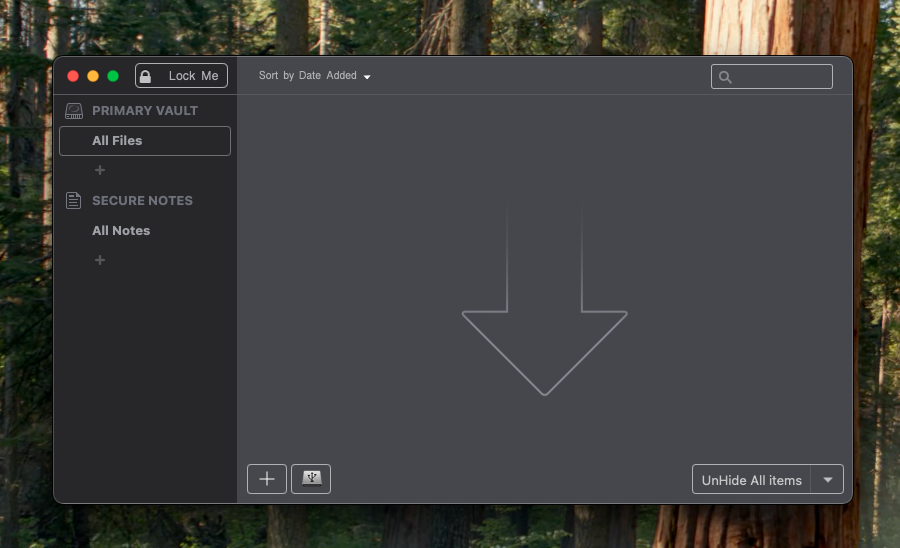
Open File Lock Pro for Mac and enter the application password. Choose All Files or the intended group under Primary Vault. Use a noncritical sample for the first hide-and-restore test.
Add the intended file
Use the file-list + control or drag the file into the Primary Vault workspace. Review the file name and original location so you do not protect a different copy by mistake.
Hide the selected item
Select the file and use Hide Selected when it is visible. Wait for processing and review the item status. The illustrated hidden file is labelled encrypted and moved vault, and the selected-item action becomes Unhide Selected.
Hide Folders, Restore Items, and Check Vault Access
Hide a Folder on Mac
- Add the folder to Primary Vault
Open the app with its password and use the file-list + control or drag the intended folder into the vault workspace. Check its name and original Finder location.
- Select the folder and hide it
Select the folder row and use Hide Selected when it is visible. Wait for the operation and check its status. Files and folders can appear together in the same managed list.
- Check visibility and rehearse restoring it
Check the original Finder location. Return to the selected folder and use Unhide Selected when ordinary access is needed again. Test with a small sample folder first.
Unhide Files or Folders
- Open the managed-item list
Enter the app password and choose All Files or the group containing the hidden item. Select the intended file or folder.
- Use Unhide Selected
Choose Unhide Selected for the hidden item. Check the row state and restored path after the operation. The visible item offers Hide Selected again.
- Verify normal Finder access
Open the restored item from its Finder location and check its contents. Use the app workflow rather than manually recreating or moving its original path. Hide it again when the working session is finished.
Check Encrypted Vault Storage
- Keep a sample and backup before moving important content
Use the Primary Vault add-and-hide workflow for a sample file or folder. Retain an independent backup of important source content until access has been verified.
- Review the vault-stored state
After hiding completes, review the row status. The hidden-file screenshot and folder screenshot display encrypted and moved vault for the stored items.
- Verify password access and restoration
Use Lock Me, reopen with the password, and test Unhide Selected on the sample. Confirm the restored contents are usable. The vault keeps the managed content protected until you choose to restore it for normal use.
Lock the App with Lock Me
- Finish working with visible items
Review the file list and hide any items that should not remain visible in Finder. Locking the app is not a substitute for checking their visible state.
- Select Lock Me
Use Lock Me at the top of the app window to leave the open workspace and return to password-controlled access.
- Reopen with the application password
Enter the correct password at the login screen and confirm that the intended files and notes remain manageable. Review idle locking and quit behavior separately.
Manage Password Access and Secure Notes
Change the Application Password
- Open the password preferences
Open Preferences > Password and choose Change Password.... The password is used to open and manage this Mac app.
- Enter the old and new passwords
In the Change Password dialog, complete Old Password, New Password, and Verify. Review the optional password hint without putting the password itself in the hint.
- Apply the change and test reopening
Select Change Password, retain the new credential securely, and confirm it works after Lock Me. Review Keychain backup separately before relying on recovery.
Review Keychain Backup and Recovery
- Review the optional password backup
Open Preferences > Password and inspect Back up Lock File Pro Password in Keychain. The screenshot explains that this backup supports later retrieval.
- Decide whether to enable it
Review who can access the Mac user account and Keychain Access before enabling password backup. Keep an independent record of the app password as appropriate.
- Use the available recovery route when needed
The login screen has Retrieve Password. Follow the recovery options available in the installed version; do not assume retrieval works if a password backup was never enabled. Recovery of the app password is separate from recovering deleted data.
Create and Reopen a Secure Note
- Choose the notes workspace
Open SECURE NOTES > All Notes or the intended notes group. Use the + control in the notes list to create a note.
- Enter and review the private text
Give the note an identifiable title and enter the text in its editor. Reselect the note and confirm the content is retained; the screenshot shows a note list, editor, and Edited timestamp.
- Lock and verify reopening
Use Lock Me, reopen with the app password, and confirm that the note is present and readable. Keep any required independent backup of irreplaceable information.
Configure Everyday App Behavior
Set Idle Locking and Quit Behavior
- Review the idle-lock dropdown
Open Preferences > General. Review Lock File pro when idle and choose from the values available in the installed version. The screenshot shows Never, not a recommended automatic-lock setting.
- Review what happens when quitting
Check When quitting Lock File Pro. The General screenshot shows Ask to hide all files; do not assume every visible item is always hidden just because the app closes.
- Test the chosen behavior with a sample
Test an idle session and a normal quit separately. Reopen with the password, inspect the list and Finder, and confirm that access and visibility match the settings you selected.
Review Advanced Preferences by Task
Advanced preferences separate post-hide erasure, Finder reveal behavior, and the Primary Vault location. Change only the setting relevant to your current task.
Reveal Items in Finder After Unhiding
- Open the Finder reveal options
Choose Preferences > Advanced and locate Show files in finder automatically after unhiding.
- Choose the route that should reveal the item
Review When unhiding via menu bar assistant and When unhiding from Lock File Pro Main Window separately. Enable the routes you want.
- Test unhiding through that route
Use Unhide Selected on a sample and check whether Finder reveals the restored item. Revealing it in Finder is different from changing the file contents.
Review Erasure After Hiding
- Keep required source backups
This option affects remaining file data after content has been hidden and moved into the vault. Keep any required independent backup before enabling it.
- Review the erasure checkbox and method
In Preferences > Advanced, inspect Erase remaining file data securely after hiding and Secure erase method. Select the option only when that additional erasure is intended.
- Verify vault access with disposable sample data
Test the hide-and-restore workflow on a sample and confirm the protected content remains accessible. Unhide restores the managed item; it is not an undo operation for erased remnants or other deleted copies.
Review or Change the Vault Location
- Check the configured location
Open Preferences > Advanced and inspect Primary vault Location. The path in the screenshot is an example, not a destination to reproduce.
- Use the app Change control
Select Change... when you need another location and follow the choices offered by the app. Keep a verified backup and avoid manually renaming or moving an active vault in Finder.
- Verify the managed files and notes afterward
Reopen the app with the password, review the protected-item list and notes, and test restoration of a noncritical item before relying on the changed location.
Verify the Task You Completed
- Hidden item
- Check the intended Finder path and test Unhide Selected on a sample.
- Password change
- Lock and reopen the app with the updated password. Review Keychain backup separately.
- Secure Note
- Reselect the note, then lock and reopen to confirm the text is retained.
- Preference change
- Test the affected action, such as quitting, idle locking, Finder reveal, or vault-location access.
Fix Common Mac Privacy Problems
Cannot locate a managed item
Open All Files or the correct Primary Vault group. Check the original path and whether you are viewing a restored ordinary copy.
The selected-item action looks reversed
Review the current state: a visible item offers Hide Selected, while a hidden item offers Unhide Selected. The screenshots illustrate both states.
A note appears to be missing
Choose All Notes or the correct notes group, select the note, and verify its title and retained contents.
The app does not lock after inactivity
Review the General idle-lock selection. The pictured Never value disables that automatic trigger.
Finder does not reveal a restored file
Review the separate Advanced options for assistant and main-window unhiding, then test the route you actually use.
Forgotten password or vault access issue
Use the installed Retrieve Password/help options and any previously configured Keychain backup. Keep verified backups available before further changes.
File Lock Pro for Mac FAQ
What is the difference between hiding and encrypting a file?
Hiding concerns ordinary Finder visibility; encryption concerns stored contents. In the illustrated Mac workflow, hidden items can be labelled encrypted and moved vault in Primary Vault. Check the managed state and test restoration rather than assuming there is a separate Windows-style encryption-output button.
How do I make a hidden file visible again?
Open the app with its password, choose the item in All Files or its group, and use Unhide Selected. Check the restored path and Finder access. When the item is visible again, its selected-item action becomes Hide Selected.
Why is a hidden item still visible?
Check that the correct file or folder was selected and hiding completed. Review the item state and the intended original Finder path. Another ordinary copy elsewhere is separate from the managed vault item.
Do I need to upload my private files to cloud storage?
This guide uses the local Primary Vault and Secure Notes workflows. Your own storage, backup, and synchronization choices remain separate; check those locations when planning where copies are kept.
What should I do before protecting an important file?
Retain an independent backup, verify the selected path, and rehearse hiding and restoring a noncritical sample. Confirm app-password access before relying on the vault, and review optional erase-after-hiding settings separately.
Is the Mac version the same as File Lock Pro for Windows?
No. This guide uses the Mac Primary Vault, Secure Notes, Lock Me, and Preferences controls. It does not use Windows Local Disk locking lists or Encrypt to GFL/EXE output. Install the Mac .pkg edition for macOS.
Can I retrieve a forgotten application password?
Password preferences offer an optional Keychain backup, and the login screen has Retrieve Password. Review and configure that backup before relying on retrieval. Available recovery depends on the installed version and configured backup; do not assume any password can always be reset.
Does Lock Me hide every visible file automatically?
Do not assume so. Review each item state and use Hide Selected for files that should not remain visible in Finder. Lock Me controls access to the app workspace; idle locking and the chosen quit behavior are separate preferences.
Is the Mac edition free, and which license do these buttons show?
A Mac trial download is available. The purchase buttons in this guide show the official checkout option at $29.95 for 1 Year / 1 Mac. Review current choices at checkout; the lifetime Mac option is separate.