

How to Prevent a File from Being Deleted on Windows
Preventing deletion is useful for templates, shared reference files, local records, and other content that must remain available. It is an access-control task, not encryption or backup, and an administrator may still be able to change ownership or permissions.
Quick answer
Choose the protection workspace and add the exact file rather than a broad parent folder. Back up the target first, apply the narrowest useful rule, and test both authorized access and the action that should be blocked.
Choose the Right Protection for the File
| Situation | Recommended approach | Check carefully |
|---|---|---|
| Stop ordinary deletion or renaming | Use Protect to deny changes to the selected file | Applications that must still update the file |
| Hide the file from casual browsing | Use Hide instead of Protect | Hidden does not mean encrypted |
| Keep the contents confidential | Use Lock or encryption | Password recovery and backup |
| Recover from malware or corruption | Maintain an independent versioned backup | Access control is not recovery |
Step-by-Step Workflow
- Back up and close the file
Save the current version, close applications using it, and keep a recoverable copy outside the protected path.
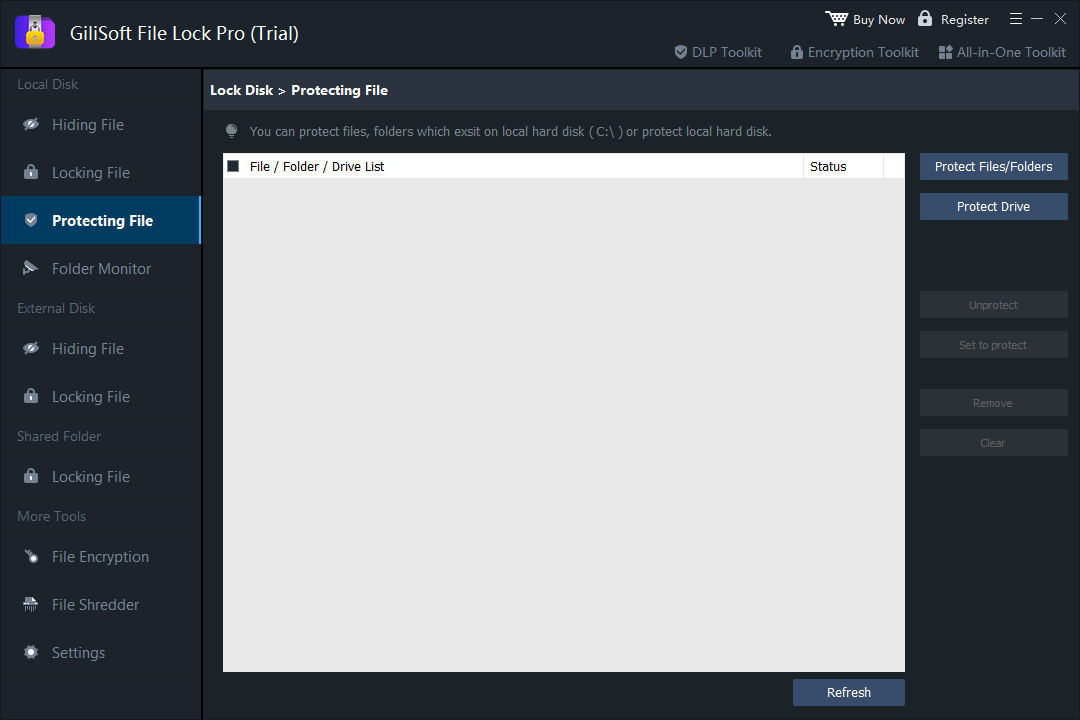
- Open Prevent Changes in File Lock Pro
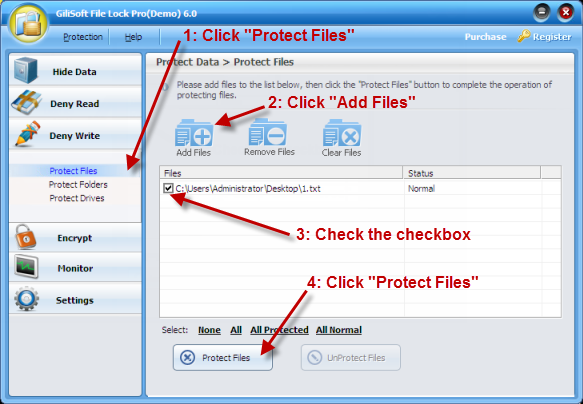
Choose the protection workspace and add the exact file rather than a broad parent folder.
- Apply the no-delete or no-write rule
Select the restriction that matches the goal, save it, and protect the File Lock Pro settings with an administrator password.
- Test allowed and blocked actions
Open the file with its normal application, then test rename, edit, and delete using a standard user account.
- Document and remove the rule when finished
Record why the file is protected and confirm the authorized recovery procedure before the rule is no longer needed.
See the File Lock Pro user guide for every workspace, password recovery, and related protection task.
GiliSoft File Lock Pro Interface
These product screenshots connect the workflow to the relevant local Windows controls.
Review the Protection Boundary
- Keep a verified backup before applying broad access or write restrictions.
- Use a standard user account to test both the permitted workflow and the blocked action.
- Protect the administration password and document how authorized recovery works.
- Keep Windows Security enabled and use encryption when offline data exposure is in scope.
Frequently Asked Questions
Does this encrypt the file?
No. Prevent Changes controls ordinary access and modification; use an encryption workflow when confidentiality is required.
Why can an application no longer save the file?
A no-write rule can block legitimate updates. Test the exact application and narrow the protected target or rule.
Can an administrator remove the restriction?
Windows administrators can often take ownership or change access. Protect product settings and use layered controls for managed systems.
Will this protect against ransomware?
It is not a complete ransomware defense. Keep Windows Security enabled, consider Controlled Folder Access, and maintain versioned backups.