Encryption
Transforms file content into unreadable data that requires the correct key or password.

GiliSoft File Lock Pro
Encrypt private files and folders, then hide, lock, or restrict access to local drives, USB storage, and shared folders without moving sensitive data to the cloud.
Compare built-in Windows encryption, encrypted archives, private vaults, cloud encryption, and local file protection tools before deciding how to protect documents, photos, videos, and work folders.
There is no single Windows 11 method that fits every file. The right choice depends on your Windows edition, whether the protected copy must be portable, and whether you need a folder, a vault, or an entire drive encrypted.
Choose the protection type before choosing a tool. Encrypting a file changes its stored contents, while locking or hiding controls how the existing item can be accessed on the current computer.
Transforms file content into unreadable data that requires the correct key or password.
Restricts opening, editing, renaming, deleting, or other access without necessarily changing the stored data.
Removes an item from ordinary Explorer or search views but is not automatically the same as cryptographic protection.
Encrypts or controls an entire disk or removable drive instead of creating a protected copy of one file or folder.
The products below do not all solve the same problem. Some encrypt files, some create vaults, and others protect an entire drive. This comparison keeps those differences visible.
| Method | Windows Home | Local use | Main approach | Best fit |
|---|---|---|---|---|
| GiliSoft File Lock Pro | Yes | Yes | Encrypted GFL or EXE copy, plus separate hide and lock tools | Local file and folder encryption with practical access controls |
| Windows EFS | No | Yes | Certificate-based NTFS encryption | Files that stay on a supported Windows installation |
| BitLocker | Edition/device dependent | Yes | Drive encryption | Laptops, internal drives, and removable drives |
| 7-Zip / WinRAR | Yes | Yes | Encrypted archive | Sending or archiving protected copies |
| VeraCrypt | Yes | Yes | Mounted encrypted container | Technical users managing a private vault |
| Cryptomator | Yes | Yes | Encrypted vault | Files synchronized through a cloud folder |
| AxCrypt | Yes | Yes | File-based encryption | Encrypting and sharing individual files |
| NordLocker | Yes | Cloud focused | Encrypted storage | Cross-device encrypted cloud access |
| Folder Lock / Wise Folder Hider Pro | Yes | Yes | Locker, vault, or hide workflow | Users focused on access control and privacy |
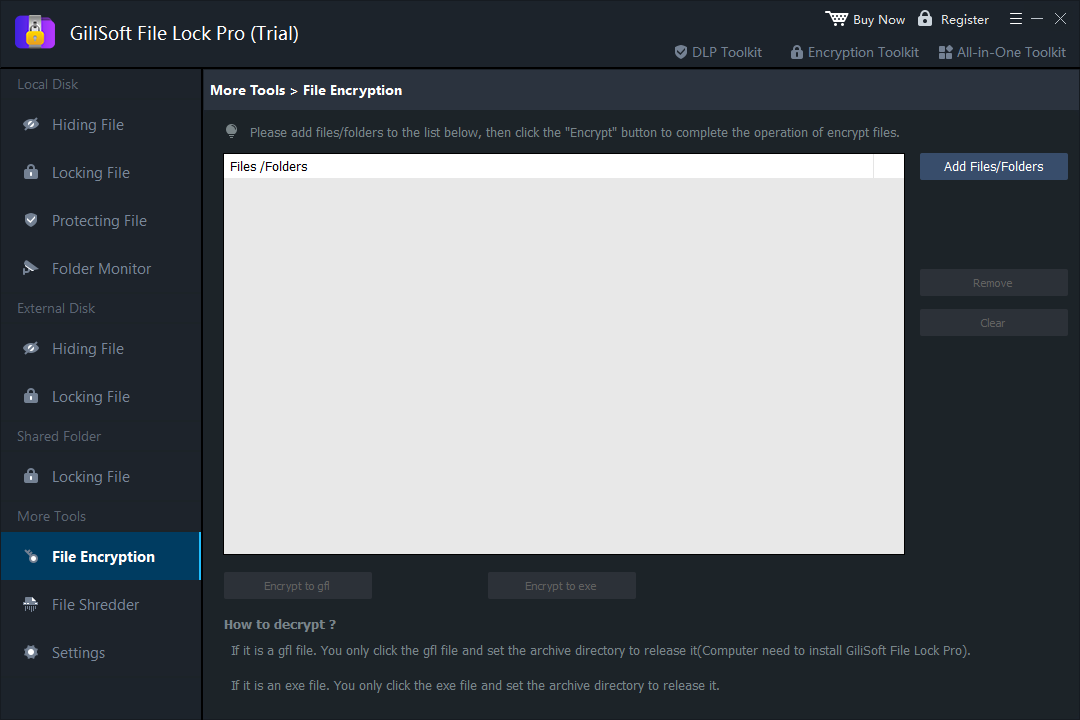
File Lock Pro provides a dedicated File Encryption tool for users who want a local Windows workflow without first building and mounting a virtual disk. It creates a separate encrypted GFL or EXE output; it does not automatically erase or replace the unencrypted source.
EFS is useful when the data stays on the same PC and should open transparently for the Windows account that encrypted it.
This route is practical for email, USB delivery, backups, and folders that do not need constant editing.
Vault-based tools are useful when you want a private workspace rather than separate encrypted copies of every file.
BitLocker is the better Windows tool when a lost laptop, external disk, or USB drive is the main concern.
Use local encryption or File Lock Pro when private photos and documents must remain separate from other Windows users.
Choose an archive, vault, or third-party file encryption tool because EFS is unavailable.
Choose an encrypted archive or portable encrypted output that the recipient can open through an agreed process.
Use a vault designed for synchronized storage when files will leave the local PC through a cloud provider.
Use BitLocker or another full-drive encryption product so data at rest remains protected when the device is offline.
Use a direct desktop workflow if building, mounting, and dismounting a container would slow down everyday protection.
No. EFS file encryption is not available in Windows 11 Home. Use an encrypted archive, vault, or local encryption tool instead.
No. BitLocker primarily protects a drive. EFS and file encryption applications work at the file or folder level.
The Windows edition, file system, policy, or file type may not support EFS. Check those conditions before changing the data.
No. It creates a protected archive copy. The source folder remains as it was until you manage it separately.
First test the encrypted output and keep a reliable backup. Only then decide how the unencrypted source should be handled.
A GFL file is opened through GiliSoft File Lock Pro. An EXE output is a self-contained encrypted package that can be opened directly with the correct password. Both are separate protected outputs, so test them before handling the original files.
Use GiliSoft File Lock Pro to create encrypted GFL or EXE output and manage separate hide, lock, protect, monitor, and secure-delete tasks from one Windows application.
Explore File Lock Pro 


Enter your email address to get our latest newsletter