

How to Fix "Encrypt Contents to Secure Data" Greyed Out in Windows 11/10
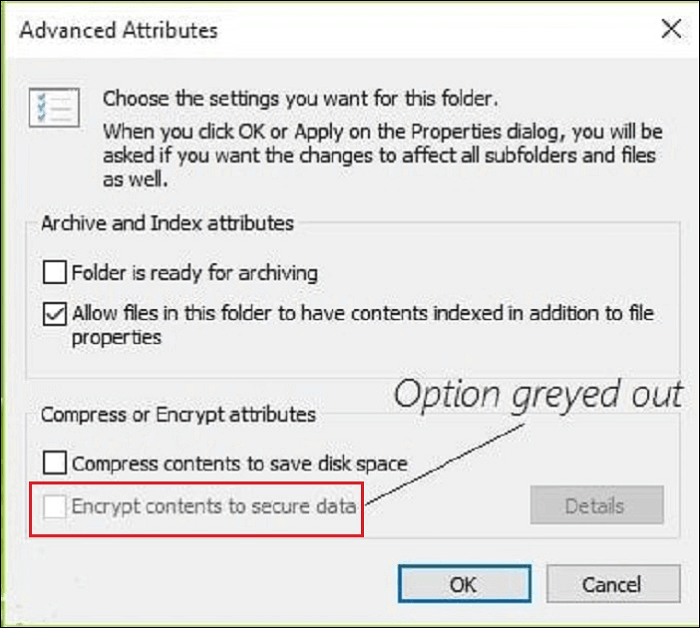
If the Encrypt contents to secure data checkbox is unavailable in a file or folder's Advanced Attributes, Windows is usually telling you that EFS cannot be used in the current edition, on the current volume, or under the current policy. Check those conditions before changing services or registry values.
Find the Cause Before Applying a Fix
The same grey checkbox can have several causes. Match what you see to the likely explanation instead of applying every fix on the page.
| What you find | Likely cause | Best next step |
|---|---|---|
| Windows 11/10 Home | EFS is not included in the Home edition | Use a supported Windows edition or a separate folder-protection tool |
| Drive is FAT32 or exFAT | EFS requires NTFS | Move the folder to NTFS; do not reformat a drive without a verified backup |
| Compress contents is selected | NTFS compression and EFS cannot be applied to the same item | Clear compression, apply the change, then test encryption again |
| Company-managed PC | Policy may disable EFS intentionally | Ask IT before changing a service, policy, or registry value |
| Supported edition and NTFS | Encryption setting, policy, service, or certificate setup | Continue with the system checks below |
1. Check Windows Edition, NTFS, and Folder Compression
Confirm the Windows edition
Open Settings > System > About and check the edition. Microsoft states that file encryption is not available in Windows Home. A registry edit cannot add an edition feature that is not installed.
Confirm the volume uses NTFS
In File Explorer, right-click the drive that stores the folder, choose Properties, and check File system. EFS works on NTFS, not FAT32 or exFAT.
Remove NTFS compression
Open the file or folder's Properties > Advanced. If Compress contents to save disk space is selected, clear it, apply the change to the item and its contents, and then reopen Advanced Attributes.
2. Check the NTFS Encryption Setting and EFS Policy
Use these checks only after confirming that the PC runs a supported edition and the folder is on NTFS.
Query the current NTFS encryption setting
- Open Windows Terminal or Command Prompt as administrator.
- Run the query below before changing anything.
If the result shows that NTFS encryption is disabled and you are authorized to change the PC, run:
Restart Windows before testing the folder again. Microsoft documents that this setting requires a restart to take effect.

3. Back Up the EFS Certificate Before Encrypting Important Files
EFS access depends on the user's encryption certificate and private key. Losing the Windows profile or reinstalling Windows without that key can make encrypted files inaccessible.
- Open Command Prompt under the same Windows account that uses EFS.
- Run
cipher /xand choose a secure destination for the exported certificate and private key. - Protect the export with a strong password and store a second copy away from the encrypted data.
- Test certificate recovery with non-critical files before relying on EFS for irreplaceable data.
Use File Lock Pro When You Need a Separate Folder Password
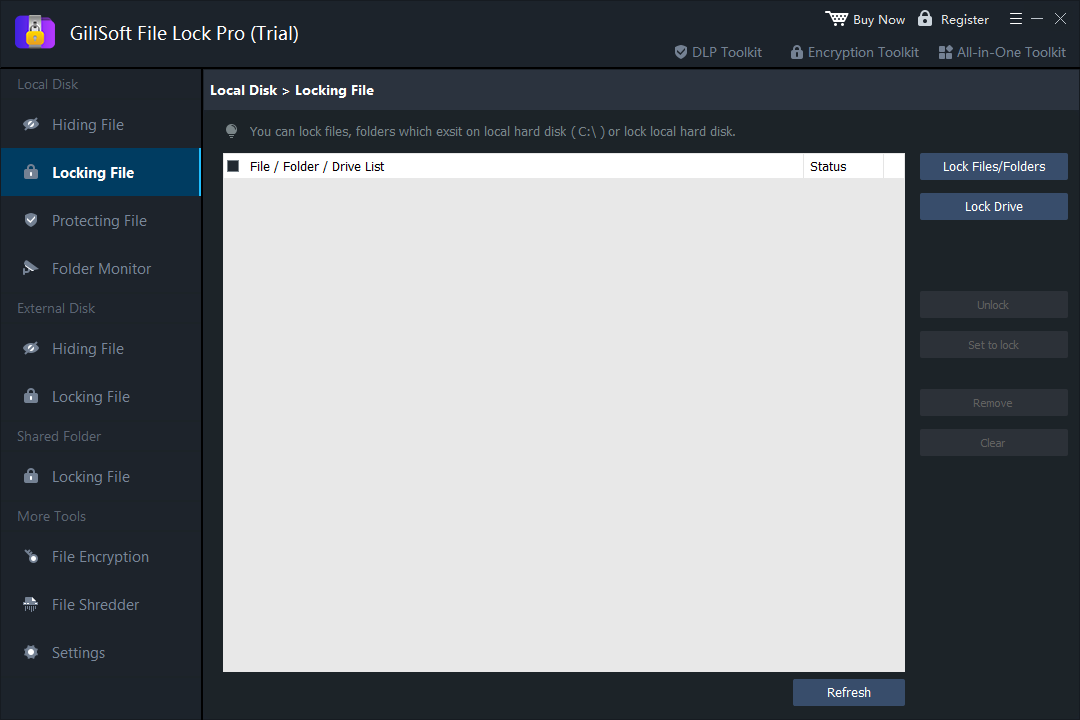
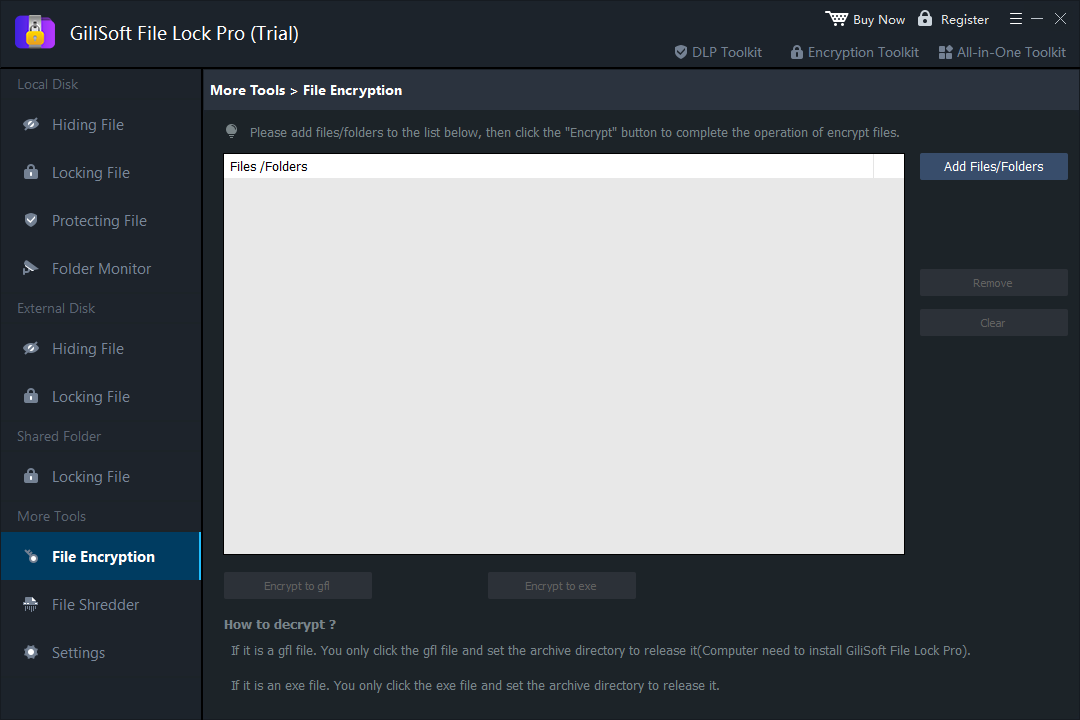
EFS encrypts files for a Windows user account; it does not display an independent password prompt each time a folder opens. If that is the behavior you expected, use GiliSoft File Lock Pro to lock, hide, or protect selected items directly. Its File Encryption tool can also create GFL or self-opening EXE packages.

GiliSoft File Lock Pro
Protect local files, folders, drives, external storage, and shared folders without depending on the EFS checkbox.
EFS vs File Lock Pro vs BitLocker
| Protection method | Best suited to | Important distinction |
|---|---|---|
| Windows EFS | Encrypting selected NTFS files for a Windows user account | Depends on a supported edition, NTFS, and the user's certificate |
| GiliSoft File Lock Pro | Direct password-based locking, hiding, monitoring, and selected-file encryption tools | Independent of the EFS Advanced Attributes checkbox |
| BitLocker | Protecting a whole supported drive or volume | Not a one-folder password feature |
Safety Checks Before You Protect Real Data
Frequently Asked Questions
Why is Encrypt contents to secure data greyed out?
The most common reasons are Windows Home edition, a non-NTFS volume, NTFS compression, an ineligible location, organization policy, or disabled NTFS encryption settings.
Can Windows 11 Home use EFS folder encryption?
Microsoft states that file encryption is not available in Windows Home. Use a supported edition or a protection method that does not depend on EFS.
Does EFS add a separate password to a folder?
No. EFS is tied to the Windows account and its certificate. It is different from a dedicated folder-locking program that asks for its own protection password.
Can EFS encrypt a USB drive formatted as exFAT?
No. EFS requires NTFS. For removable-media protection, consider a supported whole-drive method or a dedicated encrypted-storage workflow.
What does disableencryption 0 mean?
A value of 0 permits NTFS encryption; 1 disables it. The setting cannot add EFS to a Windows edition that does not include the feature.
Need direct folder protection instead of EFS troubleshooting?
Lock or hide selected Windows files, folders, drives, external storage, and shared folders with GiliSoft File Lock Pro.
Download TrialBuy File Lock Pro