

How to Lock a Folder with a Password on Windows
Folder locking is a focused alternative to protecting an entire disk. It can restrict ordinary access to selected project, personal, or office folders, but a broad parent-folder rule may also affect every file and application beneath it.
Quick answer
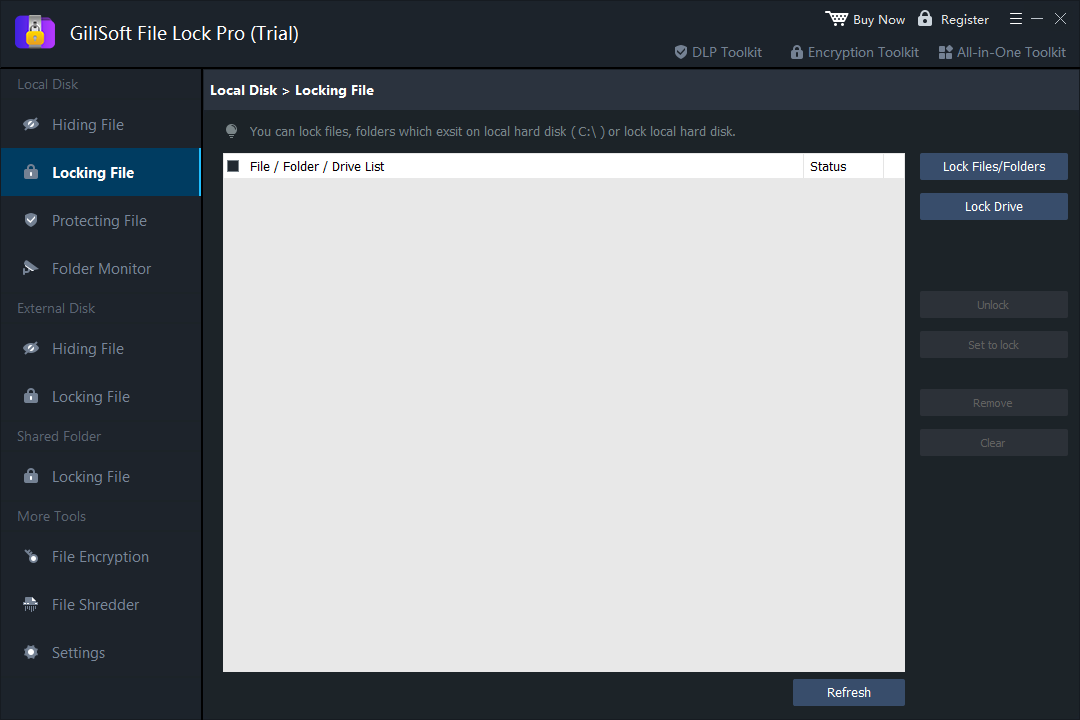
Enter the File Lock Pro password and select the local file-and-folder locking workspace. Back up the target first, apply the narrowest useful rule, and test both authorized access and the action that should be blocked.
Choose the Right Folder Protection
| Situation | Recommended approach | Check carefully |
|---|---|---|
| Require a password before folder access | Lock the selected folder | Recovery and authorized applications |
| Keep the folder out of ordinary browsing | Use Hide instead | Recent items and application history |
| Allow reading but prevent changes | Use Protect | Save, rename, move, and delete behavior |
| Protect data if the drive is removed | Use encryption | Key storage and offline recovery |
Step-by-Step Workflow
- Choose a limited folder and back it up
Start with a noncritical copy and keep a verified backup outside the folder you will protect.
- Open Local Disk and Locking File
Enter the File Lock Pro password and select the local file-and-folder locking workspace.
- Add the exact folder path
Choose Lock Files/Folders, select the intended folder, and avoid a broad parent location unless that scope is deliberate.
- Apply the lock and test normal work
Close File Lock Pro and test opening the folder and files from the standard user and application context.
- Unlock and confirm recovery
Restore access deliberately, check nested files and subfolders, and document the protected path and recovery owner.
See the File Lock Pro user guide for every workspace, password recovery, and related protection task.
GiliSoft File Lock Pro Interface
These product screenshots connect the workflow to the relevant local Windows controls.
Review the Protection Boundary
- Keep a verified backup before applying broad access or write restrictions.
- Use a standard user account to test both the permitted workflow and the blocked action.
- Protect the administration password and document how authorized recovery works.
- Keep Windows Security enabled and use encryption when offline data exposure is in scope.
Frequently Asked Questions
Does the lock include subfolders?
It may affect descendants within the selected path. Test representative nested content before protecting a production folder.
Can programs still save into a locked folder?
They may be blocked. Test every application that must create temporary files, indexes, or updates there.
Is hiding the same as locking?
No. Hiding reduces ordinary visibility; locking controls access.
Should I lock the Windows or Program Files folder?
No. Protect only data folders whose behavior you have tested.