

How to Hide a Folder on Windows
The Windows Hidden attribute is easy to reverse. GiliSoft File Lock Pro can hide selected folders from ordinary browsing, but hiding still has limits: it is not the same as encrypting the contents or securely deleting them.
Quick answer
Choose the hiding workspace and add the intended folder through the product interface. Back up the target first, apply the narrowest useful rule, and test both authorized access and the action that should be blocked.
Choose Hiding, Locking, or Encryption
| Situation | Recommended approach | Check carefully |
|---|---|---|
| Reduce casual visibility on one PC | Hide the selected folder | Administrators and offline access remain separate risks |
| Require a password before access | Lock the folder | Recovery password and authorized applications |
| Protect a portable copy at rest | Use an encryption workflow | Key storage and recipient compatibility |
| Remove files permanently | Use a verified deletion or sanitization process | Backups, sync copies, and storage type |
Step-by-Step Workflow
- Back up and choose the exact folder
Preserve an approved copy and avoid selecting broad parent folders that contain unrelated data.
- Open Hide Files in File Lock Pro
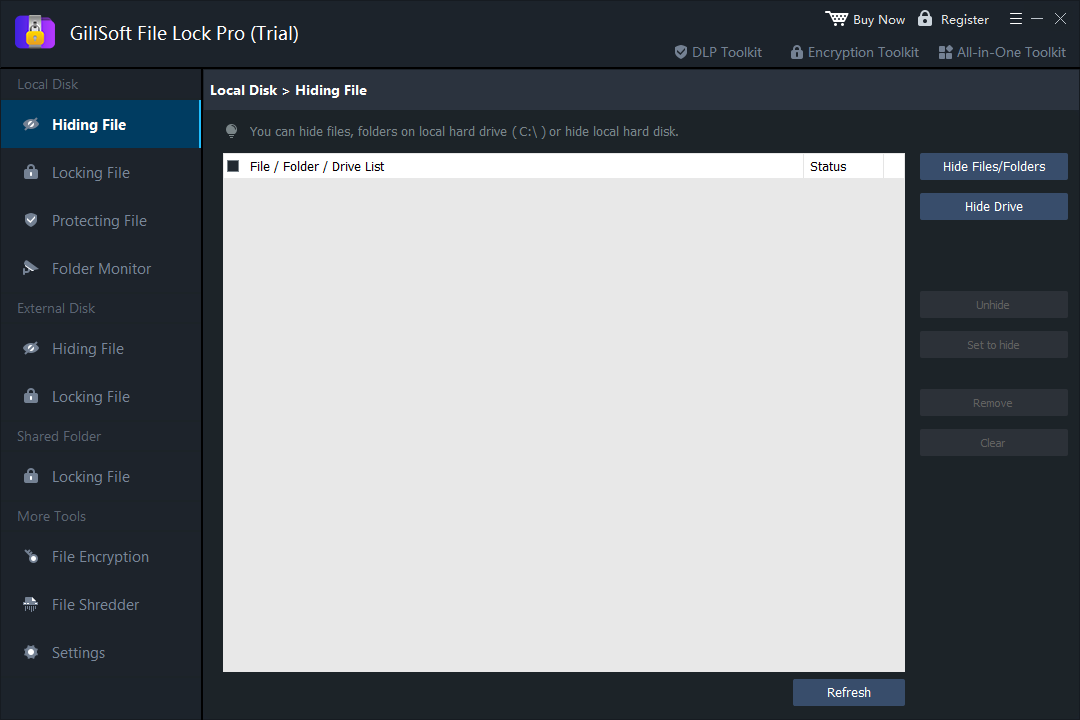
Choose the hiding workspace and add the intended folder through the product interface.
- Apply the hide action
Confirm the path, hide the folder, and close File Lock Pro before testing normal Windows browsing.
- Verify the hidden state and applications
Check File Explorer, recent lists, shortcuts, and any application that previously opened files from the folder.
- Test how to unhide and recover access
Reopen File Lock Pro with the correct password, restore the folder, and confirm its contents remain intact.
See the File Lock Pro user guide for every workspace, password recovery, and related protection task.
GiliSoft File Lock Pro Interface
These product screenshots connect the workflow to the relevant local Windows controls.

Review the Protection Boundary
- Keep a verified backup before applying broad access or write restrictions.
- Use a standard user account to test both the permitted workflow and the blocked action.
- Protect the administration password and document how authorized recovery works.
- Keep Windows Security enabled and use encryption when offline data exposure is in scope.
Frequently Asked Questions
Is the Windows Hidden checkbox secure?
No. It changes ordinary display behavior and can be reversed easily.
Can I hide an entire local drive?
File Lock Pro supports local hiding workflows, but apply broad scope carefully and verify recovery before relying on it.
Why does an application still show a recent filename?
Recent lists are separate metadata. Clear the application or Windows history without confusing the reference with the hidden folder.
What if I forget the password?
Prepare and test the documented recovery method before hiding important data.