
How to Monitor Folder Changes on Windows
Folder monitoring helps you review changes such as file creation, modification, renaming, or deletion. A useful monitor has a clear purpose and manageable scope; monitoring an entire busy drive can create noise without improving protection.
Quick answer
Record representative create, edit, rename, move, and delete actions so routine behavior is recognizable. Back up the target first, apply the narrowest useful rule, and test both authorized access and the action that should be blocked.
Define What the Folder Monitor Should Reveal
| Situation | Recommended approach | Check carefully |
|---|---|---|
| Sensitive project folder | Monitor changes and review unexpected events | Authorized applications and normal update patterns |
| Shared team folder | Track a focused path during a defined period | User attribution and network audit sources |
| Troubleshooting unexplained changes | Record a baseline and reproduce the workflow | Temporary files and application autosave |
| Ransomware prevention | Use monitoring only as one signal | Endpoint protection, Controlled Folder Access, and backups |
Step-by-Step Workflow
- Choose a focused folder and time window
Define the folder, expected users and applications, and how long monitoring should remain active.
- Establish a normal baseline
Record representative create, edit, rename, move, and delete actions so routine behavior is recognizable.
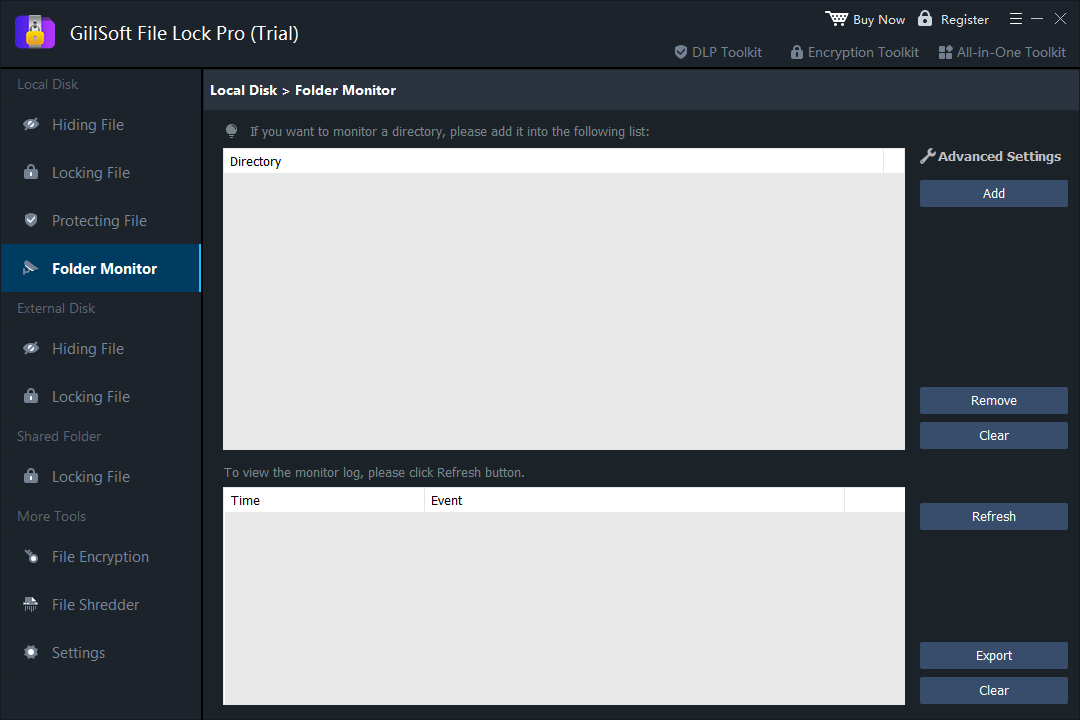
- Add the folder in File Lock Pro
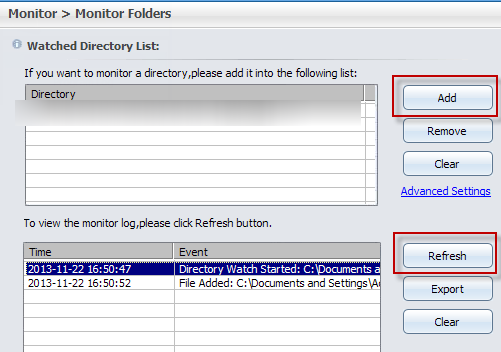
Open Folder Monitor, select the intended path, and avoid high-noise parent folders unless broad monitoring is required.
- Review events and investigate context
Compare timestamps and actions with expected users, applications, scheduled jobs, synchronization, and backup activity.
- Combine monitoring with prevention and recovery
Use appropriate access control, Windows Security, and versioned backups; a log alone cannot stop or restore every unwanted change.
See the File Lock Pro user guide for every workspace, password recovery, and related protection task.
GiliSoft File Lock Pro Interface
These product screenshots connect the workflow to the relevant local Windows controls.
Review the Protection Boundary
- Keep a verified backup before applying broad access or write restrictions.
- Use a standard user account to test both the permitted workflow and the blocked action.
- Protect the administration password and document how authorized recovery works.
- Keep Windows Security enabled and use encryption when offline data exposure is in scope.
Frequently Asked Questions
Does folder monitoring prevent changes?
No. Monitoring records supported activity; use Protect or Windows access controls when prevention is required.
Why are there so many events?
Applications, sync clients, antivirus tools, and indexers may create normal activity. Narrow the folder and establish a baseline.
Can monitoring identify the person responsible?
A local event log may not provide complete attribution. Combine it with Windows, application, or network audit sources where required.
Can it replace a backup?
No. Monitoring may show that a change happened but cannot restore lost or encrypted files.