
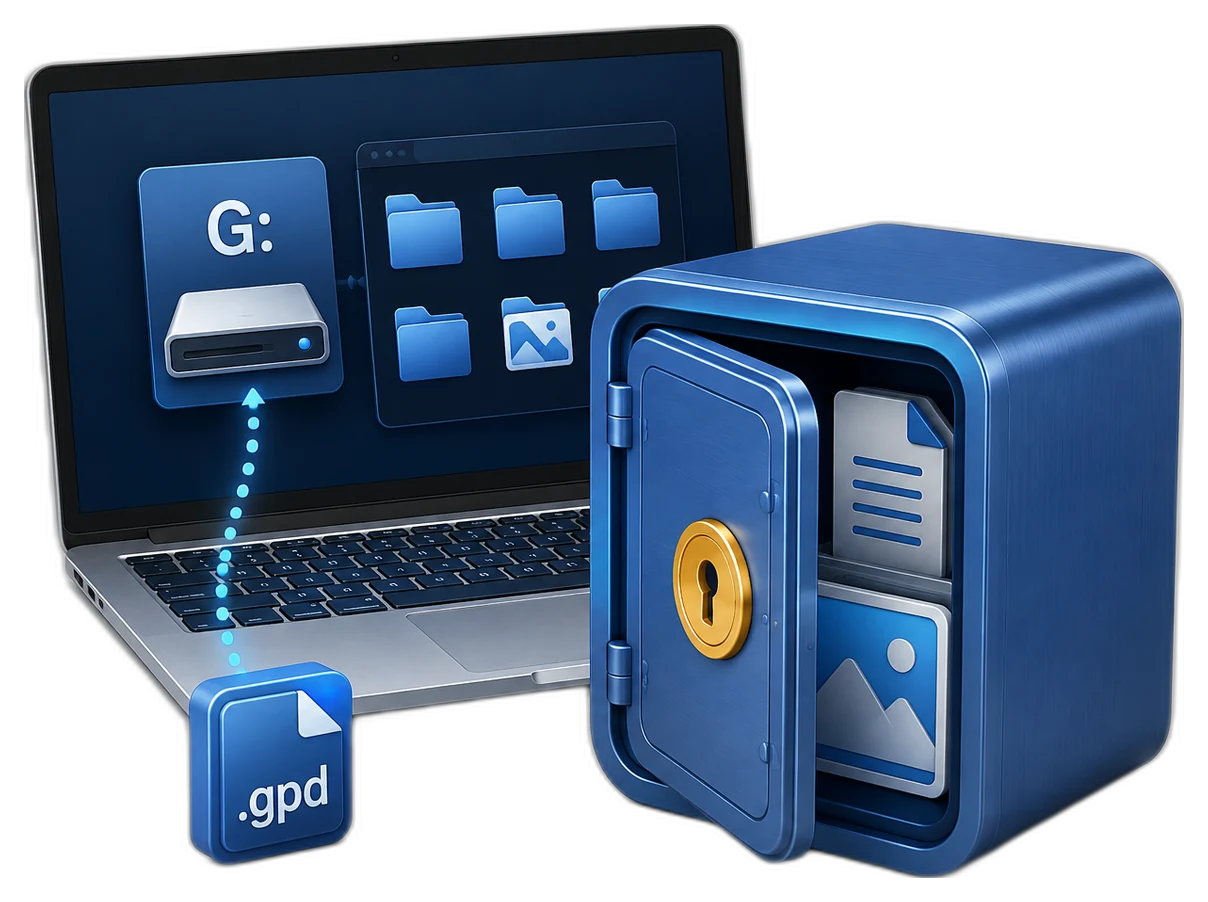
Match the Control to the Shared-PC Risk
| Situation | Recommended approach | Why it fits |
|---|---|---|
| Casual access by another household user | Separate account plus closed private disk | Keeps ordinary browsing away from protected files |
| Short unattended break | Lock Windows immediately | The open private disk remains tied to an active session |
| Administrator or device compromise | Broader endpoint controls required | A private disk alone is not a complete defense |
| Device failure or accidental deletion | Encrypted backup | Confidentiality does not provide recovery |
Set Up the Shared PC Before Storing Sensitive Files
Create separate accounts
Avoid sharing one Windows profile when individual accounts are available.
Review shared folders
Do not place confidential exports in Desktop, Downloads, Public, or other commonly browsed locations.
Disable unnecessary previews
Recent items and application history can reveal filenames even after the main file is moved.
Prepare a backup
Protect the closed container and keep the backup away from casual shared access.
Protect Confidential Files on a Shared PC: Step by Step
Create a private locker
Choose a stable location, suitable maximum size, and strong unique password.
Move approved confidential files
Place working documents in the private drive and verify that each copy is complete.
Remove avoidable plain copies
After verification and according to policy, clean up unnecessary exports from ordinary shared folders.
Work only inside the mounted disk
Open the locker for the task and avoid exporting sensitive copies to shared locations.
End the session completely
Save work, close applications, close the locker, and lock or sign out of Windows.
Audit and back up regularly
Review where files are stored and keep a tested copy of the closed encrypted container.

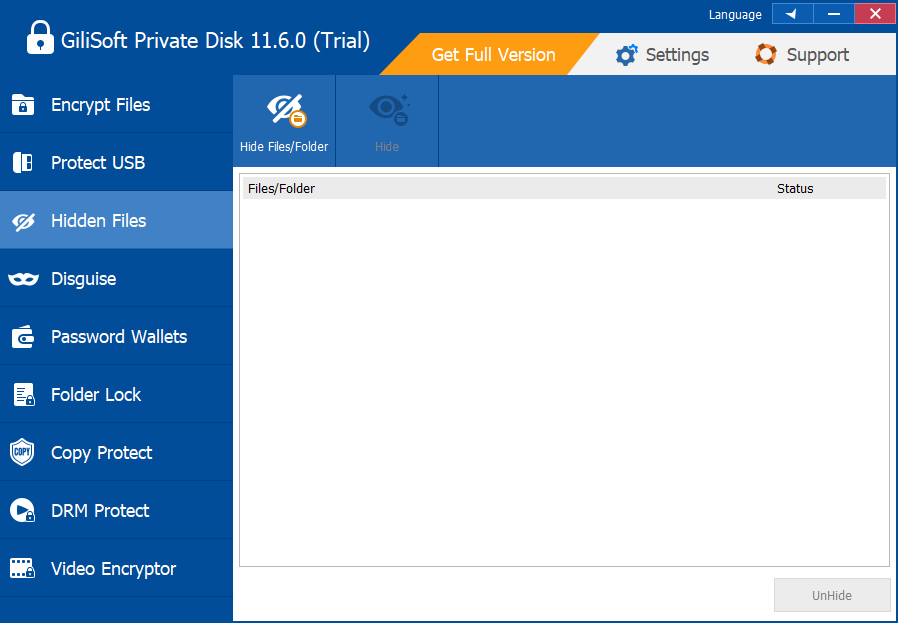
A Shared-PC Workflow Needs More Than a Password
Separate identities
Windows accounts help separate settings, history, and ordinary file access.
Protected workspace
The private disk groups sensitive files in one controlled location.
Session discipline
An open locker can expose files to anyone using the active session.
Endpoint security
Updates, malware protection, and administrator controls remain necessary.
Use GiliSoft Private Disk as the Confidential Workspace
GiliSoft Private Disk gives shared-PC users one encrypted workspace that can be opened only for private work and closed afterward. It works best alongside separate Windows accounts, screen locking, safe temporary-file handling, and a protected backup.
Troubleshooting
- Files appear in Recent Items: review application history and avoid opening protected documents outside the private disk.
- Another user can see the mounted drive: close the locker before handing over the computer.
- An export remains in Downloads: verify the protected copy, then remove the unnecessary plain copy according to policy.
- The locker will not close: close documents, media previews, and Explorer windows that still use the drive.
- The PC administrator can change system settings: use organization-level controls for higher-risk threat models.
Security Boundaries to Remember
Protect the Windows session while the private disk is open. Closing the locker limits ordinary drive access, but no single application replaces operating-system updates, malware protection, access control, full-device security, backup, or an organization security policy.
Frequently Asked Questions
Is a private disk enough for a shared PC?
It is one layer. Separate accounts, screen locking, updates, endpoint security, and backup are also important.
Can another user see the drive while it is open?
Anyone using the active unlocked session may be able to access it, so close it before sharing the PC.
Where should temporary exports go?
Keep them inside the private disk whenever possible and remove unnecessary plain copies after verification.
Does switching Windows users close the locker automatically?
Do not assume it does. Close the locker explicitly before switching users or ending the session.
What if another user is an administrator?
A local administrator has broad control; use stronger device and organizational safeguards for that risk.
How should I back up the confidential workspace?
Close the locker and copy the complete encrypted container to approved, access-controlled storage.