
Choose the Workflow That Matches the Delivery
| Need | Recommended approach | Reason |
|---|---|---|
| Protect one folder for delivery | Secure area on a data CD/DVD | Recipients enter the password before opening protected content |
| Share instructions plus private files | Public area + secure area | Instructions stay visible while confidential files remain locked |
| Protect files without physical media | Encrypted ISO image | Create and test an image before deciding whether to burn it |
| Need rewritable portable storage | Encrypted USB workflow | Use removable-drive encryption rather than optical media |
Prepare the Files, Media, and Access Plan
Confirm the source
Open representative files, remove unintended copies, and keep a verified backup before authoring.
Match capacity and hardware
Check image or project size against compatible media, recorder, and recipient drive support.
Protect the password
Use a long unique credential, retain it securely, and deliver it separately from the disc or ISO.
Plan verification
Test access, structure, and sample files on a separate compatible Windows computer.
Password Protect a Folder on CD: 6 Steps
Prepare the folder and a verified backup
Remove obsolete copies, confirm every required file opens, and keep a separate backup because the optical disc should not become the only copy.
Select the target CD or DVD recorder
Insert compatible blank media, choose the correct recorder, and confirm that the available capacity exceeds the total project size.
Add the folder to the Secure Area
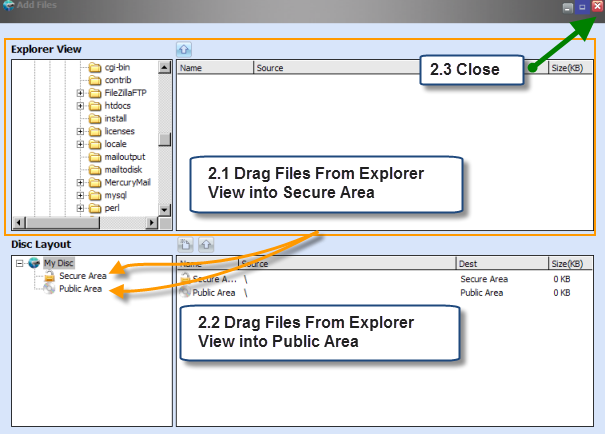
Open Add Files and drag the confidential folder into Secure Area rather than Public Area. Review the destination tree before closing the window.
Add optional public instructions
Place a readme, contact details, or non-sensitive reference files in Public Area only when recipients should open them without the password.
Set and confirm the disc password
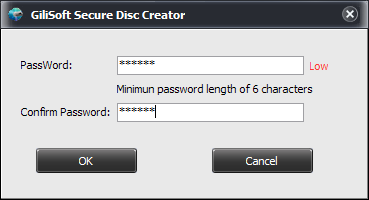
Use a long, unique password, confirm it carefully, and deliver it through a separate trusted channel rather than storing it on the disc.
Burn and test the protected folder
Start the burn without suspending the PC, then reopen the disc on another Windows computer and test the password, folder structure, and sample files.
Build Verification into the Workflow
Review the destination tree
A folder accidentally placed in Public Area will not be protected by the secure-area password.
Use a unique password
Do not reuse an account password or write the password on the disc sleeve.
Allow capacity headroom
Leave room for disc structure and avoid filling the medium to its absolute limit.
Test on another PC
A successful burn is not complete verification; open the protected folder away from the authoring machine.
Use GiliSoft Secure Disc Creator for the Protected Workflow
Secure Disc Creator is designed for password-protected CD/DVD projects, including a secure area for confidential folders and an optional public area for instructions or unrestricted files. It also supports encrypted ISO creation, ISO burning, and virtual-drive testing when a staged workflow is safer.
- Create password-protected CD, DVD, and ISO projects on Windows.
- Separate public files from secure files when the delivery needs both access levels.
- Mount encrypted images for validation and burn approved ISOs to compatible media.
Troubleshooting
- The folder opens without a password: confirm it was added under Secure Area, not Public Area.
- The folder is missing after burning: compare the project tree with the source and check whether the burn completed.
- The password is rejected: verify keyboard layout, capitalization, and the exact password recorded during creation.
- The project is too large: remove unnecessary files or switch from CD to suitable DVD media.
- The disc works only on the authoring PC: test the target computer and optical drive, and confirm the disc session finalized correctly.
- A file cannot be read: inspect the source, use reliable blank media, and burn again from the verified backup.
Protect the Password and the Production Source
Optical media can be lost, copied, damaged, or delivered to the wrong person. Encrypt only authorized content, keep a backup before authoring, store passwords or recovery information in an approved location, transmit credentials separately, and preserve the verified ISO or source files under appropriate access control.
Frequently Asked Questions
Can I password protect only one folder on a CD?
Yes. Add that folder to Secure Area and keep any unrestricted content in Public Area.
Can public and protected folders be on the same disc?
Yes. Secure Disc Creator can place password-protected content and public content in separate areas of one disc.
Does the password protect the original folder on my PC?
No. It protects the copy written into the secure disc project; protect or remove local source copies separately.
Can I recover a forgotten password?
Do not assume recovery is possible. Store the password or approved recovery information securely before distributing the disc.
Should the password be included on the disc?
No. Share it through a separate trusted channel so possession of the disc alone does not reveal access credentials.
Can I test before using a physical disc?
Yes. Create an encrypted ISO and mount it in the product virtual drive before burning.