

How to Password Protect a Folder on Windows 11/10
There is no single Windows button that adds a separate password to every ordinary folder. This guide shows the practical choices, explains what each one actually protects, and helps you choose a simple local method without confusing a hidden folder, account permission, encrypted archive, and password-protected workspace.
What Does Password Protecting a Folder Actually Mean?
The phrase sounds simple, but Windows protection works at different layers. A folder can be hidden from normal browsing, restricted to a specific Windows account, placed inside an encrypted volume, or packed into a separate encrypted file. The best choice depends on whether your files stay on this PC, change every day, or need to be shared and stored elsewhere.
Use a direct folder lock so the files remain where you work with them but require the File Lock Pro password before access.
Use a BitLocker-protected virtual drive when you prefer one encrypted container that mounts as another Windows drive.
Create an encrypted archive or protected output. It protects the copy; secure the original separately if it remains on the PC.
Recommended: Password Protect a Folder with File Lock Pro
For most home and small-office users, a dedicated local folder lock is clearer than building a virtual drive or learning Windows certificate management. File Lock Pro is designed for the common job: choose the folder, apply the protection rule, and keep working from the same Windows PC.
Protect the folder where it already lives
File Lock Pro keeps the focus on selected files, folders, local drives, external disks, and shared folders. It is a useful fit when the target stays active and you do not want to turn routine work into an archive-and-extract cycle.
- Lock folders behind a local master password
- Hide private content from ordinary Windows views
- Choose more restrictive protection for reading, writing, renaming, or deletion
- Create encrypted output when a separate protected copy is needed
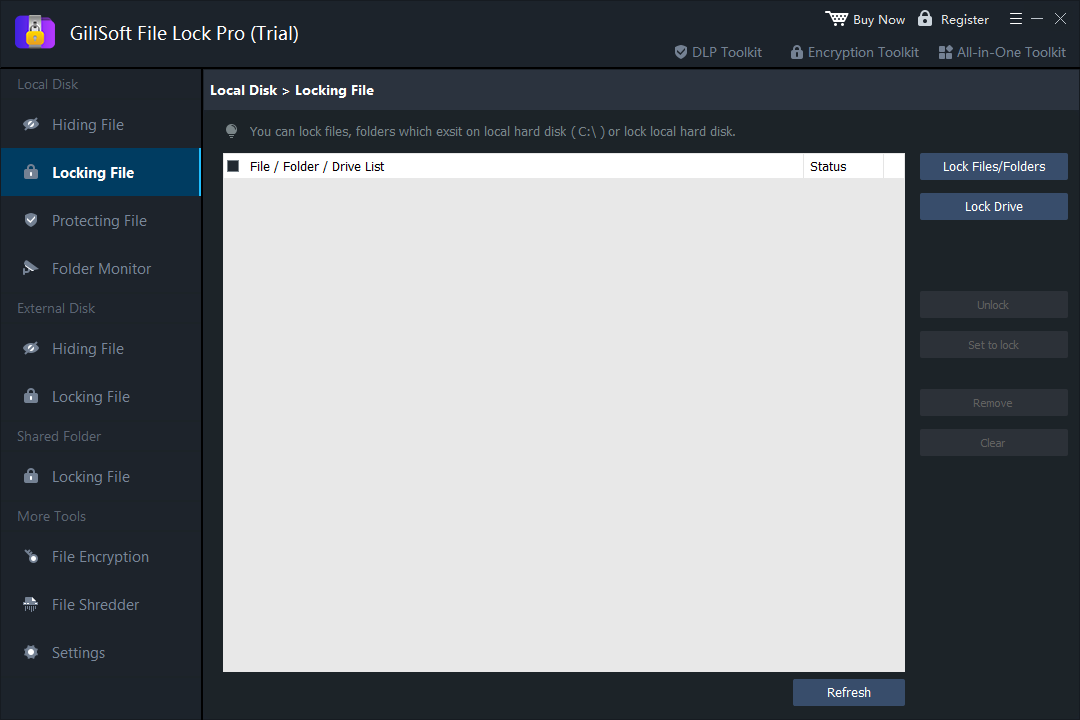
Open File Lock Pro and enter the master password.
Choose Local Disk, then open Locking File.
Select Lock Files/Folders and add the folder you want to protect.
Apply the lock and test the folder from Windows Explorer before relying on it for important files.
Other Practical Ways to Protect a Windows Folder
These alternatives are useful when their specific workflow matches your need. They are not identical replacements for a direct folder password.
BitLocker virtual drive
Windows Central recommends a VHD or VHDX plus BitLocker when you need a password-unlocked private workspace.
- Creates an encrypted volume that acts like a drive
- Useful for several folders kept together
- Requires mounting and ejecting the virtual drive
Windows EFS
EFS encrypts file contents for a Windows account and certificate on supported editions.
- Best for a single authorized Windows identity
- Does not normally show a separate folder password prompt
- Not available in Windows Home according to Microsoft
Encrypted archive
7-Zip and similar tools can turn a folder copy into a password-protected archive.
- Good for sending, transfer, and long-term storage
- Protects the archive rather than the live source folder
- Test the password before removing the original
NTFS permissions
Windows permissions control what another local account or group can do with a folder.
- Good for managed multi-user PCs
- No separate folder password
- Administrators or owners may be able to change access rights
Folder Protection Methods Compared
| Method | What it protects | Best situation | Important limitation |
|---|---|---|---|
| File Lock Pro Recommended | Selected active folders, files, and drives | Simple local folder privacy | Designed for managed Windows use |
| BitLocker VHDX | Everything inside one virtual drive | Private workspace with several folders | Requires a virtual disk workflow |
| Windows EFS | Files encrypted for a Windows account | Supported editions and one account identity | Certificate and edition dependent |
| Encrypted archive | A separate packaged copy | Transfer, backup, and delivery | The original remains separate |
| NTFS permissions | Access rights for Windows accounts | Shared or business computer administration | Not a separate folder password |
When You Need a Password-Protected Folder Copy
For a folder that must leave the PC, create a protected copy. This is useful for archive storage, removable media, or sending files to an authorized recipient. The key point is that the protected copy and the live source folder are different objects: verify the output first, then decide how the original should be stored or removed.
Use File Encryption for a separate protected output
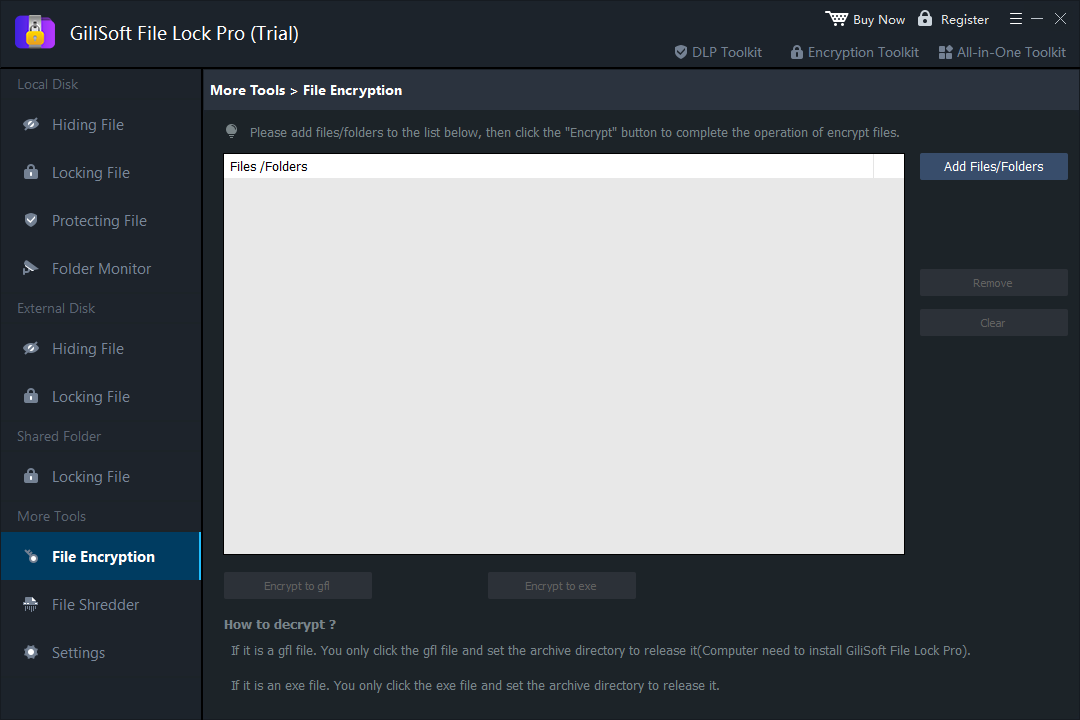
File Lock Pro includes a File Encryption workspace for packaging files and folders into an encrypted output. This complements the direct lock workflow when the protected data needs to travel or sit in a backup location.
Add the folder or files to File Encryption.
Choose the encrypted output and a safe destination.
Open the result with the password and inspect several files.
Keep the password and recovery details separate from the protected copy.
Before You Protect an Important Folder
Make a verified backup
CISA recommends backing up important data before implementing encryption. Confirm the backup can be opened before changing the only copy.
Keep recovery information separate
Store passwords, BitLocker recovery keys, and EFS certificate backups away from the protected folder itself.
Test the full path
Lock, unlock, close, and reopen a disposable test folder before protecting irreplaceable work.
Respect work-device policy
On company or school PCs, check with IT before changing encryption, permissions, or local security tools.
Folder Password Protection FAQ
Can Windows 11 password protect an ordinary folder directly?
There is no universal built-in command that adds a separate password to any standard folder. Windows tools protect through a virtual drive, account encryption, or permissions instead.
What is the easiest way to lock a folder with a password?
For active local folders, File Lock Pro provides a direct path: choose the folder, apply the protection rule, and open it only after entering the product password.
Does a hidden folder need a password?
No. Hiding changes visibility only. It does not encrypt the content or prevent another person from enabling Hidden items.
Can Windows Home use EFS?
No. Microsoft states that file and folder encryption using EFS is not available in Windows Home.
Does a password-protected ZIP secure the original folder?
No. The archive is a new protected copy. Secure or remove the unprotected original separately after the archive has been verified.
What happens if I forget the password?
Passwords and recovery keys can be essential for access. Keep them in a secure separate location and test recovery before protecting the only copy of important data.