

For a folder that changes frequently and should stay in its current location, use GiliSoft File Lock Pro to lock, hide, or restrict it. For a portable encrypted copy, use File Lock Pro File Encryption or a 7-Zip archive. Use EFS for account-bound encryption on supported Windows editions, and use a BitLocker VHDX or VeraCrypt container when you want a mountable encrypted vault.
What Does “Encrypt a Folder” Need to Accomplish?
The phrase sounds like one task, but readers usually need one of four outcomes. Choosing the outcome first prevents a common mistake: encrypting a copy while leaving the original folder exposed.
Protect an active folder
The same folder remains available for daily work, but opening, changing, renaming, or deleting it should be controlled.
Create a portable encrypted copy
A folder is packaged into a password-protected file that can be stored, backed up, or delivered separately.
Tie access to a Windows account
Files should decrypt automatically for one authorized Windows user through an EFS certificate.
Protect a vault or complete device
The main concern is offline access after a drive, laptop, or removable device is lost or removed.
Compare Five Folder-Encryption Methods
| Method | What it protects | Access model | Best use |
|---|---|---|---|
| File Lock Pro Flexible | An active folder or a separate encrypted output | File Lock Pro password and selected protection mode | Everyday private folders and mixed storage locations |
| Windows EFS | Files inside a folder on supported NTFS locations | Windows account and EFS certificate | One Windows user on a supported edition |
| 7-Zip AES archive | A newly created archive copy | Archive password | Sending or storing a folder as one package |
| VHDX + BitLocker | A mountable Windows virtual disk | BitLocker password or recovery key | A built-in encrypted vault for many files |
| VeraCrypt container | A mountable encrypted container | VeraCrypt password and optional keyfiles | Reusable encrypted vaults and cross-platform needs |
Encrypt or Lock a Folder with File Lock Pro
File Lock Pro provides two distinct paths. Use the local or external disk workspaces for a folder that stays active, or use File Encryption when you need a separate encrypted output.
For a folder that stays in place
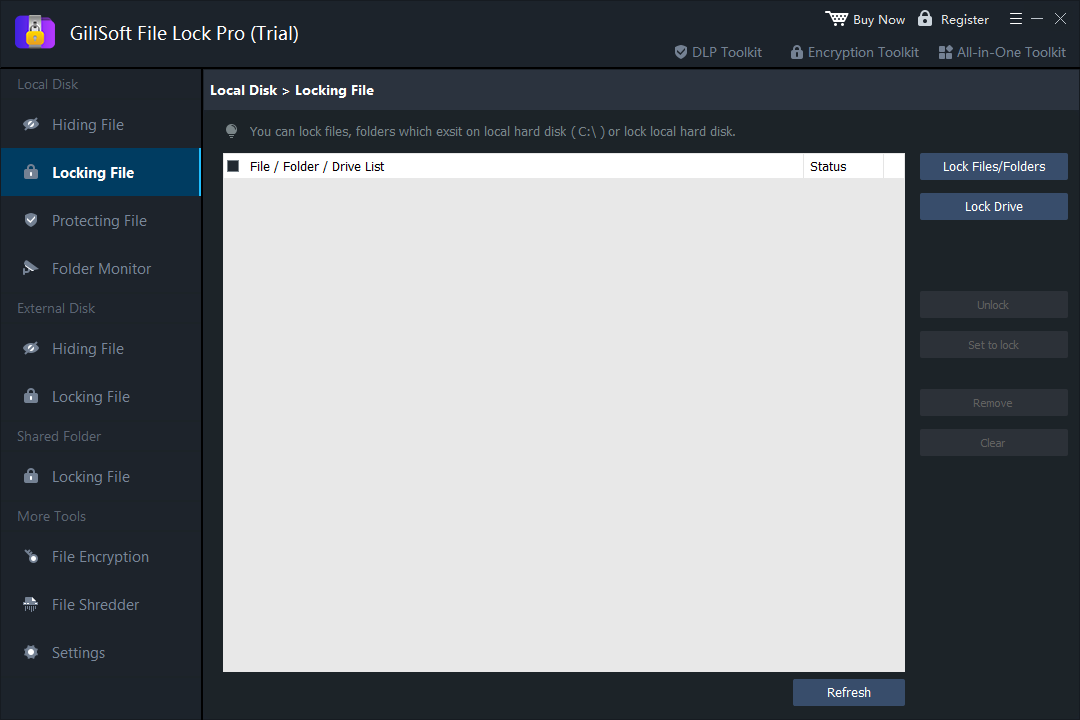
Open File Lock Pro and enter the master password.
Choose Locking File, Hiding File, or Protecting File under Local Disk or External Disk.
Add the target folder and apply the selected rule.
Test the folder from File Explorer and from the Windows account that should be restricted.
For a separate encrypted copy
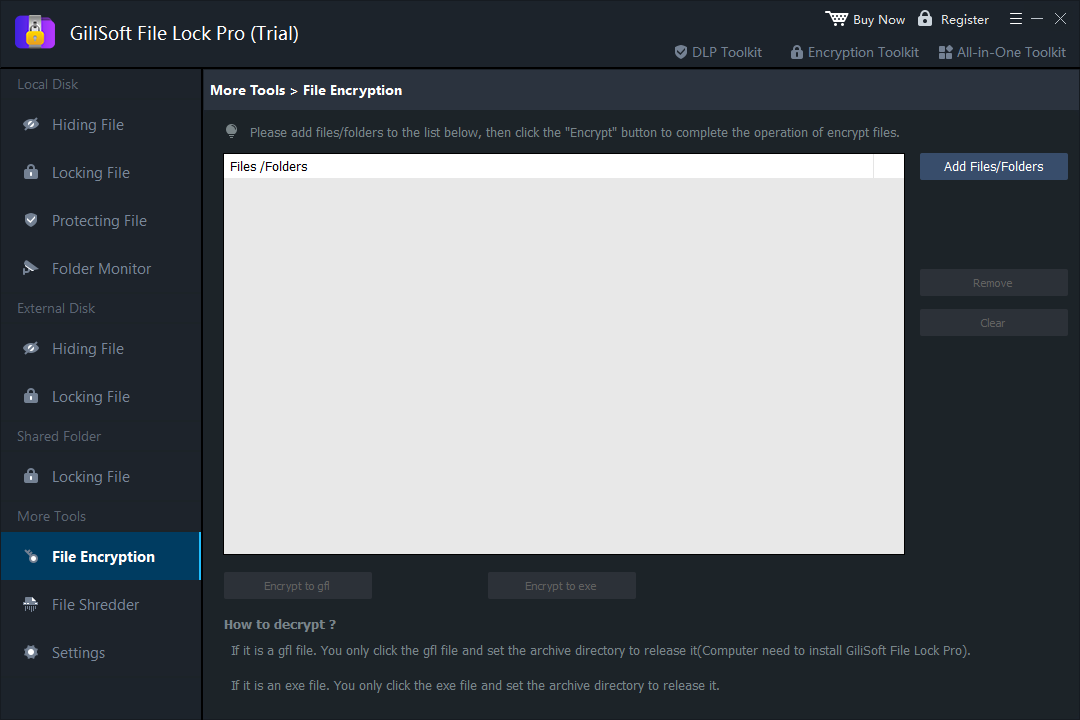
Open More Tools > File Encryption.
Add the folder or files that should become encrypted output.
Create the available GFL or EXE encrypted output and choose a safe destination.
Open the result and verify recovery before changing or removing the original folder.
Encrypt a Folder with Windows EFS
EFS encrypts files for the current Windows user and certificate. It does not add a separate password dialog to the folder, and Microsoft says it is not available in Windows Home.
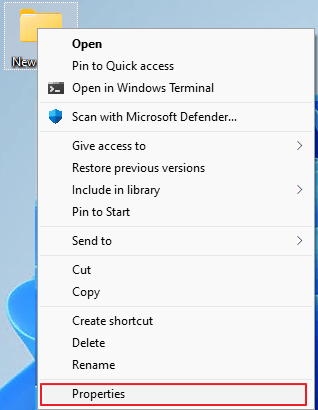
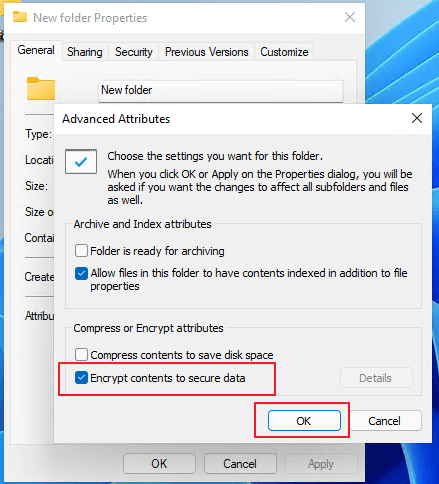
Right-click the folder, select Properties, then select Advanced on the General tab.
Enable Encrypt contents to secure data, select OK, and apply the change to the folder, subfolders, and files.
Sign in as another normal user and confirm the encrypted files cannot be opened through that account.
Back up the EFS certificate and private key. The Windows cipher /x command can export the EFS certificate and keys.
Create an AES-256 Encrypted Folder Archive with 7-Zip
An encrypted archive is useful for delivery and cold storage. It creates a new protected package; it does not secure the original working folder.
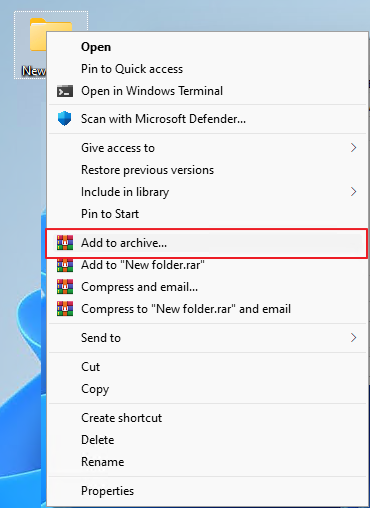
Right-click the folder, choose 7-Zip > Add to archive, and select the 7z format.
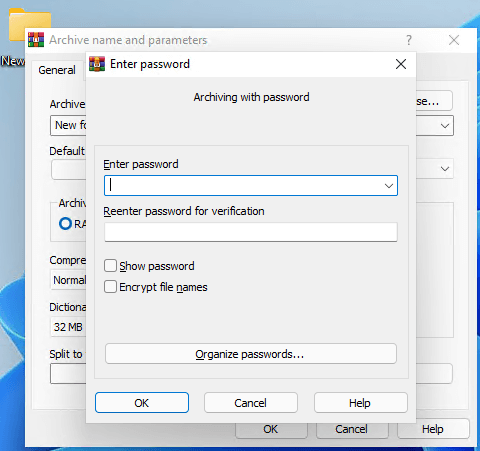
Enter a long unique password, choose AES-256, and enable Encrypt file names when folder names and filenames must also remain private.
Create the archive, move a test copy to another location, and verify that it opens only with the correct password.
Keep a verified backup before deciding whether the unencrypted source folder should remain.
Build a Folder Vault with VHDX and BitLocker
Windows does not attach BitLocker to one ordinary folder, but a VHDX virtual disk can act as a file-backed vault. Once mounted, it behaves like another drive; when ejected, its contents are closed.
Open Windows disk management tools and create a dynamically expanding VHDX large enough for the private folder.
Initialize the virtual disk, create a simple volume, assign a drive letter, and format it as NTFS.
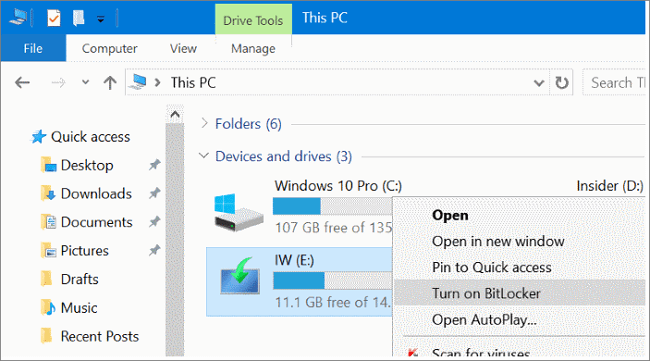
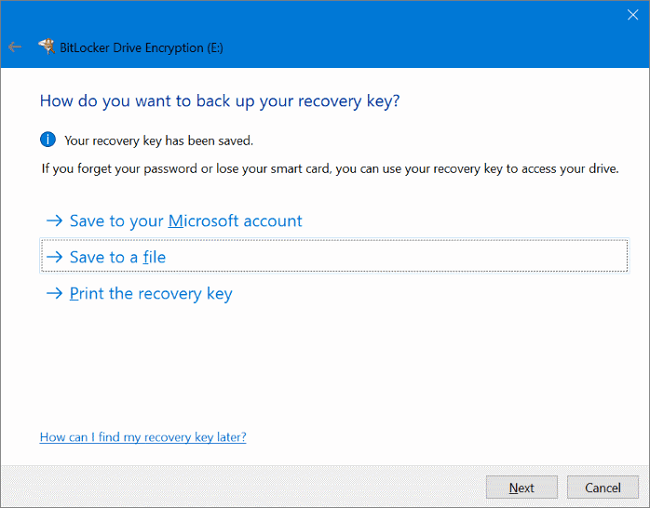
Turn on BitLocker for the mounted virtual drive, set the unlock method, and save the recovery key away from the vault.
Move or copy the private files into the mounted drive, close open files, then eject the virtual disk when finished.
Create a Reusable VeraCrypt Folder Container
VeraCrypt can create a file-hosted encrypted container. After mounting, the container appears as a drive; after dismounting, the contents return to an encrypted file.
VeraCrypt is a strong fit when a reusable encrypted vault is more useful than a single archive and when you want a workflow that is not limited to Windows EFS. It requires deliberate mounting, dismounting, password management, and backup of the container.
Which Folder-Encryption Method Fits Your Situation?
- Private folder changes every day: use File Lock Pro active-folder locking, hiding, or protection.
- Protected copy for storage or delivery: use File Lock Pro File Encryption or a 7-Zip AES archive.
- One authorized Windows account on Pro or higher: use EFS and back up the certificate.
- Built-in mountable vault: create a VHDX and protect that volume with BitLocker.
- Reusable cross-platform encrypted vault: use a VeraCrypt container.
- Lost or stolen laptop is the main concern: add full-device encryption; folder encryption alone is not the complete device-loss layer.
Before You Encrypt an Important Folder
Encryption and access control are not substitutes for a backup. Keep at least one tested copy before changing the only source.
Keep EFS certificates, BitLocker recovery keys, container passwords, and product recovery details away from the protected folder.
Open the encrypted result from another location and verify several files before removing any unprotected source.
Use folder protection for selective privacy and full-volume encryption when theft or offline drive access is also a concern.
Folder Encryption FAQ
Can Windows password protect an ordinary folder directly?
Not with one universal built-in folder-password command. EFS uses the Windows account, BitLocker protects a volume, and an archive or container creates a separate protected object.
Is EFS the same as a folder password?
No. EFS is tied to a Windows account certificate. The authorized signed-in user normally opens the encrypted files without a second password prompt.
Does a 7-Zip archive protect the original folder?
No. It creates a separate encrypted archive. The original remains available until it is removed or protected by another method.
Can Windows Home use EFS?
No. Microsoft states that file and folder encryption through EFS is not available in Windows Home.
Should I lock the folder or create encrypted output?
Lock, hide, or protect a live folder when it changes frequently. Create encrypted output when you need a separate package for backup, transfer, or controlled storage.
Is folder encryption enough for a stolen laptop?
Selective folder encryption helps with specific data, but full-volume or device encryption adds broader protection against offline access to a lost or stolen device.
Research references: Microsoft file and folder encryption | Microsoft cipher command | Microsoft BitLocker overview | Windows Central VHDX vault guide | VeraCrypt volume documentation | NCSC data-at-rest guidance