
How to Prevent Files and Folders from Being Renamed or Deleted
Compare three practical methods: configure Windows permissions, apply password-managed protection with GiliSoft File Lock Pro, or hide the item from normal File Explorer views.
Windows 11 and Windows 10 can restrict rename and delete actions through advanced NTFS permissions. If you want a clearer password-managed interface, GiliSoft File Lock Pro provides a dedicated Protecting File mode. Hiding the item is a simpler alternative when it does not need to remain visible.
Which Method Should You Use?
The right method depends on whether the file must remain visible, who uses the PC, and how comfortable you are with Windows security permissions.
| Method | Best for | Setup | Item stays visible |
|---|---|---|---|
| NTFS permissions | Windows accounts and managed PCs | Advanced | Yes |
| GiliSoft File Lock Pro Recommended | Password-managed local, USB, and shared-folder protection | Easy | Yes |
| Hidden attribute | Reducing casual discovery in File Explorer | Easy | No |
Prevent Rename or Delete with Windows Permissions
This built-in method changes the NTFS access rules for a selected file or folder. It is useful on PCs where different Windows accounts already have clearly managed permissions.
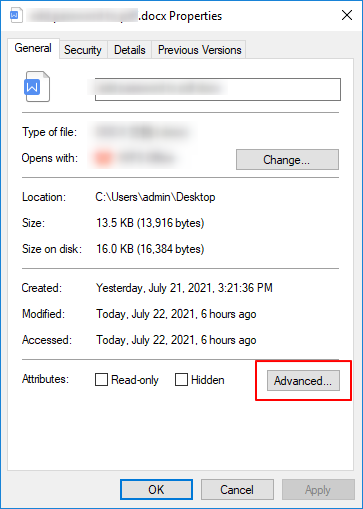
Right-click the target file or folder, choose Properties, open the Security tab, and select Advanced.
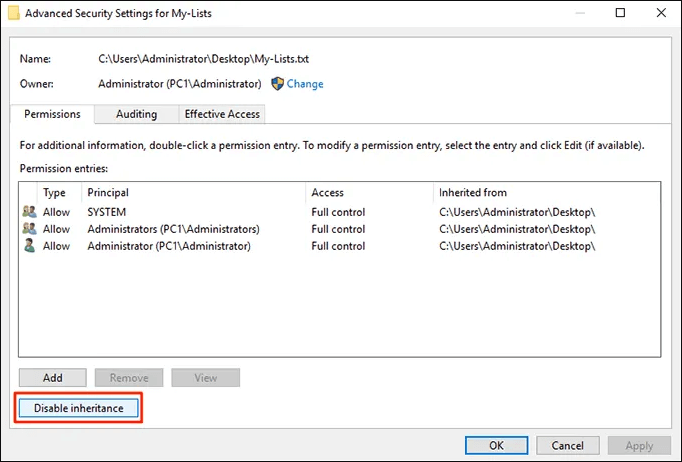
Select Disable inheritance so the item can use explicit permission entries instead of only inheriting its parent folder rules.
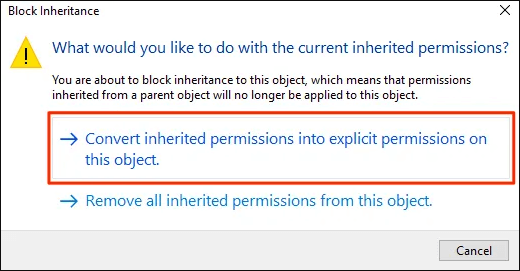
Choose Convert inherited permissions into explicit permissions on this object. This keeps the current entries available for editing.
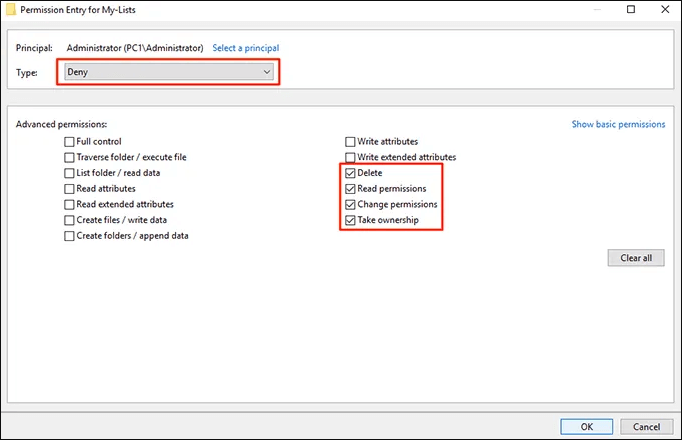
Select the Windows user or group to restrict, choose Edit, show advanced permissions, and configure the delete-related rules. For a folder, review both Delete and Delete subfolders and files.
Use File Lock Pro to Keep Files Visible but Controlled
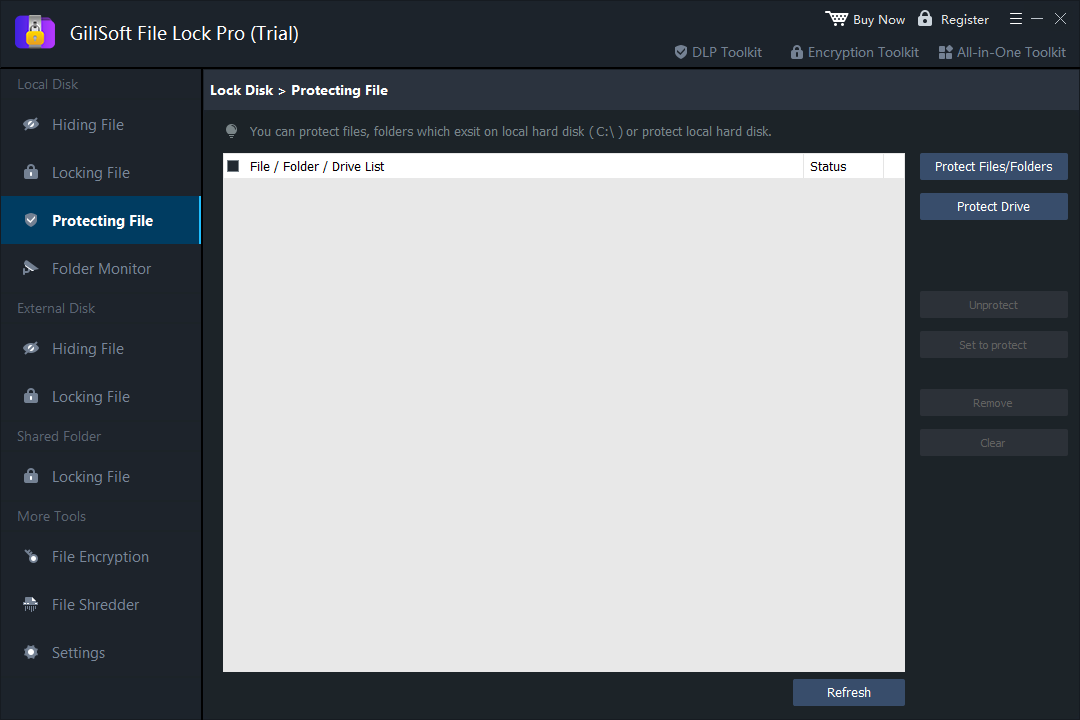
For everyday users, File Lock Pro provides a clearer route than editing several Windows access-control entries. Its Protecting File section is intended for files, folders, or drives that should remain visible while selected operations are restricted.
Install and open GiliSoft File Lock Pro, then enter the master password.
Under Local Disk, choose Protecting File. For removable storage, choose the corresponding external-disk protection section.
Click Protect Files/Folders or Protect Drive, then add the item you want to control.
Apply the protection and test rename, delete, move, and modification actions from File Explorer.
Hide the File or Folder from Normal File Explorer Views
Hiding does not create the same access control as permissions or File Lock Pro protection, but it can reduce casual discovery on a shared PC.
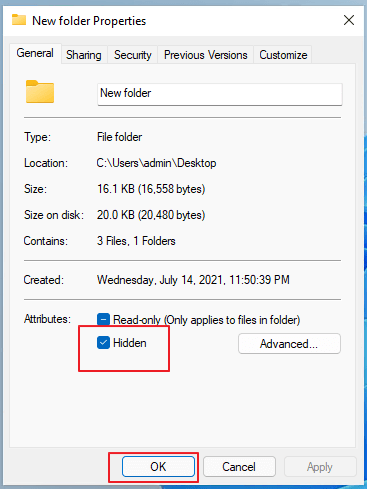
Right-click the file or folder and choose Properties.
On the General tab, enable the Hidden attribute and apply the change.
In File Explorer, confirm that View > Show > Hidden items is turned off.
When Rename and Delete Protection Is Useful
Office templates and records
Keep approved Word, Excel, PDF, contract, invoice, and policy files from being casually renamed or removed.
Shared and classroom PCs
Let several users open learning materials or reference files while preserving the original structure.
USB and external storage
Protect portable project folders and media libraries that move between multiple Windows computers.
Archives and completed projects
Reduce accidental deletion or overwriting of finalized reports, exported assets, photos, and backup folders.
Related File Protection Guides
Prevent Rename or Delete FAQ
Can Windows prevent a file from being renamed?
Yes. Advanced NTFS permissions can restrict delete-related operations used by rename actions. Test carefully because parent-folder permissions also affect the result.
Can I prevent a folder from being deleted?
Yes. You can configure Windows permissions or use File Lock Pro to protect the selected folder from unwanted deletion.
Is protecting a file the same as hiding it?
No. Protection can keep the file visible while restricting operations. Hiding removes it from normal views but is easier to reverse.
Can File Lock Pro protect USB folders?
Yes. File Lock Pro supports selected files and folders on local drives, external disks, USB storage, and LAN shared folders.