

How to Make a Folder Read-Only but Still Accessible on Windows 11/10
A folder can remain visible and readable while changes are restricted, but the Read-only box in Folder Properties is not a dependable folder-permission control. For separate Windows accounts, use NTFS permissions. For simpler password-managed protection on selected folders, use GiliSoft File Lock Pro's Protecting File feature.
Why the Folder Read-Only Box Does Not Do What You Expect
In Windows File Explorer, the Read-only checkbox on a folder does not work like the Read-only attribute on an individual file. Windows uses the folder attribute partly for folder customization and display behavior. Selecting it may apply the attribute to files inside the folder, but it does not turn the folder itself into a reliable read-only location.
This distinction matters because a folder may appear to be marked Read-only while users can still create, rename, move, or delete files inside it.
Choose the Right Read-Only Method
| Method | Users can open files | Controls changes | Best use |
|---|---|---|---|
| File Lock Pro Protecting File | Yes | Write, rename, move, overwrite, delete | Password-managed local protection |
| NTFS permissions | Yes | Read, write, modify, delete by account | Separate Windows users or groups |
| File Read-only attribute | Yes | Basic file editing only | Individual noncritical files |
| Folder Read-only checkbox | Yes | Not reliable folder access control | Folder customization, not security |
Method 1: Keep a Folder Accessible with File Lock Pro
File Lock Pro separates Protect from Lock and Hide. Protecting File is the appropriate workspace when people may see and open approved content but should not change the original files or folder structure.

Use protection instead of full lockout
Keep reference material available while applying restrictions to writing, renaming, moving, overwriting, or deletion.
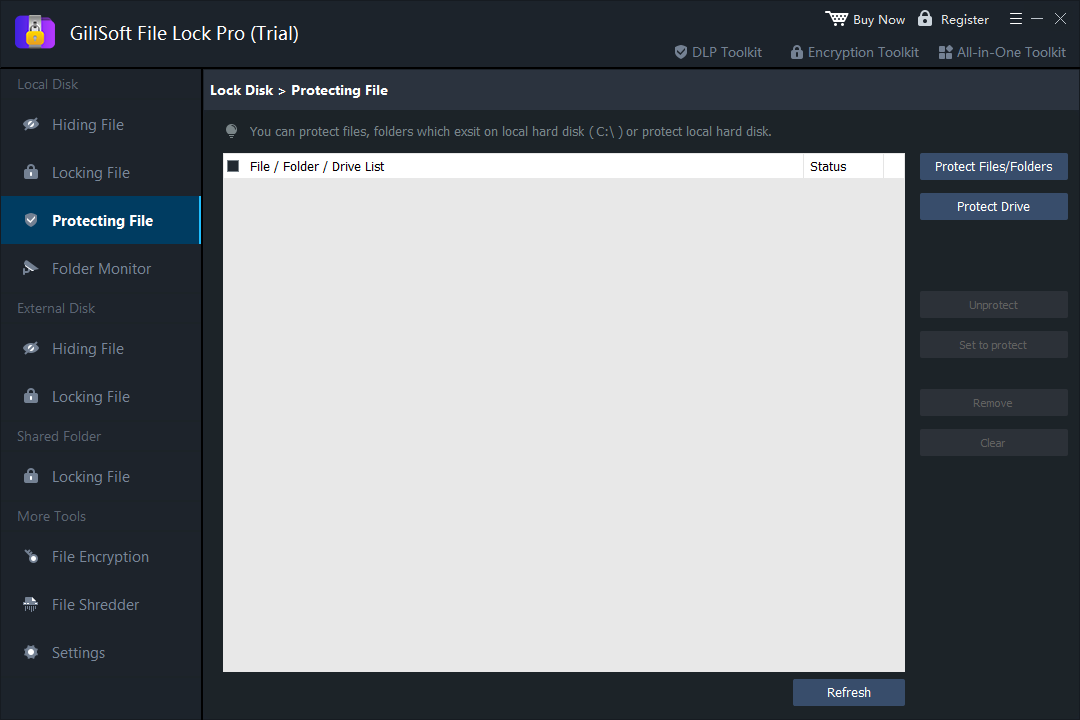
- Open File Lock Pro and enter the master password.
- Choose Local Disk > Protecting File.
- Select Protect Files/Folders, then add the folder that should remain readable.
- Select the item and apply Set to protect.
- Test opening, editing, renaming, moving, and deleting with a noncritical sample before protecting important data.
If the folder should not be opened at all, use Locking File instead. If it should disappear from ordinary browsing, use Hiding File.
Method 2: Give Other Windows Users Read-Only NTFS Access
NTFS permissions are the built-in option when each person signs in with a separate Windows account. Grant reading permissions and omit Write, Modify, and Full control for the users or groups that should not change the folder.
- Right-click the folder and choose Properties > Security.
- Select Edit, then add or choose the user or group that needs read-only access.
- Allow Read & execute, List folder contents, and Read.
- Do not grant Write, Modify, or Full control to that user or group.
- Sign in as the affected user and test opening a file, creating a file, renaming an item, and deleting an item.
When the Read-Only Attribute Is Enough
The file-level Read-only attribute can discourage ordinary editing of individual files. It is suitable for low-risk templates or reference documents where accidental changes are the main concern, but it is not strong access control. A user with sufficient permissions can clear the attribute, save a copy, or replace the file.
- Select the individual files, right-click, and choose Properties.
- Enable Read-only and apply the change.
- Open the files in their usual applications and verify how each application handles read-only input.
- Keep an unchanged master copy in a separately protected location.
Where Read-Only but Accessible Folders Are Useful
Templates and approved documents
Allow staff to open policy documents, price lists, approved contracts, and report templates without casually altering the originals.
Training and classroom materials
Let students or trainees read lesson files while keeping the master folder organized and unchanged.
Photo and media reference libraries
Keep shared reference images, brand assets, or family archives visible while reducing accidental rename, move, or deletion.
Project baselines and release files
Protect approved specifications, release packages, and final deliverables while working copies remain editable elsewhere.
What Read-Only Access Does Not Prevent
Read-only access preserves originals, but it does not necessarily stop someone from viewing sensitive content, taking a screenshot, copying readable information into another file, or photographing the screen. If users should not see the content, choose a lock or hide control instead. If a lost device is the concern, use drive encryption in addition to folder permissions.
Before Applying Protection
- Keep a verified backup outside the folder being protected.
- Test the rule on a noncritical folder before applying it to production data.
- Confirm that the intended users can still open every required file type.
- Verify that administrators can remove the rule and recover access.
- Document which folders use File Lock Pro and which use Windows permissions.
Frequently Asked Questions
Can a folder be readable but not editable on Windows?
Yes. Use NTFS Read permissions for separate Windows accounts, or apply a File Lock Pro protection rule when selected folders need simpler password-managed control.
Why does the folder Read-only checkbox come back after I clear it?
The checkbox is not a reliable indicator that the folder itself is write-protected. Windows uses the folder attribute for customization behavior, while real access control is handled through permissions or dedicated protection software.
Is read-only protection the same as locking a folder?
No. Read-only protection keeps the folder accessible while restricting changes. Locking prevents normal opening and is appropriate when users should not read the contents.
Can I stop deletion but still allow reading?
Yes. With NTFS permissions, do not grant Modify or Delete to the target user. With File Lock Pro, use Protecting File rather than hiding or fully locking the folder.
Does this stop users from copying readable files?
Not necessarily. A user who can read information may be able to copy or capture it. Read-only protection is designed to preserve the original folder, not to provide DRM-style control over every reuse path.
Keep important folders readable without leaving them editable
Apply a focused protection rule to selected Windows files and folders.
Download TrialBuy File Lock ProSources: Microsoft Access Control Overview · Microsoft NTFS overview