

Internet Access Control Software for Windows
administrators controlling Windows browsing access need a policy that is understandable, testable, and proportionate. Blocking a domain is easy; preserving sign-in, updates, support, and legitimate work while enforcing the rule is the part that needs care.
Quick answer
Choose a focused website restriction or an approved-site list according to the size of the required site set. Test the policy on one Windows PC and keep an exception process. GiliSoft WebLock provides website rules, Allowed Websites, trusted program and service exceptions, Temporary Unlock, and a blocked-access log.
Before You Change Web Access
- Write down the rule.
List the sites or services to restrict and the legitimate work that must remain available.
- Choose a test PC.
Use a representative Windows account and browser before applying the rule more widely.
- Keep an administrator path.
Protect WebLock settings and document how approved exceptions or temporary access will be handled.
Choose Blocking or an Approved-Site List
| Need | WebLock area | Test |
|---|---|---|
| Stop specific unwanted destinations | Main website blocking rule | Blocked sites fail while required sites still open |
| Permit only known websites | Allowed Websites with the main blocking policy | Sign-in and embedded content complete |
| Keep a trusted desktop application online | Allowed Programs, Services, or IP addresses as needed | The full application task works |
WebLock also offers password protection, Temporary Unlock, and a blocked-access log. Do not assume the product provides per-user role assignment or scheduled policies without verifying that configuration in your installed version.
Set and Test a WebLock Rule
- Set the main restriction.
Choose the websites or broader internet access that the Windows PC should block.
- Add required websites.
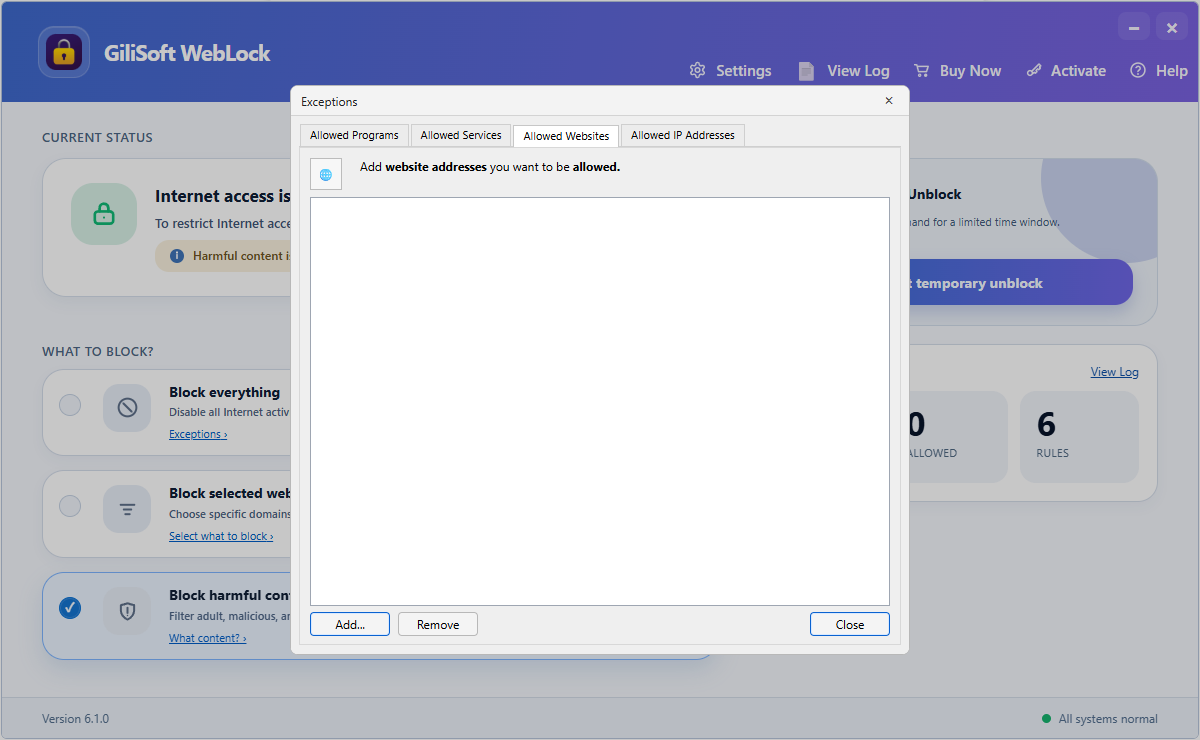
Open Allowed Websites and enter approved domains for sign-in, work, study, or support.
- Keep essential apps online.
Use Allowed Programs, Services, or IP addresses only when a real task requires an exception.
- Protect the settings.
Set an administration password and verify that an ordinary user cannot change the rule.
- Test and review the log.
Run a blocked site and a complete approved workflow. Use the blocked-access log to identify the exact missing dependency before adding an exception.
Review the Result Before Delivery
- The intended websites are blocked consistently in the tested browsers.
- Approved work, education, sign-in, updates, and support workflows remain available.
- Users know the policy, the reason for it, and how to request a legitimate exception.
Know the Limits
Website control is only one layer of a broader policy. Alternate network paths, applications, local administrator rights, and changing third-party domains may require additional controls and retesting. Use transparent, lawful policies and avoid covert monitoring.
Frequently Asked Questions
Should I use a block list or an allow list?
Use a block list for a limited set of known sites. Use an allow list only when the approved destination set is small and can be thoroughly tested.
Why does an approved site fail after filtering?
The site may rely on separate authentication, storage, media, or content-delivery domains. Identify the exact dependency before allowing it.
Can the same policy fit every user?
Not always. Document different needs and test an approved configuration on each representative PC before wider use.
Does WebLock replace an acceptable-use policy?
No. It enforces configured rules; the organization or household still needs clear expectations and review procedures.