

Large File Cleaner for Windows
Disk space and PC responsiveness are easier to improve when you identify the actual bottleneck. Scan first, inspect paths and sizes, and preserve files that belong to projects, backups, virtual machines, or applications.
Quick answer
Review oversized files by location and age before deciding whether to archive, move, or delete them. Make one recoverable change at a time, restart when required, and repeat the exact action that exposed the problem.
Measure Storage and Performance Before Cleanup
| Check | What to confirm | Decision |
|---|---|---|
| Measure | Free space, startup time, memory use, and largest folders | Record the baseline before changing Windows. |
| Review | Path, owner, age, size, and whether the file is reproducible | Choose the narrowest supported action. |
| Verify | Space recovered and applications still open normally | Retest and keep a rollback path. |
Prepare a Safe Recovery Path
- Back up important files
Keep irreplaceable documents and media on a separate drive or trusted backup destination.
- Record the symptom
Save the exact error, affected action, time, and recent software or Windows change.
- Create a restore point
Turn on System Protection and create a clearly named restore point when Windows is stable enough.
- Close active work
Exit documents, installers, games, and other applications before cleanup or repair.
Use GiliSoft Total Repair for the Matching Task
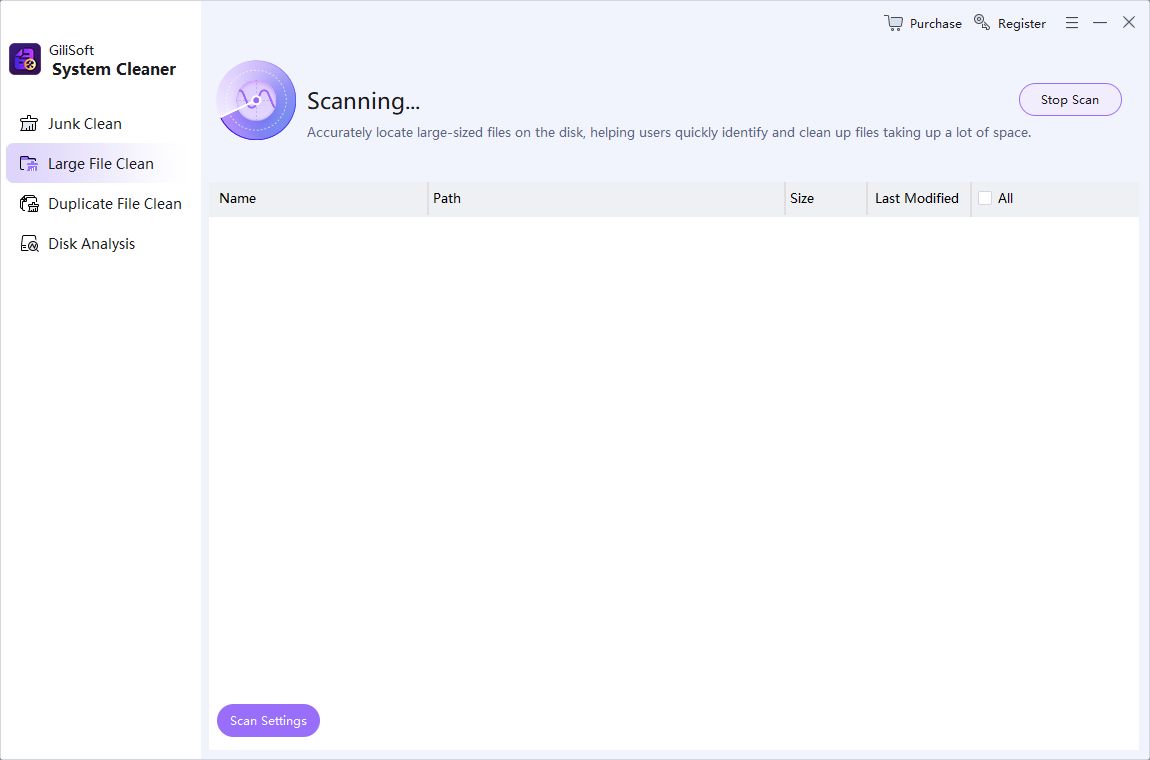
The screenshot below shows the real Total Repair module associated with this workflow. Scan first and review the result before applying changes.
- Record a baseline
Note free space and the symptom you intend to improve.
- Run Disk Analysis or the matching scan
Use Total Repair to list large files, junk categories, duplicates, or optimization areas.
- Inspect every selected category
Exclude backups, installers you still need, virtual disks, project media, and unknown application data.
- Apply one cleanup group
Remove or archive a small reviewed set rather than every result at once.
- Restart and compare
Check free space and repeat the original workload to confirm a real improvement.
Verify the Result Instead of Trusting the Completion Message
- Restart when required
Allow Windows, services, installers, and pending file changes to reload cleanly.
- Repeat the original action
Open the same program, command, file, menu, or workload that previously failed.
- Check for side effects
Verify startup, file associations, network access, installed applications, and important data.
- Compare with the baseline
Confirm the error, free space, responsiveness, or setting actually changed.
- Keep or reverse the change
Use the restore point, backup, or recorded setting if the result is worse.
When to Use Windows Recovery or Specialist Help
Move beyond routine cleanup when Windows cannot start reliably, DISM and SFC continue to fail, a drive reports health errors, files are encrypted without a recovery key, or malware may be active. Preserve logs and backups before using Reset, repair installation, or hardware service.
Total Repair is a maintenance and diagnostic workspace; it is not a replacement for a verified backup, security incident response, or physical hardware repair.
Large File Cleaner for Windows FAQ
Can GiliSoft Total Repair fix every large file cleaner for windows problem?
No. It can scan and organize supported cleanup, repair, optimization, and file-tool tasks, but hardware failure, malware, unsupported software, and severe Windows damage require the appropriate specialist or Microsoft recovery path.
Should I create a restore point first?
Create one before registry, system, driver, startup, or broad repair changes when System Protection is available. Keep a separate backup of important personal files.
Should I apply every detected result?
No. Review the category, path, owner, size, and relationship to the symptom. Apply the narrowest relevant change and test before continuing.
When should I stop troubleshooting?
Stop if the drive shows health errors, Windows cannot boot reliably, the PC may be infected, encryption recovery is involved, or the same repair fails repeatedly without new evidence.