
How to Lock Files and Folders on Windows 11/10
Windows provides several ways to limit access to files and folders, but they solve different problems. Folder permissions separate user accounts, EFS encrypts data for one Windows user, encrypted archives protect a copied package, and BitLocker protects an entire drive. For a direct password-based lock on selected items, GiliSoft File Lock Pro provides the clearest path.
Choose the Right Way to Lock Your Data
The best method depends on who must be kept out, whether the item needs to remain in its current location, and whether you need a password prompt, encryption, or whole-drive protection.
| Method | Protects | Access model | Best for |
|---|---|---|---|
| GiliSoft File Lock Pro | Selected files, folders, and drives | Master password and local controls | Direct file and folder locking |
| Windows permissions | Files and folders on NTFS volumes | Windows user accounts | Shared PCs with separate accounts |
| EFS | Selected files and folders | Windows account certificate | Per-user encryption on supported editions |
| Encrypted archive | Copied files inside an archive | Archive password | Static transfer or storage |
| BitLocker | An entire supported drive | Device sign-in or recovery key | Lost or stolen drives |
Method 1: Lock a File or Folder with File Lock Pro
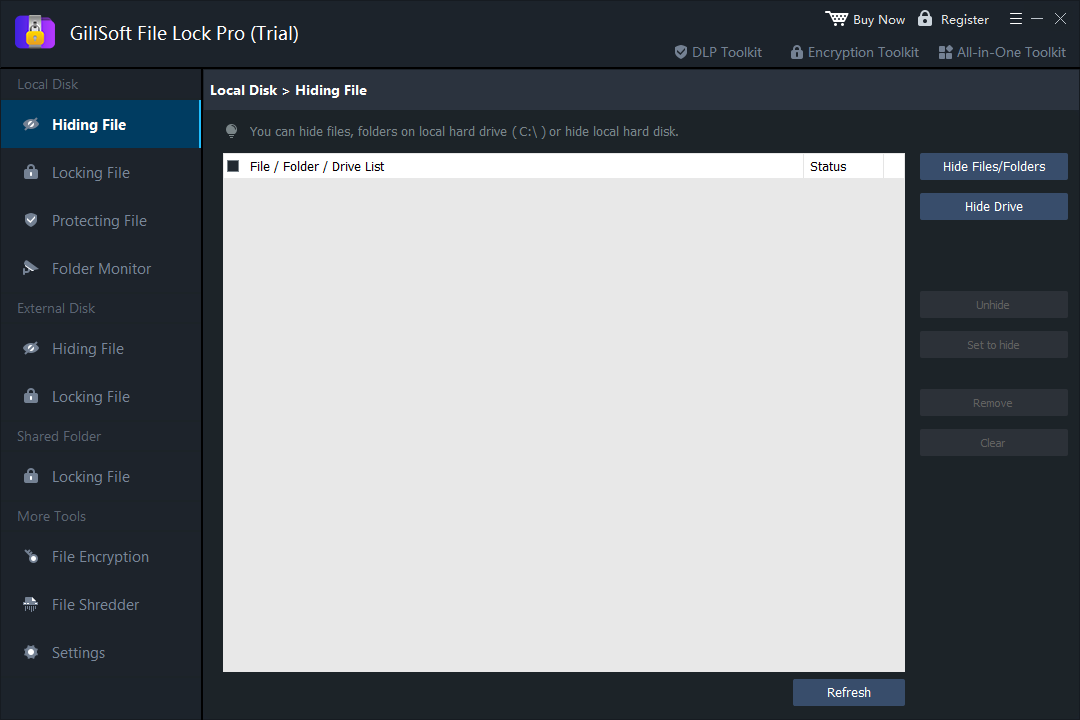
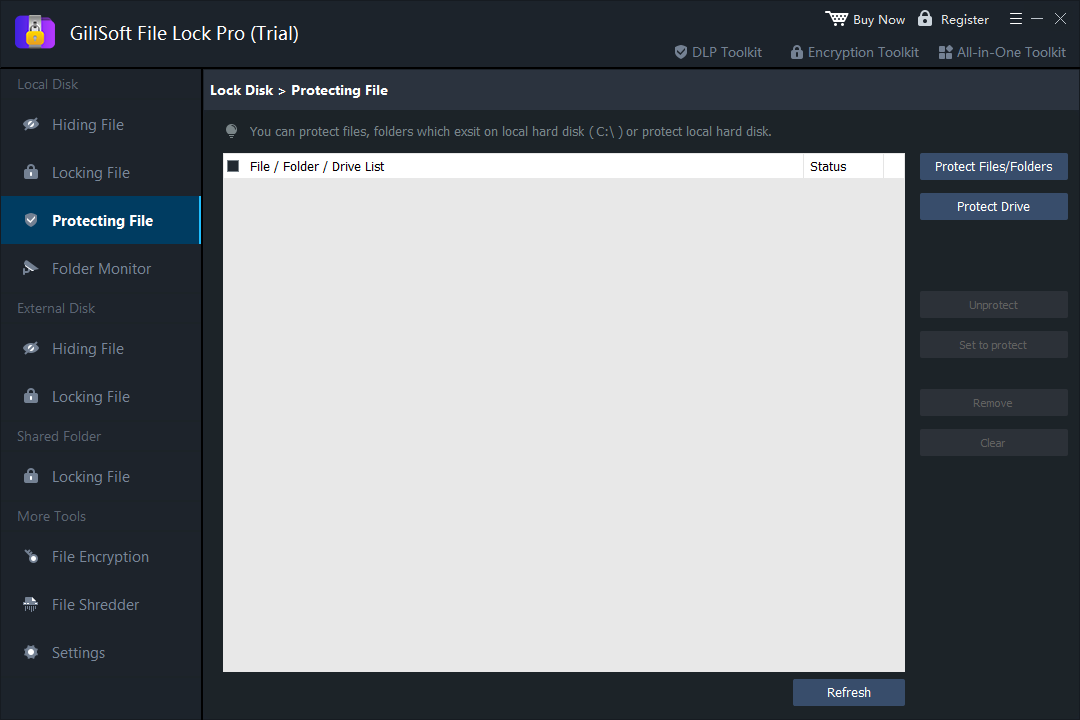
This is the most direct option when a file, folder, or drive should stay in place but should not open normally. File Lock Pro also separates three common jobs: Lock controls access, Hide removes an item from ordinary browsing, and Protect can restrict reading, writing, renaming, moving, or deletion.

Keep the original file structure
Protect selected Windows files and folders without rebuilding them as ZIP archives or moving them into cloud storage.
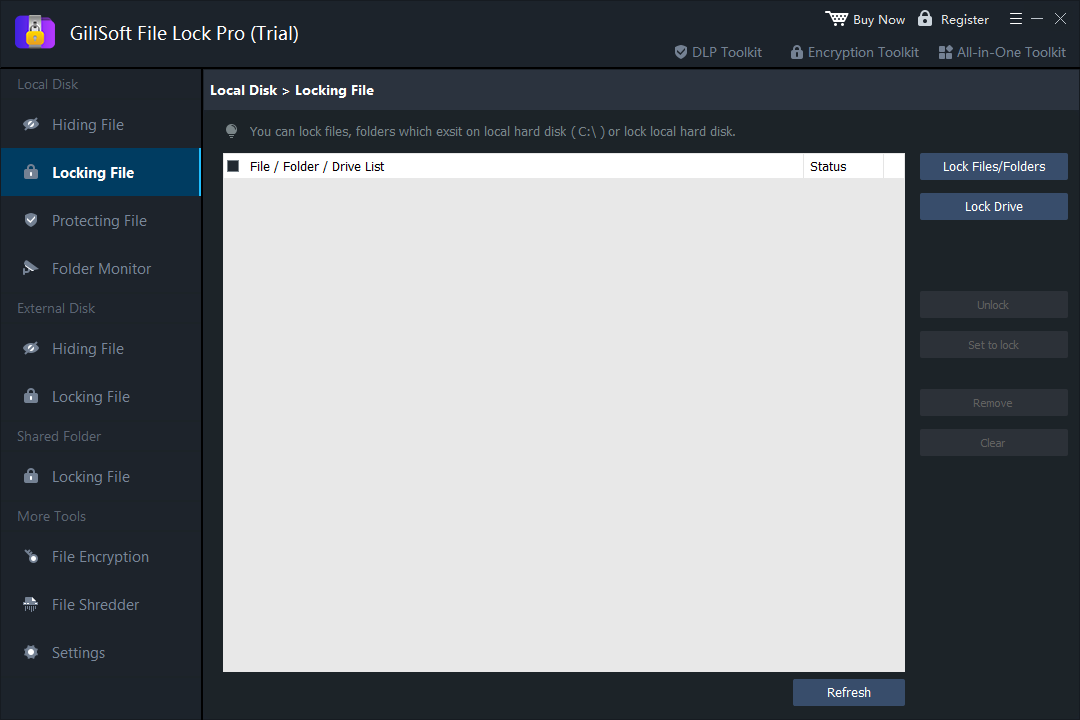
- Open File Lock Pro and enter the master password.
- Choose Local Disk > Locking File.
- Select Lock Files/Folders and add the item you want to protect. Use Lock Drive only when the complete drive needs the same control.
- Apply the lock, then test the item from File Explorer before closing the program.
For a broader comparison of built-in and third-party approaches, see ways to lock files on Windows.
Method 2: Restrict Access with Windows Permissions
NTFS permissions are useful when every person uses a separate Windows account. They do not add a separate folder password; access follows the signed-in account and the permissions assigned to it.
- Right-click the target folder and open Properties > Security.
- Select Edit, choose the user or group, and review the allowed permissions.
- Remove permissions only for the intended account. Do not deny system or administrator identities unless you understand the consequences.
- Sign in with the affected account and confirm that access behaves as expected.
Method 3: Encrypt Selected Files with EFS
On supported Windows editions and NTFS volumes, Encrypting File System (EFS) can encrypt a file or folder for the current Windows account. It is account-based protection rather than a separate password prompt.
- Right-click the file or folder and choose Properties.
- Select Advanced, then enable Encrypt contents to secure data.
- Apply the change to the selected item and, when appropriate, its subfolders and files.
- Back up the EFS certificate and private key when Windows prompts you. Without that recovery material, account loss can also mean data loss.
If the encryption checkbox is unavailable, the Windows edition, file system, policy, or file location may not support EFS. Do not treat the greyed-out setting as a reason to make risky registry changes.
Method 4: Put Files in an Encrypted Archive
An encrypted 7-Zip or ZIP archive is practical for a collection that will be emailed, copied, or stored as one package. It is less convenient for files that are edited every day because you must update the archive whenever the contents change.
- Add the required files to a new archive with a trusted archiving tool.
- Choose a strong password and an encryption option that also protects file names when available.
- Create the archive and test it on a separate copy before removing any source files.
- Share the password through a different channel from the archive itself.
Method 5: Protect the Whole Drive with BitLocker
BitLocker is designed for drive encryption. It helps protect data when a laptop or removable drive is lost, stolen, or accessed outside the normal Windows sign-in flow. It is not a per-folder password tool.
Use BitLocker when all data on the drive should receive the same protection. Store the recovery key somewhere separate from the encrypted device and confirm recovery before relying on it for important data.
Lock, Hide, and Protect Are Different Controls
| Control | What the user sees | Typical goal |
|---|---|---|
| Lock | The item remains visible but cannot be opened normally | Password-based access control |
| Hide | The item is removed from ordinary File Explorer views | Privacy on shared computers |
| Protect | The item may remain visible while selected actions are restricted | Prevent unwanted reading, writing, renaming, moving, or deletion |
Common File and Folder Locking Scenarios
Private data on a shared family or dormitory PC
Lock or hide personal photos, journals, scanned IDs, financial records, and private videos while leaving ordinary shared folders available.
Work files on a multi-user Windows computer
Use separate Windows accounts and permissions for routine separation, then add a direct file lock where particularly sensitive project folders need another access step.
External drives used for transport
Choose between locking selected content, encrypting the whole drive, or creating a password-protected archive based on how often the files must be updated.
Files that must not be renamed or deleted
Use a protection rule designed for file operations rather than hiding the item. Hiding changes visibility; it does not by itself prevent modification.
Before You Lock Important Files
- Keep a verified backup outside the protected location.
- Record recovery keys, certificates, and master-password recovery details securely.
- Test the method with a noncritical copy before applying it broadly.
- Avoid changing permissions on Windows, Program Files, user-profile system folders, or application data unless you know exactly what depends on them.
- After protection is enabled, restart Windows and confirm that access and recovery still work.
Frequently Asked Questions
Can Windows add a password directly to any folder?
Windows does not provide one universal one-click folder-password command. Permissions, EFS, BitLocker, and encrypted archives each protect data differently. A dedicated file-locking tool adds a direct password-based control for selected items.
Is hiding a folder the same as locking it?
No. Hiding changes visibility. Locking controls whether the item can be opened. For sensitive data, use the control that matches the real goal instead of relying only on the Hidden attribute.
Will BitLocker lock one folder?
No. BitLocker protects a supported drive or volume. Use permissions, EFS, an encrypted archive, or File Lock Pro for selected folders.
Can I lock files on an external hard drive or USB drive?
Yes, but the right method depends on portability and update frequency. File Lock Pro can target supported external items, an encrypted archive travels as one protected package, and BitLocker To Go can protect a compatible removable drive.
What happens if I forget the password or lose a recovery key?
You may lose access permanently. Configure recovery options in advance, back up certificates and keys, and test recovery before protecting irreplaceable files.
Lock selected Windows files and folders in place
Use File Lock Pro when you want direct local access control without rebuilding your files as archives.
Download TrialBuy File Lock ProSources: Microsoft BitLocker overview · Microsoft Learn BitLocker documentation · Microsoft Windows access control · Microsoft EFS cipher documentation