
Make Social Video Clips on Windows
A useful social clip starts with one clear message and a destination format. Select the strongest moment first, then adapt framing, captions, pacing, branding, and duration without discarding the original source.
Quick answer
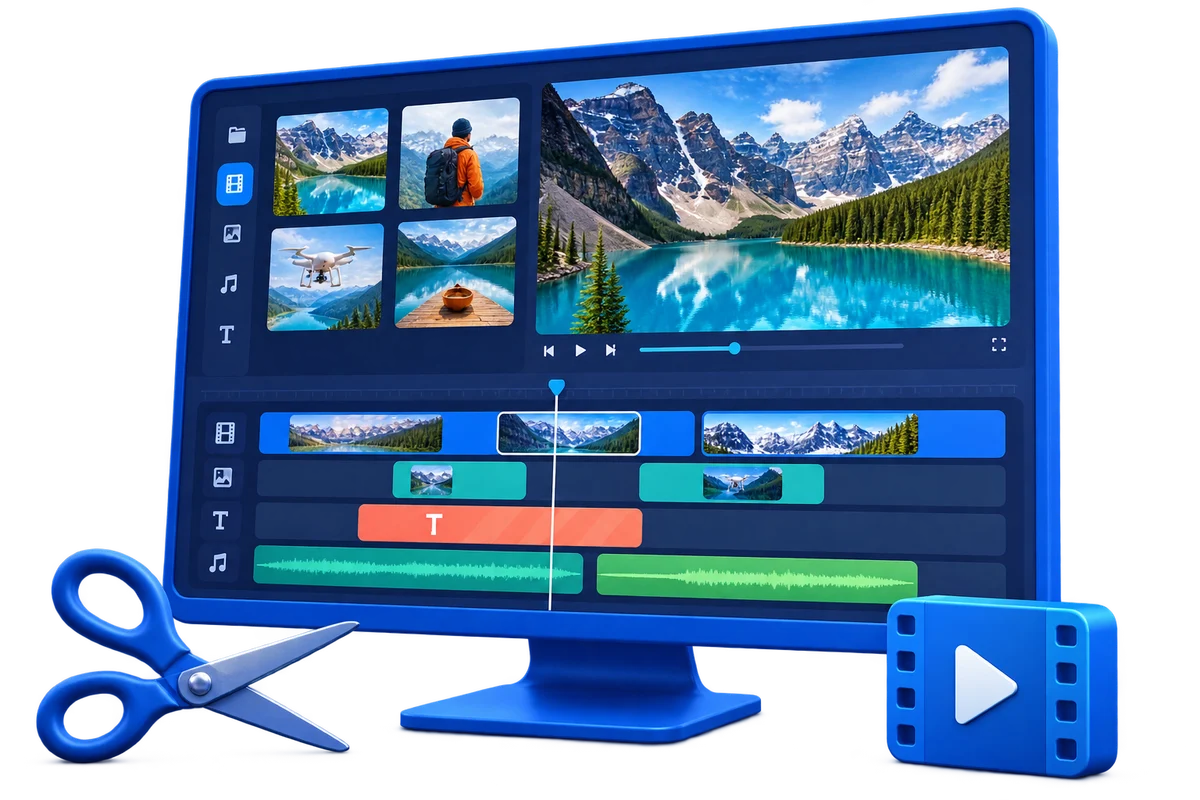
Use GiliSoft Video Editor Pro to trim authorized footage, arrange clips on the timeline, add readable text and licensed music, and export a platform-ready review copy. Set the aspect ratio early so reframing decisions are visible throughout the edit.
Confirm Rights Before Editing
- Use your own video or material whose owner and platform permit downloading, modification, and intended distribution.
- Keep license, consent, attribution, and source records with the project.
- Do not remove ownership marks, required attribution, access controls, or evidence from material you do not control.
Match the Goal to the Workflow
| Situation | Recommended action | Review checkpoint |
|---|---|---|
| Vertical short-form clip | Set a 9:16 frame and reframe the subject | Faces, captions, and branding stay inside safe areas |
| Square feed post | Use a 1:1 composition with larger text | The message remains readable on a phone |
| Landscape preview | Keep 16:9 and tighten the opening | The first seconds establish subject and value |
Step-by-Step Workflow
- Define one message and destination
Choose the platform, aspect ratio, duration target, and call to action before cutting footage.
- Preserve and organize the source
Keep the original file, then label the strongest moments, supporting shots, approved branding, and licensed audio.
- Build the clip in Video Editor Pro
Set the canvas ratio, trim pauses, arrange the primary footage, and use additional tracks only when they improve clarity.
- Add mobile-readable finishing elements
Use concise captions, safe margins, balanced music, and branding that does not cover faces or important action.
- Export and review on a phone
Watch the complete file with sound on and off, confirm text size and cropping, and keep a clean master for later variants.
Verify the Export
- Play the beginning, middle, and ending outside the editor.
- Check timing, aspect ratio, text, overlays, audio sync, and destination compatibility.
- Keep the untouched source and clearly label the approved export.
Know the Limits
Source compression, motion, missing background detail, poor audio, or low resolution can limit the result. Upscaling does not recreate true source detail, and editing tools do not grant permission to copy, modify, or distribute protected material.
Frequently Asked Questions
Can I edit or convert any video I download?
No. Downloading, editing, and redistributing may require separate permissions. Use your own or explicitly authorized material.
Should I overwrite the downloaded source?
No. Keep an untouched source and export a new version so the workflow can be corrected or repeated.
Why should I export a short test?
It reveals codec, quality, timing, overlay, and audio problems before a long render.
Does editing software grant reuse rights?
No. Software provides technical tools; ownership, licenses, consent, and platform rules determine permitted use.