
Microphone Recorder for Windows 11
Use this workflow to capture clear speech from the intended microphone without Windows permission, placement, or level mistakes. A short saved test protects the session better than relying on device names or meters alone.
Quick answer
Enable Windows microphone and desktop-app access, choose the exact microphone, place it close enough for a strong voice signal, and make a normal-volume test. Lower gain if peaks distort, use headphones when other audio is playing, and listen to the saved test before recording important material.
Choose the Right Recording Setup
| Situation | Recommended setup | What to verify |
|---|---|---|
| Built-in microphone | Use for convenience in a quiet nearby setting | Room noise and keyboard sound |
| USB or headset microphone | Select it explicitly after connection | Device name, gain, channel, and stability |
| Bluetooth microphone | Test latency and connection behavior | Dropouts, profile quality, and sync |
Step-by-Step Recording Workflow
- Confirm permission and required sources
Decide whether the recording needs system audio, microphone input, or both, and obtain any required notice or authorization.
- Check Windows and device settings
Allow microphone access for desktop apps when needed and choose the exact input and output devices rather than relying on defaults.
- Prepare the listening environment
Place the microphone consistently, use headphones for mixed recording, disable notifications, and close unrelated noisy applications.
- Record and replay a short test
Use normal speaking and playback levels, then listen for silence, clipping, echo, noise, balance, latency, and the correct save path.
- Record, verify, and organize
Monitor the opening, play the complete saved file, use clear names, retain the needed master, and create transcripts or notes where useful.
Use the GiliSoft Audio Recorder Pro Workspace
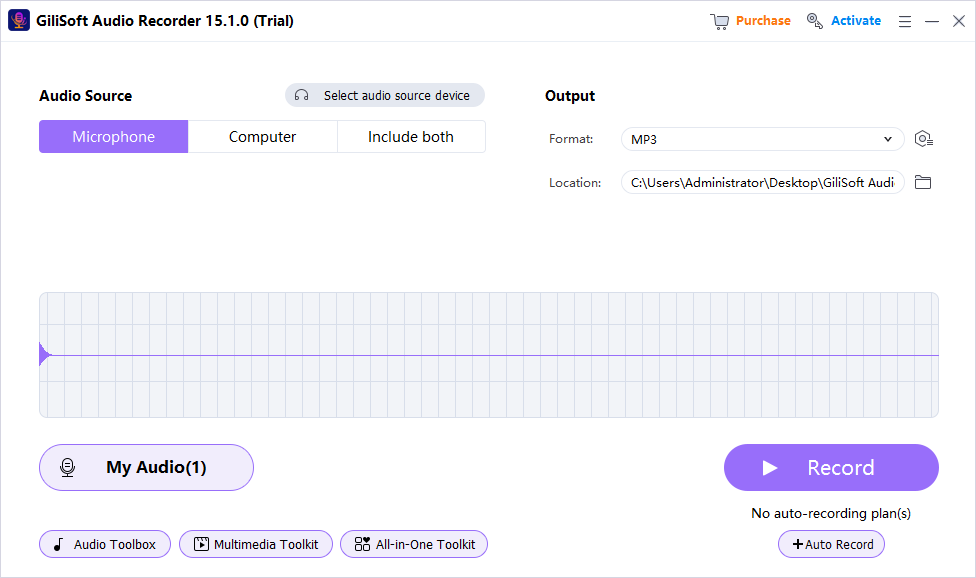
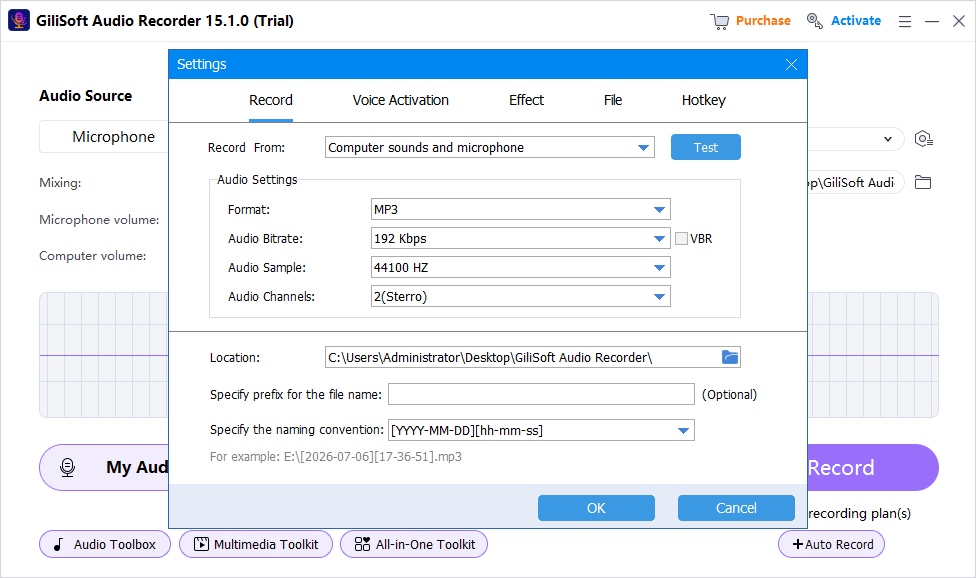
These screenshots show real product workspaces. Windows device names and controls can vary, so select the exact source and verify a saved test with your own hardware.
Check the Recording Before You Use It
| Microphone access and gain | Listen to a saved test and the complete recording through reliable headphones or speakers. |
|---|---|
| Signal quality | Check silence, clipping, echo, noise, source balance, speech clarity, dropouts, and unexpected notifications. |
| File handling | Confirm format, name, folder, duration, access, retention, and whether a transcript or delivery copy is needed. |
Frequently Asked Questions
Why can’t the recorder hear my microphone?
Check Windows microphone access, desktop-app permission, the selected input device, hardware connection, mute state, and input level.
How close should I be to the microphone?
Close enough for a strong voice signal without plosives or overload. Keep distance and angle consistent through the session.
Will noise reduction fix a poor recording?
It can reduce steady noise, but cannot restore clipped words, severe echo, missing speech, or a disconnected input.
Should I keep the original recording?
Keep an untouched recording master when the content matters, then create edited or compressed delivery copies separately.
Why is a saved test better than watching the meter?
A meter can show activity but not prove that the correct source, balance, routing, noise, echo, or file playback is acceptable.