
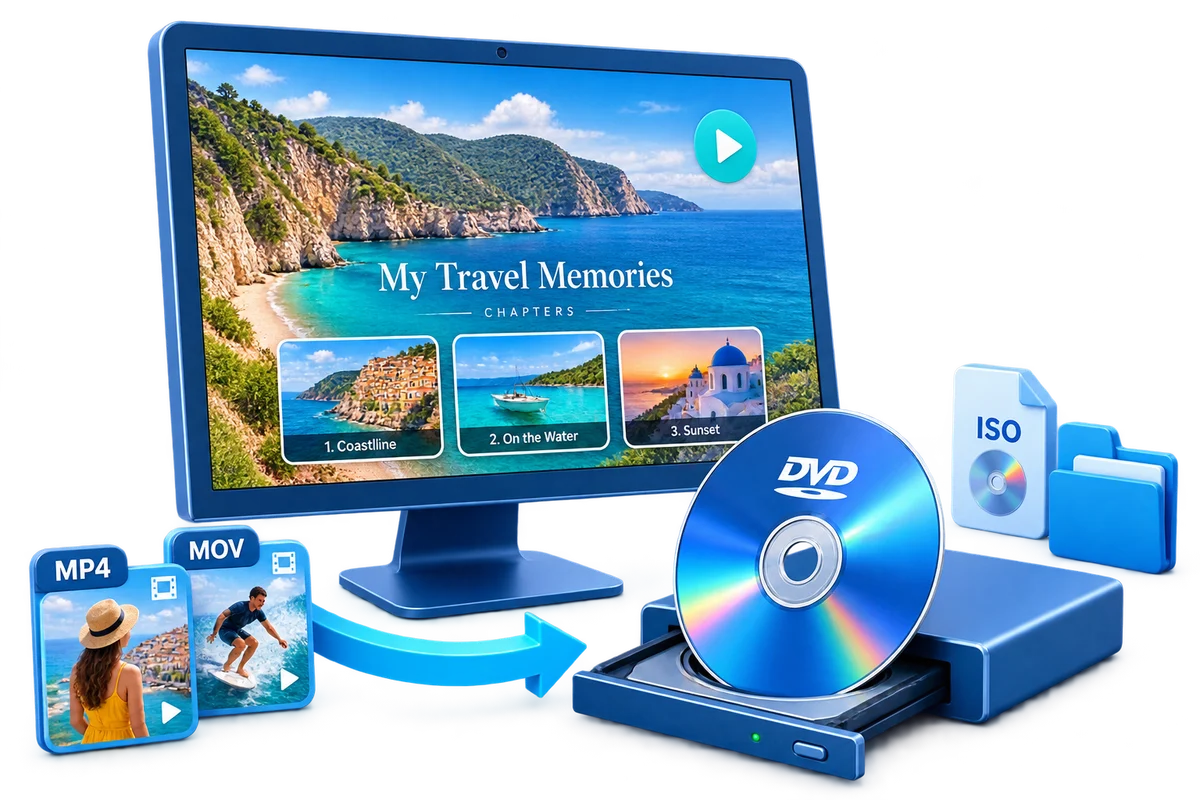
How to Burn MKV to a Playable DVD on Windows
An MKV file can contain several video, audio, and subtitle streams. This guide shows how to select the right tracks, author a true DVD-Video project, create an ISO or DVD folder for checking, and burn a disc that can play in a compatible standalone DVD player.
Quick answer
Import the authorized MKV file into GiliSoft Movie DVD Creator, select the intended audio and subtitle tracks, choose PAL or NTSC and DVD-5 or DVD-9, preview the menu, and create an ISO test before burning the final playable disc.
Choose the Right DVD Workflow
| Source situation | Recommended approach | What to verify |
|---|---|---|
| Single video and audio track | Use the intended stream | Complete playback and sync |
| Multiple tracks or subtitles | Choose the required language explicitly | Correct audio and subtitle output |
| HD or 4K source | Let DVD output use a tested downconversion | Framing, motion, and small text |
How to Burn MKV to DVD Step by Step
- Check the MKV source
Use only video you created, own, or have permission to author. Play the complete file and identify the video, audio, and subtitle tracks you need.
- Import the MKV file
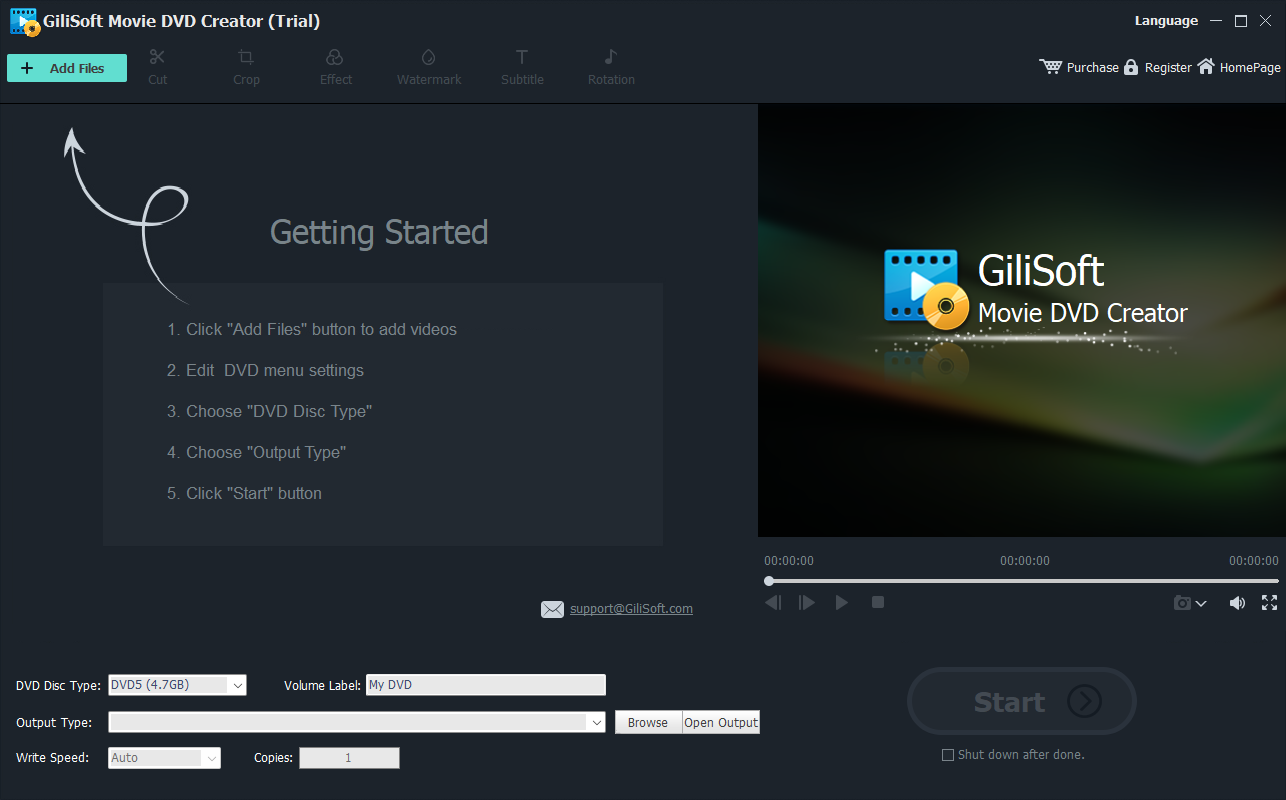
Open GiliSoft Movie DVD Creator, add the source, and confirm that video, audio, duration, orientation, and subtitles preview correctly.
- Choose the DVD format and capacity
Select 16:9 or 4:3, PAL or NTSC, and DVD-5 or DVD-9 according to the target player, region, project length, and blank media.
- Create the menu and chapters
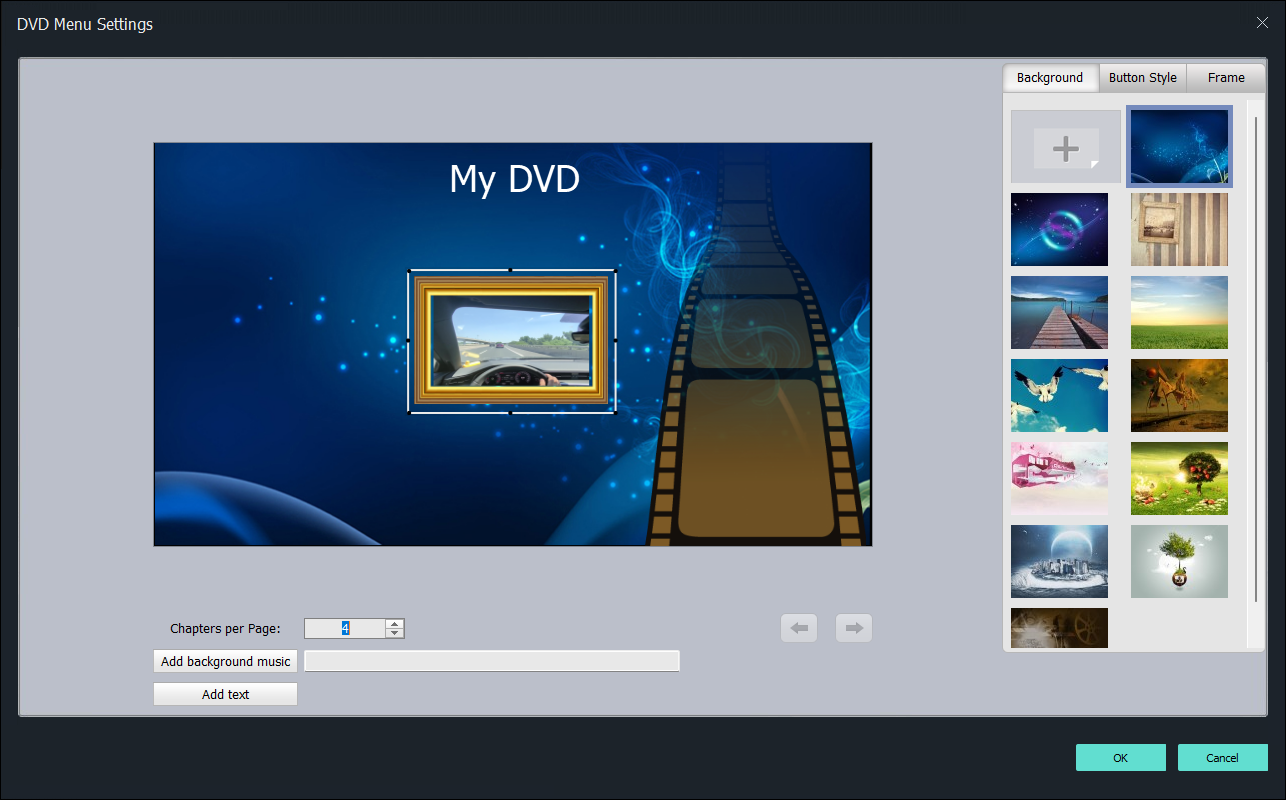
Arrange clips, add chapter points, write short menu labels, and preview every navigation button.
- Create an ISO or DVD folder first
Inspect the authored structure and play through the menu before using blank media. This catches navigation, framing, audio, and subtitle mistakes early.
- Burn and test the final disc
Burn the verified project at a reliable speed, then test the complete disc in the actual standalone DVD player used for delivery.
Use the GiliSoft Movie DVD Creator Workspace
These screenshots show the real import, preparation, and menu-authoring interfaces. Controls can vary by source codec and installed Windows components, so approve a short project before a full encode.
Check DVD Settings Before Output
| Aspect ratio | Choose 16:9 or 4:3 from the intended display, then preview letterboxing and cropping. |
|---|---|
| TV standard | Choose PAL or NTSC for the target playback equipment; do not infer it only from the source filename. |
| DVD-5 or DVD-9 | Use DVD-5 for shorter single-layer projects. Choose DVD-9 for longer projects or more bitrate when your burner and player support dual-layer media. |
| Capacity and quality | Compare total duration with disc capacity. Longer projects require a lower average bitrate and can lose visible detail. |
| Menus and chapters | Keep labels readable on a television and test every navigation path. |
| Disc verification | Check the ISO or folder first, then test the burned disc in the actual standalone player when that is the delivery target. |
Frequently Asked Questions
Can GiliSoft Movie DVD Creator burn MKV to DVD?
The product supports broad video input, but MKV is a container or format family that can contain different codecs. Test a representative source in the installed build before a long project.
Why does the finished DVD look softer than the source?
DVD-Video is standard definition. HD and 4K sources must be downconverted, and increasing bitrate cannot preserve their original pixel resolution.
Should I choose PAL or NTSC?
Choose the standard required by the target country or playback equipment. PAL and NTSC use different frame and raster conventions, so test the intended player.
Why are there black bars or cropped edges?
The source and DVD project may use different display aspect ratios. Preview 16:9 and 4:3 behavior and preserve the full frame unless cropping is intentional.
Can I create an ISO without a blank disc?
Yes. ISO and DVD folder output let you create and inspect the authored structure before physical burning.
Should I use DVD-5 or DVD-9 for an MKV video?
Use DVD-5 for shorter projects that fit comfortably on a single-layer disc. Choose DVD-9 when the project is longer or needs more bitrate, provided the burner and player support dual-layer media.
Is copying a video file to a disc the same as DVD authoring?
No. A data disc stores files; an authored DVD-Video project creates the playback structure, menus, and chapters expected by a DVD player.