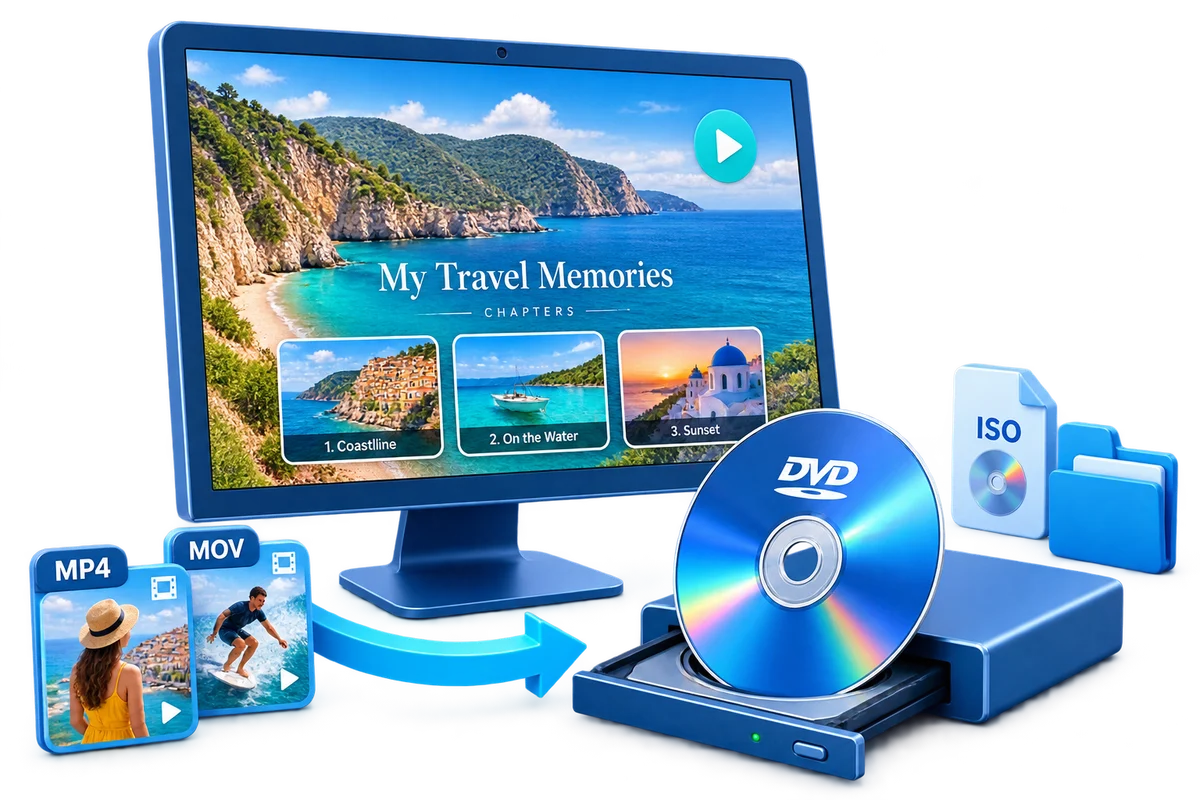
Choose the DVD task you need: load and arrange videos, trim a clip, add subtitles, personalize a menu, or create a disc, ISO image, or DVD folder. Use the four-step tutorial for your first DVD, or jump directly to an individual adjustment.
Test navigation, picture, sound, and subtitles before making more copies.
Create Your First DVD in Four Steps
This creates a DVD playback structure with the chosen menu, rather than a data disc containing loose video files. Review the project before creation and test the finished output on the equipment your viewers will use.
1Add and arrange the source videos
Open Video to DVD, choose Load File or Load Folder, and select your videos. In the DVD authoring window, use Add Files for more clips, review the list, and arrange the playback order before making the menu.
Select a clip and open Cut to set its Start and End points. Preview the retained section, then apply the edit. Complete any rotation, cropping, effect, subtitle, or watermark changes before finalizing the DVD menu.
Open DVD Menu Settings and choose the Background, Button Style, and Frame. Set Chapters per Page, add menu music or text as needed, review the pages, and select OK to return to the DVD project.
Review the DVD Disc Type, Volume Label, PAL or NTSC standard, and aspect ratio. Choose the disc, ISO image, or DVD folder in Output Type, select the recorder or save location, and select Start. Test the completed output before making delivery copies.
Open the DVD creation tool for your videos. The separate Video and Text workspaces are optional tools for preparing source material.
Open Video to DVD
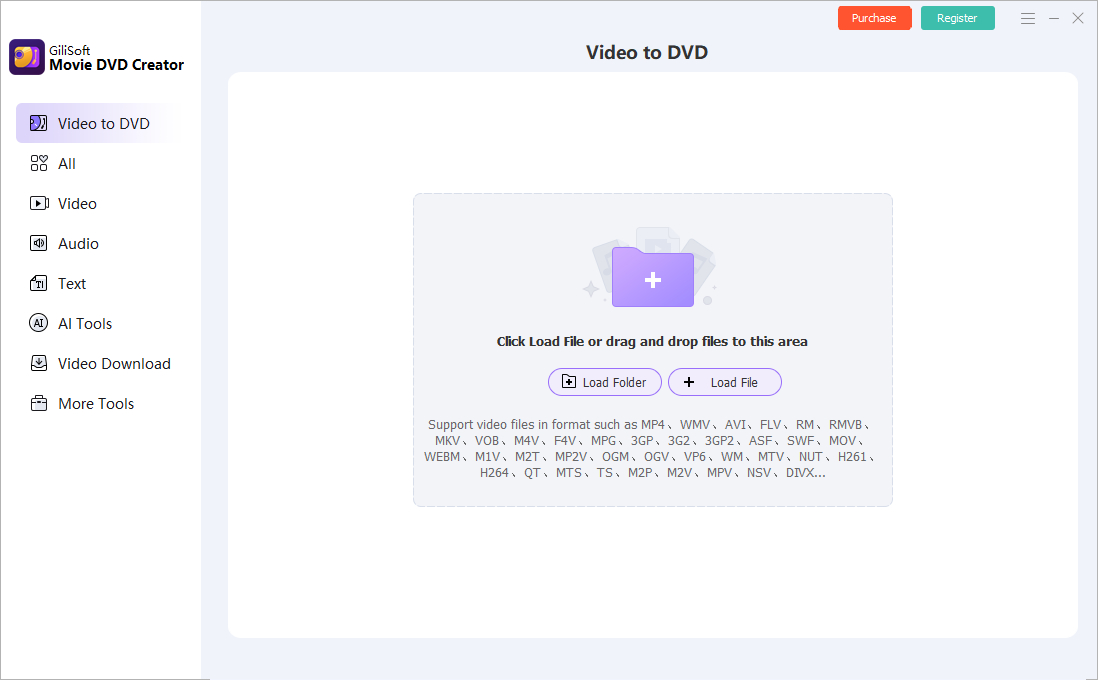
Start GiliSoft Movie DVD Creator and choose Video to DVD in the launcher sidebar.
Load the source videos
Choose Load File for individual videos, Load Folder for a source folder, or drag files into the indicated area. Review the imported contents rather than assuming every file in a folder belongs on the DVD.
Check the sources before editing
Preview the picture and sound. The workspace lists formats including MP4, MKV, AVI, MOV, WMV, FLV, VOB, and MPG. Keep the source files so you can revise the DVD later.
Start in Video to DVD. Use Load File, Load Folder, or drag the prepared source videos into the workspace.
In the authoring window, use Add Files to add more videos. A physical disc needs a DVD writer and suitable blank media; ISO and DVD folder output only need enough drive space.
Arrange and Review the Video List
Review the final source list before designing the DVD menu so the navigation matches the videos you intend to include.
Add the clips you need
Use Add Files in the authoring window. Select each clip and preview its beginning and ending; check the intended audio and subtitle source where the list offers those choices.
Set the playback order
Use the list's Up and Down controls to arrange entries, and remove unwanted project entries. For example, put an introduction before the lesson videos or arrange event clips chronologically.
Review before making the menu
Check the order and total running time. Use recognizable wording for menu entries where editing is available, then open DVD Menu Settings.
The DVD authoring window brings together source files, editing tools, menu preview, and the output controls.
The pictured authoring window is empty, so Start and the clip-editing tools are not yet active. The earlier populated example shows the video list, ordering controls, and menu preview.
Prepare a Clip in a Separate Video Tool
Use a separate preparation tool when a clip needs more work than the DVD editor's basic changes.
Open the matching Video tool
In the launcher, choose Video. Open Easy Cutter, Batch Cutter, Advanced Cutter, Joiner, Crop, or Filter&Effect for the task you need.
Finish and save the prepared video
Complete that tool's edit and save its video result. Play the actual saved file to check its picture, sound, and duration before using it for the DVD.
Bring the result into Video to DVD
Return to Video to DVD and load the finished video. Replace an older project entry if necessary; a separate tool's saved edit should not be assumed to update an already imported clip.
The separate Video workspace offers additional preparation tools. Bring the finished video back into Video to DVD for authoring.
For a simple start/end trim, use Cut inside the DVD clip editor. The Video tool collection is optional, not a required stage for every DVD.
Find Document, Text, and Speech Tools
The Text workspace contains separate tools for supporting material. It is not the editor for wording drawn onto a DVD video.
Choose a Text tool
In the launcher, select Text. The screenshot shows Doc To Video, Text to Video, Subtitle Extraction, and Text to Audio.
Create and review the material
Open the tool you need and follow its own input and output controls. Review the saved result; a generated audio file, extracted text, and a video are different kinds of output.
Text is a collection of supporting tools, not the clip's text-overlay editor. Use Watermark > Add Text for text placed on a video.
These extra tools are optional. The launcher screenshot identifies the available entries; it does not show their individual export settings.
Edit Video Clips, Subtitles, and Labels
Correct a Clip's Rotation
Correct the orientation first. The Rotation panel warns that changing it resets other clip adjustments.
Open Rotation for the intended clip
Select the clip in the DVD list, open its video editor, and choose Rotation.
Choose the required orientation
Under Rotate Angle, choose No Rotate, 90, 180, or 270. Compare the preview with the orientation you want viewers to see.
Apply and recheck other edits
Use Apply or OK as appropriate. Recheck Crop, Effect, Watermark, and Subtitle, because the pictured panel says rotation resets these settings.
Set Rotation before other clip adjustments: the illustrated panel warns that rotation resets Crop, Effect, Watermark, and Subtitle settings.
Trim the Beginning or End of a Clip
Keep the section between the clip's start and end points, removing material before and after that range.
Open Cut
Select the intended clip and open Cut in the video editor. Check that the preview belongs to the right video.
Set the retained range
Drag the range handles or enter Start and End times. Play the selection and check the beginning, ending, and retained duration.
Apply the trim
Choose Apply or OK as appropriate and review the project entry. Use Reset to reconsider the range before applying, or prepare separate segments in a dedicated cutting tool.
Use the Cut range handles or Start and End fields, then preview the retained video before applying the edit.
The shown Cut controls define one retained range. Do not treat that range as a command to remove an arbitrary middle section while automatically joining both sides.
Crop Unwanted Picture Edges
Crop removes picture content at the edges. Check the final DVD shape before cropping simply to eliminate borders.
Open Crop for the clip
Select the video and choose Crop. Check Original Size and Crop Area Size alongside the preview.
Adjust the edges
Change Top, Bottom, Left, and Right. Use Keep Aspect Ratio if the crop shape should stay constrained.
Preview and apply
Play representative sections and check faces, labels, and important edges. Apply the change, then review the result with the DVD's 16:9 or 4:3 output shape.
Crop removes picture edges. Check the preview and Keep Aspect Ratio setting instead of cropping simply to remove every border.
A portrait clip may need borders to preserve its full picture in a landscape DVD. Filling the frame by cropping can remove important content.
Adjust Brightness, Color, and Effects
Adjust a clip's appearance while watching the preview rather than choosing an effect without checking the scene.
Open Effect
Select the clip, open the video editor, and choose Effect.
Tune the picture
Adjust Brightness, Contrast, and Saturation. The pictured effect list also includes options such as Black and White and Old Film.
Compare and apply
Check bright and dark parts of the clip so the changes do not hide detail. Use Restore Defaults if you want to start over, then choose Apply or OK when satisfied.
Adjust Brightness, Contrast, and Saturation while comparing the preview; avoid excessive changes that hide source detail.
Load and Style a Subtitle File
Load the subtitle file that matches the selected video, then set how the words appear on the picture.
Load the matching subtitle file
Open Subtitle for the intended clip and use the file selector. Make sure Remove the Subtitle File is not selected when you want the subtitles included.
Adjust placement and appearance
Set Vertical Position, choose Font, and review Subtitle Line Color. Keep the text readable against both light and dark scenes.
Preview timing and apply
Check several lines at different points, not only the opening frame. Apply the settings and check again after rotation or other changes that can reset clip adjustments.
Load the matching subtitle file and check its Vertical Position, Font, and Subtitle Line Color in the clip preview.
Use a subtitle file that is already timed for this video. The Subtitle panel is not the launcher's automatic-caption tool, and it does not show a control for shifting every subtitle time.
Put Text on the Playing Video
Use Watermark to place a title, date, name, or other label on the playing video.
Add the text label
Select the clip, open Watermark, and choose Add Text. Enter the wording and select the resulting item for adjustment.
Set appearance and duration
Review Font, the preview position, and Transparence. Set Start and End under Duration for when the label should appear.
Preview and apply
Check the label at its beginning and ending, keep it clear of subtitles, and apply the change. Recheck the label if you later rotate the clip.
Use Watermark for on-screen text or a picture logo. Set its Start and End time, transparency, and appearance before applying.
Add a logo or picture inside the clip's Watermark panel, separately from the DVD menu background.
Add the picture
Open Watermark for the intended clip and select Add Picture. Load the image you want to overlay.
Position and time the overlay
Select the added picture, review its placement in preview, and set Start, End, and Transparence as appropriate. Avoid covering faces or subtitle lines.
Check and apply
Play the relevant section and apply the result. To remove an overlay you added here, select its entry and use the trash control; this is not removal of a mark already embedded in the source video.
Personalize the DVD menu after arranging the video list. The menu has its own background, button style, and frame settings.
Open DVD Menu Settings
Return to the DVD authoring window and open DVD Menu Settings for the project.
Choose the visual style
Use Background, Button Style, and Frame. Choose a supplied background, or use the background add tile when selecting your own image.
Review and return to the project
Check that the video entries and wording remain visible against the background. Select OK, then review the project's DVD menu preview.
Customize the DVD menu's Background, Button Style, and Frame, then review page navigation, music, and text.
The pictured menu shows a single video entry with Chapters per Page set to 4. The setting does not imply that four entries or chapter points have already been created.
Add Background Music to the Menu
Choose the sound heard while the DVD menu is displayed. This is separate from the sound inside each video.
Open the menu music selector
In DVD Menu Settings, select Add background music.
Choose the menu audio
Select the music file and review the displayed selection. Use audio suited to a menu that viewers may leave open while deciding what to play.
Check the authored result
Select OK and review the menu. Test the saved DVD output for menu sound, then start a clip and confirm its own audio is still the intended track.
Set how many navigation entries are displayed on each menu page and review the destinations they open.
Set Chapters per Page
In DVD Menu Settings, adjust Chapters per Page for the menu layout you want.
Inspect the additional pages
Use the page arrows when the project has more entries than fit on one page. Check that each visible entry is readable and the navigation remains clear.
Test the actual destinations
Select OK, review the project preview, then open each menu entry in the finished output. Confirm that it starts the intended content.
Use this option when the DVD should omit a visible selection menu.
Review DVD Menu Type
In the authoring window, find the menu mode selector. The earlier interface example shows DVD Menu Type with No Menu, Static Menu, and Dynamic Menu.
Choose No Menu
Select No Menu when you do not want a navigation page. If you want viewers to choose between videos, use a visible menu mode and configure DVD Menu Settings instead.
Create and check the output
Choose the disc, ISO, or folder destination. Test the finished playback order and opening behavior before making additional copies.
The menu-mode selector is shown in an earlier interface; its position may differ in the installed version. Choosing No Menu intentionally omits the navigation you would otherwise design.
Create and Check the DVD Output
Choose PAL/NTSC and the DVD Aspect Ratio
Match the DVD output to the intended player and display, not simply to the source video's file extension.
Open Output Settings
Review Output Settings in the DVD authoring window. The earlier output example shows this button beside the disc and output controls.
Choose PAL or NTSC and the frame shape
Set PAL or NTSC according to the recipient's equipment. Choose the intended 16:9 or 4:3 aspect ratio.
Preview the project again
Review clips and menu framing after the change. Check borders, crop, stretching, and subtitle readability; source files with different shapes may not all fill the DVD frame without losing content.
DVD-Video is standard definition. Authoring HD or 4K video into a DVD does not preserve its original resolution, so retain the original high-resolution files.
Set Disc Capacity and the Volume Label
Choose the intended DVD capacity and output label, then check that the project fits at an appropriate quality.
Match DVD Disc Type to the destination
Review DVD Disc Type. The current authoring screenshot shows DVD5 (4.7GB); choose the supported type that matches the planned media or saved output.
Check running time and quality
Review the total project length and available quality settings. A small compressed input file does not necessarily produce a small authored DVD. Trim unwanted material or divide a long collection if needed.
Set the output label
Enter the intended Volume Label and recheck capacity before creation. This identifies the disc or saved output; use Add text to change wording displayed on a menu page.
Write the authored project to a physical DVD, then test it on the player that will be used.
Choose the recorder
Connect a DVD writer, insert suitable blank media, and select the recorder in Output Type. Match DVD Disc Type to the disc.
Review writing options
Check Write Speed and Copies, along with the output standard, frame shape, and menu. Select Start when the project is ready.
Wait and test the first disc
Keep the writer connected until creation finishes. Test the menu and clips on the intended DVD player before producing the remaining copies.
Earlier interface example: the disc output targets a DVD recorder. Use the recorder selector in your installed version.
A finished video DVD is different from a data disc containing loose MP4 files. If burning fails, test ISO output or DVD folder output to help separate authoring problems from disc-writing problems.
Save a DVD ISO Image
Save the authored DVD as a single disc-image file for review, storage, or later burning.
Select ISO output
In Output Type, choose Save as Image (.iso) or the ISO image option displayed by your installed version.
Choose a destination and create the image
Use Browse to set the output path and filename. Check free space and the project settings, then select Start. Blank media is not needed for this output.
Check the image before later burning
Mount the completed ISO or open it with software that supports DVD images, then test navigation, clips, and sound. When making a physical disc later, burn the disc image rather than copying the ISO onto a data DVD as one file.
Earlier interface example: ISO output saves the authored DVD as one image file instead of writing a physical disc.
Save the authored DVD structure as a folder on a drive without writing blank media.
Select DVD folder output
Choose Save as DVD Folder or the equivalent DVD folder entry in Output Type.
Set the destination and create the folder
Choose a location with enough working and final storage space, review the project settings, and select Start.
Keep and test the full structure
Preserve the complete generated DVD folder, including VIDEO_TS. Open it as a DVD with suitable playback software; one isolated video file does not test the menu or full navigation.
Earlier interface example: DVD folder output saves the authored disc structure to a chosen location on the drive.
Do not rename or remove individual files inside the authored structure. Keep source videos separately for later editing. See create a DVD folder from video files for more detail.
Check the Finished DVD and Playback
Check a complete sample before delivery, including the opening behavior, every menu entry, and representative parts of each video.
Start from the completed output
Open the finished disc, ISO, or DVD folder with DVD-capable playback software. For physical delivery, also use the intended DVD player.
Review navigation and the clips
Open each menu entry, inspect a later section of each clip, listen to the audio, and check subtitles and labels. Confirm the frame shape and playback order.
Resolve problems before making more copies
Use the checks below to identify whether the issue concerns source preparation, menu design, output settings, or physical writing. A successful completion message alone does not verify playback on the recipient's equipment.
Problem
What to check
DVD will not play
Confirm you authored a video DVD rather than copying MP4 files to a data disc. Check the player's supported media, PAL/NTSC setting, and the completed disc.
Wrong or missing menu
Check the menu mode, Background, page count, and preview. No Menu intentionally omits navigation; a correct menu preview should be followed by a finished-output test.
Black bars or stretched picture
Review the output's 16:9 or 4:3 shape and clip rotation and crop settings. Preserve the whole frame when removing borders would cut important content.
Missing subtitle or text
Check the correct clip, file, timing, placement, and color. Recheck settings after rotation, and use Watermark > Add Text for words on the video rather than the separate Text tool collection.
Project exceeds capacity
Match DVD Disc Type to the media. Review total running time and quality, remove unwanted sections, or divide a long collection across discs.
Burn fails or stalls
Check the recorder connection, suitable blank media, free working space, and whether another app is using the drive. Create ISO or DVD folder output to help isolate authoring from physical writing.
Wrong or missing sound
Preview the intended audio for each source clip and check the authored output. Menu background music does not replace or repair a video's own audio track.
Movie DVD Creator FAQ
Does copying MP4 files to a disc create a playable video DVD?
Not by itself. Copying MP4 files creates a data disc, which works only on players that support those files. Use Video to DVD to author a DVD playback structure, build its menu, and create disc, ISO, or DVD folder output. Test a physical DVD on the intended player.
Should I choose PAL or NTSC?
Choose the standard supported by the recipient's DVD player and display. Set it in the project's output settings before creation, together with the intended 16:9 or 4:3 aspect ratio. The source filename or file extension does not determine the correct DVD standard.
Will a DVD keep my original HD or 4K resolution?
DVD-Video is a standard-definition format. A video DVD made from HD or 4K sources does not retain their original resolution. Keep the original files as your high-resolution masters and review the authored DVD for picture quality, framing, and subtitle readability.
What does Chapters per Page change?
Chapters per Page sets how many navigation entries appear on each DVD menu page. It is not a time-interval setting for inserting new chapter points inside a video. Check each visible menu entry in the project preview and verify that it opens the intended content.
Why do my videos have black bars or look stretched?
The source frame and the DVD's 16:9 or 4:3 aspect ratio may differ. Review the project shape and each clip's crop and rotation settings. Keeping the full frame can leave borders; cropping fills more of the frame but removes picture content. Preview the result before output.
Why are subtitles missing or difficult to read?
Select the intended clip, open Subtitle, load its matching subtitle file, and confirm that Remove the Subtitle File is not selected. Check timing, Vertical Position, Font, and Subtitle Line Color in preview. Repeat the check after rotation or other edits that can reset clip settings.
What is the difference between ISO and DVD folder output?
An ISO saves the authored DVD as one image file. DVD folder output saves the DVD structure as separate files and folders, including VIDEO_TS. Both can be created without blank media. Preserve the full output structure and test it with DVD-capable playback software; copying the ISO as one data file is not the same as burning its disc image.
What should I check if burning fails or the DVD will not play?
Confirm the writer can burn DVDs and that the blank media is supported by both writer and player. Review project capacity, PAL or NTSC, aspect ratio, and Output Type. Test an ISO or DVD folder to separate authoring problems from disc-writing problems, then verify a physical test disc on the intended player.
Is Movie DVD Creator free, and which license do these buttons show?
A Windows trial download is available. The Buy Now buttons in this guide show the lifetime license for 1 PC at $39.95 and link to the official purchase page. Check the installed trial screen for its current limits and choose the intended license at checkout.
Where should I add text: Text tools, Watermark, or DVD Menu Settings?
Use Watermark > Add Text for wording on a playing video. Use Add text in DVD Menu Settings for a title or label on the menu page. The separate Text workspace contains tools such as Doc To Video and Text to Audio; it is not the clip's text-overlay editor.
Why did rotation change my other clip settings?
The illustrated Rotation panel warns that rotation resets Crop, Effect, Watermark, and Subtitle settings. Set orientation first, then apply those adjustments. If you rotate later, recheck the affected settings and preview the clip again before DVD creation.
Will a separate preparation tool update a video already in my DVD project?
Do not assume that it will. Save the prepared video from the separate tool, play the saved result, then load that result into Video to DVD. Replace an outdated project entry as needed and review the menu and output settings again.
DVD Creation Guides by Task
Use a focused guide for a source format, a saved DVD output, or the kind of collection you want to make.
Bring your videos together with GiliSoft Movie DVD Creator. Trim the clips, prepare the menu, and create a playable disc or save an ISO image or DVD folder.