
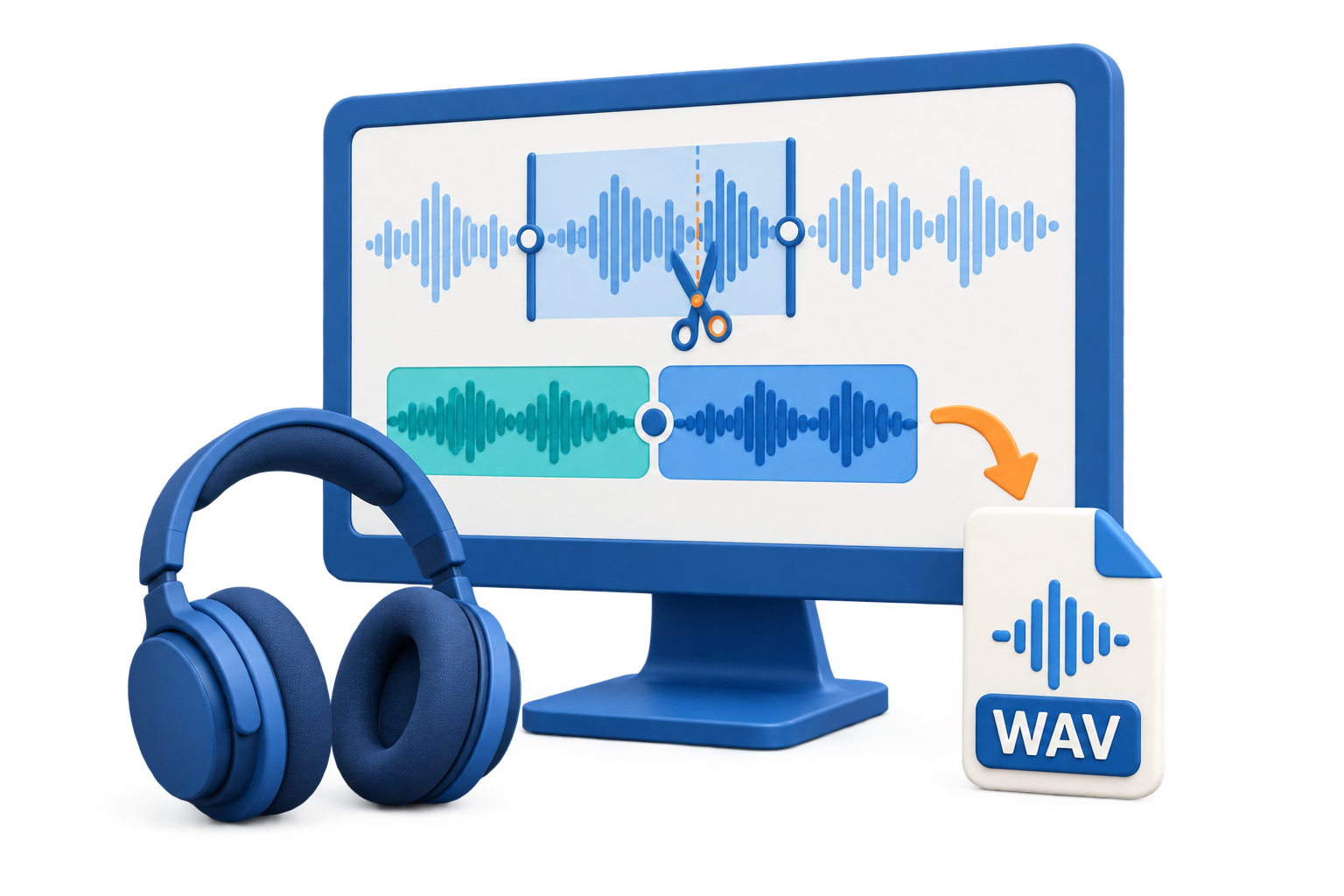
OGG Cutter for Windows: Cut and Trim OGG Audio
OGG usually means an Ogg container carrying Vorbis or Opus audio, although FLAC and other streams are possible. A reliable cut keeps the useful passage while avoiding clipped words, cut beats, audible clicks, damaged timing, unnecessary re-encoding, and an output codec the destination cannot play.
Quick answer
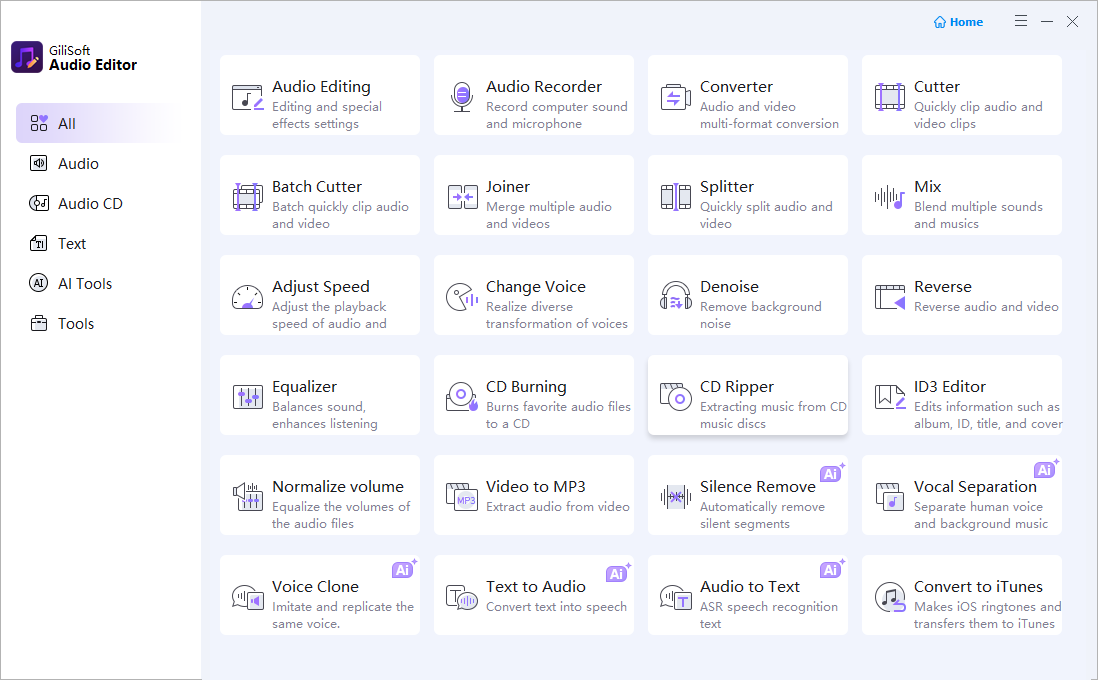
Open Cutter in GiliSoft Audio Editor, add the OGG file, mark the range to keep, listen across both boundaries, and export a separate clip. Use Batch Cutter for several independent files and the waveform editor when a boundary needs a fade or detailed repair.
Choose the right OGG cutting workflow
| Goal | Recommended tool | Why it fits |
|---|---|---|
| Extract one or more passages from one OGG file | Cutter | Focused start and end selection without a full project |
| Cut several independent audio files | Batch Cutter | Repeats the workflow efficiently across multiple sources |
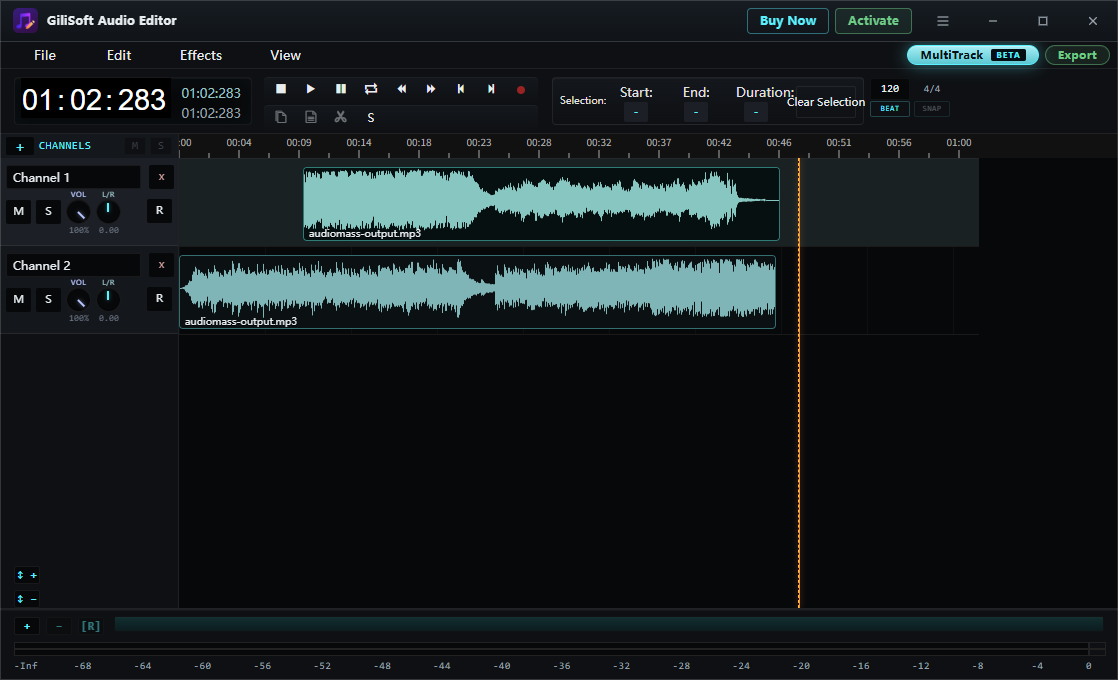
| Remove a click or repair an abrupt boundary | Waveform editor | Provides detailed listening and visual adjustment |
How to cut an OGG file on Windows
-
Keep the source and identify the useful range
Play the OGG file and note the approximate start and end of the song, speech, podcast, game audio, or meeting excerpt you want to keep. Preserve the original source.
-
Open Cutter or Batch Cutter
Choose Cutter for one source file. Use Batch Cutter when several independent files need trimming; use the waveform editor only when a boundary needs detailed repair.
-
Add the OGG file and mark the clip
Set the beginning and ending around complete content. Leave room for a spoken breath, musical attack, sustained note, reverberation, or room ambience instead of cutting only by the visible timestamp.
-
Listen across both boundaries
Preview several seconds before and after each cut. Check for clipped speech, cut beats, clicks, pops, abrupt ambience changes, and unexpected volume shifts.
-
Choose an output for the destination
Keep OGG when the destination supports the codec inside it. Preserve suitable sample rate and channel settings, and do not increase bitrate in the expectation of restoring detail already removed by Vorbis or Opus compression.
-
Export and verify the clip
Open the result outside the editor and check the start, ending, duration, loudness, tags, file name, seeking, and playback in the intended browser, player, game engine, or application.
Preserve OGG quality and clean listening boundaries
- Identify Vorbis, Opus, or FLAC. OGG describes the container family; the codec inside determines compatibility and whether the source is lossy or lossless.
- Listen, do not only look. A waveform can suggest a boundary, but only playback reveals clipped language, rhythm, reverberation, and ambience.
- Avoid repeated lossy encoding. Re-encoding Vorbis or Opus cannot restore missing detail and may introduce another generation of artifacts.
- Review comments and artwork. Check title, artist, album, track information, ReplayGain data, and cover art after exporting a standalone clip.
Cutter or splitter: choose by the result
Use a cutter when you want to keep one or more selected ranges or remove unwanted material. Use a splitter when the complete source should become a continuous, ordered set of chapters or parts.
A compatible packet-level cut may avoid full re-encoding, but exact waveform edits, fades, effects, format changes, or unsupported source settings require a new encode. A file named .ogg is not automatically Vorbis, so confirm the actual codec before choosing the output.
Fix common OGG cutting problems
The clip starts or ends with a click
Move the boundary toward a quiet or zero-crossing area, then listen again. Apply a very short fade when an abrupt waveform transition remains audible.
A word, beat, or musical note is clipped
Extend the range to include the complete sound and its natural decay. Spoken breaths and room ambience often begin before the visible phrase.
The exported clip sounds worse
Check whether lossy Vorbis or Opus was encoded again at a low bitrate. Keep compatible source settings when practical and avoid unnecessary conversion cycles.
The exported OGG file will not play on the destination
Identify the codec inside the container. A browser, player, device, or application may support Vorbis but not Opus, or may not accept Ogg audio at all. Create a compatible delivery copy only when required.
Frequently Asked Questions
How do I cut an OGG file on Windows?
Open Cutter in GiliSoft Audio Editor, add the OGG file, mark the range to keep, listen across both boundaries, and export a separate clip.
Can I cut OGG without losing quality?
A compatible packet-level cut may avoid full re-encoding. Precise waveform edits, fades, effects, format changes, or unsupported source settings require a new encode.
Is OGG the same as Vorbis?
No. OGG usually refers to the Ogg container, while Vorbis is one audio codec it can carry. Ogg files may also contain Opus or FLAC audio.
How do I avoid a click at an OGG cut point?
Move the boundary to a quiet or zero-crossing area when possible, listen across the cut, and apply a very short fade when the waveform transition remains abrupt.
Why will an OGG clip not play on my device?
The destination may not support the codec inside the Ogg container. Identify whether the file contains Vorbis, Opus, or FLAC and export a compatible delivery copy only when needed.