On Windows 11 or Windows 10, choose whether to protect a private area, the whole USB volume, or just a few files. The right method depends on which files must stay public and how often you need to open and edit the private ones.
Which USB Password Method Should You Use?
Choose GiliSoft USB Encryption to keep public files and an encrypted private area on one flash drive. Choose BitLocker To Go for whole-volume protection on Windows Pro, Enterprise, or Education. An encrypted archive suits a small fixed file set; hardware-encrypted drives suit an approved-device requirement.
A workplace policy requiring an approved encrypted device.
The specific model's unlock, backup, and recovery process.
Before You Add a Password
Back up and identify the device
Verify a separate copy of important files. Match the drive label, letter, and capacity before making storage changes.
Choose what should remain public
For a private-area workflow, reserve enough encrypted space for future files. Leave only deliberately shareable files in public storage.
Keep the password separate
Use a strong, unique password and store it in a password manager or trusted record outside the USB drive. Keep any recovery key separate too.
Method 1: Create a Private Area with GiliSoft USB Encryption
This method is useful when the same USB needs public handouts or installers and private work files. It does not require BitLocker.
1. Back Up and Identify the USB Drive
Copy important files to separate storage and verify the backup. Connect the intended flash drive and check its label, letter, capacity, and contents.
Close applications using the device before setup. Keep the backup until you have tested the complete close-and-open workflow.
2. Create the Password-Protected Private Area
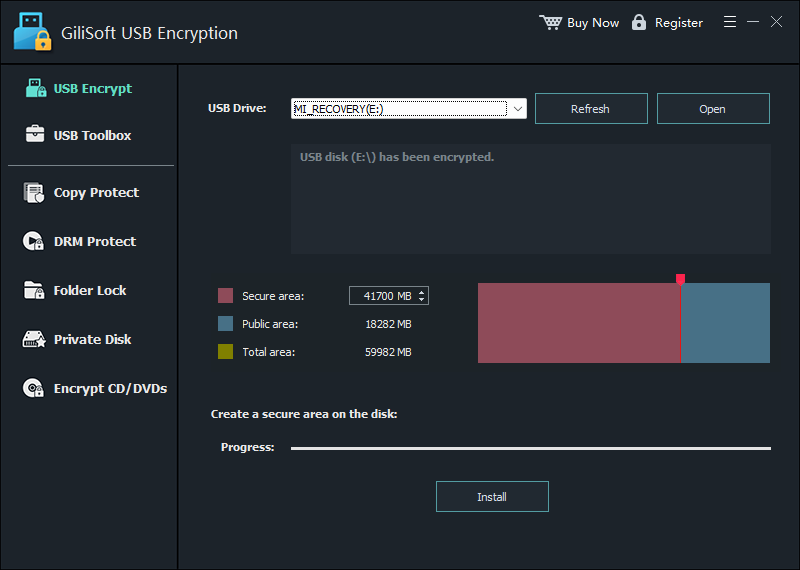
In GiliSoft USB Encryption, select the device in USB Encrypt, choose the Secure area size, and click Install. Complete the password setup and wait for creation to finish.
The remaining space is public. If the device already has an encrypted area, use Open rather than repeating installation just to access its files.
USB Encrypt shows the selected device and private/public capacity controls. The example device shown is already encrypted.
3. Open the Private Area with the Password
Select the existing encrypted device and click Open, or use its agent.exe opener. Enter the password, choose an available virtual drive letter, and click Open in virtual drive.
The public USB and private virtual drive can have different letters. Select an unused letter; the screenshot's D: is an example, not a required setting.
Enter the private-area password and select the virtual drive letter before opening.
4. Put Confidential Files Inside the Virtual Drive
Click Browse and copy private documents, photos, or other files into the mounted private area. Open representative files there to confirm the transfer.
Confirm that private files are inside the mounted drive, not just an ordinary folder in public USB storage. Copies left on the desktop or in public storage are outside that encrypted area.
Browse opens the mounted private area; Close ends the secure session after files are saved and closed.
5. Close, Reconnect, and Check What Is Public
Save and close files, click Close to end the secure session, and safely eject the USB drive. Reconnect it and verify the public/private boundary before sharing.
Check which files can be read without the private-area password, then reopen the area and verify your confidential files. Test the same process on the Windows PC where the drive will be used.
Method 2: Protect the Whole Volume with BitLocker To Go
Use this when the removable volume should be encrypted as a whole. Microsoft provides the manual BitLocker Drive Encryption controls on Windows Pro, Enterprise, and Education, not Home.
Open Manage BitLocker
Connect and back up the USB drive. From Start, search for Manage BitLocker.
Choose the removable drive
Find it under Removable data drives - BitLocker To Go and select Turn on BitLocker.
Choose the password and save the recovery key
Select password unlocking when offered, complete the wizard, and keep the recovery key separate from the USB.
Finish encryption and verify access
Let encryption complete before disconnecting. Reconnect and test password access on the intended PC.
Package a small fixed file set using archive software that supports strong encryption. Set an encryption password, then test opening the package on the recipient's computer.
A compressed file is not necessarily encrypted. Originals left outside the archive and copies extracted later need their own protection.
Method 4: An approved encrypted USB device
Choose this when a workplace requires particular hardware, such as an approved keypad-unlocked drive. Follow the selected model's setup and recovery documentation.
Confirm how users unlock it, what happens after failed attempts, and where backups are kept. Do not assume every encrypted USB model behaves the same way.
Check That the Password Protects the Intended Files
Check
What to verify
Closed or locked state
Private files cannot be opened through an already mounted private session after you have closed it.
Public/private boundary
Only deliberately shared files remain readable in public storage without the private password.
Successful unlock
The correct password opens the expected drive or archive, and representative files are intact.
Copies elsewhere
Review public duplicates, exports, and extracted copies that are outside the chosen encryption.
Destination PC and backup
The intended user can follow the unlock workflow, and a separate verified backup remains available.
Missing opener or forgotten password? USB Encryption's Recover restores agent.exe, not the password. Do not format or reinstall over an existing encrypted area to try to recover access. See the USB Toolbox guide.
USB Flash Drive Password FAQ
Can I password protect a USB drive without BitLocker?
Yes. GiliSoft USB Encryption creates a password-protected private area alongside public storage. Open it with the password and put sensitive files inside the mounted private drive. You do not need to use BitLocker for this workflow.
How can I protect a USB drive on Windows 11 Home?
Windows 11 Home does not include the standard BitLocker Drive Encryption creation controls. You can use GiliSoft USB Encryption for a private area, or an encrypted archive for a small fixed file set. Choose according to whether you will edit files regularly or share one package.
Can public and protected files stay on the same USB?
Yes. Keep files intended for sharing in public storage and confidential files in the encrypted private area. Close the private area before handing over the drive. Check the public area for old copies or exports that should not be shared.
Is a password-protected ZIP file enough?
An encrypted archive can suit a small set of files shared as one package. Use archive encryption, not compression alone, and test that the recipient's software can open it. Original files or extracted copies outside the encrypted archive are not protected by its password.
Can I password protect files without formatting the flash drive?
An encrypted archive can protect selected files without reformatting the USB drive, but unencrypted originals left on the drive remain readable. Before creating a new private area or changing a drive layout, back up existing files and follow the program's setup prompts; do not assume every storage change is non-destructive.
What happens if the USB drive is lost?
Files inside a closed encrypted area require the password to open, while files deliberately left in public storage remain public. Keep a separate verified backup because encryption cannot replace a lost or failed device.
What if I forget the private-area password?
GiliSoft USB Encryption's Recover tool restores the agent.exe opener; it does not reset the password. Keep the password in a separate password manager or trusted record. Preserve the drive and contact GiliSoft Support before attempting changes if you cannot open it.
Can I copy protected files out after entering the password?
Once you open the private area, you can work with its readable files. A copy saved to the desktop, public USB storage, or another ordinary folder is outside that encrypted area. This is password-protected storage, not a restriction on every copy made after unlocking.
Does USB encryption replace a backup?
No. Encryption protects confidentiality; it does not prevent flash-memory failure, accidental deletion, corruption, or physical loss. Keep a separate backup and open representative files from it before changing or removing protected storage.
Create encrypted private storage alongside public files with GiliSoft USB Encryption. Open the private area when needed and close it before sharing the drive.