
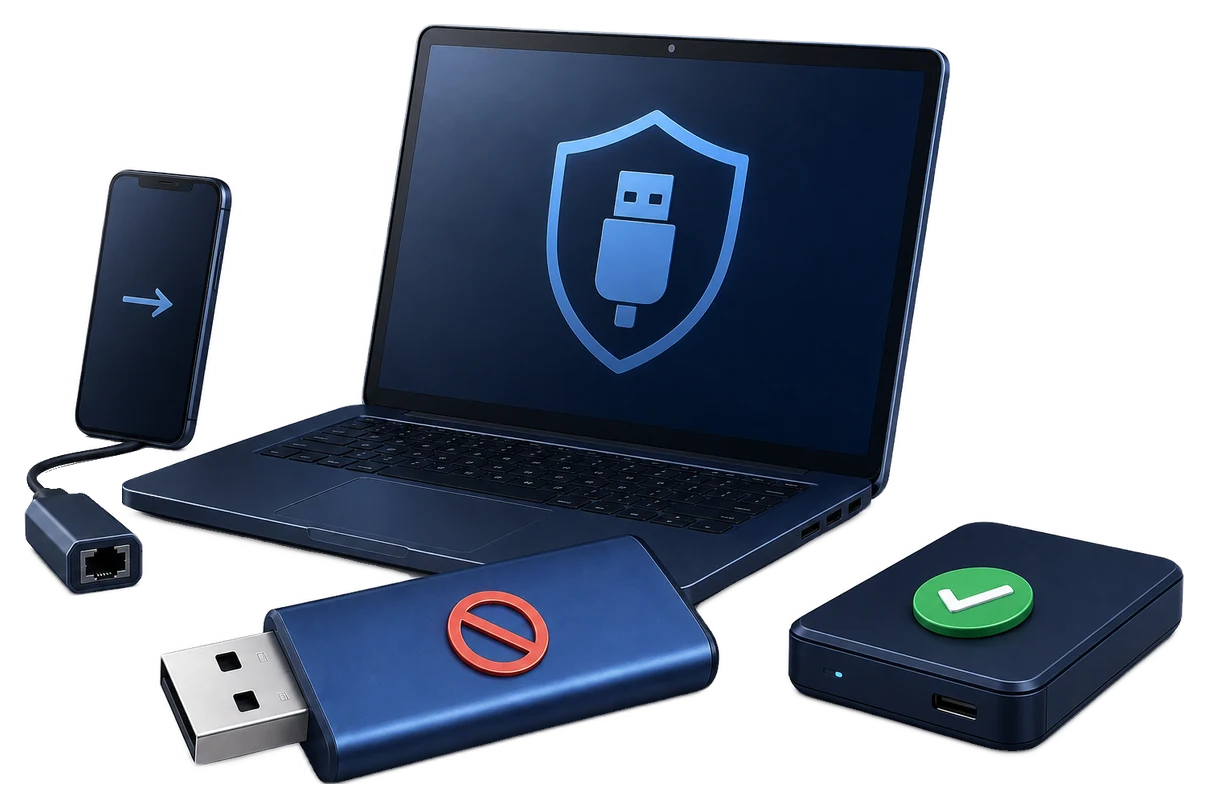
Physical USB Port Blockers: How They Work and When to Use One
A keyed blocker closes an unused connector; USB control software manages the ports that must stay usable. Compare both before choosing a deployment approach.
What a Physical USB Port Blocker Actually Does
A physical USB port blocker is a small plug inserted into one USB receptacle. Keyed models are installed and removed with a matching tool. With the insert in place, a flash drive, phone cable, keyboard, or other USB device cannot be connected to that port.
The blocker does not disable the USB controller and it does not create a Windows policy. It closes one connector. Other USB ports, docks, internal headers, wireless transfer paths, and network services remain separate.
Four Products That Are Often Confused
Keyed reusable USB port lock
A matching key inserts and removes the blocker. This is the practical choice when technicians may need the port again. Product families are connector-specific, so a USB-A blocker is not a USB-C blocker.
Permanent or tamper-evident blocker
This is designed for long-term closure or visible evidence of removal. Confirm how it is removed before deployment; some products are not intended for routine reuse.
Dust plug
A dust plug protects an unused connector from debris and accidental insertion. If it can be pulled out by hand, it is not a meaningful access-control device.
Cable or attached-device lock
This secures a cable or USB device that must remain connected. It prevents removal; it does not block an empty port.
How to Deploy Physical USB Port Blockers
The hardware is simple. The deployment work is not. Use the following sequence before buying a box of identical inserts.
Inventory every connector
Count USB-A, USB-C, docks, monitor ports, printer ports, and exposed ports on specialist equipment. Record which connectors have a real business purpose.
Confirm product and key compatibility
Check connector type, blocker model, key pattern, port orientation, and clearance around adjacent connectors. A wide insert can obstruct a neighboring port on a compact laptop or dock.
Pilot on noncritical equipment
Install and remove several blockers with the supplied key. Confirm that the connector is not damaged and that support staff can complete the procedure without prying.
Record key custody
Label keys, keep spares, assign an owner, and document emergency access. A missing key turns a five-minute maintenance task into downtime.
Inspect after deployment
Check for missing, loose, or damaged blockers during routine hardware inspections. Revisit the decision when equipment or business use changes.
Physical USB Port Blocker Pros and Cons
Advantages
- Works before Windows starts and without endpoint software.
- Visibly closes unused ports on kiosks, printers, servers, and fixed equipment.
- Stops casual insertion of flash drives and USB cables into the protected connector.
- Basic operation is independent of Windows, macOS, or Linux.
Disadvantages
- One blocker protects only one connector.
- Keys must be stored, tracked, and available during maintenance.
- No trusted-device list, read/write rule, user exception, or activity log.
- Forced removal or the wrong tool can damage the blocker or connector.
- Other USB ports, docks, wireless links, and network transfer remain available.
Physical USB Blocker vs USB Control Software
| Requirement | Physical blocker | GiliSoft USB Lock |
|---|---|---|
| Close an unused connector | Yes. The insert prevents physical connection. | Blocks device use in Windows; it does not fill the connector. |
| Allow approved company drives | No. Removing the blocker opens the port to compatible devices. | Approved drives can be added to a trusted list while unknown storage stays restricted. |
| Control read or write access | No. The port is open or closed. | USB storage rules can restrict reading or writing according to the configured policy. |
| Block phone data transfer and other channels | No. Every connector or channel needs separate treatment. | Can restrict phones, USB storage, SD readers, CD/DVD media, tethering, and selected device classes. |
| Review attempts | No event record. | Activity and access records show allowed and denied events. |
| Change access quickly | A technician needs the matching key at the computer. | An administrator can change the rule without removing a blocker from every port. |
When the USB Port Must Remain Usable
Many offices cannot close every USB connector. Staff may need approved company drives for field data, service files, photo printing, equipment updates, or controlled document transfer. The requirement is not “no USB”; it is “only approved USB, under a clear rule.”
Use GiliSoft USB Lock for active Windows ports
Add approved drives to the whitelist, block unknown removable storage, restrict reading or writing, control phone transfer and other device channels, and review allowed or denied activity.
Whitelist lists can be exported and imported for repeat deployment. For larger installations, GiliSoft can discuss custom device rules and deployment requirements.
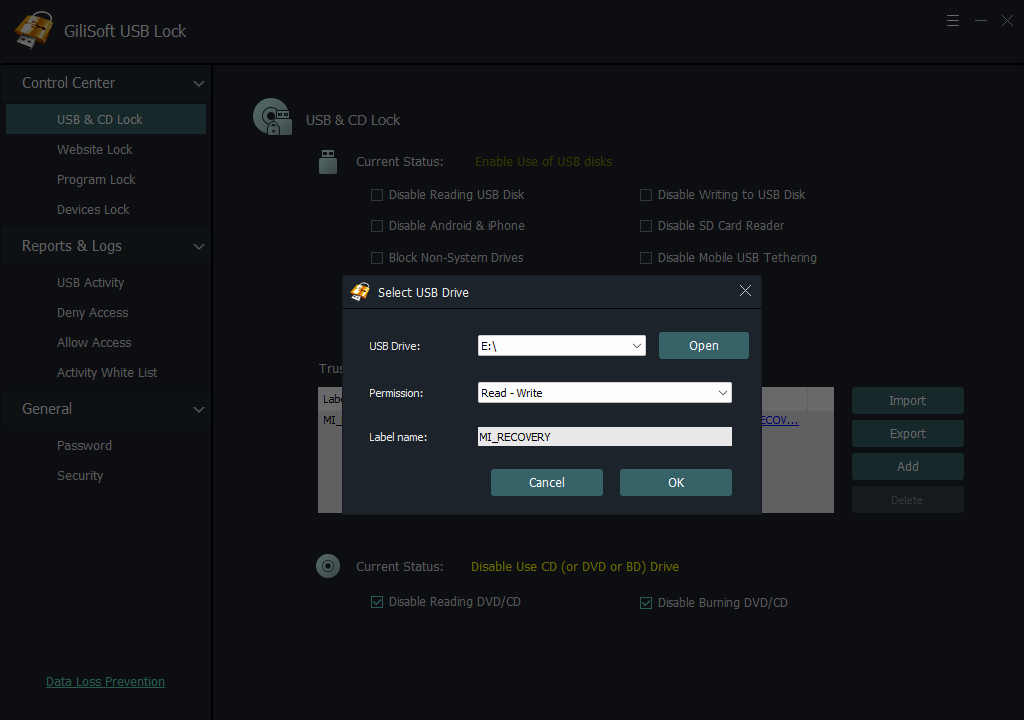
Microsoft's enterprise device-control documentation describes the same administrative need at a broader platform level: organizations may block removable storage by default, create approved exceptions, control read, write, or execute access, and audit device activity. GiliSoft USB Lock packages the common Windows USB-control tasks into a dedicated desktop product.
Which USB Port Control Should You Choose?
Purchasing and Deployment Checklist
Physical USB Port Blocker FAQ
Does a physical USB blocker disable USB in Windows?
No. It occupies one connector. The USB controller and other ports continue to operate unless separately restricted.
Can one blocker fit USB-A and USB-C?
No. Buy a product made for the exact connector. The shape, dimensions, and removal mechanism differ.
Can an approved USB drive be used without removing the lock?
Not in that connector. To keep approved drives working while blocking unknown devices, leave the port physically open and use a whitelist or device-control rule.
Can physical blockers and GiliSoft USB Lock be used together?
Yes. Use blockers on ports with no business purpose and USB Lock on active Windows ports that need approved-device access, restrictions, and records.
Sources and Further Reading
Control the USB Ports Your Team Still Needs
Allow approved company drives, restrict unknown devices and phone transfer, and review USB activity on Windows PCs.