

How to Whitelist USB Devices on Windows
Use GiliSoft USB Lock to keep approved company USB drives available while personal and unknown storage devices remain restricted on Windows PCs.
Before You Start
Add, Export, and Import the USB Whitelist
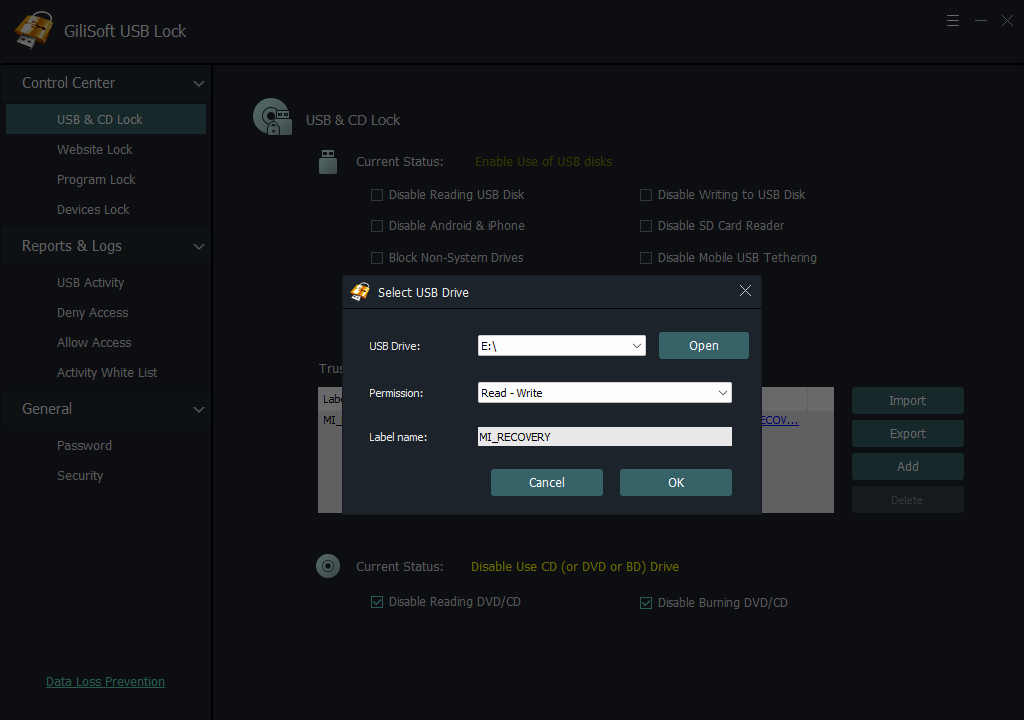
Open USB & CD Lock
Run GiliSoft USB Lock and open USB & CD Lock, where trusted removable-device rules are managed.
Insert and add each approved USB drive
Connect one trusted USB drive and click Add. Repeat this action until every approved company drive appears in the whitelist.
Export the completed trusted-device list
After checking that the list contains the intended devices, click Export and save the whitelist file in the chosen administrator folder.
Import the whitelist on another Windows PC
Open USB Lock on the target computer, return to the whitelist area, click Import, and select the exported list. Importing reuses the approved-device entries; verify the target PC's restriction settings separately.
Verify the Imported Whitelist
Do not assume that an imported list is ready until both an approved device and an unknown device have been tested.
Test an approved USB drive
Connect a device included in the whitelist and confirm that the expected read or write access remains available.
Test an unknown USB drive
Connect a device that is not listed and confirm that it follows the restricted USB policy.
Review the device list
Check that the imported entries match the intended department, room, or workstation group.
Review the activity log
Confirm that allowed and blocked device events are recorded as expected after the test.
Test the Whitelist on Another PC
After importing the list, connect real devices and confirm the result. Importing successfully does not prove that the target PC has the intended USB restriction.
| Test | Expected result | If it fails |
|---|---|---|
| Approved drive on setup PC | The drive receives the access assigned to trusted media. | Re-add the device and confirm the active USB policy. |
| Approved drive on target PC | The imported entry is recognized after policy deployment. | Confirm USB Lock is installed, import the correct revision, and restart the test. |
| Unknown USB storage | The device follows the restricted rule and does not receive approved access. | Review the default removable-storage rule; the whitelist alone does not create it. |
| Reboot and reconnect | The same approved and unknown-device results remain in force. | Check service status, startup behavior, and whether another endpoint policy conflicts. |
| Activity log | Allowed and blocked attempts are available for administrator review. | Enable logging and repeat one approved and one blocked connection. |
Maintain the Trusted USB List
Update the list whenever an approved drive is replaced, lost, retired, or reassigned. Export a new revision and repeat the approved-drive and unknown-drive tests on affected PCs.
Use a clear file name
Include the department, location, and revision date so administrators can identify the correct whitelist.
Keep the exported file controlled
Store it in an administrator folder instead of leaving deployment files on shared desktops.
Replace retired devices
Remove obsolete entries, add the replacement drive, and export a fresh version of the list.
Redeploy after changes
Import the updated list on the required PCs, then repeat the approved and unknown-device tests.
USB Whitelisting and USB Encryption Solve Different Jobs
Use USB Lock for endpoint control
Choose USB Lock when the computer should allow approved USB devices and restrict unknown removable devices.
Use USB Encryption for protected storage
Choose USB Encryption when the files stored on the USB drive itself need password-protected access.
USB Device Whitelist FAQ
What does a USB device whitelist do?
It keeps approved USB drives available while unknown USB storage devices follow the configured restriction policy.
Can one whitelist contain many USB drives?
Yes. Insert each approved device and click Add until the trusted-device list is complete.
Can I export and import the USB whitelist?
Yes. Export the reviewed list and import it on other Windows PCs running GiliSoft USB Lock. Configure and test the target PC policy after import.
Is this the same as encrypting a USB drive?
No. Whitelisting controls which devices a Windows PC accepts; encryption protects files stored on the removable drive.
What happens when an approved drive is replaced?
Add the replacement device, remove the retired entry, export a new revision, and redeploy it to the PCs that use the shared list.
Does Windows include native USB allow rules?
Windows can allow or prevent device installation by device identifiers, but administrators must manage policy precedence and deployment. USB Lock provides a direct add, export, and import workflow.