
Free Audio Recorder for Windows: Choose the Right Method
The best recording method depends on whether you need microphone input, computer sound, both sources together, scheduling, or a long unattended session.
Quick answer
A free recorder is enough for a quick microphone note when the required source is supported. For computer audio, microphone plus system sound, scheduled capture, automatic splitting, or repeatable output settings, evaluate GiliSoft Audio Recorder Pro. Its download is a trial rather than an unlimited free edition.
Choose a recorder by audio source
| Recording task | Minimum requirement | Common limitation |
|---|---|---|
| Voice note | Microphone input and simple save control | Little editing or source management |
| Computer audio | System or loopback capture | Not every free recorder supports it |
| System sound plus microphone | Independent source selection and levels | Routing and balance need testing |
| Scheduled program | Start/stop scheduling and stable destination | Sleep, updates, or device changes can interrupt capture |
| Long recording | Reliable format, free disk space, splitting | Large files and unattended failures |
Prepare a reliable audio recording
- Confirm permission and ownership.
Record only audio you are allowed to capture and retain.
- Select the exact source.
Choose the active microphone, computer playback device, or both.
- Set practical levels.
Avoid clipping and keep speech clearly above background noise.
- Choose the output format.
Use WAV for editing quality or MP3 for smaller delivery files.
- Check free disk space.
Long WAV recordings can become large, especially at high sample rates.
- Record and review a short test.
Listen through headphones before starting the complete session.
Record with GiliSoft Audio Recorder Pro
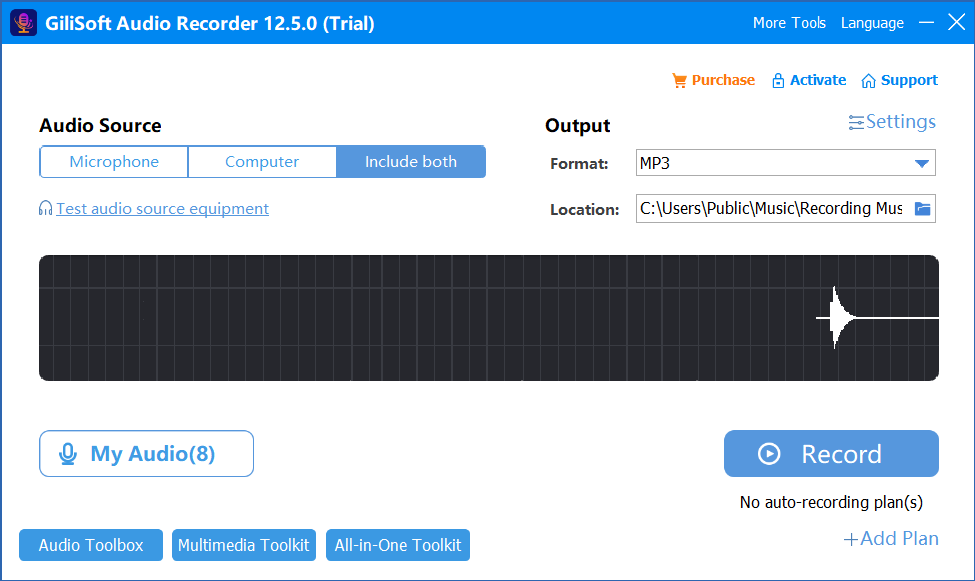
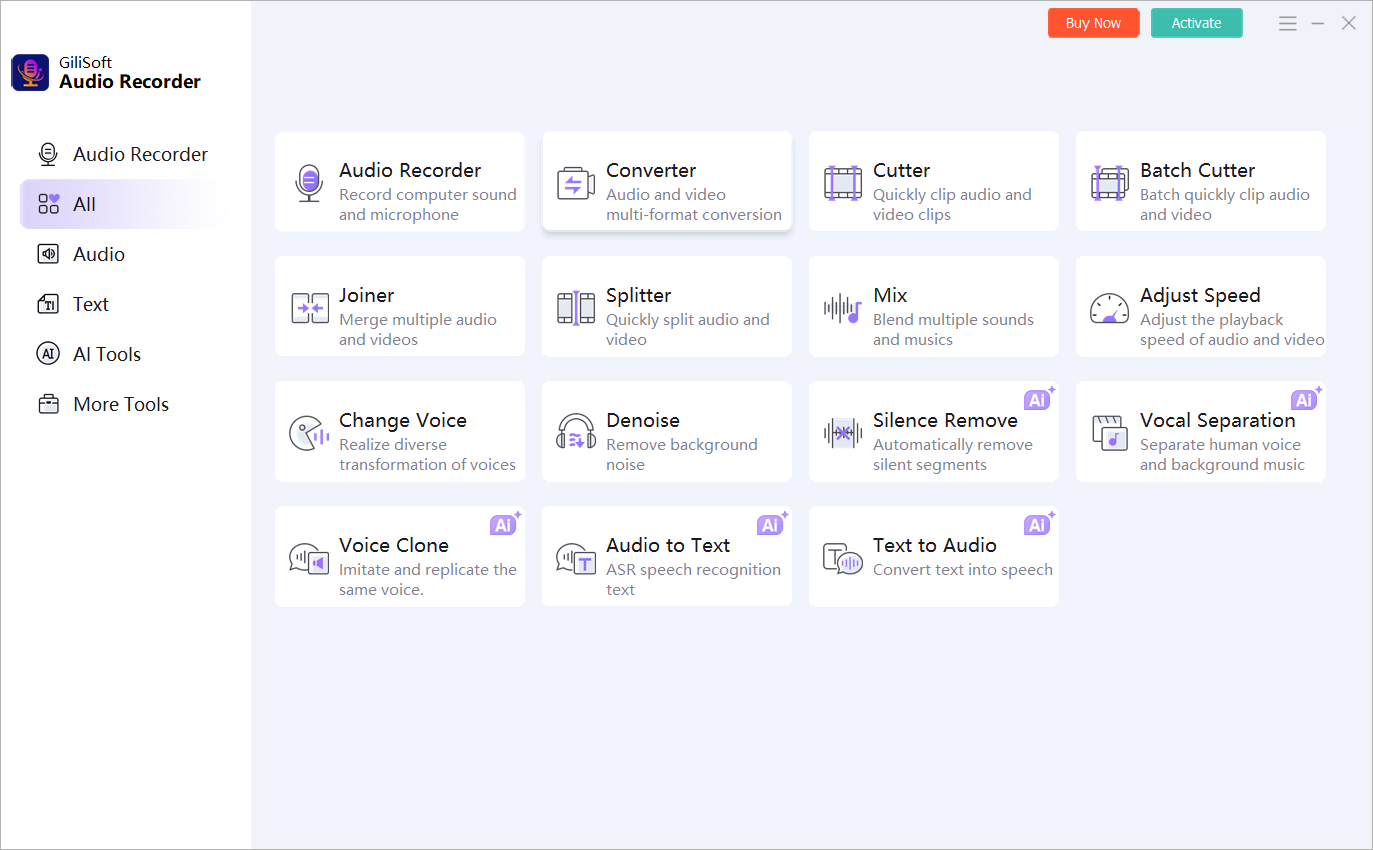
Audio Recorder Pro brings source selection, scheduled recording, automatic stop or split controls, and format settings into one Windows workflow.
Know when a free recorder stops being practical
A basic recorder may be enough for occasional voice notes. Move to a dedicated workflow when you repeatedly need computer audio, mixed sources, scheduling, long-session stability, automatic file splitting, or consistent output formats. Regardless of software, device permissions, storage space, sleep settings, and a short preflight test remain essential.
Frequently asked questions
Can I record computer audio for free?
Windows and some free tools can record certain sources, but system-audio support depends on the application and device configuration.
Can I record microphone and system sound together?
Yes with software that supports both sources. Select each device explicitly and run a short balance test first.
What format should I use for voice recording?
WAV is practical for editing and archiving; MP3 is smaller for sharing. Choose according to the next step in the workflow.
Can a free recorder schedule recordings?
Some free tools offer limited scheduling, but reliability, source selection, and automatic stop behavior vary. Test unattended workflows carefully.
Is Audio Recorder Pro free?
The download is a trial. Use it to evaluate source capture, scheduling, and output before purchasing a license.