
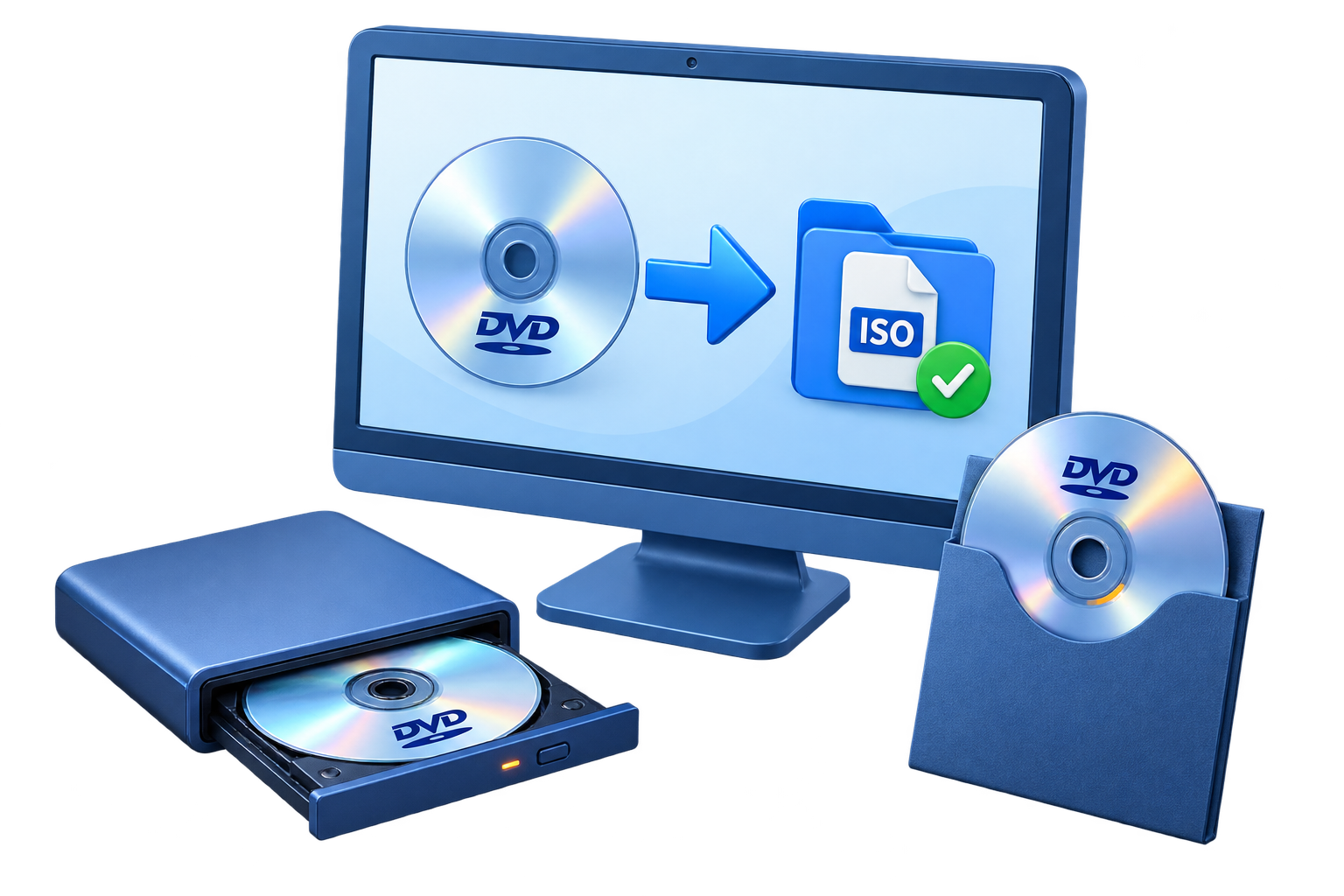
Choose DVD Folder or ISO by How You Will Use the Backup
| Goal | Best choice | Why |
|---|---|---|
| Browse DVD files directly | DVD folder | VIDEO_TS content remains visible in the file system |
| Keep the disc structure in one file | ISO image | Easier to move as one archive item and mount later |
| Create a physical copy now | Blank DVD | Avoids an intermediate hard-drive backup when direct copy fits |
| Watch on devices expecting MP4 | Video conversion | A DVD folder is not a universal standalone video format |
Prepare the Source and Folder Destination
Confirm authorization
Use DVDs you created or are otherwise permitted to reproduce.
Inspect the source disc
Check the surface, confirm the correct title, and close software using the drive.
Create a clear parent folder
Use a unique title and date so separate DVD backups do not become mixed.
Allow working space
Leave enough room for the copied structure plus normal storage headroom.
Copy DVD to a Folder: Step by Step
Insert and read the DVD
Place the source disc in a working DVD drive and allow Windows to recognize it.
Open the DVD Copy task
Start GiliSoft Home DVD Copy and enter the disc-copy workspace.
Select the source drive
Choose the drive containing the intended DVD and review the detected disc information.
Choose DVD Folder as the destination
Select folder output rather than Image File, another optical drive, or video conversion.
Set the output folder
Choose a reliable local or external drive and create a clearly named destination.
Start and verify the copy
Wait for completion, inspect the VIDEO_TS folder, and test representative titles or chapters.
 Home DVD Copy uses one source-and-destination panel. For this task, select the DVD drive as the source and DVD Folder as the destination.
Verify the Folder Before Treating It as a Backup
Check the expected structure
Confirm the output includes the DVD folder and expected IFO, BUP, and VOB files.
Test representative playback
Open the beginning, a middle title or chapter, and the end with suitable DVD software.
Keep the structure together
Do not rename or move individual DVD files unless you understand the navigation dependencies.
Back up the complete folder
Copy the whole folder hierarchy to separate reliable storage, not selected VOB files only.
Create the Folder Backup with GiliSoft Home DVD Copy
GiliSoft Home DVD Copy supports disc-to-folder backup alongside DVD-to-ISO, disc duplication, ISO-to-disc writing, and virtual-disc tasks. Folder output is the better choice when you need direct access to the DVD file structure rather than one image file.
Troubleshooting
- The source drive is not listed: insert the disc, refresh, reconnect an external writer, and close other disc software.
- The copy stops on read errors: inspect and clean the disc and try a reliable reader without assuming damaged sectors are recoverable.
- The output folder is empty or incomplete: confirm the process completed and the destination drive did not run out of space.
- Playback opens individual VOB files but not the menu: open the DVD folder with software that understands DVD navigation.
- Files were moved out of VIDEO_TS: restore the complete original folder hierarchy from a verified copy.
- The folder cannot be copied to another drive: check free capacity, file-system health, permissions, and path length.
Use Only Authorized Disc Content
Copy, store, or reproduce only DVDs and ISO images you created or are otherwise authorized to use. Copyright, license, and anti-circumvention requirements can apply to protected commercial media even when you possess the physical disc or image file.
Frequently Asked Questions
What is a DVD folder backup?
It is a hard-drive copy of the DVD file structure, commonly including a VIDEO_TS folder with IFO, BUP, and VOB files.
Is a DVD folder the same as an ISO?
No. A folder exposes the individual files, while an ISO packages the disc image into one file.
Can I play a DVD folder directly?
Suitable DVD playback software can open the folder structure, but ordinary media players may only open individual video files.
Can I burn the folder back to DVD?
Yes. Use a DVD-folder-to-disc workflow that preserves the authored structure rather than copying random files as a data disc.
Should I edit files inside VIDEO_TS?
Avoid changing individual files unless you understand DVD structure, because menus, titles, and navigation can depend on them.
Does a folder backup replace the original?
No. Verify the folder, keep another backup, and retain the original disc when required.