
Record Internal Training Recaps
Use this workflow to create concise internal audio recaps that accurately reflect approved training material. A short saved test protects the session better than relying on device names or meters alone.
Quick answer
Write a short recap from the current approved training source, record it in sections, and verify policy names, dates, steps, and safety instructions with a subject-matter owner. Publish the recap with its version date and provide a transcript when the audience needs searchable access.
Choose the Right Recording Setup
| Situation | Recommended setup | What to verify |
|---|---|---|
| Scripted tutorial | Record by section with consistent delivery | Labels, pronunciation, timing, and retakes |
| Training recap | Use current approved source material | Policy, dates, safety, and version |
| Published narration | Keep master and delivery copies | Noise, edits, loudness, and transcript |
Step-by-Step Recording Workflow
- Approve the script and version
Use current source material and mark pronunciation, pauses, emphasis, visual timing, and any statements needing expert approval.
- Prepare a consistent recording setup
Use the same microphone, distance, room, gain, and recording format across all sections.
- Record a normal-performance test
Read a loud and quiet passage, listen for clipping, room noise, plosives, and inconsistent tone, then correct the setup.
- Record manageable sections
Leave clean pauses, repeat mistakes from a clear boundary, and name takes so editing and replacement remain practical.
- Review the complete delivery
Compare narration with visuals or training content, apply restrained cleanup, and keep a transcript plus an untouched recording master.
Use the GiliSoft Audio Recorder Pro Workspace
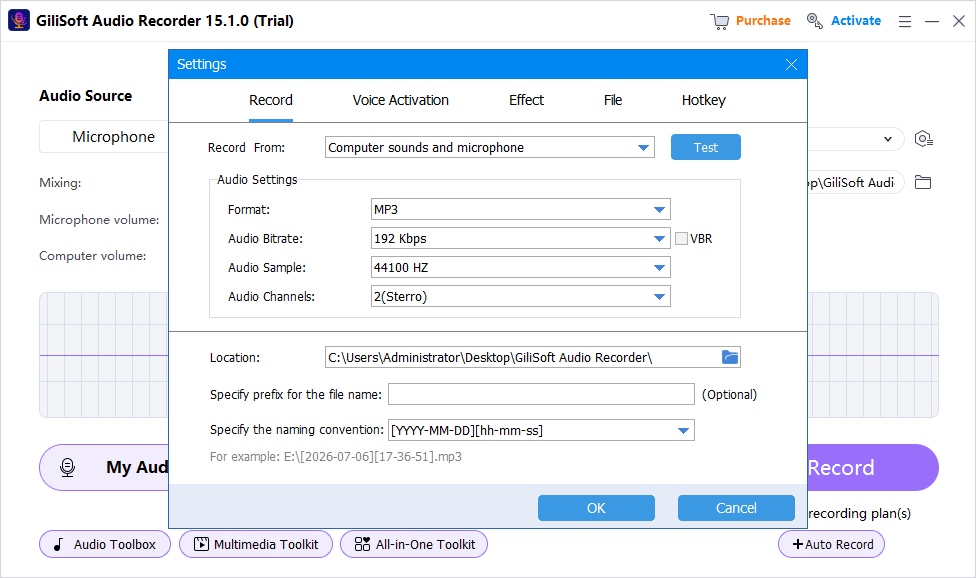
These screenshots show real product workspaces. Windows device names and controls can vary, so select the exact source and verify a saved test with your own hardware.

Check the Recording Before You Use It
| Current and approved instructions | Listen to a saved test and the complete recording through reliable headphones or speakers. |
|---|---|
| Signal quality | Check silence, clipping, echo, noise, source balance, speech clarity, dropouts, and unexpected notifications. |
| File handling | Confirm format, name, folder, duration, access, retention, and whether a transcript or delivery copy is needed. |
Frequently Asked Questions
Which source should I choose?
Use system sound for PC playback, microphone for live voice, and mixed recording when both are needed. Always verify with a saved test.
Should I use MP3 or WAV?
WAV is useful for a higher-quality editing master; MP3 is smaller for distribution. Choose based on the next workflow and keep the best source.
Can voice activation remove silence safely?
It can reduce blank sections, but a threshold set too high may cut quiet syllables or pauses. Test it with the actual speaker.
Should I keep the original recording?
Keep an untouched recording master when the content matters, then create edited or compressed delivery copies separately.
Why is a saved test better than watching the meter?
A meter can show activity but not prove that the correct source, balance, routing, noise, echo, or file playback is acceptable.