
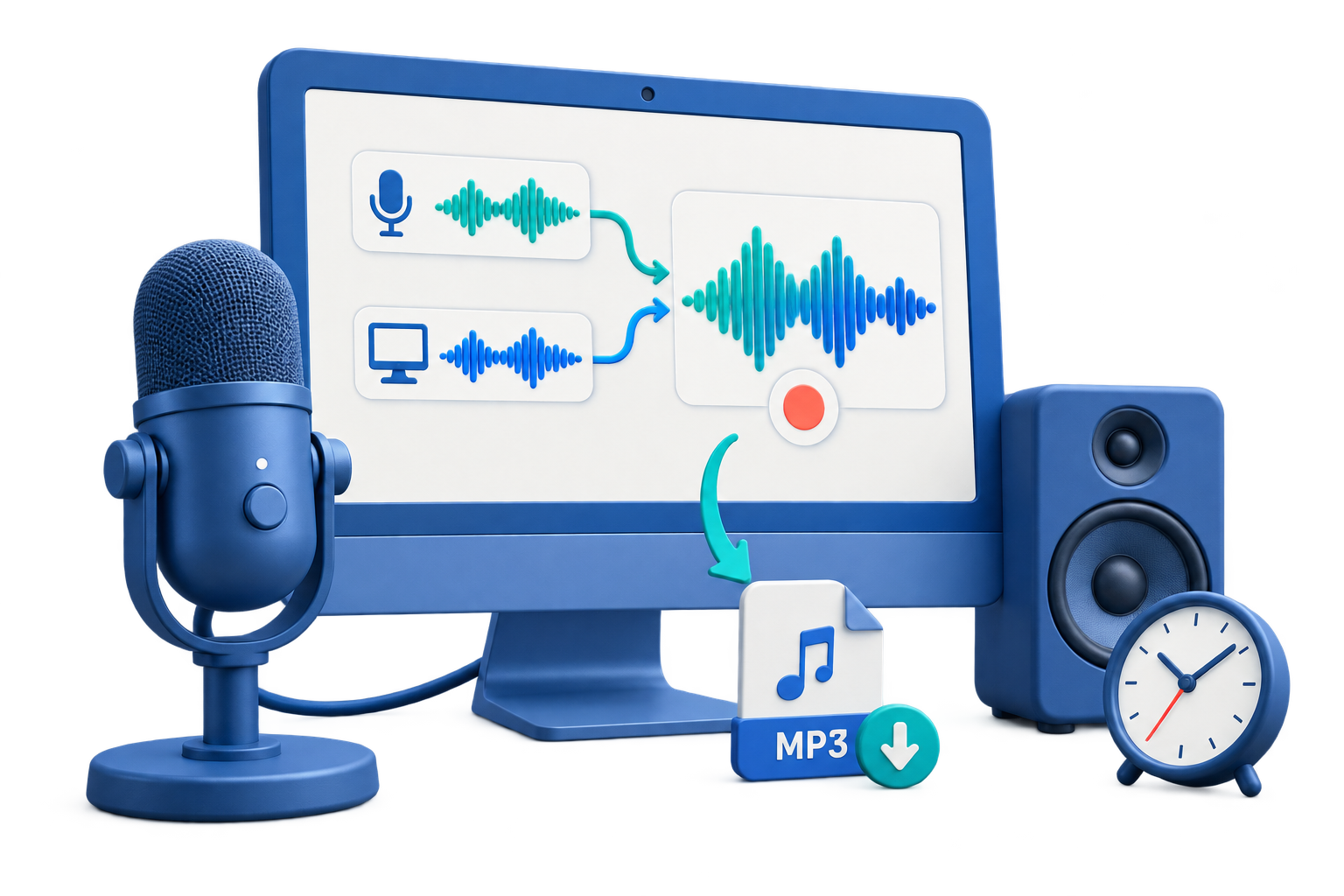
Record Webinar Commentary Audio
Use this workflow to capture permitted webinar audio and commentary without missing the start or mixing sources incorrectly. A short saved test protects the session better than relying on device names or meters alone.
Quick answer
Obtain permission, verify the webinar time zone and duration, configure system audio and microphone, and schedule or start a short test before the event. Use headphones, disable notifications, confirm free disk space and power, and monitor the first minutes instead of assuming an unattended plan is working.
Choose the Right Recording Setup
| Situation | Recommended setup | What to verify |
|---|---|---|
| Scheduled webinar | Set start early and stop with margin | Time zone, login, audio, power, and disk |
| Manual commentary | Use hotkeys where they reduce distraction | Correct source and no missed opening |
| Unattended capture | Use only when policy permits | Application readiness and post-record verification |
Step-by-Step Recording Workflow
- Confirm permission, time, and duration
Verify the event time zone, expected length, recording rights, login requirements, and whether commentary is part of the capture.
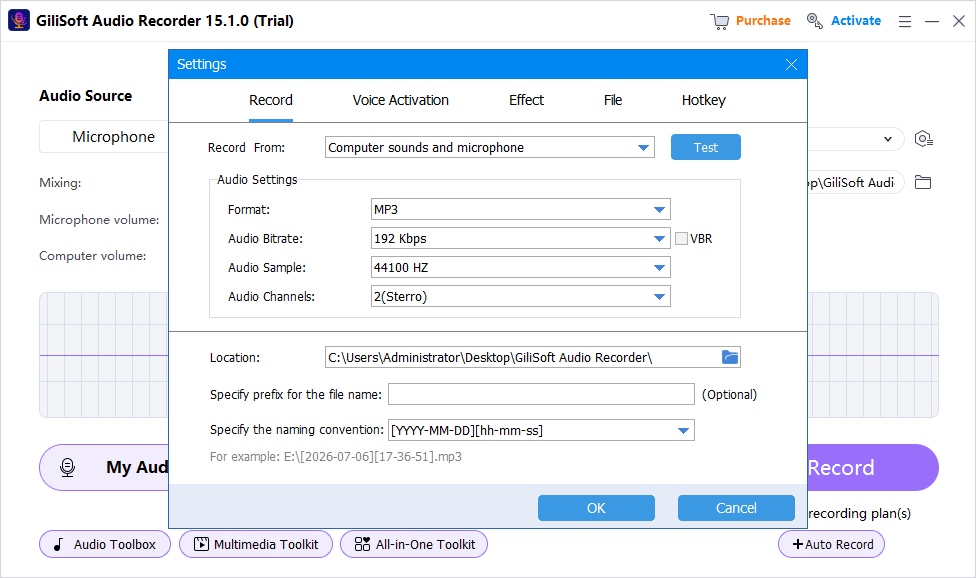
- Prepare system and microphone routing
Choose the correct playback and mic sources, use headphones, disable notifications, and verify power, disk space, and sleep settings.
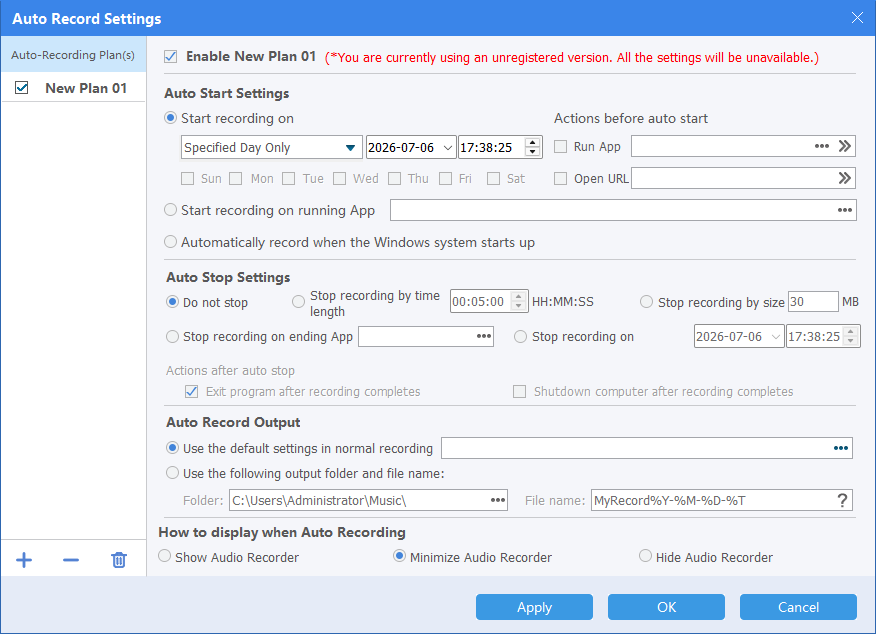
- Create and test the schedule
Start early enough to capture the opening and include a safe stop margin; run a short scheduled test before event day.
- Monitor the beginning
Confirm the event is actually playing, meters are active, both sources are present, and the output file is being created.
- Verify and organize the result
Play the beginning, middle, end, and source balance; rename the file and store or delete it according to purpose and policy.
Use the GiliSoft Audio Recorder Pro Workspace
These screenshots show real product workspaces. Windows device names and controls can vary, so select the exact source and verify a saved test with your own hardware.
Check the Recording Before You Use It
| Schedule and source readiness | Listen to a saved test and the complete recording through reliable headphones or speakers. |
|---|---|
| Signal quality | Check silence, clipping, echo, noise, source balance, speech clarity, dropouts, and unexpected notifications. |
| File handling | Confirm format, name, folder, duration, access, retention, and whether a transcript or delivery copy is needed. |
Frequently Asked Questions
Which source should I choose?
Use system sound for PC playback, microphone for live voice, and mixed recording when both are needed. Always verify with a saved test.
Should I use MP3 or WAV?
WAV is useful for a higher-quality editing master; MP3 is smaller for distribution. Choose based on the next workflow and keep the best source.
Can voice activation remove silence safely?
It can reduce blank sections, but a threshold set too high may cut quiet syllables or pauses. Test it with the actual speaker.
Should I keep the original recording?
Keep an untouched recording master when the content matters, then create edited or compressed delivery copies separately.
Why is a saved test better than watching the meter?
A meter can show activity but not prove that the correct source, balance, routing, noise, echo, or file playback is acceptable.