

How to Recover Deleted ZIP Files on Windows
A ZIP file can reappear in scan results yet still fail to open if part of the archive was overwritten. Stop using the source drive first, recover the ZIP to another drive, and test a full extraction before calling the job done.
Quick answer
If the ZIP was deleted, stop new writes and scan its original drive with Deletion Recovery. Restore candidates to a different physical drive, then use an archive tool to test and extract every entry. If the ZIP still exists but reports corruption, that is a different problem; recovery software cannot reconstruct overwritten archive data.
First Aid: Stop Changes to the Source
-
Stop normal use
Do not save, download, install, record, copy, or edit files on the affected storage.
-
Cancel repair prompts
Do not format, initialize, create a partition, or run file-system repair before recovery.
-
Prepare another destination
Use a different physical drive with enough free space for recovered output.
-
Document the loss
Record the device, capacity, original folder, file types, and action that caused the loss.
Deleted ZIP or Corrupt ZIP? Choose the Right Next Step
| Situation | Next step | What recovery cannot promise |
|---|---|---|
| ZIP was deleted or Recycle Bin emptied | Scan the original drive with Deletion Recovery; save results elsewhere. | A listed filename does not prove that all archive bytes remain. |
| ZIP is missing after a format or partition change | Consider Deep Recovery if the initial scan does not find a usable copy. | Later writes and TRIM may make the data unavailable. |
| ZIP exists but extraction reports an error | Check a backup or another complete copy; test the archive itself. | Finding the file again does not repair damaged contents. |
Start with Deletion Recovery for an ordinary deletion. Use Deep Recovery when the first scan misses the archive or the storage structure changed.
Scan for Deleted ZIP Archives with GiliSoft Data Recovery
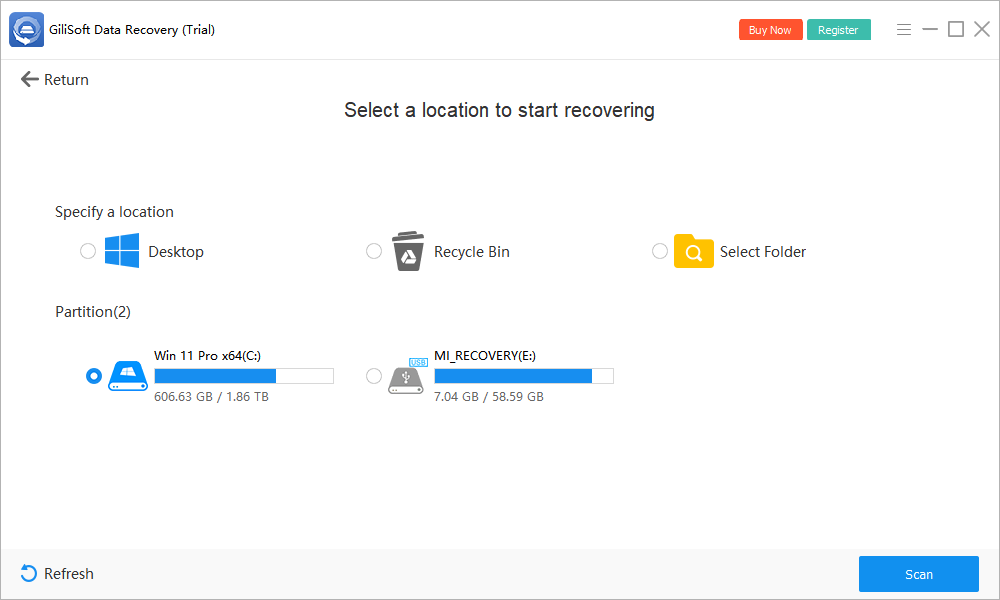
In Deletion Recovery, select the original location. Confirm the drive letter and capacity so the scan does not target the destination drive.
-
Open the matching recovery mode
Choose Deletion Recovery first for a normal deletion. Switch to Deep Recovery only if the first scan does not find a usable archive.
-
Select the exact source
Confirm the physical device, capacity, drive letter, or former partition before scanning.
-
Run the initial scan
Keep the source connected and prevent sleep or disconnection while results populate.
-
Use Deep Recovery only when needed
Run a deeper scan when the initial result does not contain enough useful files.
-
Filter and preview
Narrow results by path, type, size, date, or name, and preview important files when supported.
-
Recover to another physical drive
Select the most valuable results first and keep the source unchanged.
Verify Recovered Files Before Reusing the Source
-
Test the recovered ZIP
Open the restored copy in an archive tool and run its integrity test, if available. Do not judge success from the filename or preview alone.
-
Extract every entry
Unpack the whole archive to a safe folder on the destination drive and open important files. A ZIP can list entries even when later data is damaged.
-
Check for missing parts
Compare the expected folders and file count. If the archive was split, recover every related part, such as .z01 and .z02, before testing the ZIP.
-
Make a second backup
Copy verified irreplaceable files to another safe location.
-
Repair or reformat only afterward
Change the original device only after important recovered data has been checked.
Know When Software Recovery Is the Wrong Next Step
Stop scanning when a hard drive clicks, a device repeatedly disconnects, Windows cannot detect the correct capacity, the controller overheats, or the data is important enough that another scan is not worth the risk. Professional recovery may image unstable media with specialized hardware before attempting file extraction.
On SSDs and some flash devices, controller behavior and TRIM can make deleted blocks unavailable quickly. On cameras, drones, and dashcams, new recordings can overwrite old media immediately.
Recover ZIP Files After Deletion FAQ
Can every file be recovered from deleted ZIP archives?
No. Results depend on later writes, media type, formatting, TRIM, physical condition, fragmentation, and whether the original data remains readable. No recovery tool can guarantee every file.
Why must recovered files go to another drive?
Writing recovered output to the source can overwrite other deleted data that has not been recovered yet. Use another physical disk with enough free space.
Should I run CHKDSK, format, or initialize the drive first?
Not when important files are still missing. Those actions modify storage structures. Recover and verify important data first, then repair or reformat the device afterward.
What if the device disconnects or makes unusual sounds?
Stop repeated scans. Clicking, unstable detection, severe I/O errors, burning smell, or physical damage requires professional hardware recovery rather than more software attempts.
How do I know a recovered file is usable?
Restore the ZIP to another drive, test the archive with an extraction tool, and extract all entries. A visible filename or a successful preview does not prove the full archive is intact.