
Quick answer
Plan one clear support answer
One issue
Use the ticket question as the scope. Avoid a long tour of unrelated settings.
One visible path
Choose the window or region that shows the needed menu, action, and result at readable size.
One verification
Finish by showing the expected outcome, not merely clicking the final button.
Record a customer support video
Prepare a safe example
Use a test account or sample data. Close notifications and files that could expose customer names, credentials, or unrelated tickets.
Choose the capture region
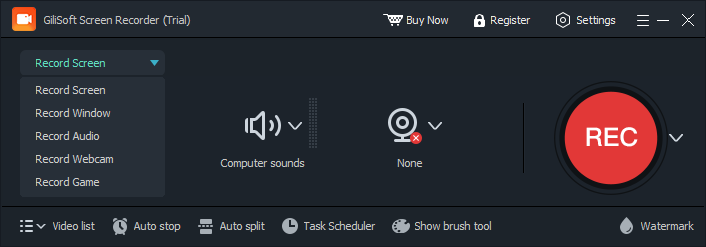
In GiliSoft Screen Recorder Pro, select the app window or the smallest region that still shows the full sequence. Enable microphone narration when it helps.
Make a short test
Check text readability, cursor visibility, microphone level, and any system sound the customer must hear.
Show the issue, fix, and result
Begin with the symptom, perform the exact corrective steps at a steady pace, and end on the successful state.
Review before sharing
Trim excess footage, replay the export, and remove or re-record any segment that shows private data. Share through your approved support channel.
Protect customer information
Do not assume a screen recording tool automatically redacts personal data. Before recording, use sample content or mask sensitive values in the source application. If a secret appears during the capture, remove that portion or re-record it. Follow your customer's consent and retention requirements.
Check the delivered clip
- The first seconds identify the problem and the system being demonstrated.
- Menus and labels remain readable at the size your customer will view.
- Voice and system sound are audible without competing with each other.
- The file plays from start to finish and ends with a visible confirmation.
- No passwords, personal details, or unrelated customer work are shown.
Frequently asked questions
Should a support video capture the whole desktop?
Usually not. A window or selected region keeps the action readable and reduces the chance of exposing unrelated information.
Do I need microphone narration?
Use it when a spoken explanation clarifies why a step matters. A silent visual demonstration can work for a very short, obvious fix.
Can Screen Recorder Pro automatically hide customer data?
Do not rely on automatic redaction. Prepare sample data, check the recording, and remove or re-record any sensitive segment before sharing.