Capture tutorials, demos, lessons, and training sessions with the screen, your voice, and a webcam presenter. Trim the recording, add captions, and prepare a finished video in the Pro workspace.
Record screen, webcam, computer sound, and microphone
Highlight steps with cursor effects, zoom, and annotations
Schedule sessions, trim clips, and prepare recordings to share
Choose a task to capture the screen, sound, and camera on Windows, adjust presentation controls, schedule a session, or finish the saved video. Start with the complete recording walkthrough or go straight to the setting you need.
Open the supporting task separately from recorder settings.
Record Your First Screen Video
Open the content you want to show, keep notifications out of the capture area, and use a writable destination with enough space. Make a short recording with the required sources before a long session.
1Choose what to record
Open Screen Recorder Pro and select Start Record. Choose Record Screen or Record Window, set the display or capture area, and confirm that the intended content is inside the recording boundary.
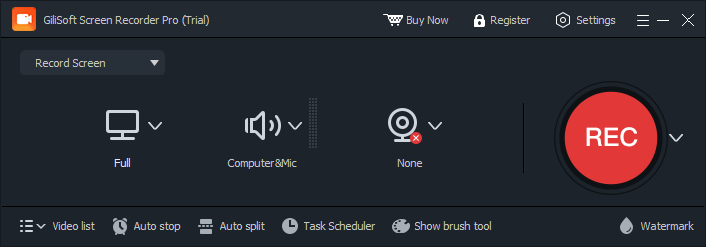
This is the main workspace. Start Record opens the separate recording controls.The recording panel contains the target, sound and camera choices, REC, Video list, Auto stop, Auto split, and Task Scheduler.
Choose Computer sounds, Microphone, or Computer&Mic for the sound you need. Check the selected devices and levels, then select the camera and its placement if the recording needs a webcam presenter.
Follow sound sources and webcam setup for the device controls. Use headphones when PC playback is being picked up again by the microphone.
3Set recording quality and the save folder
Open Settings, review the video format, quality, bitrate, and FPS, and choose the output folder. Check any enabled automatic stop or split rules, then make a short test recording with all required sources.
Start with REC or the configured Start/Stop hotkey. Pause when needed, stop when finished, and open Video list to review the saved file. Check the picture, sound, webcam, duration, and ending before editing or sharing.
Stop normally and allow the file to finish saving. Follow Find and Review a Saved Recording to check it, then keep the original until any edited or compressed copy has been verified.
Screen, Sound, and Webcam Recording
Record a Full Screen or Selected Area
Choose Record Screen
In the Pro workspace, select Start Record. Open the mode menu at the upper left of the recording panel and choose Record Screen.
Set the display or capture boundary
Use the screen target control to choose the full display or the intended area. Confirm the recording boundary contains the text, menus, and actions the viewer needs, and keep unrelated windows outside it.
Record and inspect a short sample
Choose the required sound and camera sources, start with REC, and stop after a short demonstration. Replay the saved file to verify the correct screen area and readable text before the full take.
Use the mode menu to switch between screen, window, audio, webcam, and game recording.
Record an Application Window
Select Record Window
Open the recording panel through Start Record, then choose Record Window from the mode menu.
Choose the intended application
Use the displayed target selection to identify the correct app window. Prepare the menus and dialogs needed for the demonstration rather than assuming that every separate pop-up belongs to the same capture.
Test the complete app action
Record a sample with the real window, dialogs, audio, and pointer actions. Review the saved file and use a screen-area capture instead when that better covers the required windows.
Record Audio Without Screen Video
Choose Record Audio
Open the recording panel and select Record Audio from the mode menu. This is an audio task rather than a silent screen recording.
Choose the sound source and destination
Set Computer sounds, Microphone, or Computer&Mic for the session. Review the selected devices, available audio output settings, and save folder.
Record, stop, and listen
Start and stop through the recording controls or configured hotkeys. Open the saved output, confirm the intended sound is present, and check levels and the end of the recording before continuing.
Use Computer sounds for PC playback, Microphone for narration, or Computer&Mic for both. None is for a capture that should have no sound.
Check the selected audio devices
Open the sound menu's Settings and review playback and microphone devices and levels. Check mute controls and, when required, Windows microphone permission for desktop apps. Recheck after changing a headset or output device.
Test both sources in a saved sample
Play the expected PC sound while speaking, make a short recording, then replay the actual file. Use headphones if speaker audio is returning through the microphone, and confirm neither voice nor system sound is missing.
Choose the sound source and check its device settings before recording.
Choose the screen-plus-camera or camera-only workflow
Keep Record Screen or Record Window when a presenter should accompany the screen. Choose Record Webcam from the mode menu when only the camera session is needed.
Select and configure the camera
Use the camera control to select the intended device and open Webcam Setting. Review Camera, Resolution, and Fps; do not leave the camera choice at None or Record without webcam.
Position the presenter and test the saved view
For a screen presentation, set Position and Style, then confirm that the frame does not cover important content. Record a short sample with the actual microphone and check the final camera view and sound.
Select the camera, resolution, frame rate, position, and display style.
Open Settings > Video. Select the recording format for its intended player or publishing workflow; the illustrated example uses MP4(H264).
Review quality, bitrate, and FPS
Choose Quality, Bitrate, and FPS for readable text, motion, capture performance, and file size. The pictured Highest quality, Auto bitrate, and 25 FPS are an example, not a required preset.
Test the available hardware encoder and output
Use Enable GPU Acceleration and an available NVENC, CUDA, or INTEL option when suitable for the PC and format. Confirm with OK, record a busy sample, and check clarity, sound, motion, and file size.
The pictured settings use MP4(H264), Highest quality, Auto bitrate, and 25 FPS as an example, not a required preset.
Hardware encoding does not guarantee smooth recording in every setup. Review settings for a low-end PC if capture still struggles.
Choose the Recording Save Folder
Open Settings > Folder
Review the destination shown in Folder and use the folder control to choose the intended location. Use a writable destination with enough free space.
Confirm the normal and scheduled destinations
Confirm the setting with OK. If a scheduled plan uses its own folder and file name, review that plan separately rather than assuming it uses the normal destination.
Make a sample and locate its actual file
Record a short test, stop normally, and use Video list and the configured destination to locate the completed file. Check the file before starting a longer capture.
Choose the recording destination in Folder and confirm it before a long capture.
Set Hotkeys and Take Screenshots
Review the session shortcuts
Open Settings > Hotkey and check Start/Stop, Pause, Spotlight, Take Screenshot, and Show/Hide brush tool. Use the configured values, not an assumed universal default.
Choose the still-image settings
Review the Take Screenshot file format and shutter-sound option in Settings. Confirm changes with OK and check where the captured still image is saved.
Test with the target application in focus
Use the selected keys during a short test, including pause and resume if needed. Check for conflicting application shortcuts, open the saved screenshot, and confirm the recording still starts and stops normally.
The screenshot shows F5, F6, F7, F8, and F10 for these actions. Review your own settings rather than assuming every installation uses those keys.
Show Cursor and Click Effects
Open Mouse settings
In Settings > Mouse, review Show mouse cursor in recordings separately from cursor visibility in screenshots.
Choose the required pointer effects
Review click sound, Enable Mouse Trails, trail color, and Mouse click animation effect. Choose left-click and double-click colors that remain visible over the demonstrated interface.
Confirm and review a sample action
Select OK and record pointer movement and clicks on small controls. Replay the saved video to check the effect does not obscure text or make the demonstration harder to follow.
Choose cursor, trail, and click effects in Mouse settings.
Draw and Annotate During Recording
Open Show brush tool
Use Show brush tool on the recording panel or its configured hotkey to display the floating toolbar.
Choose and place the live callout
Use the available pen, text, arrow, line, or shape tools to emphasize the current action. Keep annotations away from essential controls and captions.
Clear old marks and verify the capture
Use undo or clear when a callout is no longer needed and return to pointer interaction as appropriate. Check a short saved recording to confirm the marks and timing are useful.
The brush toolbar provides live callouts for the recording.
Zoom During a Demonstration
Open the Zoom In settings
Review Zoom In in the recording settings; the pictured Target view includes its Scale and Hotkey.
Set and confirm the scale and key
Choose a scale that keeps the needed area visible and review the configured key. The screenshot shows F9 as an example. Confirm through OK.
Test the zoom with the real application
Record a short action, activate the zoom as configured, and check the saved file for framing and readable text. Test the key with the target app in focus before using it during the full demonstration.
Zoom In settings show the scale and a configurable hotkey; the pictured key is F9.
Add a Watermark While Recording
Open the recording Watermark dialog
Select Watermark on the recording panel, then Add watermark to configure the required content.
Set the watermark appearance
For text, fill Text Content and review the font, transparency, rotation, and alignment controls. Use image content when offered by the selected watermark workflow, and keep the mark away from important screen details.
Confirm and test the recorded result
Confirm with OK, make a short capture, and replay it to check size, visibility, placement, and overlap. Changing a capture watermark setting does not alter an already-saved recording.
Preview watermark content and placement before recording.
Adjust Webcam Beauty and Background
Open the intended camera preview
Select the actual camera and open Webcam Setting. Check its ordinary preview under the lighting to be used during the session.
Adjust Beauty only as needed
Open Beauty, make small changes to Smooth, Bright, Tone, Face lift, or Big Eyes, and confirm the desired result.
Choose Matting and background when required
Open Matting and choose the offered Chroma Key or AI Matting workflow. Review the color or intensity controls and background choice relevant to that mode.
Test movement and the saved camera view
Confirm the dialogs, record a short sample, and inspect presenter edges during motion as well as the background. Use Mirror only when the resulting orientation matches the presentation.
Beauty controls adjust the webcam presenter view.Choose the matting method and inspect the live result before capture.
Scheduling, Automatic Rules, and Saved Recordings
Task Scheduler prepares a plan, Auto stop ends capture, and Auto split creates separate files during continuing capture. Choose the task that matches the intended result.
Create a Scheduled Recording Plan
Open Task Scheduler and enable the intended plan
Use Task Scheduler on the recording panel. Select the intended plan and its enable control. The illustrated trial says its plan settings are unavailable until activation; check that the installed edition permits the workflow.
Choose the start condition and any pre-start action
Set Start recording on with the intended date and time or use the available running-app condition. Review Run App or Open URL only when that action is required before capture.
Choose stopping rules and completion actions
Review time length, file size, end time, or app-ending conditions. Check Exit program after record completes and Shutdown computer after record completes rather than accepting an unwanted completion action.
Set audio and output, then test the plan
Choose the plan's sound source and default recording settings or its separate folder and filename. Use Apply or OK, keep Windows awake and the recorder and devices available, and run a short scheduled test before relying on a long session.
The pictured trial warns that plan settings require activation. Check the enabled plan, output, and actions before use.
Select Auto stop on the recording panel and enable Stop recording automatically.
Set the limit and completion behavior
Choose the required recording-time or file-size condition and enter its limit in the displayed units. Review the Recording Complete action.
Choose the rule scope and test it
Review Only this time or Always, confirm with OK, and make a short test. Verify that capture ends at the intended rule and the saved video finishes correctly.
Auto stop ends the recording according to the configured rule.
Split a Continuing Recording into Files
Open Auto split and enable splitting
Select Auto split and enable Auto split the recording file. This divides a session into files rather than ending the recording.
Choose the split condition and scope
Set the available time or file-size threshold and review Only this time or Always. Confirm through OK.
Record through a split and check every file
Run a test long enough to reach the chosen threshold, then stop normally. Review all generated files, their order, and the content at the boundaries rather than checking only the first file.
Auto split creates separate files during a continuing recording.
Find and Review a Saved Recording
Stop normally and allow saving to finish
End capture through the recording control or configured Start/Stop hotkey. Avoid terminating the recorder while the recording is being finalized.
Find the completed file
Open Video list and compare filename, duration, and size with the intended session. Check Settings > Folder or the scheduled plan's own destination when the location is unclear.
Verify the complete result
Replay picture, sound, camera, duration, and ending in the actual saved video. If Auto split was active, check the complete set. Keep the original until any edited or compressed delivery copy is verified.
Video list helps identify saved recordings. Compare the filename, duration, size, and configured destination.
Edit and Prepare the Saved Recording
Keep the original recording and open the Pro Video workspace for the required finishing task. Export and check the changed copy separately from the capture.
Choose the finishing tool for the recording rather than changing the capture setup.
Trim the Start, End, or Unwanted Sections
Open the cutting tool with the saved video
Choose Video > Easy Cutter or the relevant cutting task in the installed workspace, then add the saved recording.
Choose and preview the range to keep
Set the beginning and ending using the tool's range controls. Preview both boundaries and check the explanation is complete, rather than trimming only by the visible file duration.
Export and review a new clip
Choose the output and complete export. Replay the new beginning, ending, and sound, and keep the source recording until the result is verified.
Preview both cut boundaries before creating the finished clip.
The pictured legacy clip dialog illustrates Start and End boundaries. Its layout is not the complete interface of every current cutting tool.
Join Related Recordings
Open Joiner and add the related takes
Choose Video > Joiner, add the intended recordings, and arrange them in the order viewers should watch.
Review connections and optional transitions
Preview the joins. If using the transition control, choose No Transition or the intended effect and review Duration. The illustrated dialog configures a transition, not clip order.
Create and inspect the combined output
Choose the output, complete the operation, and replay every join for the correct order, sound continuity, and complete content. Retain the source takes until the combined file is verified.
This dialog sets an optional transition; arrange the clip order in the joiner workspace.
Crop, Rotate, or Change Playback Speed
Choose the matching editing task
Use Video > Crop for framing or rotation, or Adjust Speed/Frame Interpolation for a speed-related change. Add the saved recording to that tool.
Set only the required change
Review the crop boundary or orientation for framing work. For speed work, choose the available rate settings and review the effect on duration and sound rather than treating every task as a crop operation.
Preview and export a checked copy
Compare the result with the source, keeping text and required actions visible. Export to a new file and check playback, sound, orientation, and duration.
Choose Video > Auto Captions when generating captions from speech, then add the intended video and follow the displayed transcription choices. Use an available subtitle editing or import workflow when you already have subtitle text.
Review wording, timing, and appearance
Correct names, terminology, punctuation, and line breaks. Check that each caption appears with the relevant speech and does not obscure essential interface details.
Export and verify the finished video
Complete the selected tool's output workflow and replay the result in its intended player. Keep the original recording and any reusable subtitle file produced by the workflow.
In Video, select Add/Remove Audio and add the saved recording. Choose the intended soundtrack or narration change.
Prepare and balance the sound
Keep or remove the original sound as required, add the intended audio through the available controls, and check its start, duration, and balance with existing speech. Use the Audio workspace when a separate audio preparation task is needed.
Preview and export with sound checked
Listen to the beginning, transitions, and ending, then export a new copy and verify the resulting soundtrack and synchronization. The capture sound-menu setting does not repair audio in an already-saved file.
The Video workspace shows Add/Remove Audio separately from recording sound settings.
Create a Smaller Delivery Copy
Open Video Compression with the source recording
Choose Video > Video Compression and add the completed recording. Keep the original as a separate file.
Choose the available compression and output settings
Set the controls offered by the tool for the required destination or file-size limit. Review the effect on readable text and motion instead of assuming the smallest output preserves every detail.
Export and compare the result
Check the actual file size, complete playback, voice and system sound, and small on-screen text in the delivery copy. Retain the source when the compressed result is too soft or otherwise unsuitable.
Use Filter&Effect, Add/Remove Watermark, or Picture In Picture from the Video workspace for that task. Use text, image, or shape controls when they are offered by the selected editor rather than changing recorder audio settings.
Review placement and the active range
Set the required effect or overlay, choose its position or time range with the provided controls, and check it against the explanation. Keep labels and branding away from important buttons and captions.
Preview, export, and compare with the source
Inspect the beginning and ending of each change and verify the exported file. Compare any image-cleanup result with the source rather than assuming a removal or enhancement task always reconstructs the original detail.
The Video workspace identifies the available tasks. A watermark added during capture and a later editing change are separate workflows.
Find Audio, Text, AI, and Download Tools
Choose the relevant Pro workspace
From the main window, choose Audio, Text, AI Tools, or Video Download for the supporting media task. Keep these separate from the screen target and sound-source controls used during capture.
Open the specific tool and provide its source
For example, the Text workspace shows Doc To Video, Text to Video, Subtitle Extraction, and Text to Audio. Select the task, add its required source, and review the settings and requirements displayed by that tool.
Save and review the supporting output
Complete the selected tool's output workflow and check its result before using it in the project. Return to Screen Recorder > Start Record when the next task is another recording.
Text tools are supporting tasks, separate from choosing the recorder's screen and sound sources.
Check the sound source and devices, then replay a short saved test. See recording with no sound.
Black video
Test an ordinary desktop window and check the target and mode. Some apps intentionally exclude their content from capture. See black recording troubleshooting.
Lag or uneven motion
Test the busiest scene, close unnecessary work, and review capture area, FPS, quality, and available hardware encoding. See settings for a low-end PC.
Capture ends early or creates more files
Review Auto stop, Auto split, scheduled stop rules, disk space, and sleep. Check all generated files before concluding that part of the recording is missing.
Recording is not in the usual folder
Check Folder and Video list, then inspect a scheduled plan's own destination and file name.
For microphone or camera problems on Windows 11, check Settings > Privacy & security and the relevant device permissions, including desktop-app access. Microsoft explains the controls in Windows camera, microphone, and privacy.
Screen Recorder Pro questions and answers
How do I record computer sound and microphone together?
Choose Computer&Mic from the sound menu, then check the playback and microphone devices. Speak while the PC audio plays, record a short sample, and replay the saved file. Use headphones if speaker sound is returning through the microphone.
Why does my screen recording have no sound?
Check that the sound menu is not set to None and that the selected source matches the recording. Confirm the playback and microphone devices, their mute controls, and Windows microphone permission. Test the saved file again after changing speakers, headphones, or the microphone.
Why is the webcam missing from my recording?
Choose the intended camera rather than None or Record without webcam, check its preview and placement, and confirm Windows camera permission for desktop apps. Make sure the camera remains connected and is available to the recorder, then test a short capture.
How can I reduce lag while recording?
Close unnecessary applications, capture only the area needed, and review demanding frame-rate and quality settings. Use an available H.264 hardware encoder when it suits the PC and output format. Test a busy scene with the required sound and webcam; hardware encoding does not guarantee smooth capture in every setup.
Why is the saved video black?
First record a short ordinary desktop window and compare it with the target that fails. Check the selected window, display, and recording mode. Some applications intentionally exclude their content from capture, so changing quality alone may not solve that case.
What is the difference between Auto stop and Auto split?
Auto stop ends the recording when its selected limit is reached. Auto split continues a long session into separate files based on the configured time or size limit. Review whether the rule applies only this time or always before recording again.
Why did my scheduled recording not start?
Check that the plan is enabled, the date and time or app-based start condition is correct, and the audio and output choices match the session. Keep Windows awake, the recorder running, and the required devices available. Run a short scheduled test; the pictured trial states that plan settings require activation.
Where are finished recordings saved?
Check the Folder setting and open Video list to find completed recordings. A scheduled plan can use its own output folder and file name, so inspect that plan if the file is not in the usual location. Verify that the destination is writable and has enough free space.
Can I trim a recording and add captions afterward?
Yes. The Pro Video workspace includes Easy Cutter, Joiner, Crop, Auto Captions, Add/Remove Audio, and Video Compression. Use the tool for the required change, review generated captions and timing, and export a finished copy while keeping the original recording.
Screen Recorder help by topic
Choose a focused guide for the setup, recording task, or problem you need to solve.