
Can a RAM Disk Speed Up Chrome?
Chrome already uses memory and disk caching, while a fast SSD handles small reads efficiently. A RAM disk may help a specialized repeated-cache workload, but it can also take memory away from tabs and extensions.
Quick answer
Do not move the complete Chrome user-data folder. If your managed configuration supports a separate disk-cache location, test a small cache on GiliSoft RAMDisk with a separate profile, then compare repeated loads, startup, memory pressure, downloads, sign-in state, and update behavior.
Decide Whether a RAM Disk Fits
| Situation | Recommendation |
|---|---|
| Possible benefit | Repeated access to a small disposable cache |
| Likely no benefit | Cold pages, network-bound sites, or already-fast SSD cache |
| Keep persistent | Chrome profile, passwords, bookmarks, cookies, extensions, and downloads |
Step-by-Step Setup
- Back up or sync important profile data
Confirm bookmarks, passwords, and settings are recoverable before testing.
- Record a Chrome baseline
Measure startup, repeated page loads, tab memory, and SSD activity on representative sites.
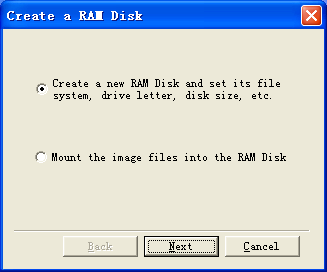
- Create a small RAM drive cache folder
Leave enough RAM for the expected number of tabs and other applications.
- Use only a supported cache-location method
Test with a separate profile or managed policy and do not relocate the whole user-data directory.
- Restart and compare
Verify profile integrity, cache recreation, downloads, updates, and whether the measured improvement justifies the setup.
Protect Data and System Stability
- Keep important originals, credentials, recovery files, and final outputs on persistent storage.
- Leave enough physical memory for Windows and the real application workload so the system does not increase paging.
- Record the original path, test restart behavior, and keep a working rollback before expanding the setup.
Limits to Understand
Most web delays come from the network, server, scripts, and rendering rather than cache storage. More memory available to Chrome can be more useful than dedicating it to a RAM drive.
Frequently Asked Questions
Will a RAM disk always make Windows faster?
No. It helps only when storage I/O is the measured bottleneck and enough memory remains for Windows and applications.
Does data survive a restart?
A volatile RAM disk does not. Image-backed settings can load and save data, but they add startup and shutdown overhead and do not replace backups.
How large should the RAM disk be?
Start small and size it from measured peak use after reserving ample memory for the real workload and the operating system.
What belongs on a RAM disk?
Temporary, disposable, or rebuildable data. Keep authoritative files, recovery data, credentials, and important outputs on persistent storage.