
How to Split Large PDF Files on Windows
Use this workflow to divide a long PDF into manageable sections without losing pages or context. Keep an untouched source and judge success from the reopened output, not only from a completed progress message.
Quick answer
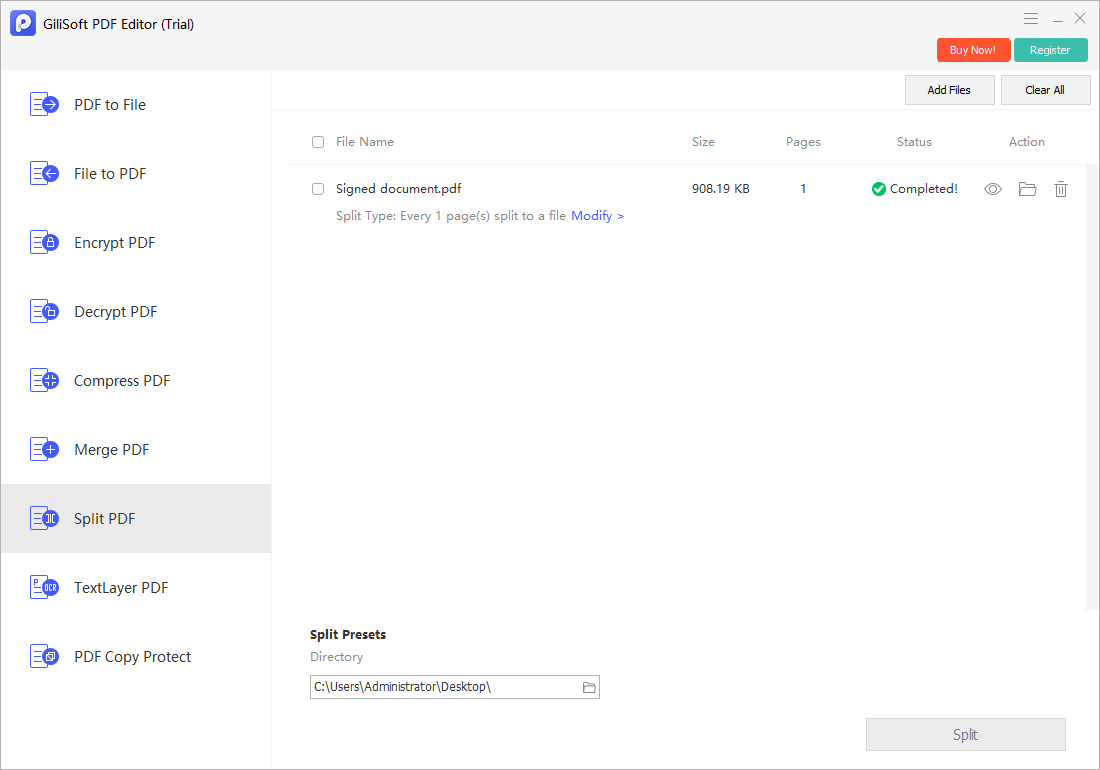
Record the source page count, open Split PDF in GiliSoft PDF Editor, define logical ranges, and write the parts to a separate folder with numbered names. Reopen every part and reconcile its first page, last page, and total count.
Choose the Right PDF Workflow
| Situation | Recommended approach | What to verify |
|---|---|---|
| Selected pages | Extract specific pages or ranges | Page content, sequence, and filenames |
| Reordered document | Split into logical sections, then merge in order | Printed numbers, links, bookmarks, and references |
| Unwanted blank pages | Keep verified nonblank ranges | Faint content, duplex backs, and final count |
Step-by-Step Workflow
- Protect the source
Duplicate the original, record its page count, and use a clear working filename.
- Inspect the document first
Check logical ranges, filenames, and complete page coverage before changing anything.
- Run the page workflow
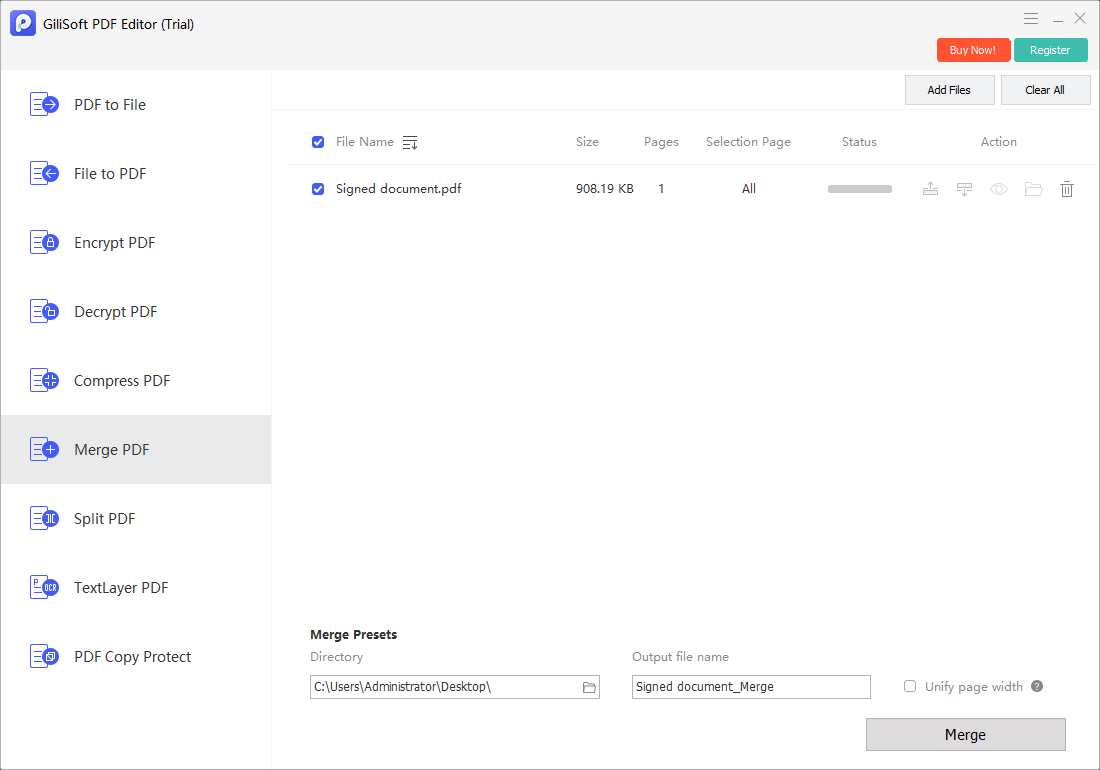
Use Split PDF to define ranges and Merge PDF when the retained sections must be rebuilt in a new sequence.
- Save a separate result
Write the output to a new filename and keep the source until review is complete.
- Reopen and verify
Use another PDF reader where practical; check the first, middle, and last affected pages plus search, copy, forms, links, or print behavior relevant to the task.
Use the GiliSoft PDF Editor Workspace
These are real product screens for the part of the workflow GiliSoft PDF Editor supports. Exact controls can vary by document type, so verify the saved file independently.
Review the Output Before Delivery
| Logical ranges, filenames, and complete page coverage | Compare the saved result with the source and the intended deliverable. |
|---|---|
| Document behavior | Check page order, selectable text, comments, forms, links, attachments, permissions, and print behavior relevant to the task. |
| Delivery copy | Use a clear filename, retain the source, and share only through the approved channel. |
Frequently Asked Questions
Can I use these steps with a scanned PDF?
Yes. Page-level operations can work on scans, but searchable text requires OCR and careful proofreading.
What should I check before sharing?
Verify page count and order, visible content, links, comments, forms, searchability, file size, permissions, and any confidential information relevant to the recipient.
Which GiliSoft PDF Editor task should I start with?
Use Edit PDF for supported content changes and Split or Merge PDF for page organization.
Should I overwrite the original PDF?
No. Keep the source and save the changed file under a new, descriptive name until the output is verified.
Why reopen the finished PDF?
A completed operation does not prove that page order, form values, links, searchability, print behavior, or confidential content is correct.