
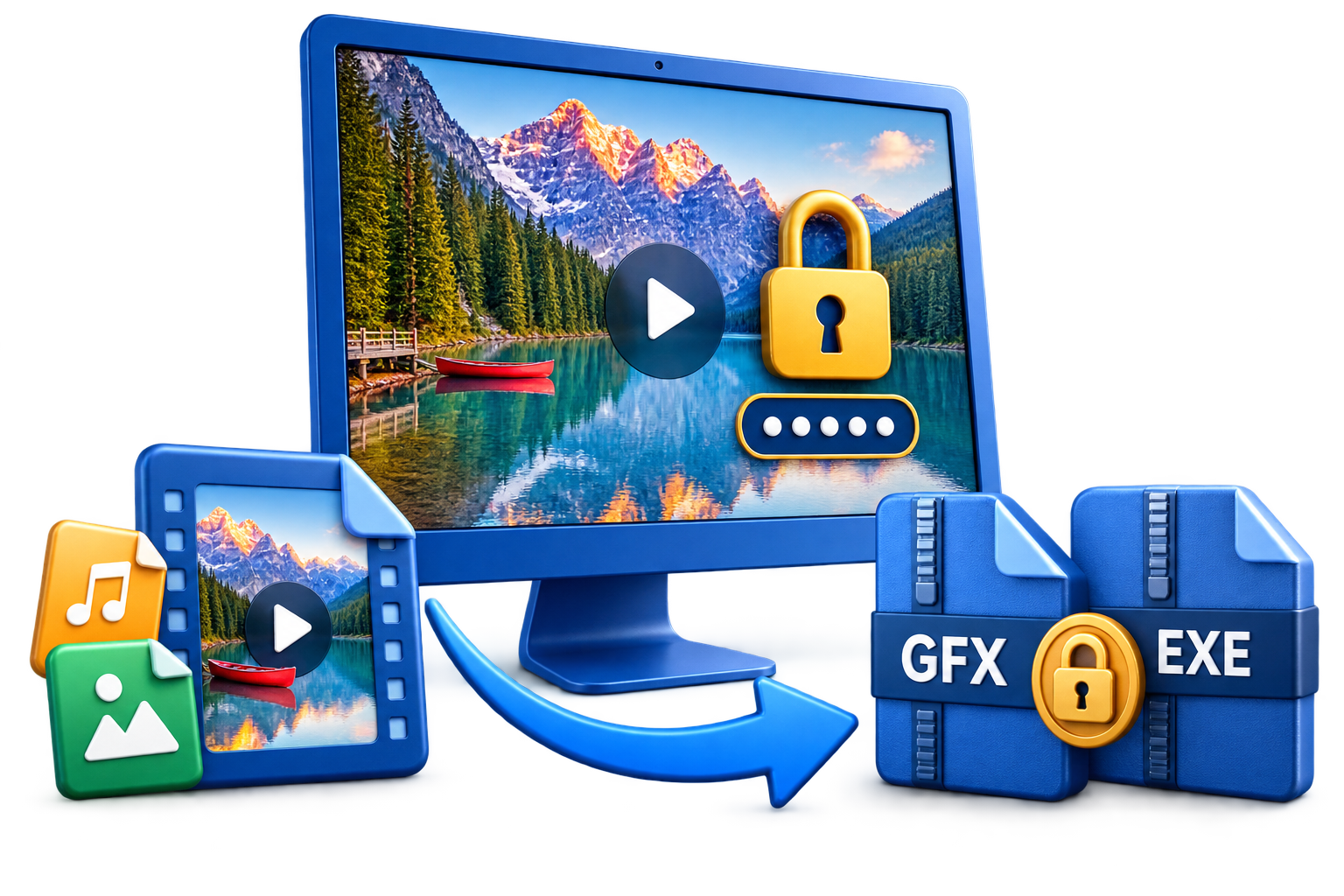
There are two different jobs behind "lock a video." To keep personal clips private on one computer, hide or lock the local file with GiliSoft File Lock Pro for Windows or Mac. To put a password on a video that will move between devices, create an encrypted copy on Windows with GiliSoft Any Video Encryptor, then open it through a compatible playback route. Phones also have built-in options for videos that stay on the device.
Quick Answer: Match the Protection to the Video
| What you need | Best starting point | Important limit |
|---|---|---|
| Keep videos private on your own Windows PC or Mac | File Lock Pro for Windows or File Lock Pro for Mac | Local hiding or locking does not protect an ordinary copy sent elsewhere. |
| Keep a password on the video when it is stored in a folder, copied to USB, or viewed on another device | Any Video Encryptor, with an output and player suitable for the destination | EXE output runs on Windows only; verify non-Windows playback before sharing. |
| Keep a video out of the normal gallery on a phone | iPhone Hidden album or Android Locked Folder/private folder | These features protect access on that device, not a separately shared copy. |
1. Hide or Lock Local Videos with File Lock Pro
File Lock Pro has separate Windows and Mac versions. Both are useful for private footage that stays on your computer, such as home videos, recorded meetings, or unfinished client clips. Select one video or a whole project folder so you can restore access when it is time to edit or watch.
On Windows: choose hiding or locking
In GiliSoft File Lock Pro, Hiding File keeps a clip out of ordinary browsing, while Locking File controls access to the selected file. The application also offers file protection controls for changes or deletion; choose the mode that matches the problem you are solving.
- Open File Lock Pro and enter its master password.
- Under Local Disk, choose Hiding File or Locking File. For a collection, select the corresponding folder tool.
- Add the video file or its parent folder and apply the protection.
- Check the result in File Explorer, then restore access in File Lock Pro when you need to work with the original.
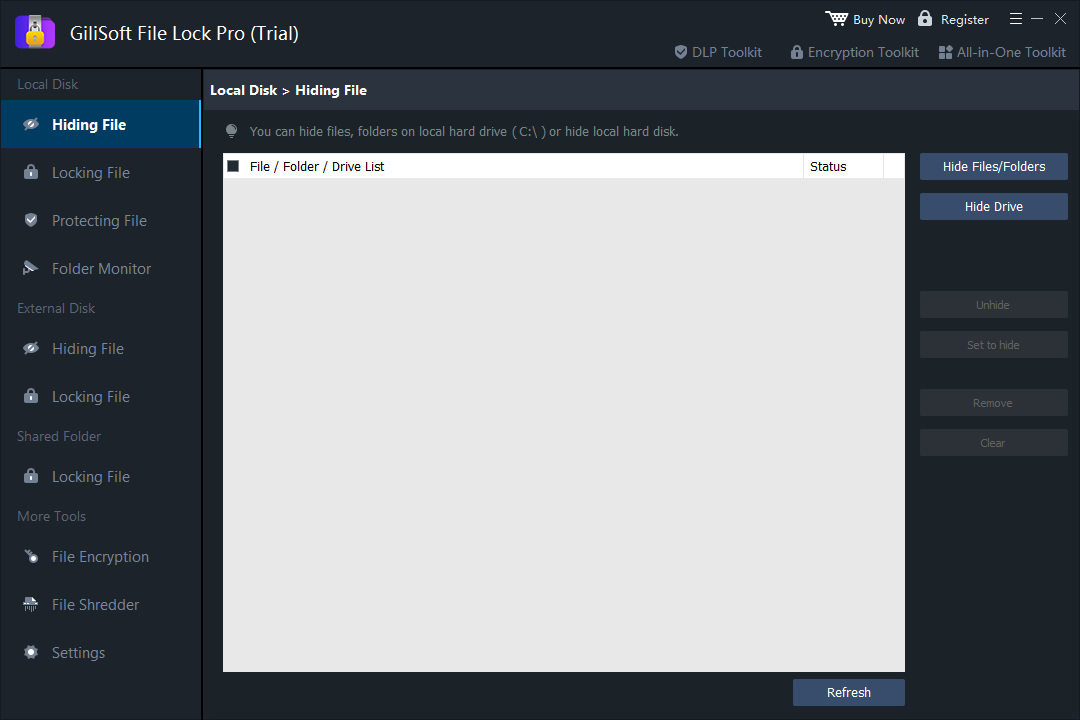 Windows: hide a local video from ordinary browsing.
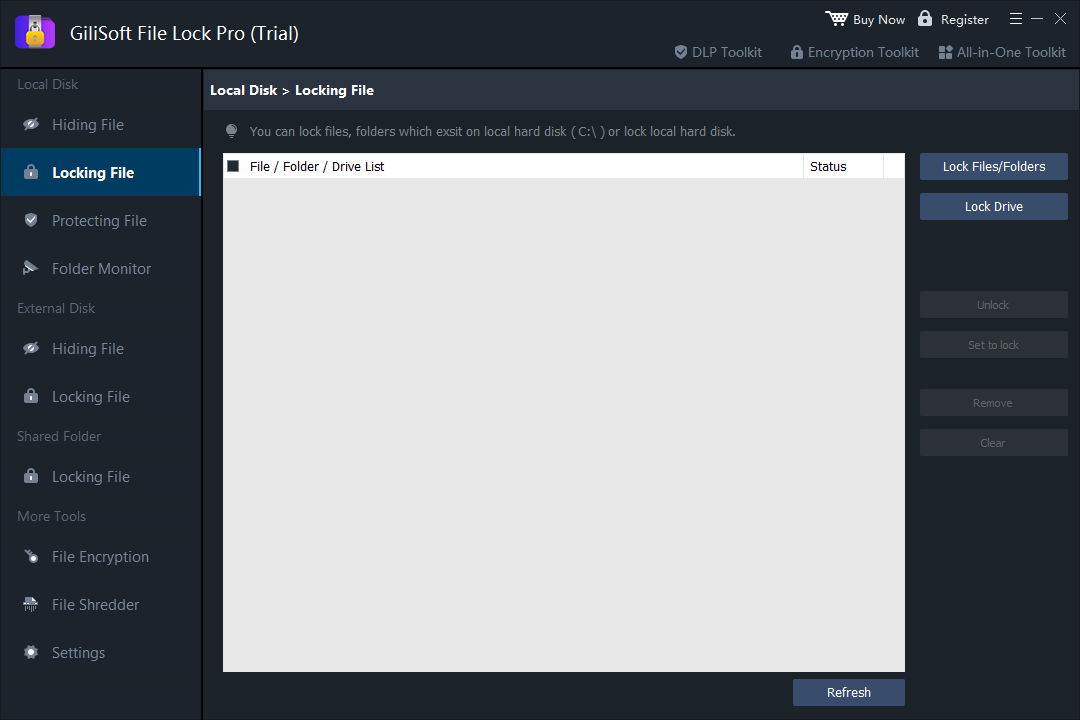 Windows: use the locking area when access control is the goal.
On Mac: hide the file or its folder
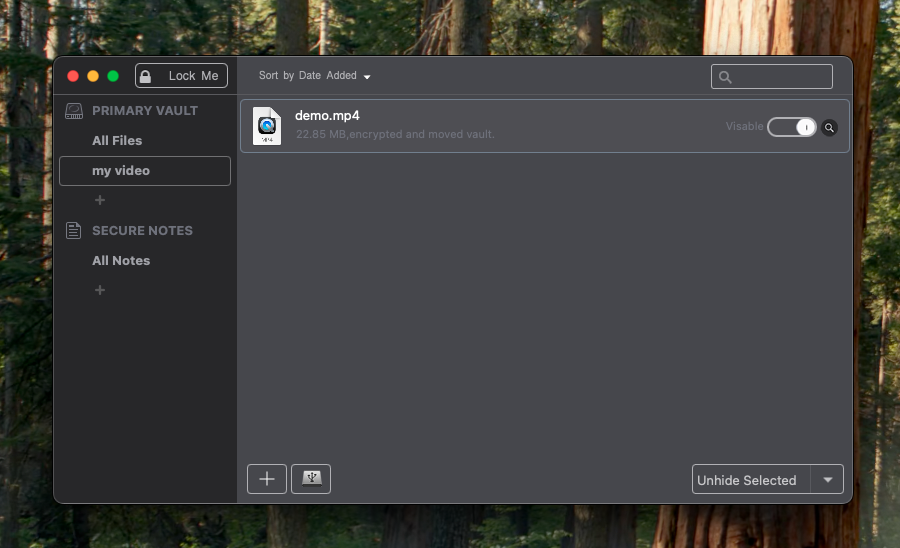
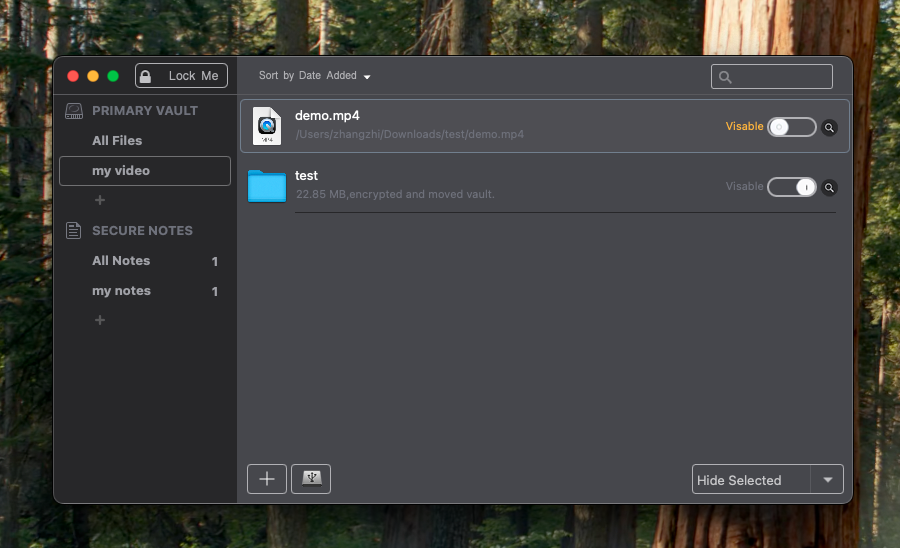
GiliSoft File Lock Pro for Mac has its own hide-file and hide-folder workflow, with password access to the app. It is not the same interface as Windows File Lock Pro, so follow the Mac controls rather than the Windows menu names.
- Launch File Lock Pro for Mac and enter the application password.
- Choose Hide File for one video or Hide Folder for a collection.
- Add the item, then check in Finder that it is no longer ordinarily visible.
- Return to the app to unhide it before editing or moving the original.
2. Encrypt on Windows, Then View on Other Devices
GiliSoft Any Video Encryptor creates a protected video package on Windows. This is the route when the file should remain password-protected in a local folder, on a USB drive, or after delivery. Protected viewing on Windows, Mac, iPhone/iPad, and Android depends on choosing an output and compatible player for the destination device; make a short test package and confirm playback before distributing the full video.
- On Windows, add the source video to Any Video Encryptor.
- Choose GFX File for encrypted media opened in the matching protected player. Set and confirm the playback password. Choose EXE File only when recipients will run it on Windows.
- Save the protected output in a local folder, or choose a USB/external drive as the destination. Keep an untouched source backup separately.
- On each intended device, open the package using the supported playback route, enter the password, and check both picture and sound. Only then copy or send the remaining videos.
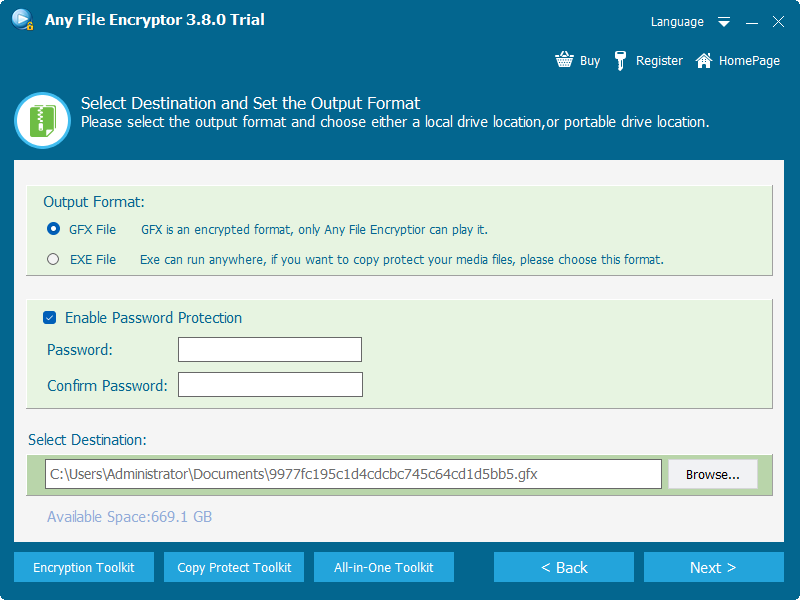 Choose the output format, password, and folder or USB destination.
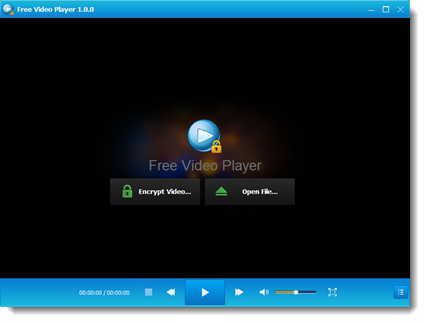 Open the encrypted file with the matching player and verify playback.
For every setting and screen, see the Any Video Encryptor user guide. If you need device-specific licensing or revocation rather than a simple playback password, compare Video DRM Protection after confirming its delivery requirements.
3. Other Ways to Keep Videos Private on Each System
Built-in tools can be enough when you do not need an encrypted video package that plays elsewhere. They solve different problems from File Lock Pro or Any Video Encryptor:
| System | Local option | What it does not do |
|---|---|---|
| Windows | BitLocker or BitLocker To Go encrypts a whole supported drive, including a removable drive. Windows account permissions can limit access between local users. | Neither adds a playback password to one video copied out of the protected drive. BitLocker availability varies by Windows edition. |
| Mac | FileVault protects the startup disk; an encrypted disk image can hold a selected video collection behind a password. | Copying an unencrypted video out of the image does not keep the image password on that copy. |
| iPhone or iPad | Move a video in Photos to the Hidden album, then check Face ID, Touch ID, or passcode access in Photos settings. | The album lock applies to that library, not to an ordinary video sent to someone else. |
| Android | Move the video into Google Photos Locked Folder or the phone maker's private/secure folder, if available. | Availability and backup behavior vary; a separately shared copy is not covered by the folder lock. |
Before moving irreplaceable footage into a hidden album, private folder, or encrypted container, check how that location is backed up and how you can restore access.
Video Locker FAQs
Can File Lock Pro protect the same video on Windows and Mac?
There are Windows and Mac editions for local file privacy. They are separate applications with different interfaces; use the edition installed on the computer where the video is stored. For protection that travels with a shared video, use an encrypted output instead.
Can I save an encrypted video in a normal folder or on USB?
Yes. Any Video Encryptor lets you choose a local or removable-drive destination for the protected output. Saving to USB does not make a Windows EXE run on a Mac or phone; choose the recipient's playback format first.
Can someone watch a protected video on iPhone or Android?
Use an output and compatible playback route for that platform, and verify it on the actual device before sending the full package. Do not send a Windows EXE to a phone.
Will hiding a video protect a copy I share?
No. A local hide or gallery lock controls that location. Encrypt a new copy if the password requirement must remain with the delivered video.
Choose the protection that follows the video
Keep local clips private with File Lock Pro on Windows or Mac. For delivery, encrypt a test video on Windows and verify password playback on the recipient's device.
View GiliSoft Any Video Encryptor