How to Use GiliSoft Any Video Encryptor
Choose a task for its controls and illustrated steps: create protected GFX or EXE output, combine videos and documents, open a package with its password, or deliver protected content on USB and across recipient devices.
Create and Test a Password-Protected Package
Create the protected output on Windows, then open the result as the recipient will. Keep the original videos and documents, and retain the package password separately.
Add the videos and documents to encrypt
Select Start on the welcome screen, then use Add File(s) to choose the source content. Review the file list, use Remove File(s) or Clear File(s) if needed, and select Next when the intended files are included.
- Build the intended collection
Use Add File(s) for one video or multiple supported documents and media files. Include only the material the recipient should receive.
- Review the list
Check Name and Size, plus Duration and Resolution for media where those values are shown. Remove an unwanted item rather than leaving it in the protected collection.
- Continue with Next
Once the list is correct, move to the output and password screen.
Choose GFX or EXE and set the password
Choose GFX File or EXE File under Output Format. Select Enable Password Protection, enter the password, and repeat it in Confirm Password. Use Browse under Select Destination to choose the output filename and location.
- Select the output for the recipient
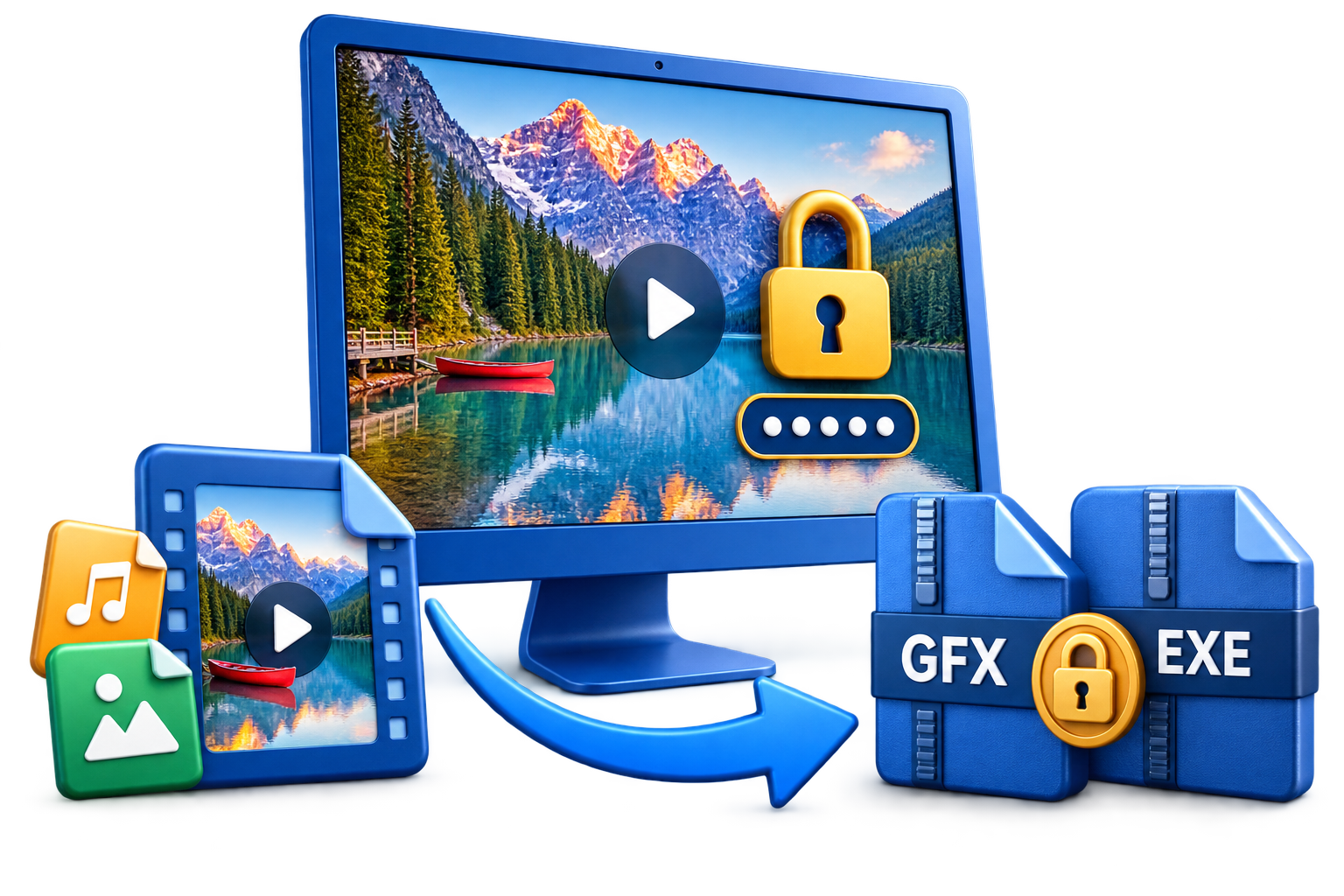
Choose GFX File for a protected-player package or EXE File for a self-contained Windows executable. Review the format comparison when choosing.
- Enable and confirm password protection
Select Enable Password Protection, enter the intended Password, and enter it again in Confirm Password. Keep a secure record of the package password.
- Set the protected output location
Use Browse under Select Destination to choose the filename and location. Check the extension and available space before selecting Next. A USB destination is storage; it does not itself enable USB binding.
Create and check the protected package
Review the output format, password protection, and destination, then select Next and complete the encryption workflow. Wait until creation finishes, identify the protected output, and keep the original files and password record separately.
- Review the final choices
Check the file collection, selected format, password protection, and output path before continuing.
- Complete creation
Follow the remaining encryption workflow and wait for the protected package to finish. Keep a removable destination connected during writing.
- Identify the delivery file
Check that the expected GFX or EXE output is present. Do not mistake an ordinary source copy for the package you intend to share.
Open and check the finished output before sharing it. To revise the contents or password later, use the replacement-package workflow.
Open the encrypted content with its password
For GFX, open the matching protected player and use Open File to select the package. For Windows EXE output, open the generated executable. Enter the package password and check the contents without first extracting a decrypted source file.
- Open the protected output
In the illustrated Windows player, Open File opens an existing package. Encrypt Video starts a different task and is not the button for watching a received file.
- Enter the package password
Use the password assigned during creation. Do not try to make the package playable by renaming .gfx to a normal video extension.
- Check the contents
Play the intended video, listen to the audio, and inspect the documents or images included in the collection. Close the player when finished.
No separate decryption step is needed. Viewers enter the package password and open the protected content directly. For the illustrated Windows GFX workflow, use GiliSoft Free Video Player. This is an opening task, not a new encryption operation.
Choose between GFX and Windows EXE
| Output | How to use it |
|---|---|
| GFX File | An encrypted package opened in the matching protected player. Use this workflow for protected collections and select the appropriate video format/player combination for recipients on computers or phones. |
| EXE File | A self-contained Windows executable package. EXE output has a 4GB package limit and supports optional USB-bound Windows delivery. |
Both routes support password-protected access. Select the format before setting the destination so the filename and recipient instructions match the output you actually create.
Package Videos, Documents, Audio, and Images
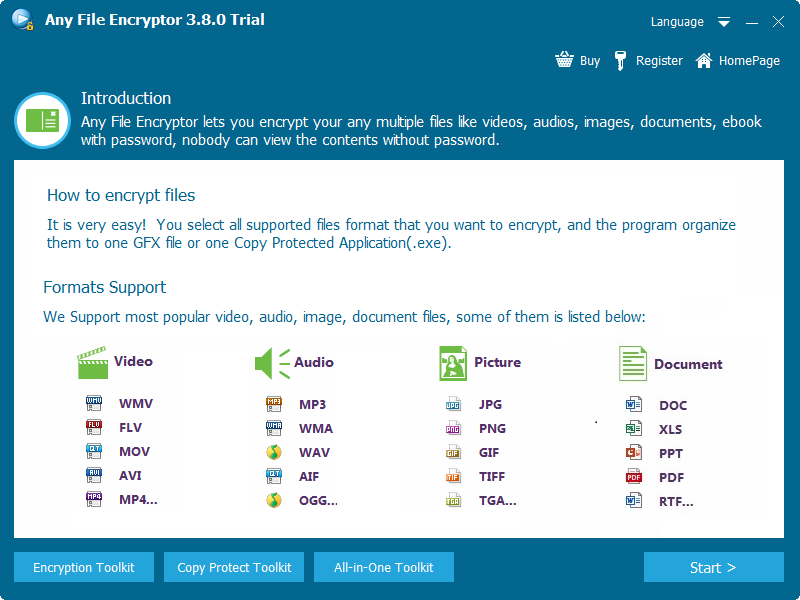
Bring related recordings, documents, images, audio, and ebooks together in one password-protected package. The supplied interface calls the application Any File Encryptor, reflecting this multi-format workflow.
| Content | Examples shown in the interface |
|---|---|
| Video | MP4, AVI, MOV, WMV, FLV |
| Audio | MP3, WMA, WAV, AIF, OGG |
| Images | JPG, PNG, GIF, TIFF, TGA |
| Documents | PDF, DOC, XLS, PPT, RTF |
For example, a training package can group lesson videos, PDF handouts, and reference images rather than sending each original as a separate unprotected attachment. Keep the source materials for future revisions.
Package Videos, Handouts, and Media Together
- Choose the materials for the collection
Check that the source videos play correctly and the documents contain the intended final material. The welcome screen lists example video, audio, image, and document formats.
- Add and review the supported files
Select Start and use Add File(s) for the related videos, handouts, images, or audio. Review names, sizes, and media details, then remove entries that should not be delivered.
- Create and inspect the complete collection
Choose the output, enable password protection, set the destination, and complete creation. Open the package with its password and inspect supporting materials as well as video. Use the recipient player to check the intended content.
Watch Protected Videos on Windows, Mac, iPhone, or Android
- Prepare the video package on Windows
Create password-protected output for the recipient playback format. Keep a verified copy of the completed package and the source video.
- Provide the matching player and opening instructions
For Windows GFX, use the protected player; Windows EXE output opens as an executable. For Mac, iPhone, and Android, provide the protected-video format and corresponding platform player rather than a Windows EXE.
- Enter the password and test on the intended device
Transfer the completed video package, open it in the matching player, and enter its password. Check picture, sound, seeking, and the ending without first extracting a normal video file.
| Recipient | Playback route |
|---|---|
| Windows | Use the matching player for GFX, or open a self-contained Windows EXE package. |
| Mac | Use the Mac-compatible protected player and video format. A Windows EXE is not the Mac playback route. |
| iPhone | Transfer the protected video and open it through the matching iPhone player workflow, then enter the password. |
| Android | Use the matching Android player and protected video format, then enter the package password. |
Provide the player instructions for the recipient's actual platform with the package. The linked Free Video Player page is a Windows download; obtain the appropriate Mac or phone player through GiliSoft support. Check video playback and any included document viewing separately on the intended device.
Share a Protected Package on USB or External Storage
- Create and verify the protected output
Complete the GFX or Windows EXE package and open it with the intended password. Keep the original materials and a verified publisher copy.
- Copy the finished package to the intended storage
Save or transfer the completed protected output to the USB drive, external disk, or local delivery folder. Wait for copying to finish and keep ordinary source files out of the recipient folder unless they are deliberately included.
- Open from the delivered location
Test the actual copied package, then provide the password and the correct player instructions. Storage on USB does not automatically bind access to that drive; use USB-bound EXE delivery when that separate control is required.
Bind a Windows EXE to a USB Drive
- Connect and identify the intended USB drive
Prepare the correct removable drive and retain the source files and a publisher copy. This task uses Windows EXE delivery.
- Create the EXE through the available USB-binding workflow
Choose EXE output and use the USB-binding options offered by the installed build for the intended drive. Set the package password and complete creation. The output screenshot illustrates the basic format and password screen, not a separate binding dialog.
- Test access with and without the intended drive
Open the finished package with the selected drive present. Copy the EXE to another location, remove the required drive, and check that the copy does not gain access to the protected contents. Duplicating the EXE file is different from obtaining access to its contents.
The protected-video format and platform player provide the Mac or phone playback route. USB-bound Windows EXE output is a separate delivery choice.
Update the Content or Package Password
- Start from the retained source files
Keep the original videos, documents, and other intended materials available. Identify the collection and the new password or content changes to apply.
- Create a replacement output
Build the revised file list, choose GFX or Windows EXE, enable password protection, and set the intended password and destination. Complete creation with a distinct output filename so you can identify the replacement.
- Test and distribute the intended version
Open the replacement using its assigned password and check the contents. Distribute that version with clear instructions. A new output password does not revoke copies of an older package that were already delivered.
Check the package before sharing
- Test the actual recipient package
Open the completed delivery copy rather than the source files. Enter the intended password and verify that every expected item is present.
- Check video and supporting materials
Review picture, sound, seeking, and the ending, plus included documents or images. Confirm direct password playback and any viewing controls that matter to the delivery.
- Check the device and transfer method
Use the intended platform and player. For a bound Windows EXE, test with and without its required USB drive; for ordinary USB storage, test the copied package from the recipient location.
- Password access
- Open the generated output with the intended password and confirm that you are testing the protected package rather than a source copy.
- Video playback
- Check the beginning and a later section, confirm sound, and verify that the recipient can watch without a separate extract/decrypt operation.
- Included materials
- Inspect documents, images, and audio as well as video. Check that every intended item is present and that private source copies were not included beside the package.
- Recipient environment
- Verify the intended platform and player. For USB-bound EXE output, test with and without the required drive on Windows.
Check screenshot and Save-As restrictions in the actual protected player when those controls matter to the delivery. Use the platform's real viewing behavior as the acceptance test rather than assuming every player has identical controls.
Troubleshoot encrypted files that will not open
| Problem | What to check next |
|---|---|
| GFX opens in the wrong application | Use the matching protected player and its Open File workflow. Changing the filename extension does not convert an encrypted package to ordinary video. |
| Password is rejected | Confirm the password belongs to this package, including capitalization and keyboard layout. Ask the sender to verify the intended password. |
| EXE is sent to Mac or a phone | EXE output is for Windows. Prepare the protected-video format and matching player for the recipient's platform. |
| USB-bound EXE will not open elsewhere | Use the intended bound drive and confirm the original delivery works on Windows. A copied EXE alone does not grant access. |
| A large EXE cannot be created | Review the 4GB EXE package limit and destination free space. Consider GFX output for a larger protected collection. |
| The delivered copy is incomplete | Compare it with the completed publisher output and transfer the full file again if copying or drive removal interrupted the operation. |
| Video or supporting documents behave differently | Check the matching player and the intended content on the recipient's device. Cross-platform video playback does not make every document viewer or viewing control identical. |
Any Video Encryptor FAQ
Can I encrypt documents and audio as well as videos?
Yes. Any Video Encryptor supports videos, audio, images, documents, and ebooks. The supplied format screen lists MP4, AVI, MOV, WMV and FLV video; MP3 and WAV audio; JPG and PNG images; and PDF, DOC, XLS, PPT and RTF documents. Add one file or combine related supported materials in a protected package.
Do viewers need to decrypt the video before watching?
No separate manual decryption or extraction step is needed. Viewers open the protected package in the matching player, enter the password, and watch directly. The player handles access during playback; recipients do not need to save an ordinary decrypted video first.
What is the difference between GFX and EXE output?
GFX is the encrypted package format opened through the matching protected player. EXE is a self-contained Windows executable package. Choose the output for the recipient's playback setup; EXE is not a Mac, iPhone, or Android application.
Can protected videos play on Windows, Mac, iPhone, and Android?
Yes. Create the encrypted video package on Windows and use the protected-video format and matching player for the recipient's platform. Share the correct player instructions with the video package. Windows EXE packages remain Windows-only; cross-platform video playback does not mean every document type or Windows viewing control is identical on every platform.
Can I put the protected output in a folder or on a USB drive?
Yes. Select a local folder, USB drive, or external disk as the destination, or transfer the completed protected package. Storing a file on USB does not automatically bind it to that drive. Optional USB-bound EXE delivery is a separate Windows access control.
Does USB binding stop the EXE file itself from being copied?
The EXE file may still be duplicated. USB binding protects access to the contents through the selected drive; copying the package elsewhere does not grant playback access. Check the finished bound output with and without the intended drive instead of testing only whether File Explorer can copy the file.
Can protected playback restrict screenshots and Save As?
The protected viewing workflow provides screenshot and Save-As restrictions. Check them in the recipient's actual player and platform, because viewing controls can differ between playback environments. These are content-viewing controls, not a block on copying the encrypted container file in Windows.
What if the package password is forgotten?
Keep the package password securely when creating the output. Confirm that you are using the password for the intended file, including capitalization and keyboard layout. Do not assume renaming the package or changing its extension resets the password. Retain the source files so you can create a replacement if necessary.
Is Any Video Encryptor free, and which license do these buttons show?
A Windows trial download is available. The Buy Now buttons in this guide show the lifetime license for 1 PC at $49.95 and link to the official purchase page. Review the installed trial screen for current limits. The command-line license is a separate purchase option, not included in the displayed standard license.