
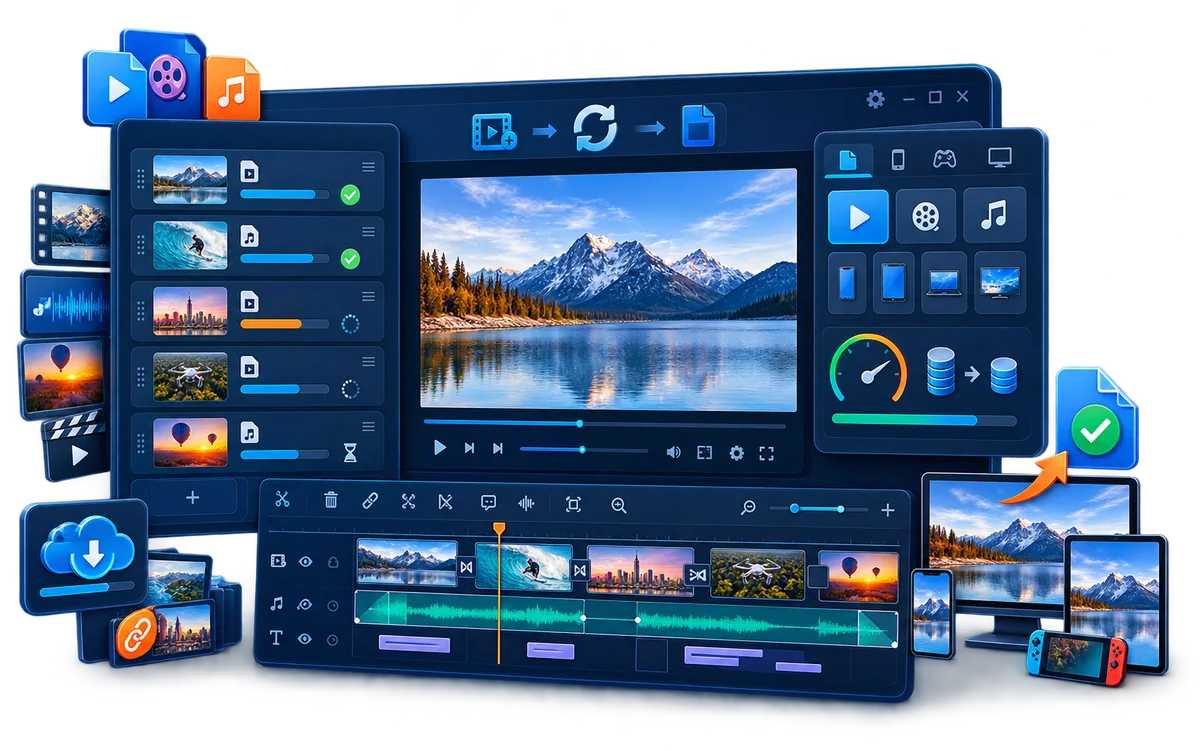
What Does Converting Video to MP4 Mean?
MP4 is a container. It can hold video, audio, subtitles, and metadata, but the codec inside the MP4 determines whether a website, television, phone, browser, or editing application can decode it.
That distinction explains why one MP4 plays everywhere while another MP4 produces an error or has no sound. A practical conversion therefore requires more than changing the file extension: choose a supported video codec, audio codec, resolution, frame rate, and quality target for the destination.
Choose the Right MP4 Output
| Destination | Practical starting point | What to check |
|---|---|---|
| General Windows playback and sharing | MP4, H.264 video, AAC audio | Preserve aspect ratio and use a resolution the receiving PC can decode smoothly. |
| Web or video upload | Follow the platform specification; H.264 and AAC are common | Keep the original frame rate unless the platform requires another value. |
| Modern devices and smaller files | MP4 with H.265 where supported | Test the television, phone, browser, editor, or presentation computer first. |
| Review copy | MP4 with reduced resolution or a lower bitrate | Retain the master separately and check text, faces, and motion after compression. |
| Archive or later editing | Higher quality settings rather than the smallest file | Avoid repeated lossy conversions and keep the original source files. |
How to Convert Video to MP4 with GiliSoft
- Add the source videos.
Open GiliSoft Video Converter and add individual files or a folder. Review the duration, dimensions, orientation, audio, and subtitle needs before choosing one output for the whole list. - Select an MP4 output profile.
Use H.264 for broad compatibility or H.265 when a newer destination supports it and storage efficiency matters. - Set resolution, frame rate, quality, and audio.
Preserve the source aspect ratio, avoid unnecessary upscaling, and match the target website or device instead of selecting the highest number automatically. - Configure subtitles and other required processing.
Choose whether captions remain selectable or are placed visibly in the picture. Apply compression, trimming, rotation, audio adjustment, or a visible watermark only when the job requires it. - Convert one representative test file.
Check playback, duration, audio sync, subtitles, visual quality, and file size on the intended destination. - Run the remaining batch.
Keep the originals, use a separate output folder, and verify several completed files before delivery or upload.
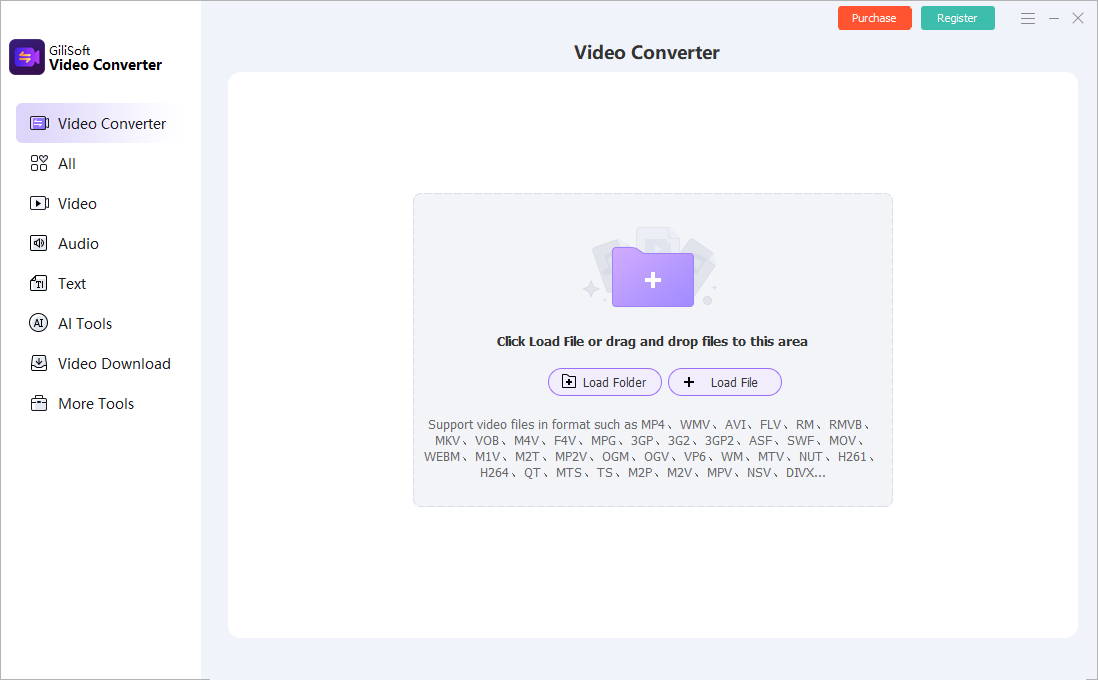
Which Video Files Can Be Prepared for MP4?
Common jobs include converting MOV camera footage, MKV downloads or archives, AVI recordings, WMV business media, phone videos, and screen captures into a more convenient MP4 delivery file. Actual input support depends on the streams inside each source, not only the extension printed after the file name.
MOV to MP4
Useful for camera and phone footage that must play on more Windows systems, websites, or client devices.
MKV to MP4
Useful when a destination accepts MP4 but not MKV. Inspect multiple audio and subtitle tracks before conversion.
AVI or WMV to MP4
Prepare older Windows media for current players, upload systems, and easier sharing without changing the original files.
Mixed folders to MP4
Standardize recurring training, tutorial, review, or delivery sets through one managed batch.
GiliSoft Video Converter combines video and audio conversion with batch processing, compression, subtitle handling, audio tools, and practical media processing in one Windows application. Download the trial to test your own source and destination combination.
How to Convert to MP4 Without Unnecessary Quality Loss
A normal video conversion re-encodes the picture, so “no quality loss” should not be treated as a guaranteed checkbox. The realistic goal is to avoid visible damage while producing a file the destination can use.
- Preserve source resolution: do not upscale a small source merely to create a larger number.
- Keep the source frame rate: a higher output frame rate does not invent missing motion detail.
- Use enough quality for the content: fast motion, fine texture, screen text, and gradients reveal compression more quickly.
- Avoid repeated conversion: return to the original source when a new output is needed.
- Test the destination: the correct setting is the one that plays properly and still looks acceptable where it will be used.
Batch Conversion, Compression, Audio, and Subtitles
MP4 conversion is often part of a larger job. GiliSoft keeps related work close to the converter instead of forcing every source through several separate utilities:
Batch MP4 conversion
Add multiple sources, apply a shared output profile, monitor the queue, and keep naming and destination folders consistent.
Compress large video files
Reduce resolution, bitrate, or quality for review, upload, storage, or delivery while retaining the original master.
Audio handling
Convert or extract audio, adjust sound, and confirm that the selected MP4 profile includes a codec supported by the target player.
Subtitle preparation
Keep, add, or visibly render captions according to the delivery requirement, then inspect timing in the completed file.
Fix Common MP4 Conversion Problems
| Problem | Likely cause | What to do |
|---|---|---|
| MP4 will not play | The player does not support the video codec, profile, level, resolution, or audio stream | Try a broadly compatible H.264 and AAC profile or match the destination specification. |
| No sound | Unsupported audio codec, missing source track, or wrong track selection | Inspect the source audio and select AAC or another codec accepted by the player. |
| Subtitles disappeared | The caption track was not included or the player cannot display it | Select the required subtitle track or render captions visibly into the picture. |
| Output looks stretched | The source aspect ratio was forced into a different frame shape | Preserve aspect ratio and separate portrait, square, 4:3, and widescreen files when needed. |
| File is still too large | Resolution, duration, bitrate, quality target, or audio settings remain high | Create a review copy with a sensible resolution and quality target; keep the master separately. |
| Quality is visibly poor | Bitrate is too low, resolution was reduced too far, or the file was encoded repeatedly | Return to the original source and increase quality or reduce the amount of resizing. |
Video to MP4 Converter FAQ
What is the best MP4 format for broad compatibility?
MP4 with H.264 video and AAC audio is a practical starting point. Always confirm the specification of the final website, player, television, phone, or editing application.
Should I choose H.264 or H.265?
Choose H.264 when broad compatibility is the priority. Choose H.265 when smaller files or newer-device delivery matters and the destination has been tested for support.
Can converting video to MP4 preserve the original quality?
A normal conversion re-encodes the video. Preserve resolution and frame rate, use a suitable quality target, avoid unnecessary processing, and compare a test output with the source.
Can GiliSoft convert multiple videos to MP4 at once?
Yes. Add multiple files, configure a common MP4 profile, test one representative source, and then process the remaining queue.
Why can one MP4 play while another cannot?
MP4 is only the container. The video codec, audio codec, codec profile, resolution, and player support can differ between files.
Research Sources
- YouTube recommended upload encoding settings: MP4 container, H.264 video, supported audio, and preserving source frame rate.
- HandBrake official presets: general H.264 MP4 compatibility and H.265 MP4 options for supported devices.
- Microsoft supported file types: why a file container and the codecs inside it are separate compatibility decisions.
Convert Your Videos to MP4 on Windows
Use GiliSoft Video Converter to prepare compatible MP4 files, process batches, compress large sources, manage subtitles and audio, and verify output before upload or delivery.