
VOB Cutter for Windows: Cut and Trim VOB Files
A VOB file can contain MPEG-2 video, AC-3 or other audio streams, subtitles, navigation information, non-square pixels, and interlaced footage. One DVD title may also span several sequential VOB files, so a reliable cut starts by confirming the correct source, order, tracks, and display aspect ratio.
Quick answer
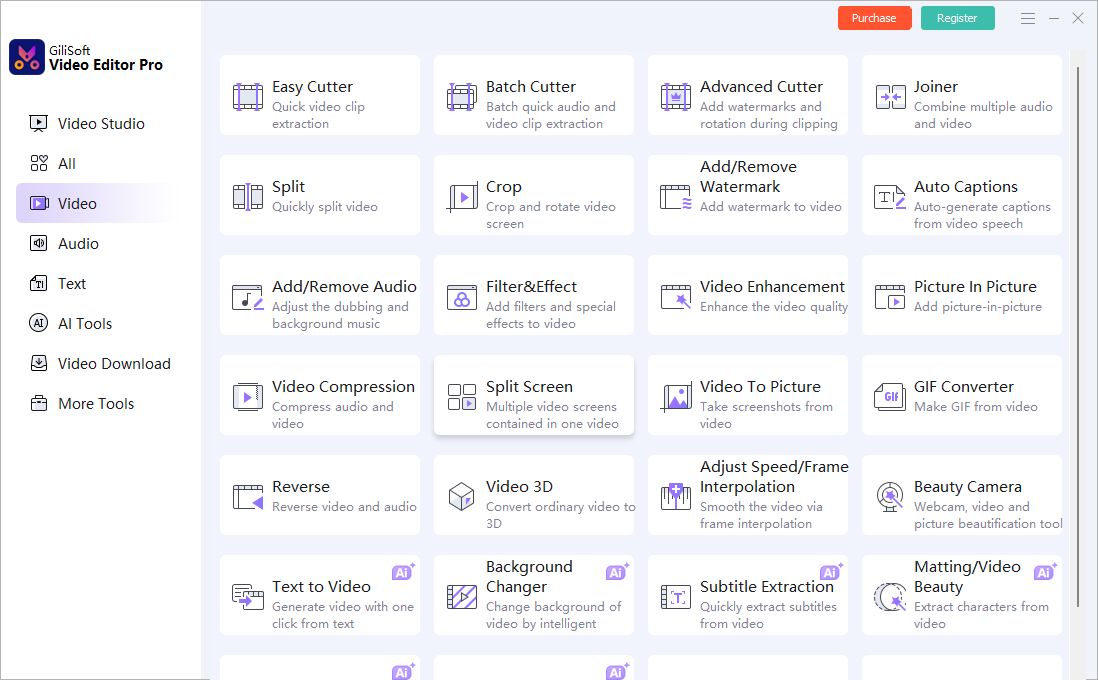
For one authorized VOB file, open Easy Cutter in GiliSoft Video Editor Pro, mark the range to keep, preview picture and audio at both boundaries, and export a separate result. Check adjacent VOB files first when the desired scene crosses a DVD segment boundary.
Choose the right VOB cutting workflow
| Goal | Recommended tool | Why it fits |
|---|---|---|
| Extract one or more scenes from one VOB file | Easy Cutter | Focused range selection without building a full project |
| Cut several independent VOB files | Batch Cutter | Repeats the cutter workflow across multiple sources |
| Cut plus crop, watermark, or rotate | Advanced Cutter | Combines clip extraction with visual adjustments |
| Join segments, add transitions, titles, or separate audio | Video Studio | Provides a timeline for a complex multitrack result |
How to cut a VOB file on Windows
-
Keep the source and identify the correct VOB segment
Work only with authorized, accessible files. Play the source and nearby VTS segments to confirm title order, scene continuity, language track, subtitles, aspect ratio, and whether the footage is interlaced.
-
Open the focused cutter
Choose Easy Cutter for one VOB file, Batch Cutter for several independent files, or Advanced Cutter when the clip also needs cropping, a watermark, or another visual adjustment.
-
Add the VOB file and mark the scene
Set the start and end around complete action and dialogue. If the scene continues into the next VOB file, confirm the sequential source before creating the final edit.
-
Preview video, audio, and subtitles
Review several seconds around both cut points. Check MPEG-2 keyframe behavior, AC-3 audio sync, subtitle timing, field motion, and whether the first frame freezes or breaks up.
-
Choose the output for its destination
Preserve 4:3 or 16:9 display shape, select a suitable frame-rate and deinterlacing policy, and retain the required audio channels. Use a compatible delivery format only when the destination needs one.
-
Verify the exported clip
Open the result outside the editor and check both boundaries, duration, picture shape, combing, motion, audio sync, subtitles, and playback on the intended device.
Preserve VOB picture, audio, and timing
- Preserve display aspect ratio. DVD pixels may not be square, so stored dimensions alone do not determine whether the image should display as 4:3 or 16:9.
- Check interlacing. Motion can show comb-like lines when fields are handled incorrectly; deinterlace only when the destination requires progressive video.
- Verify the selected audio stream. VOB can contain multiple languages or AC-3 channel layouts that the output must retain or deliberately convert.
- Keep the source files. Export a separate clip so title order, chapters, subtitles, or another audio track can be recovered.
Understand VOB segments and keyframes
DVD-Video often divides one title into files such as VTS_01_1.VOB, VTS_01_2.VOB, and later sequential segments. A scene near a file boundary may need adjacent segments handled in order before the final range is cut.
MPEG-2 cuts are also influenced by keyframe placement. A fast cut near a keyframe may avoid a full encode, while an exact boundary, visual adjustment, deinterlacing, or format change requires re-encoding. This workflow does not bypass disc encryption or copy protection.
Fix common VOB cutting problems
The cut begins early, late, or with a frozen frame
The selected point may fall between MPEG-2 keyframes. Use a frame-accurate export or move the boundary to a nearby natural scene change.
The exported picture looks stretched
Preserve the source display-aspect signal rather than relying only on its pixel dimensions. Confirm whether the intended presentation is 4:3 or 16:9.
Moving subjects show comb-like lines
The source is probably interlaced. Preview at full motion and choose an appropriate deinterlacing method only for a progressive destination.
Audio is missing, wrong, or out of sync
Check the selected language stream, AC-3 channel layout, and timestamps. A title split across VOB segments also needs the correct sequential file order.
Frequently Asked Questions
How do I cut a VOB file on Windows?
Open Easy Cutter in GiliSoft Video Editor Pro, add the authorized VOB file, mark the range to keep, preview video and audio at both boundaries, and export a separate result.
Can I cut VOB without losing quality?
A compatible keyframe-aligned cut may avoid full re-encoding. Exact boundaries, effects, resizing, deinterlacing, or format conversion require a new encode.
Why is one DVD title stored in several VOB files?
DVD-Video commonly divides a title into sequential VOB segments. Confirm the VTS file order and continuity before cutting a scene that crosses a file boundary.
Why does a VOB file look stretched after export?
DVD video can use non-square pixels and aspect-ratio signaling. Preserve the correct display aspect ratio, usually 4:3 or 16:9, instead of relying only on stored pixel dimensions.
Can protected commercial DVDs be cut with this workflow?
This page covers authorized, accessible VOB files and does not provide a method for bypassing disc encryption or copy protection.