
VOB Joiner for Windows: Merge VOB Files in the Correct Order
A DVD-Video title can be divided across several VOB files. Joining the correct numbered segments can create one continuous video, but the files must be placed in title-set order and checked for MPEG-2 video, audio-track, aspect-ratio, interlacing, timestamp, and boundary differences.
Quick answer
For authorized, unprotected files from one title set, add VTS_01_1.VOB, VTS_01_2.VOB, VTS_01_3.VOB, and later segments in ascending order. In GiliSoft Video Editor Pro, open Video > Joiner, arrange the VOB files, preview every connection point, and export one verified video. Do not mix menu files or unrelated title sets unless you have previewed and intentionally selected them.
Understand VOB file names before merging
| Example | Common role | Include in the main join? |
|---|---|---|
| VIDEO_TS.VOB | Top-level DVD menu or navigation video | Usually no |
| VTS_01_0.VOB | Menu material for title set 01 | Usually no |
| VTS_01_1.VOB | First main segment in title set 01 | Usually first |
| VTS_01_2.VOB | Next main segment in the same title set | Usually second |
| VTS_02_1.VOB | First segment of a different title set | Only if that separate content is intended |
Check the VOB streams and boundaries
| Check | Possible problem | Recommended action |
|---|---|---|
| Video properties | Resolution, aspect ratio, frame rate, or interlacing changes | Choose one consistent output and preview motion carefully |
| Audio tracks | Language, codec, channel layout, or level changes | Select the required audio and listen across every join |
| Subpictures or subtitles | Subtitle streams may not survive a flattened video workflow | Confirm whether subtitles must be exported separately or added later |
| Timestamps | Audio drift, wrong duration, or failed seeking | Create a normalized export when direct joining fails |
| Boundary frames | Repeated frames, a black flash, or a brief gap | Trim and preview several seconds around the connection |
How to join VOB files with GiliSoft Video Editor Pro
- Work only with authorized, unprotected files
Copy the permitted VOB files to a local working folder and preserve the original VIDEO_TS structure as a backup.
- Identify one title set
Preview the files and select the numbered main-title segments that belong together. Avoid menu VOBs and unrelated title sets.
- Open the dedicated Joiner
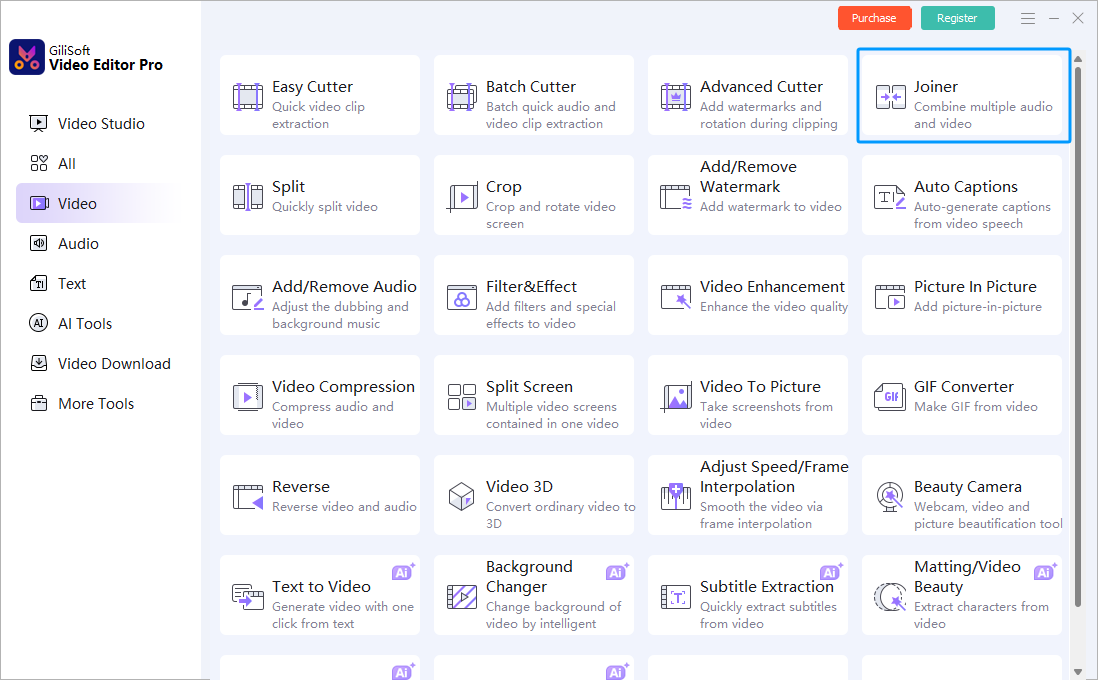
Launch GiliSoft Video Editor Pro, choose Video, and select Joiner.
- Add the files in numeric order
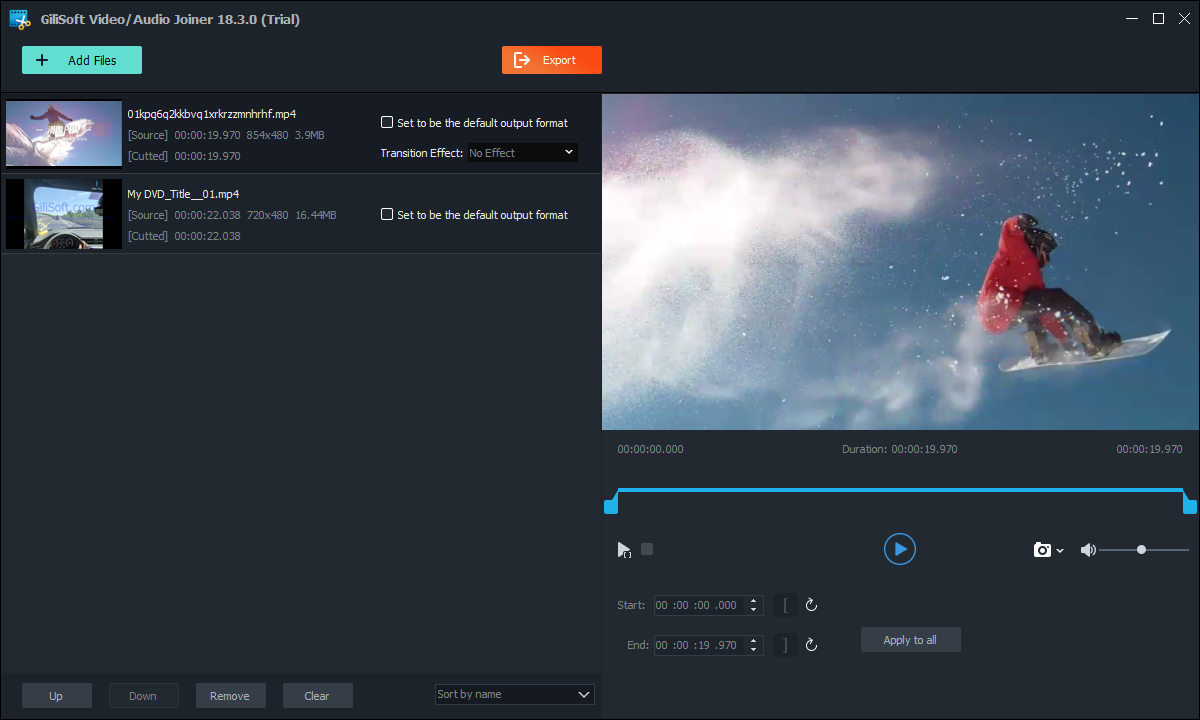
Place the first title segment at the top, followed by the next numbered parts. Use Up and Down to correct the sequence.
- Preview every connection
Check for repeated frames, black flashes, gaps, audio changes, subtitles, and synchronization around each boundary.
- Export and verify the result
Choose the required output, save a new file, and check the beginning, every join, middle, ending, duration, audio, and playback outside the editor.
Merging VOB files does not recreate a complete DVD
A joined video is a flattened playback file. It does not automatically preserve or rebuild the original DVD menus, navigation commands, chapters, multiple camera angles, complete subtitle behavior, or the full VIDEO_TS folder.
If the goal is to preserve an entire authorized disc structure, keep a verified backup of all required DVD files. Use a VOB joiner when the goal is specifically to create one continuous video from selected title segments.
Use Video Studio only for a broader edit
The dedicated Joiner is the better starting point for simple sequencing. Move to Video Studio when the project needs titles, overlays, multiple tracks, detailed transitions, cropping, or other scene-level changes.
Fix common VOB joining problems
The segments play in the wrong order
Check the complete title-set and segment numbers, then preview the ending and beginning of adjacent files. Do not sort only by file size or modification date.
Audio becomes out of sync
Timestamp discontinuities or different stream parameters may be responsible. Export the selected segments through one consistent profile and verify every boundary.
A short scene repeats at the join
DVD segments can include boundary material that overlaps or repeats. Trim the duplicate frames and preview the connection before exporting again.
The output has the wrong aspect ratio
VOB video may rely on display-aspect information rather than square pixels. Choose an output that preserves the intended 4:3 or 16:9 presentation without stretching.
Menus or chapters disappeared
That is expected in a flattened joined video. A VOB joiner combines selected video segments; it does not rebuild DVD navigation.
VOB joiner FAQ
Can I merge VTS_01_1.VOB, VTS_01_2.VOB, and later parts?
Yes, when they are authorized, unprotected segments from the same title set. Add the numbered parts in ascending order, preview every boundary, and export one verified video.
What order should VOB files use?
Main-title segments commonly follow a pattern such as VTS_01_1.VOB, VTS_01_2.VOB, and VTS_01_3.VOB. A different title-set number, such as VTS_02, usually belongs to different content. Preview the files because disc structures can vary.
Can a VOB joiner remove DVD copy protection?
No. This workflow is for unprotected VOB files or content you are authorized to edit. It does not bypass encryption, access controls, or other protection.
Can VOB files be joined without re-encoding?
Sometimes, when adjacent segments contain compatible streams and timestamps. A new export is safer when the sources differ or direct joining creates sync, timing, or playback problems.
Does merging VOB files preserve the complete DVD menu?
No. Combining VOB video segments creates a continuous video file; it does not rebuild the original DVD navigation, menus, chapters, multiple angles, or complete VIDEO_TS structure.