

Match the Black Screen Pattern to Its Likely Cause
The fastest diagnosis is to record a simple Windows window first. If that works, the issue is probably specific to the original application or video surface.
| What turns black? | Likely explanation | First test |
|---|---|---|
| Every recording | Wrong monitor, capture failure, permission, or graphics-driver problem | Record a small region containing a normal Windows window |
| Only one application | Hardware acceleration, secure rendering, or minimized-window behavior | Use windowed mode and try a custom region |
| Only protected video | The service or player may intentionally block capture | Use an authorized replay, download, or source instead |
| Exclusive full-screen game or app | Rendering mode may not match desktop/window capture | Switch to windowed or borderless mode and retest |
| One monitor in a multi-display setup | The wrong display or GPU path may be selected | Confirm the monitor and test the same region on the primary display |
Fix a Black Screen Recording on Windows
Test ordinary desktop content
Record File Explorer or another normal Windows window. A successful test shows that the recorder can capture the desktop normally.
Confirm the screen and capture area
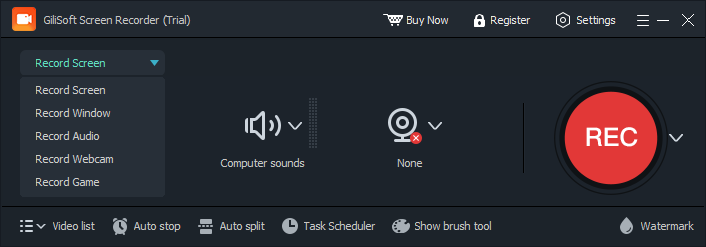
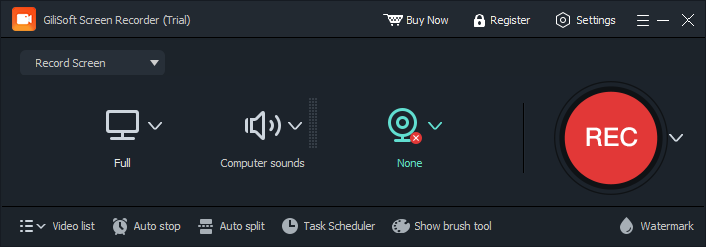
Select the correct monitor, window, or custom region. Keep the source visible rather than minimized.
Switch out of exclusive full screen
Run the affected application in windowed or borderless mode, then test window and custom-region capture.
Test graphics acceleration carefully
When an ordinary browser or application is affected, close important work and test its supported hardware-acceleration setting, then restart the application.
Align graphics processing when possible
On dual-GPU systems, a recorder and target application using different graphics processors can behave differently. Use normal Windows graphics settings and test again.
Update and restart
Install appropriate Windows and display-driver updates, restart the PC, and make another short test before the full session.
Know When a Black Result Is Intentional
Protected streaming playback
Subscription services and protected players may deliberately return a black image during capture.
Secure application windows
Password, financial, enterprise, or remote-session software may restrict screen capture by design.
Organization policy
Managed PCs can block capture or limit applications through security settings.
Authorized alternatives
Use an official replay, export, download, or content-owner source when recording is restricted.
Avoid Changes That Create More Problems
- Do not disable security controls or attempt to bypass DRM or protected playback.
- Change one setting at a time and keep a short before-and-after test so the cause remains clear.
- Close important documents before restarting applications, drivers, or Windows.
- Return hardware acceleration to its original setting if it does not solve the issue.
- Do not assume a black preview and a black saved file are identical; review the actual short recording.
Frequently Asked Questions
Why is my screen recording completely black?
The wrong monitor or source may be selected, the capture mode may not match the application, or a graphics or permission problem may affect all recording.
Why does only one application record as black?
That application may use hardware acceleration, secure rendering, an exclusive full-screen mode, or protected playback.
Can changing capture mode help?
Yes. Test screen, window, and custom-region recording because applications can behave differently with each mode.
Should I disable hardware acceleration?
Only test it for ordinary applications when appropriate. Restart the application after changing it, and restore the original setting if it does not help.
Why is streaming video black but the rest of the screen records?
The service may use protected playback that intentionally prevents capture. Do not try to bypass it; use an authorized source.
Can display drivers cause black recordings?
Yes. A damaged or outdated graphics driver can contribute, especially when normal desktop content is also black. Test simple content before updating.
More Screen Recording Guides
Continue with the workflow or troubleshooting guide that matches the next recording task.