
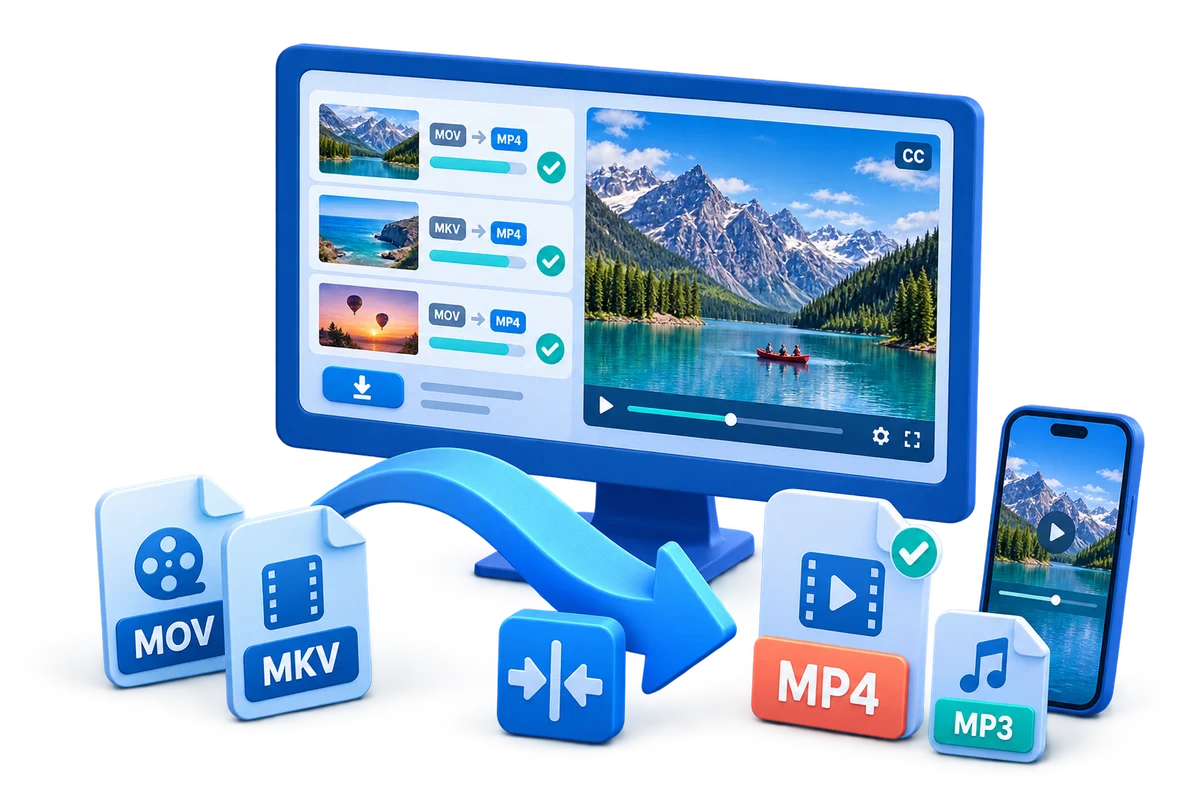
Xvid to MP4 Converter for Windows
Xvid is a video codec, often stored in an AVI file; MP4 is a file container. Renaming .avi to .mp4 does not change the video or audio streams. To make a copy for a device or service that requires MP4, select a compatible output profile and check the converted file before sharing it.
Quick answer
Open the Xvid file in GiliSoft Video Converter, choose an MP4 output profile, and convert a short sample. For broad playback compatibility, start with H.264 video and AAC audio if the destination supports them. Check picture, sound, and subtitles on the target device, then convert the full file while keeping the original.
Match the Output to the Destination
| Goal | Recommended setting | Verification |
|---|---|---|
| Destination compatibility | For broad compatibility, start with H.264 video and AAC audio unless the destination specifies another combination. | Play the output on the actual device or service and inspect motion, subtitles, audio sync, and seeking. |
| Source has subtitles or extra tracks | Select only the streams that should survive the conversion | Required language, captions, chapters, and audio remain available |
| Source quality is limited | Avoid upscaling and excessive bitrate | The file is not larger without a visible benefit |
Step-by-Step Conversion Workflow
-
Inspect the source before converting
Play the source file and note its resolution, audio language, and any subtitles. Keep the original unchanged.
-
Choose an MP4 output profile
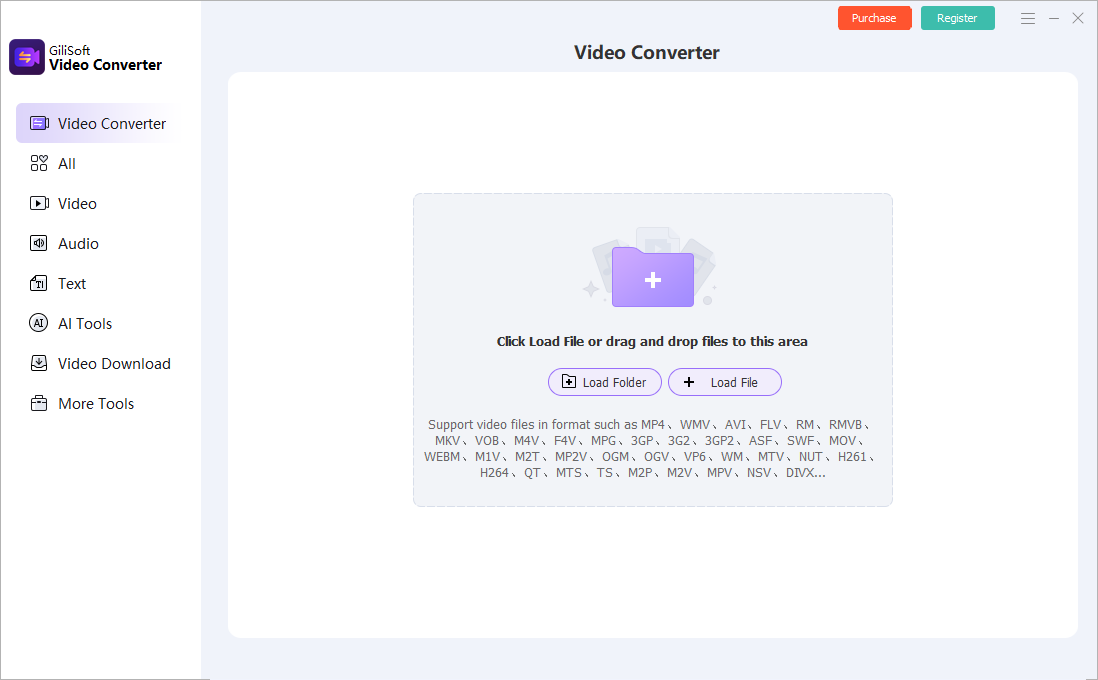
Add the file with Load File, then select an MP4 profile for the intended player, device, service, or editing application. Use H.264 video and AAC audio when available and appropriate for that destination.
-
Review tracks and output location
Check the selected audio and subtitle tracks, then choose where to save the new MP4. Do not overwrite the Xvid source.
-
Convert a representative sample
Include motion, speech, music, subtitles, scene changes, and the most difficult visual detail.
-
Verify the complete output
Play the output on the actual device or service and inspect motion, subtitles, audio sync, and seeking. Check the beginning, middle, ending, duration, file size, and synchronization.
Protect Quality and Important Tracks
- Keep the authorized source unchanged and export a separate delivery copy.
- Avoid increasing resolution or bitrate when the source does not contain more detail.
- Check audio language, channels, subtitles, chapters, frame rate, aspect ratio, and color information that the destination requires.
Limits to Understand
An MP4 file is not automatically compatible with every player: the video and audio codecs inside it also matter. An older AVI/Xvid source may need re-encoding, which can reduce quality; avoid unnecessary upscaling and test the result on the actual destination.
Frequently Asked Questions
Does changing a file extension convert the video?
No. A real conversion decodes the source streams and writes compatible output streams into the selected container.
Should I overwrite the source file?
No. Keep the source and export a new delivery copy so tracks, metadata, or quality can be recovered.
Why should I convert a short sample first?
It reveals wrong tracks, aspect ratio, interlacing, sync, subtitle, codec, and quality problems before a long batch.
Can conversion improve a low-quality source?
It can improve compatibility and sometimes reduce visible defects, but it cannot recreate detail that was never captured.