

AI Face Swap for Social Media: A Responsible Workflow
A social edit is judged on a small screen and often seen without its original context. Consent, readable framing, and clear labeling matter as much as visual polish.
Quick answer
Create an authorized swap in GiliSoft Face Swap, inspect it at full size, then preview it at the intended post size. Keep the original, choose an appropriate output format, and add context if viewers might assume it is genuine footage.
Before You Start
- Confirm permission to use source and target likenesses and check the platform's current rules.
- Choose the post format and aspect ratio before cropping important face details.
- Use cloud processing only when uploads are permitted; choose Offline FaceSwap Master for local work.
Choose the Right Approach
| Situation | Approach | Check |
|---|---|---|
| Static profile or campaign mockup | Photo face swap | Skin tone and edges still look sound after resizing |
| Short-form video | Video face swap | Face stays consistent through motion and cuts |
| Sensitive team or client content | Offline mode | Only approved people see the source and export |
AI Face Swap for Social Media: A Responsible Workflow: Step by Step
- Prepare a clear source
Select a face with similar pose, lighting, and expression to the target asset.
- Create the swap
Run the photo or video task in the chosen GiliSoft Face Swap mode.
- Inspect and crop
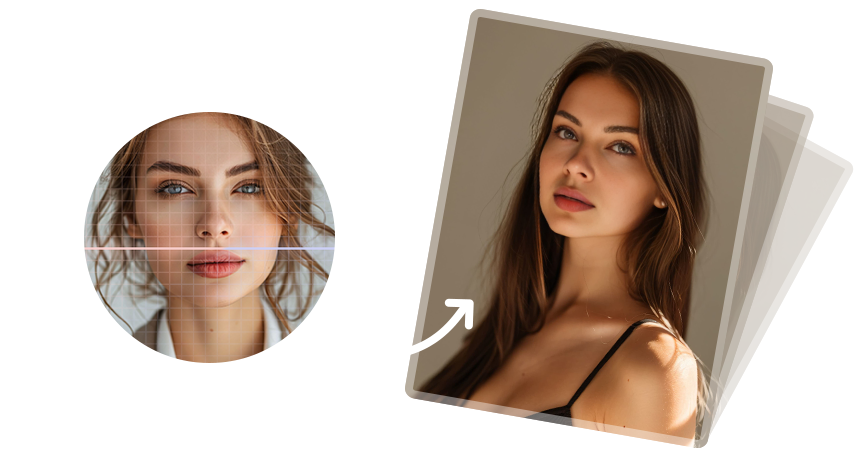
Check the face at full size, then preview a vertical, square, or landscape crop without cutting off the subject.
- Publish with context
Export the final version, verify it on a phone-sized preview, and disclose synthetic editing when needed.
Review the Result
- Look at the face in the platform crop, not only on a desktop canvas.
- For video, check several frames around head turns and scene changes.
- Avoid text or creative claims that falsely imply a real endorsement or event.
Limits and Common Mistakes
Platform disclosure and authenticity rules can change. Face swaps are not a license to impersonate, mislead, or use a person's likeness without appropriate permission.
Frequently Asked Questions
Should I label a face-swap post?
When viewers could mistake it for authentic media, clear creative context or a synthetic-content label is prudent and may be required by the platform.
What format should I export?
Match the destination's current requirements and test the actual displayed crop and compression.
Can I reuse one result across every channel?
Usually a separate crop and quality review helps each feed or story format.